
How to manage your notification preferences
Who can do this: All users
Choose which notifications you receive, and whether they come by email, in the app or as push notifications.
Step 1: Click your name at the bottom of the left navigation.
Step 2: Click Notification preferences.
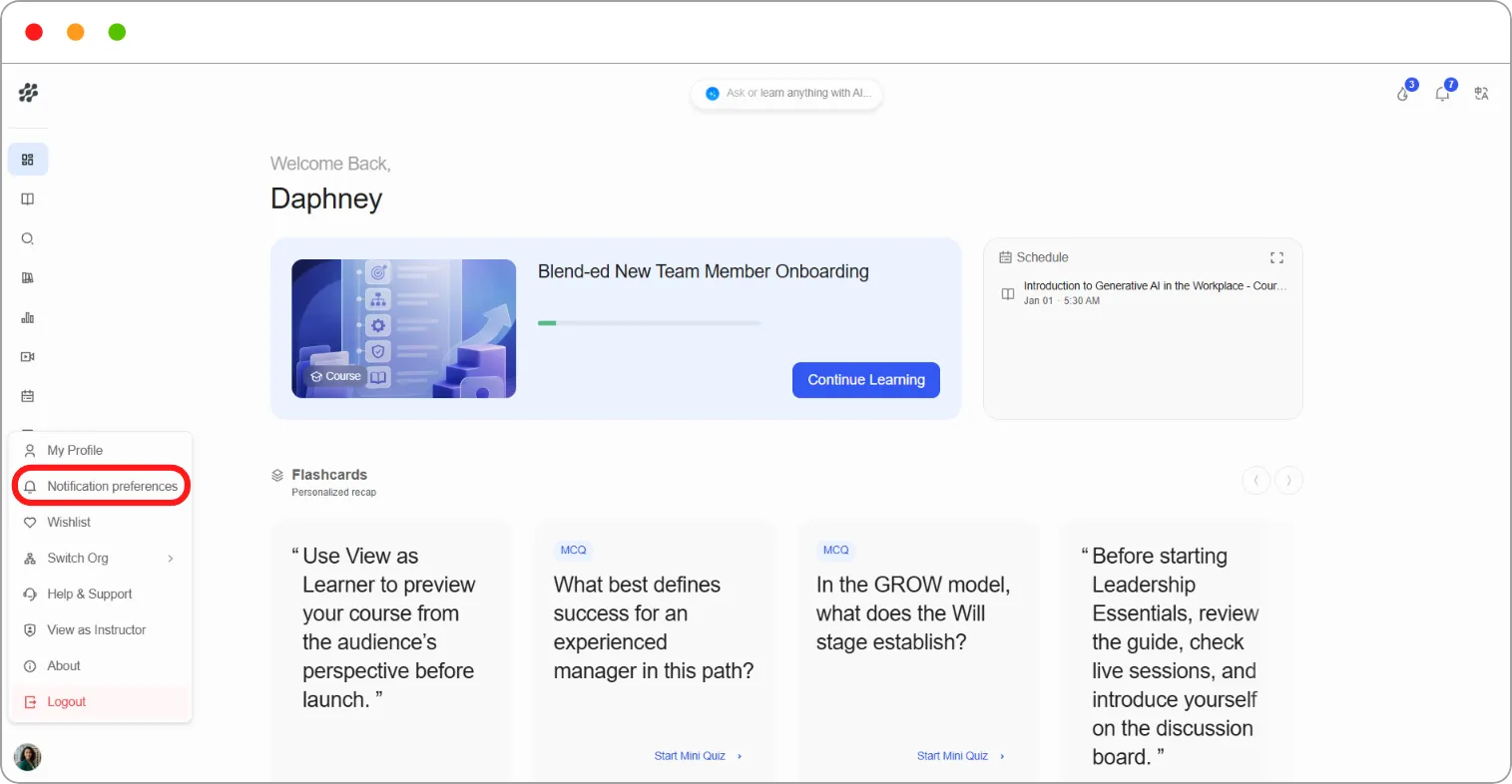
Step 3: For each notification, switch Email, In-app or Push on or off.
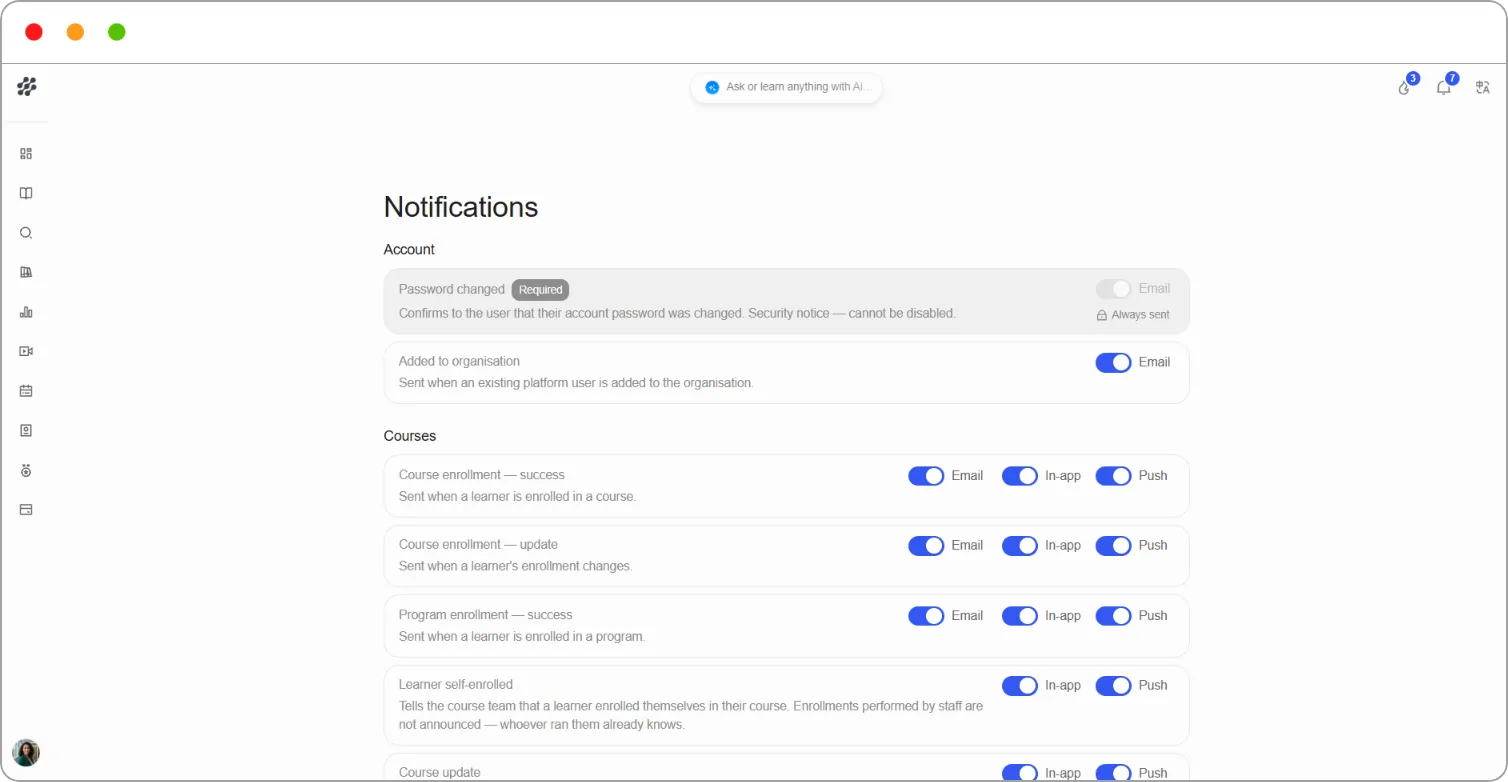
Notification groups
Section titled “Notification groups”| Group | Examples |
|---|---|
| Account | Password changes, being added to an organisation |
| Courses | Enrolments, course updates, audit access expiring |
| Certificates | Certificate earned, certificate expired |
| Payments | Payment failed, purchase completed |
| Support and discussions | Support ticket updates, replies and comments on discussion posts |
| AI course creation | When an AI-generated course has finished building |
| Progress nudges | Reminders for learners at risk of not completing a course |
| Teams | Messages sent to your team |
| Announcements | Announcements from staff |
Note: Notifications marked Required are always sent and can’t be switched off, for example Password changed. These are security and transaction notices.
Note: The notifications you see depend on your role. Staff and admins see extra options, such as alerts when a learner raises a support ticket.
Tip: If you’re getting too many emails, switch off Email for discussion notifications and keep In-app on. You’ll still see them when you sign in.