
How to block or unblock a user
Who can do this: Super Admin, Admin, or Staff with the User Management permission
Blocking prevents someone from signing in without removing them or their data. Use it when someone leaves, or while you investigate a problem.
Step 1: Go to Users > All.
Step 2: Find the user and click their row.
Step 3: Scroll to ACTIONS.
Step 4: Switch the Active toggle off to block them.
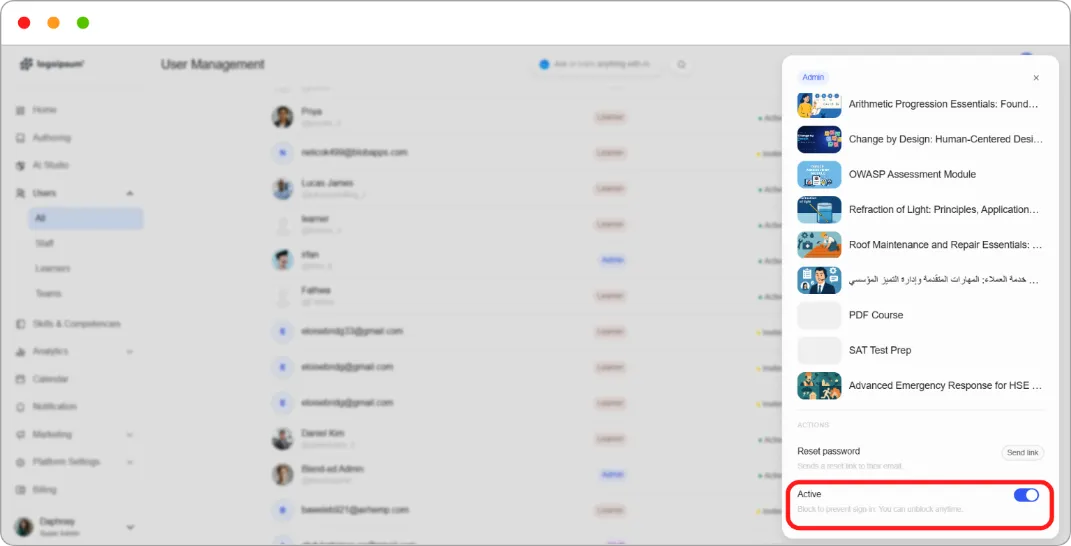
To unblock, switch the same toggle back on.
Note: Blocking is reversible. The user’s enrolments, progress, and certificates are all kept, and they return exactly as they were when unblocked.
Tip: Block rather than delete when someone leaves your organisation. If they come back, or if you need their completion records for an audit, everything is still there.