
How to customise your marketing landing page
Who can do this: Super Admin, Admin, or Staff with the Platform Settings permission
Your discovery page is where visitors browse your courses. The banner at the top is what they see first.
Step 1: Go to Marketing > Landing Page.
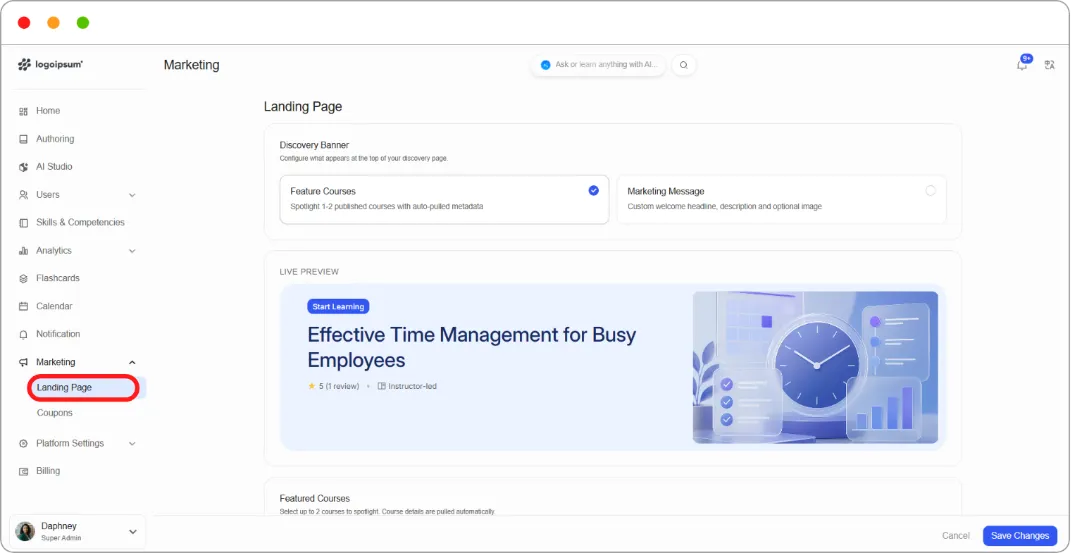
Step 2: Under Discovery Banner, choose what appears:
| Option | What it shows |
|---|---|
| Feature Courses | Spotlights one or two published courses, with details pulled in automatically |
| Marketing Message | A custom headline, description, and optional image |
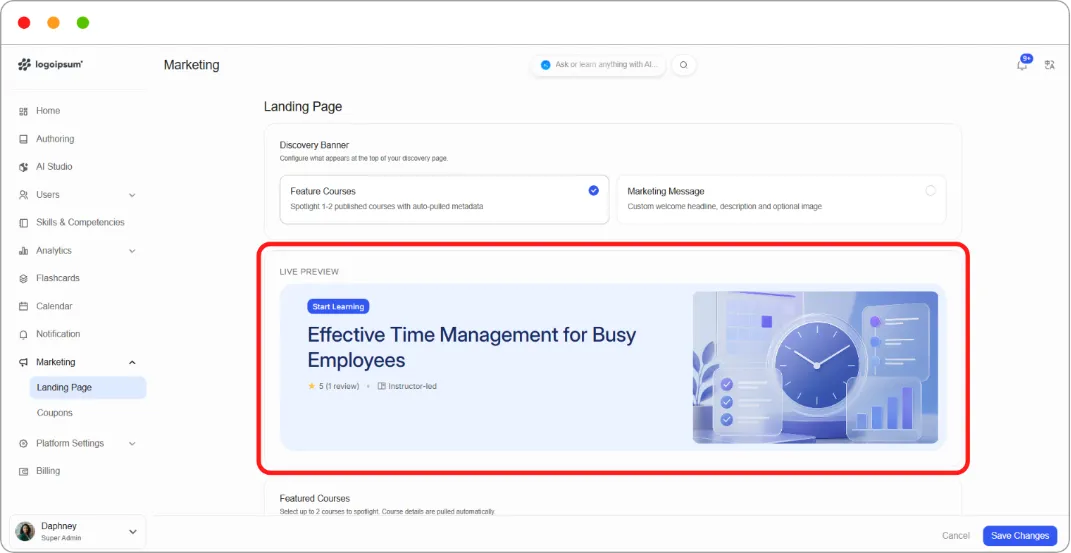
Step 3: Check the Live Preview, which updates as you edit.
If you chose Feature Courses
Section titled “If you chose Feature Courses”Step 4: Under Featured Courses, for each course:
| Field | What it does |
|---|---|
| Select course | Choose from your published courses |
| Badge Text | A short label, up to 15 characters, for example Start Learning |
| Banner image | PNG, JPG, or WEBP. Recommended 1200 × 630 px |
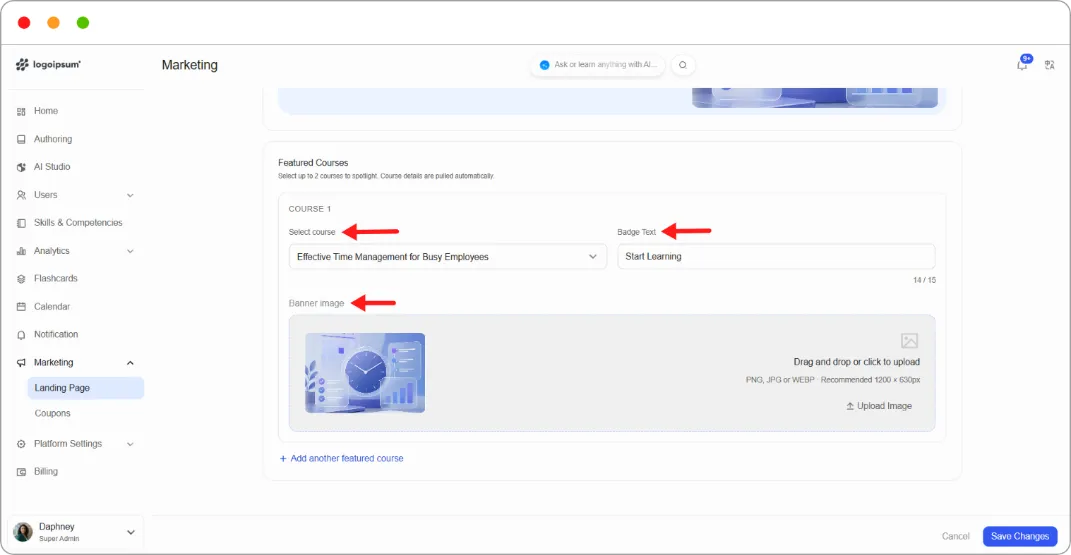
Step 5: Add a second course, or remove one with the trash icon.
Step 6: Click Save Changes.
Note: Course details are pulled automatically, so the title, rating, and review count stay current without you editing them.
If you chose Marketing Message
Section titled “If you chose Marketing Message”Step 4: Under Marketing Message, fill in:
| Field | Limit |
|---|---|
| Headline | 60 characters |
| Description | 150 characters |
Step 5: Upload a Banner image. PNG, JPG, or WEBP, recommended 1200 × 630 px.
Step 6: Under Choose a theme, pick a background colour from the ten presets, or enter your own hex value in the field below.
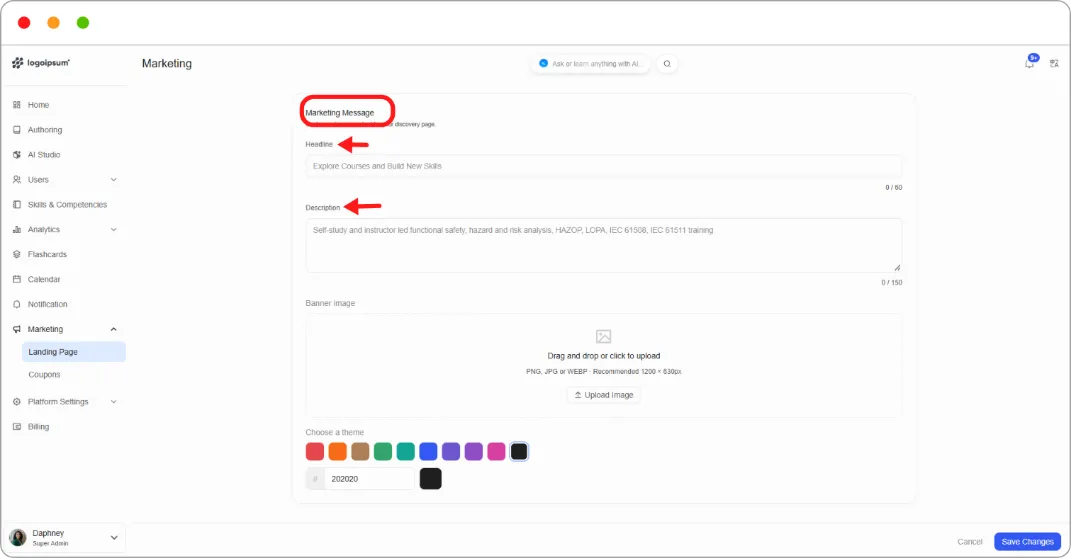
Step 7: Check the Live Preview and click Save Changes.
Tip: Feature a course that converts, not your newest one. The banner is prime space, and a course with reviews and a clear outcome does more work there than something you just published.
Tip: Use Marketing Message when your value proposition matters more than any single course. A training provider covering several standards is better served by one clear statement of what they teach than by spotlighting two courses out of forty.
Note: The theme colour here is independent of your platform brand colour. Set it to match, or deliberately contrast, depending on whether you want the banner to blend in or stand out.