
How to join a live session
Who can do this: Learners invited to the session
Live sessions are real-time classes run by your instructors. You join them directly in Blend-ed, with no separate app to install.
Finding a session
Step 1: Go to Live Sessions in the left navigation.
Each session shows its name and a status:
| Status | What it means |
|---|---|
| Live | The session is happening now and you can join |
| Scheduled | The session hasn’t started yet |
Use Search live sessions to find a session by name.
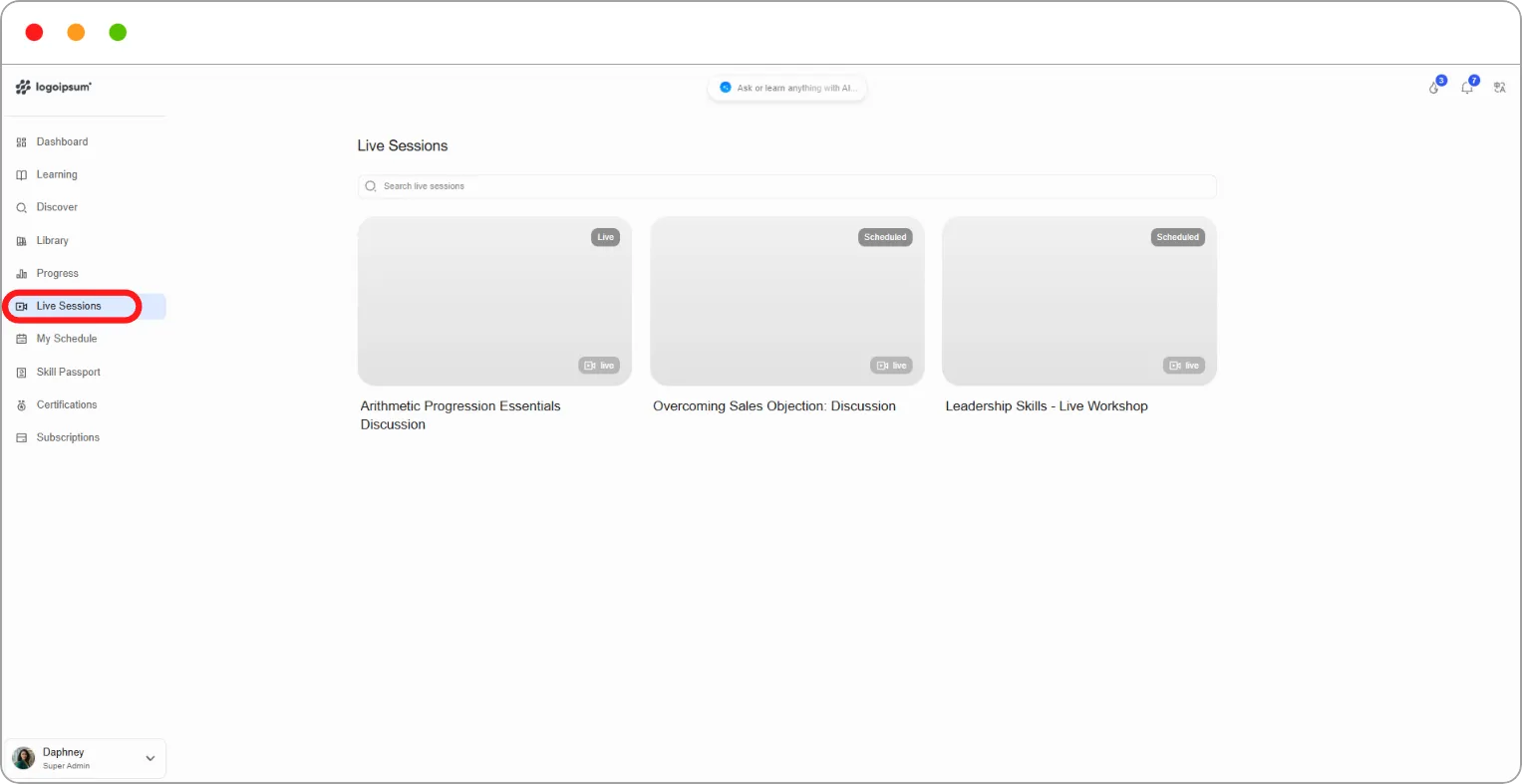
Step 2: Click a session to open its details.
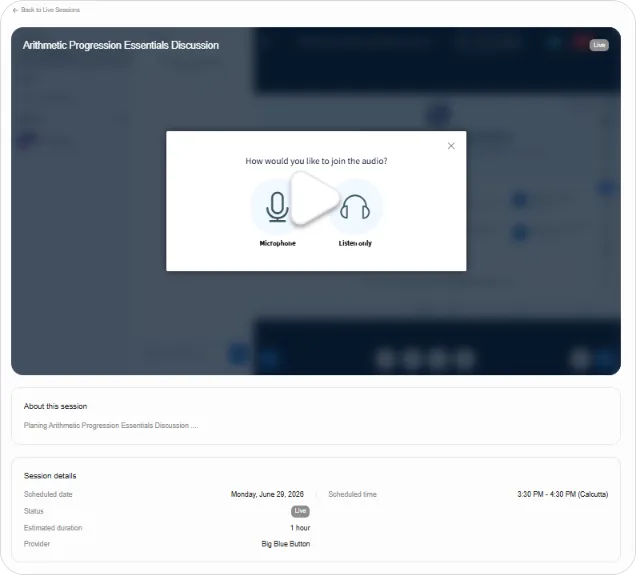
The session page shows About this session and Session details:
| Field | What it shows |
|---|---|
| Scheduled date | The day of the session |
| Scheduled time | The start and end time, with the time zone |
| Status | Live or Scheduled |
| Estimated duration | How long the session is expected to last |
| Provider | The video service used, for example Big Blue Button |
Joining a session
Section titled “Joining a session”Step 1: Open a session marked Live.
Step 2: Click the play button on the session.
The session opens inside Blend-ed.
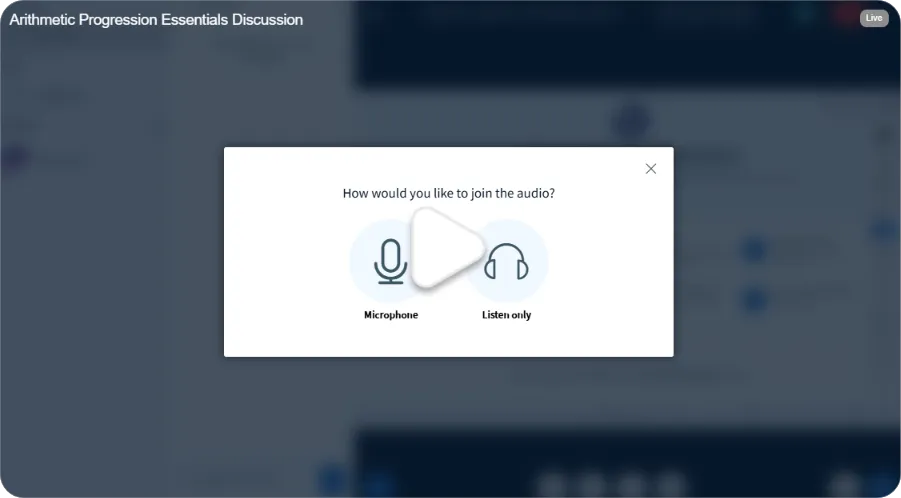
Step 3: Choose how to join the audio:
-
Microphone — you can speak and listen
-
Listen only — you can hear the session but not speak
Tip: Choose Listen only if you’re in a noisy place or only need to watch. You won’t need to remember to mute yourself.
Note: If your browser asks for permission to use your microphone or camera, click Allow. Without it, others won’t be able to hear you.
Tip: Check My Schedule for upcoming sessions so you don’t miss one. See How to view your schedule.
Related articles
-
Creating & Managing Live Sessions