
How to sign in and sign out
Who this is for: Everyone
Signing in
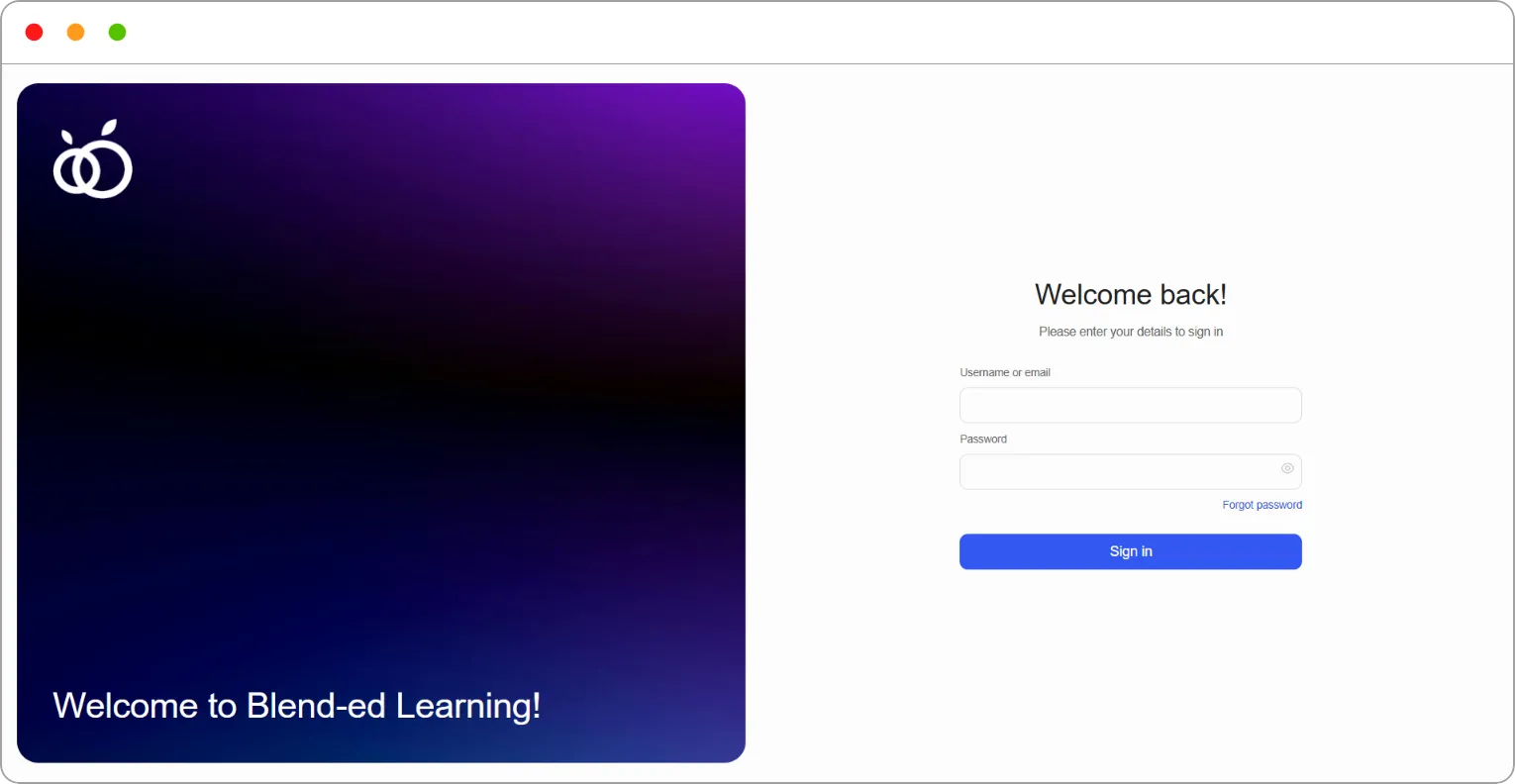
Section titled “Signing in”Step 1: Go to your organisation’s Blend-ed sign-in page.
The page shows Welcome back! Please enter your details to sign in.
Step 2: Enter your Username or email.
Step 3: Enter your Password. Click the eye icon to show what you’ve typed.
Step 4: Click Sign in.
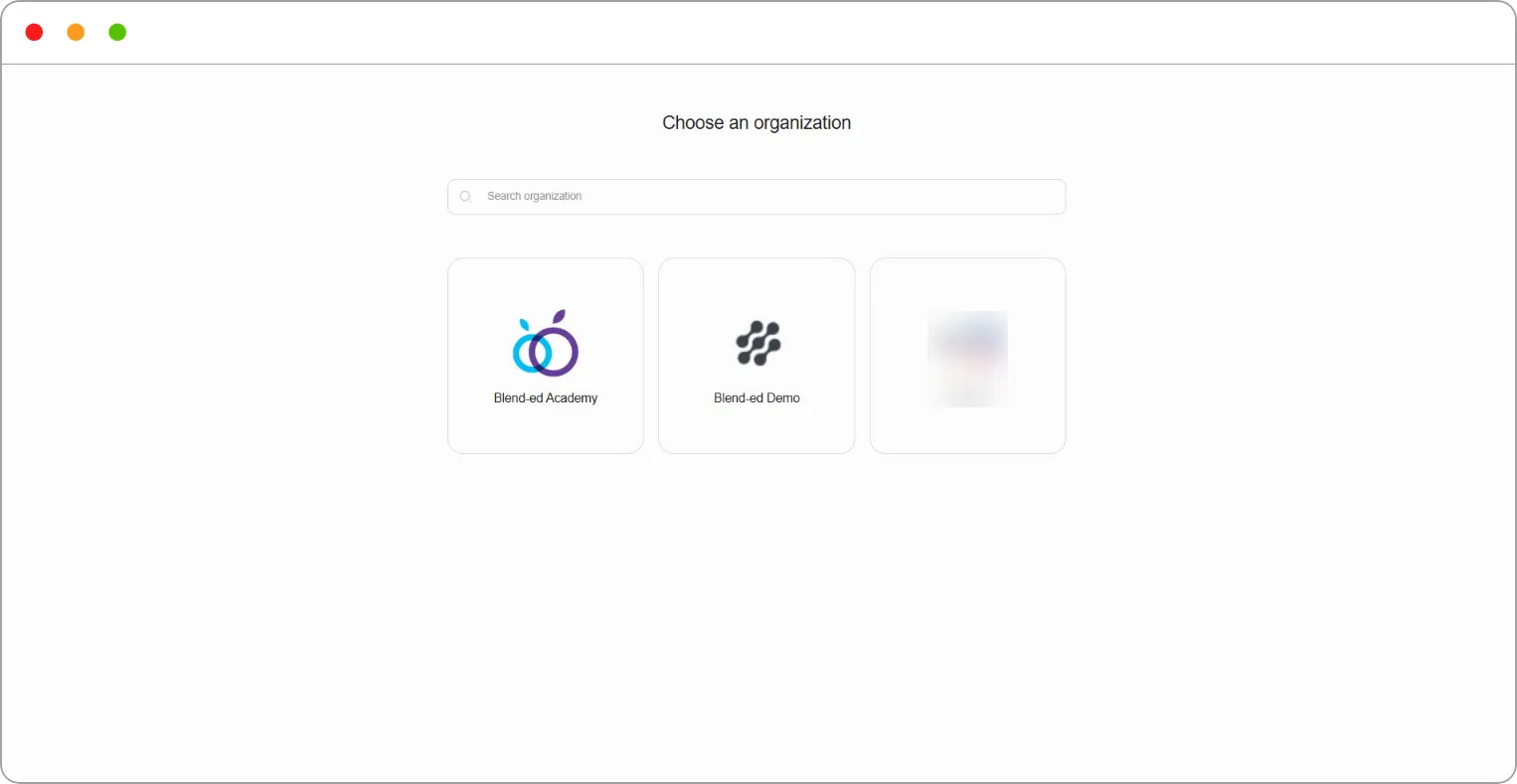
Step 5: If you belong to more than one organisation, the Choose an organization page opens. Click the organisation you want to work in. Use Search organization if your list is long.
What you see first depends on your role:
| Role | Where you land |
|---|---|
| Super Admin, Admin, Staff | Home, in the admin view |
| Learner | Dashboard, in the learner view |
Tip: You can sign in with either your username or your email address, whichever you remember.
Signing out
Section titled “Signing out”Step 1: Click your name at the bottom of the left navigation.
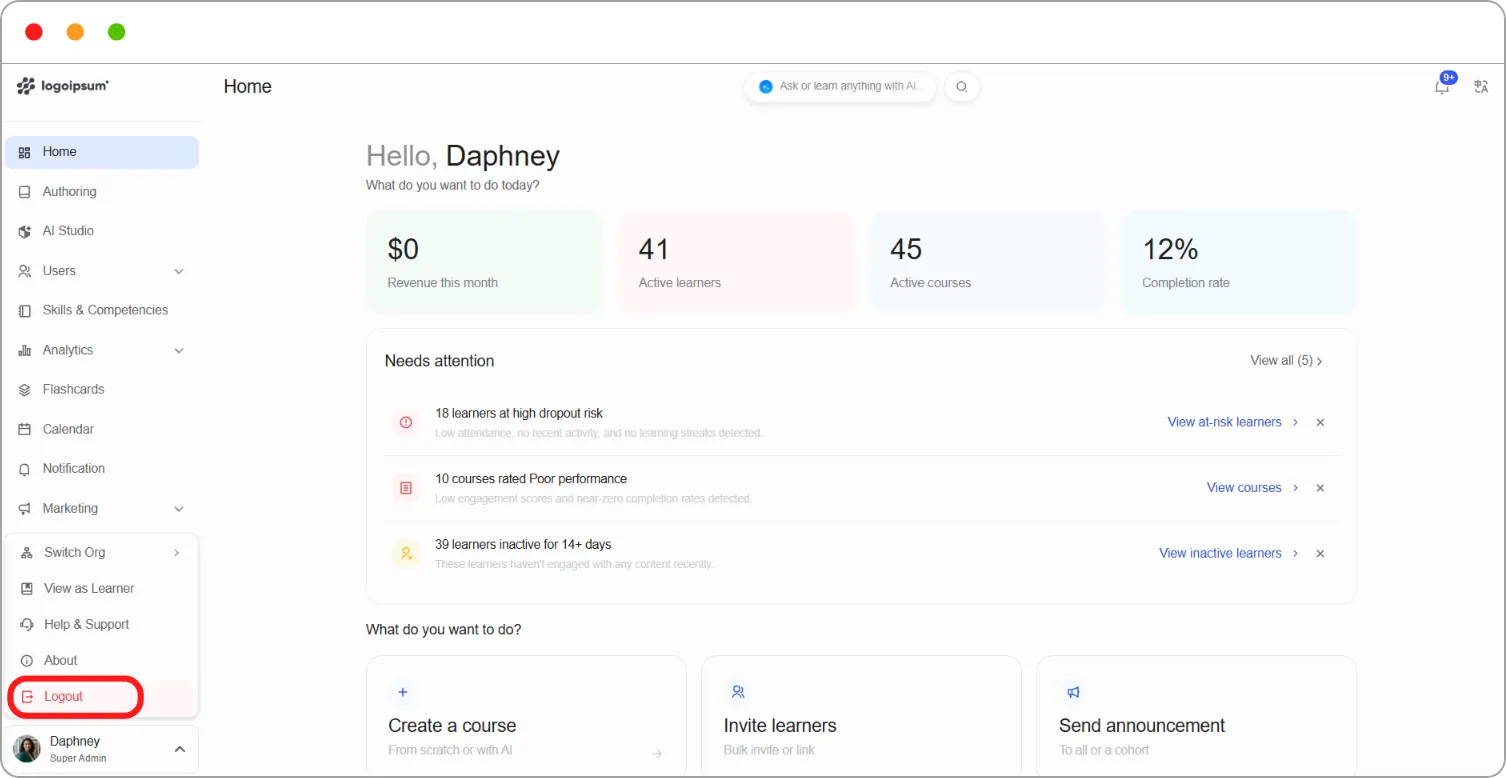
Step 2: Click Logout.
A confirmation reads You have signed out. Click Sign back in to return to the sign-in page, or Go to home page. If you don’t choose, you’re redirected automatically after a few seconds.
Tip: Always sign out on a shared or public computer.