
Understanding Course Structure (Studio Basics)
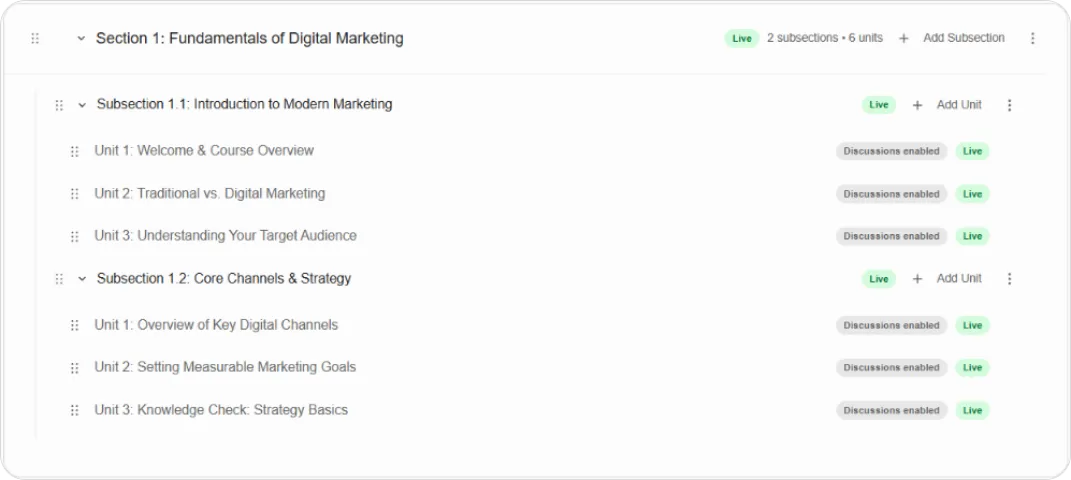
Every course on Blend-ed is built on the same three-level hierarchy, inherited from Open edX Studio. Understanding this structure makes it much easier to plan a course before you start building it.
The hierarchy
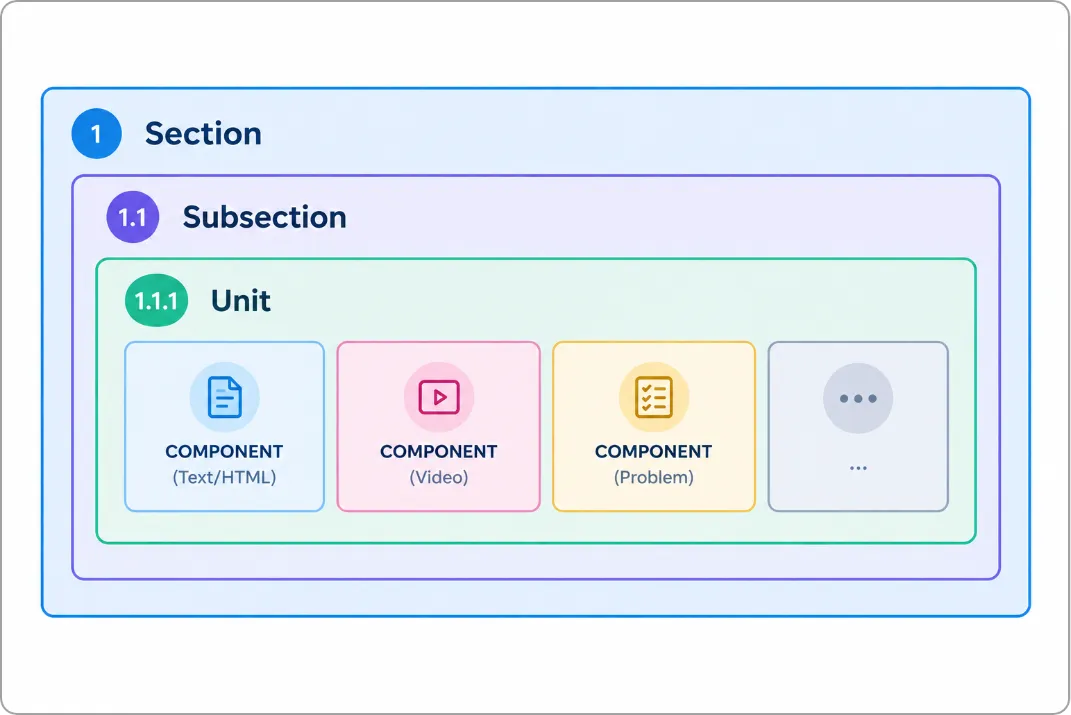
Section titled “The hierarchy”Section → Subsection → Unit
1. Section
The top level of a course — think of it as a module or chapter. Sections organize your course into broad topics or stages.
- Example: Module 1: Introduction to Digital Marketing
2. Subsection
Sits inside a Section — think of it as a lesson within that module. Subsections group related content together and are also where pacing (release dates) and grading category are typically set.
- Example: Lesson 1.1: What is Digital Marketing?
3. Unit
Sits inside a Subsection — this is where the actual content lives. A Unit is a single page a learner sees, built from one or more Components (Text, Video, Problem, etc.).
- Example: Welcome Video
Tip: A useful way to think about it — Section is the chapter, Subsection is the lesson, Unit is the page, and Components are what’s on the page.
Why the hierarchy matters
Section titled “Why the hierarchy matters”-
Organization — breaks a course into manageable, logical chunks for both you and your learners
-
Pacing & release — dates and availability can be set at the Subsection level, so you can drip-feed content over time
-
Grading — Subsections are typically tied to an assignment type (e.g. Homework, Final Exam) for grading purposes
-
Navigation — learners move through your course by expanding Sections → Subsections → Units, so a clear structure directly improves the learner experience
Managing each level
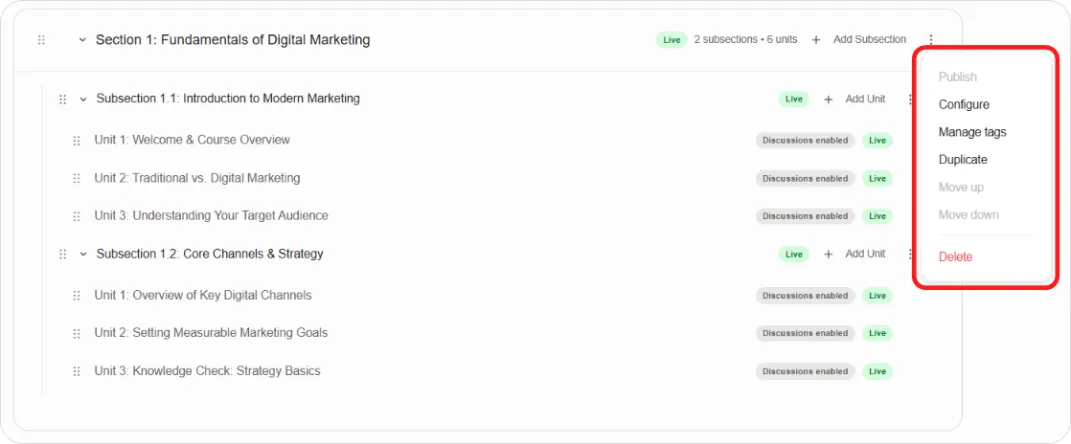
Section titled “Managing each level”Every Section, Subsection, and Unit has a ⋮ (more options) menu with the same set of actions:
-
Publish — make this item and its content live
-
Configure — open advanced settings for this item (release date, grading format/due date, visibility, and other scheduling options)
-
Manage tags — organize content with tags
-
Duplicate / Copy to clipboard — reuse this item elsewhere
-
Move up / Move down — reorder within its parent
-
Delete
Note: Configure is where release dates, grading category, and visibility settings live for each level
What’s next
Section titled “What’s next”-
Ready to build? See How to Create a Course (Manual)
-
Add content to your units: Adding Content Components