
How to edit a staff member's permissions
Who can do this: Super Admin, Admin, or Staff with the User Management permission
Before you start
Section titled “Before you start”The person must already have the Staff role. If they don’t, change their role first. See How to assign or change a user’s role.
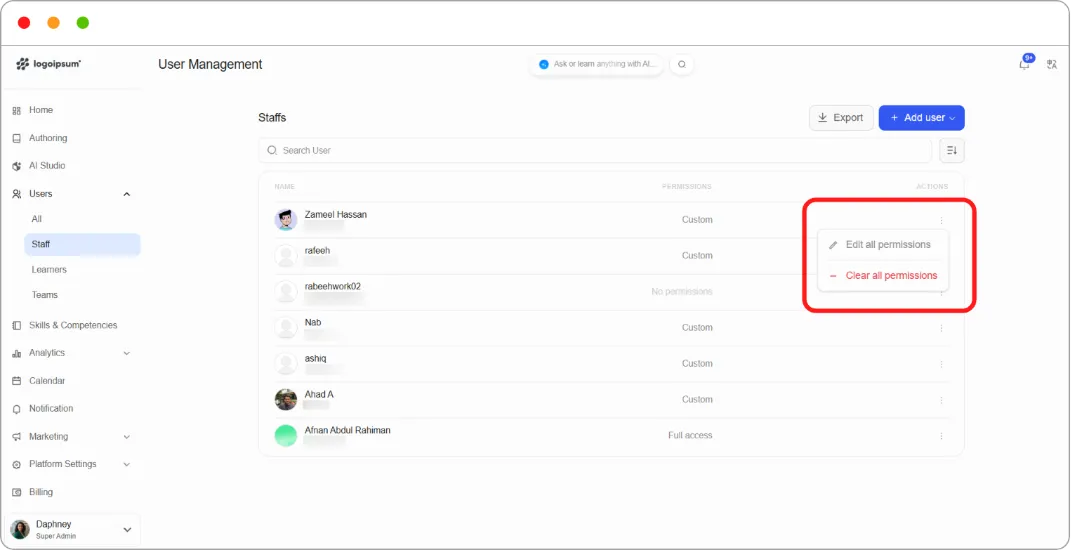
Step 1: Go to Users > Staff.
Step 2: Find the person and click the ⋮ menu at the end of their row.
Step 3: Choose Edit all permissions.
Step 4: A panel opens on the right listing every permission, grouped by category. Tick the permissions you want to grant and untick any you want to remove.
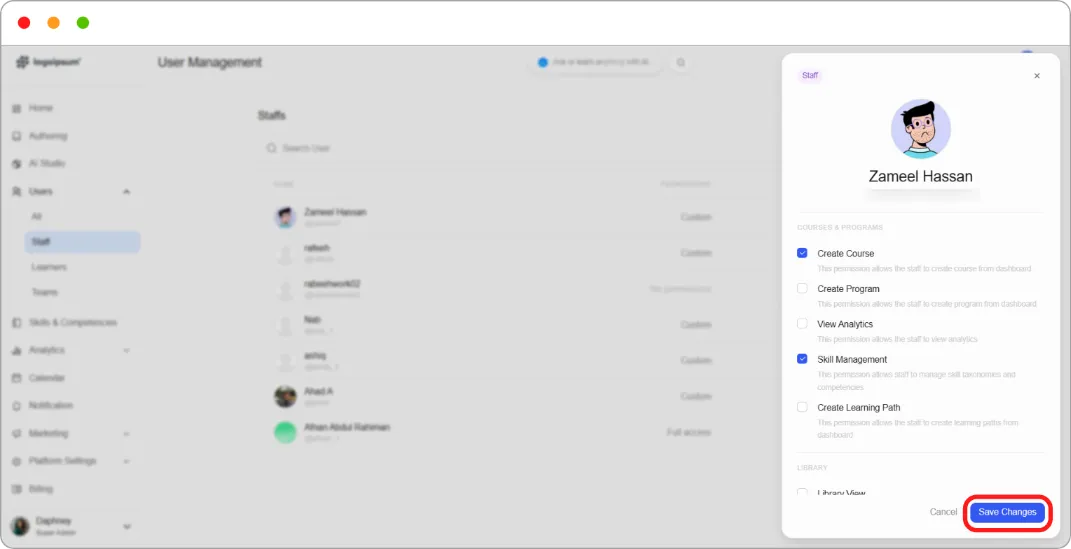
Step 5: Scroll through all five categories. The panel is longer than the screen, so check below Users & Settings before saving.
Step 6: Click Save Changes.
The Permissions column updates to Custom or Full access.
Tip: If you’re setting up the same kind of person repeatedly, use one of the recipe articles rather than deciding sixteen checkboxes each time. See How to create a course author role.