
General overview: Staff permissions
Who this is for: Super Admins, Admins, and Staff with the User Management permission
Permissions control what an individual Staff member can do. They apply only to the Staff role. Admins already have everything, and Learners have none of it.
Two staff members can have completely different access, which is the point: you grant exactly what each person’s job needs.
How to read the Staff tab
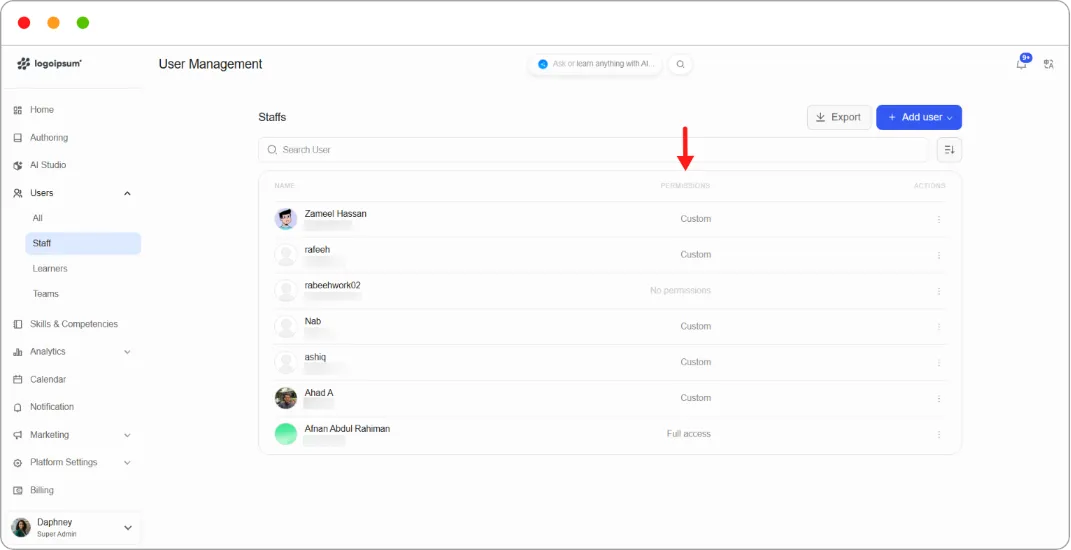
Section titled “How to read the Staff tab”Go to Users > Staff. Each row shows a permissions summary:
| Value | Meaning |
|---|---|
| Custom | Some permissions granted |
| Full access | All permissions granted |
The permission catalogue
Section titled “The permission catalogue”Permissions are grouped into five categories.
Courses & Programs
| Permission | Allows the staff member to |
|---|---|
| Create Course | Create courses from the dashboard |
| Create Program | Create programs from the dashboard |
| Create Learning Path | Create learning paths from the dashboard |
| View Analytics | View analytics |
| Skill Management | Manage skill taxonomies and competencies |
Library
| Permission | Allows the staff member to |
|---|---|
| Library View | View the contents of the library |
| Library Create | Create content in the library |
Live & Scheduling
| Permission | Allows the staff member to |
|---|---|
| Schedule Create | Schedule events |
| Notification Send | Send notifications |
Users & Settings
| Permission | Allows the staff member to |
|---|---|
| User Management | Manage users and their roles |
| Enrollment Management | Manage course enrolments |
| Platform Settings | Customise the platform settings |
| Billing View | View billing details |
Others
| Permission | Allows the staff member to |
|---|---|
| AI Studio | Access the AI Course Studio |
| Certificate View | View generated certificates |
Warning: User Management lets a staff member manage users and their roles, which includes their own. Grant it only to people you’d be comfortable making an Admin.
Tip: Library View without Library Create is a useful pairing. Someone can pull existing content into their courses without adding to the shared library, which stops it filling with one-off items.