
How to take part in course discussions
Who can do this: Learners enrolled in the course
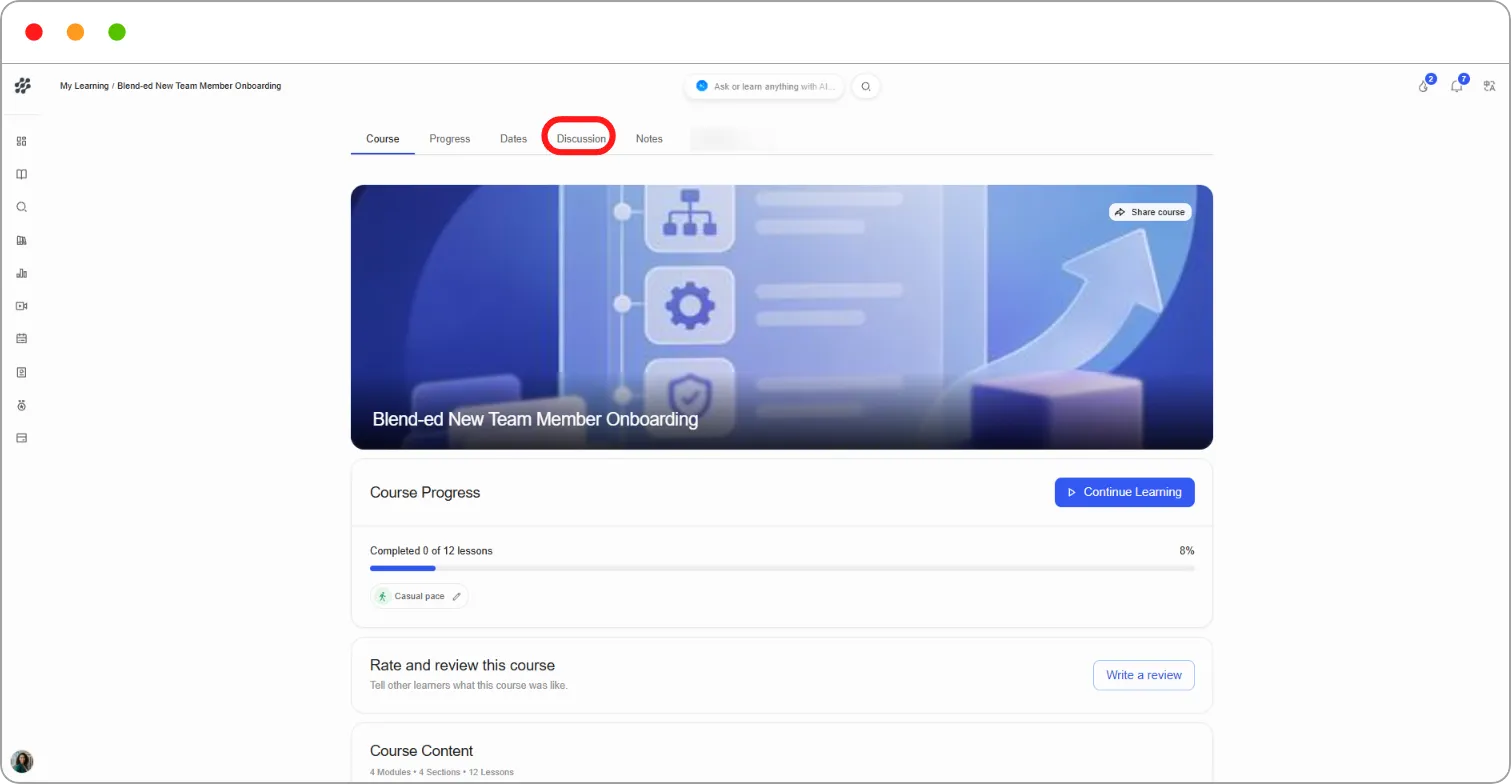
Each course has a discussion board where you can ask questions and talk with other learners and your instructors. You can post from inside a lesson or from the Discussion tab.
Posting from inside a lesson
Section titled “Posting from inside a lesson”Posting from a lesson links your post to that unit, so others can see exactly what you’re talking about.
Step 1: In the lesson, click the Discussions icon (speech bubble) at the top right.
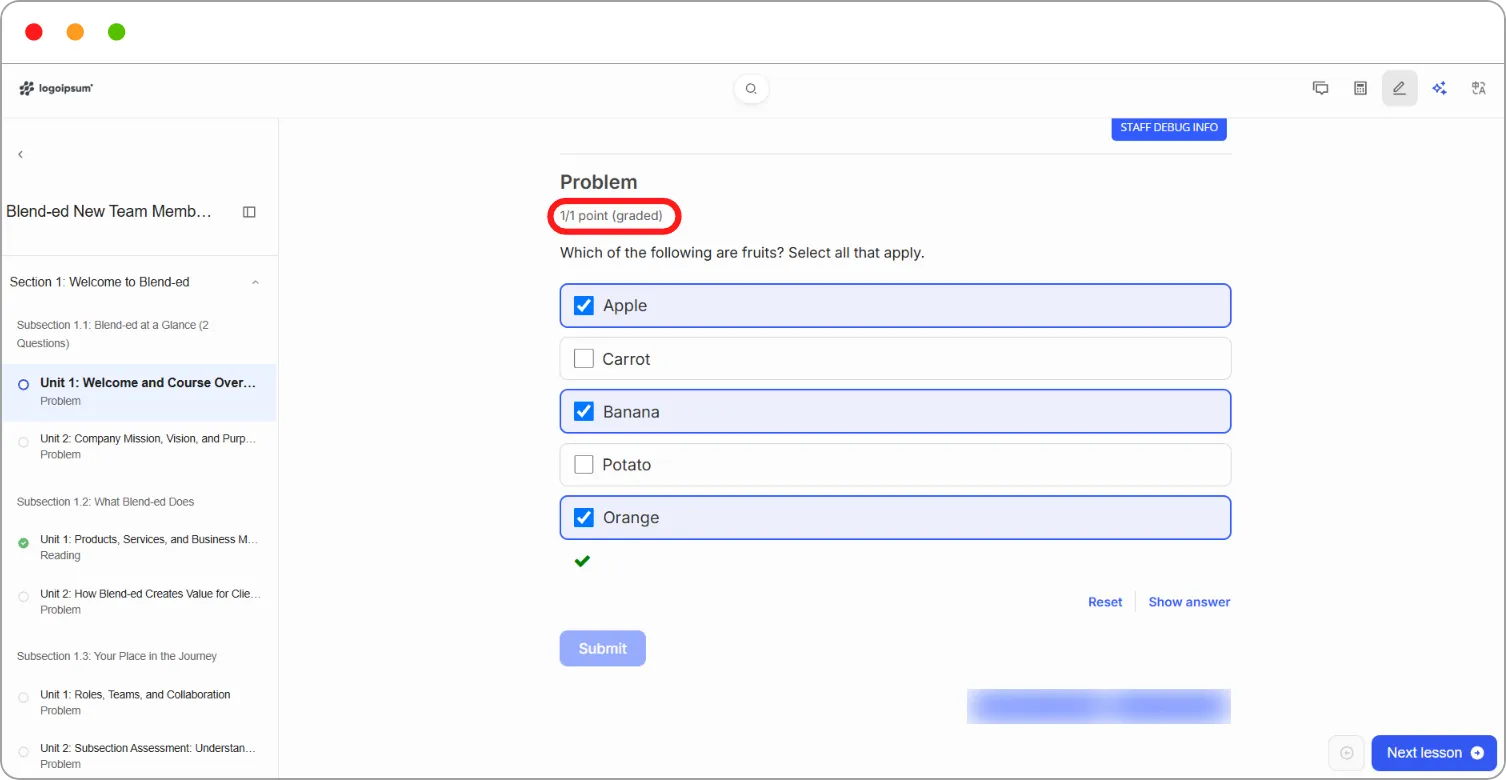
The Discussions panel opens and shows posts already made about this unit.
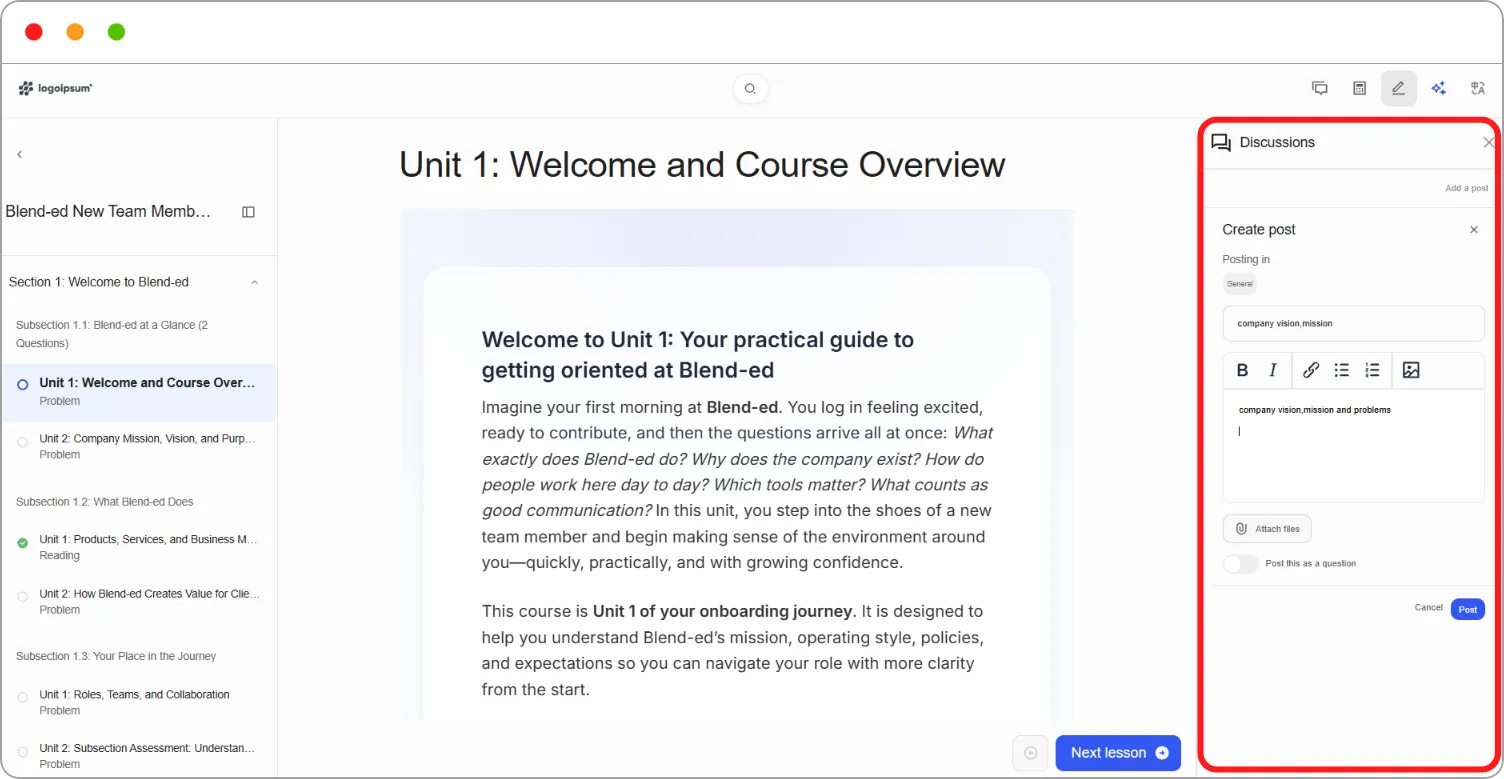
Step 2: Click Add a post.
Step 3: Check Posting in. It shows the unit and subsection your post will be linked to.
Step 4: Enter a Title, then write your post.
Use the toolbar to add bold or italic text, links, lists or images. Click Attach files to add a file.
Step 5: If you’re asking for help, switch on Post this as a question.
Step 6: Click Post.
Tip: Switch on Post this as a question when you need an answer. Your post is tagged Question, which makes it easier for instructors to spot and reply to.
Using the Discussion tab
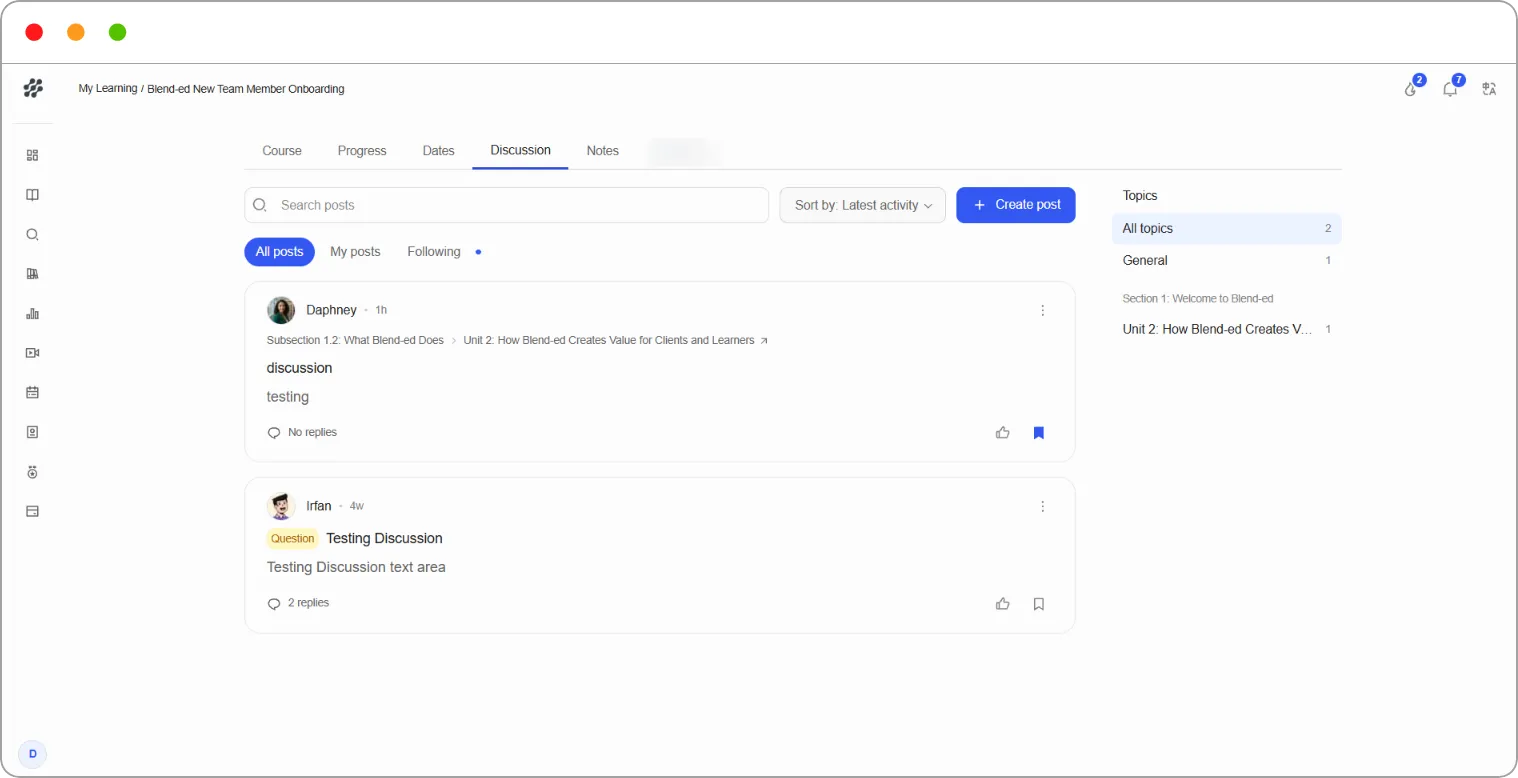
Section titled “Using the Discussion tab”The Discussion tab shows every post in the course.
| Item | What it does |
|---|---|
| Search posts | Finds posts by keyword |
| All posts / My posts / Following | Shows every post, only yours, or only the ones you follow |
| Sort by | Changes the order, for example Latest activity |
| + Create post | Starts a new post |
| Topics | Filters posts by topic, such as General or a specific unit |
Replying and managing posts
Section titled “Replying and managing posts”Each post shows its author, how long ago it was posted and how many replies it has.
Step 1: Click a post to open it.
Step 2: Read the replies underneath.
Step 3: To reply, type in Write a reply at the bottom. Click the paperclip icon to attach a file.
Step 4: Click Post reply.
To answer a specific reply, click Reply under it. Click Back to discussion to return to the list of posts.
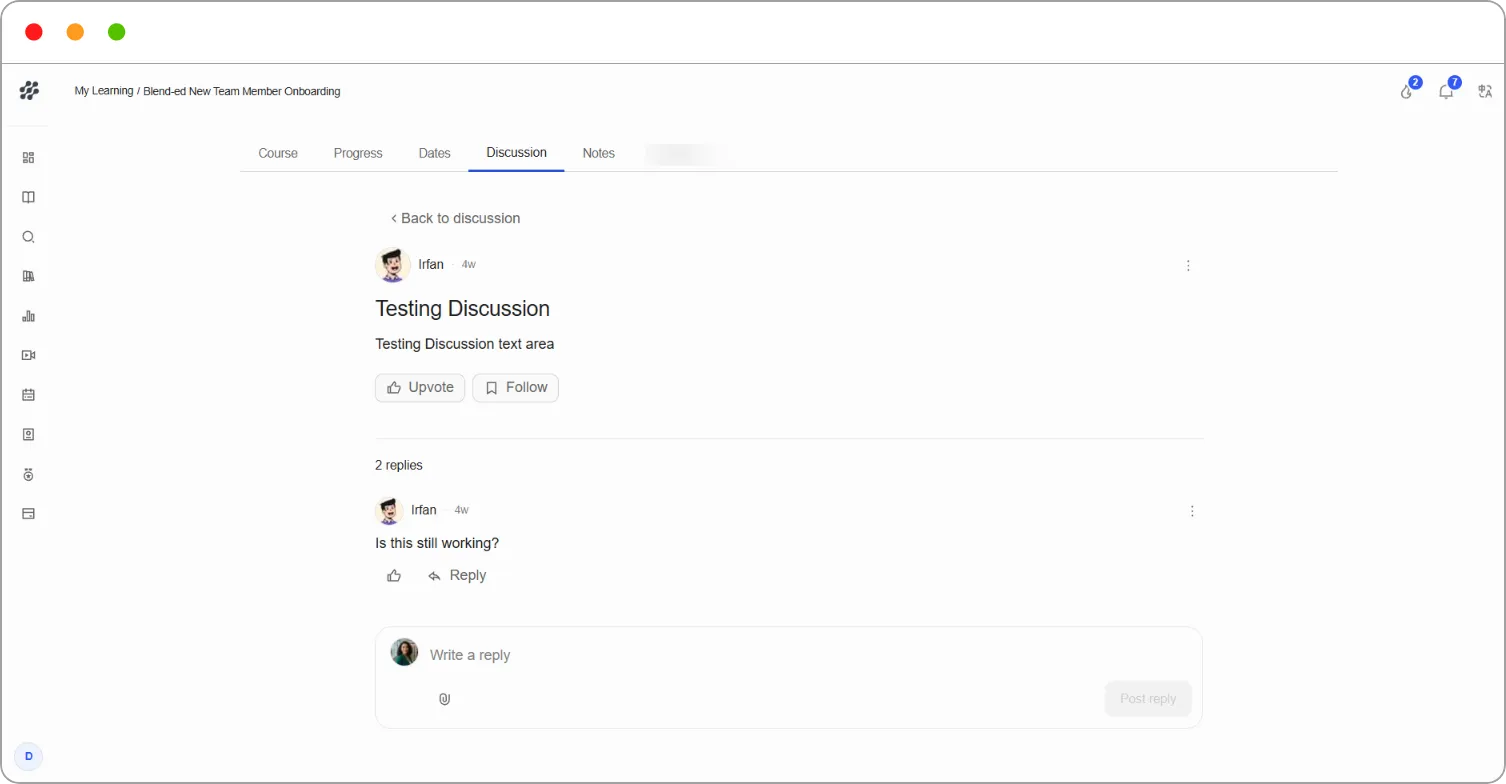
On an open post:
| Button | What it does |
|---|---|
| Upvote | Shows the post is useful, which helps good posts stand out |
| Follow | Adds the post to your Following list so you can find it again |
The ⋮ menu on a post offers:
| Action | What it does |
|---|---|
| Copy link | Copies a direct link to the post |
| Edit post | Changes your post |
| Report post | Flags the post to your instructors |
| Delete post | Removes your post |
Note: Edit post and Delete post only appear on posts you wrote.
Note: If a banner asks you to confirm your email before you can keep posting, click Confirm Now and follow the link in the email you receive.
Related articles