
How to add and remove team members
Who can do this: Super Admin, Admin, or Staff with the User Management permission
Adding members
Section titled “Adding members”Step 1: Go to Users > Teams and click the team.
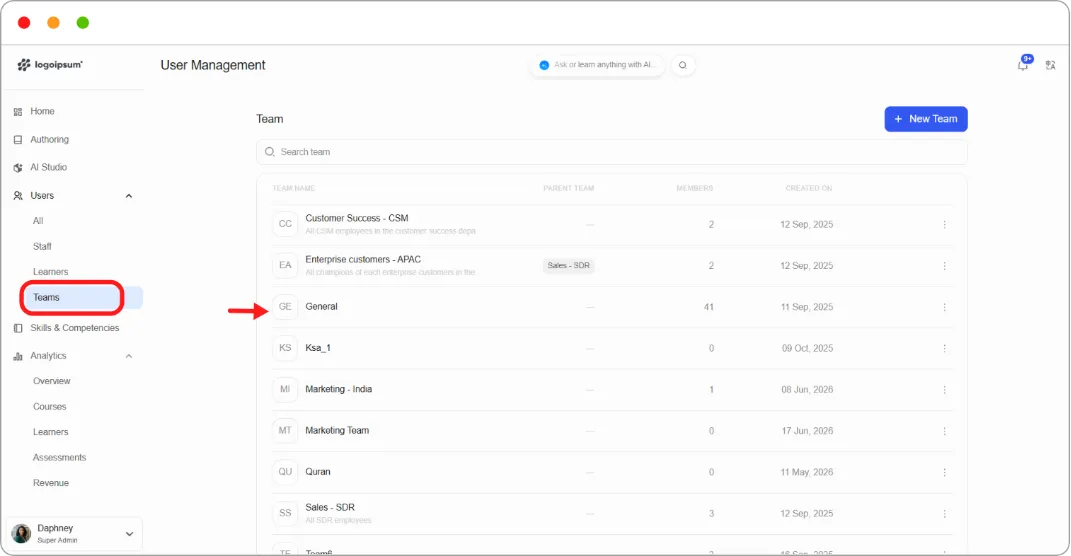
Step 2: Stay on the Members tab.
Step 3: Click + Add member.
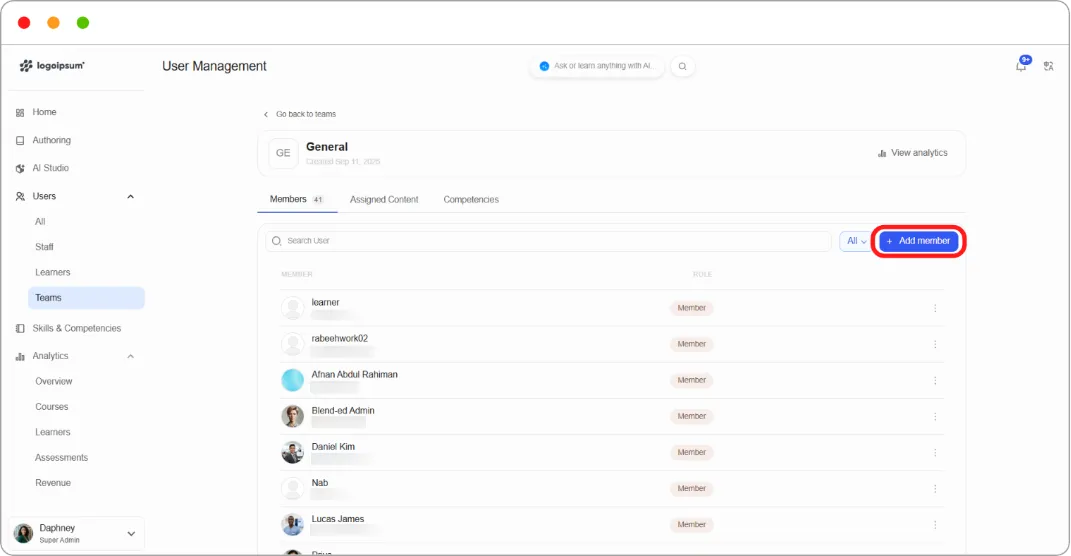
Step 4: Search for people and select them.
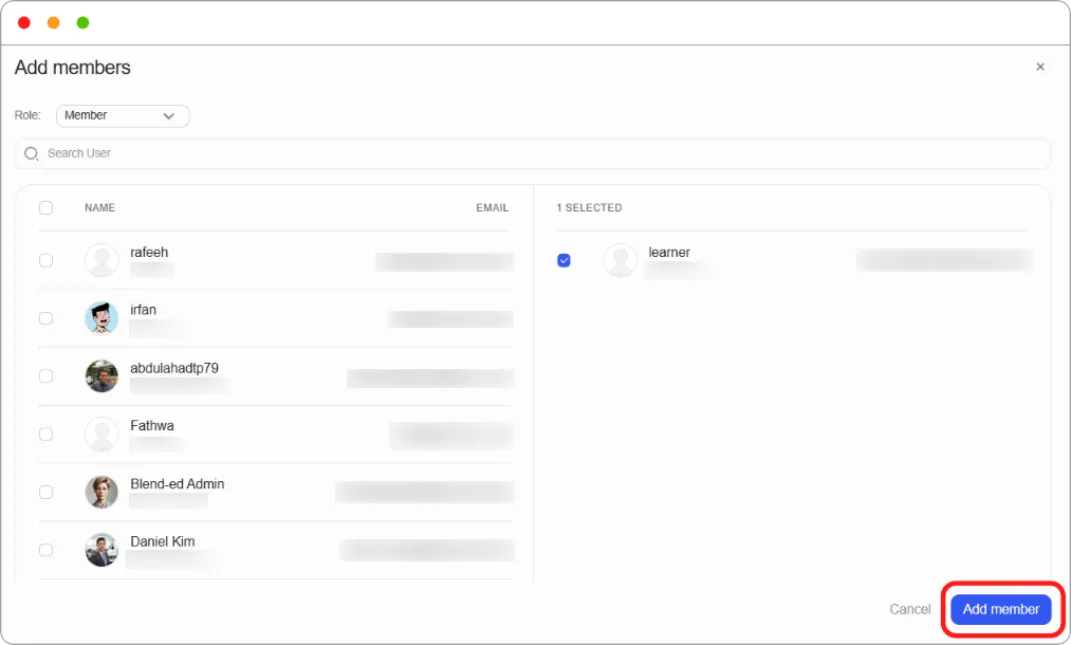
Step 5: Confirm.
Members appear in the table with a Member role badge.
Removing members
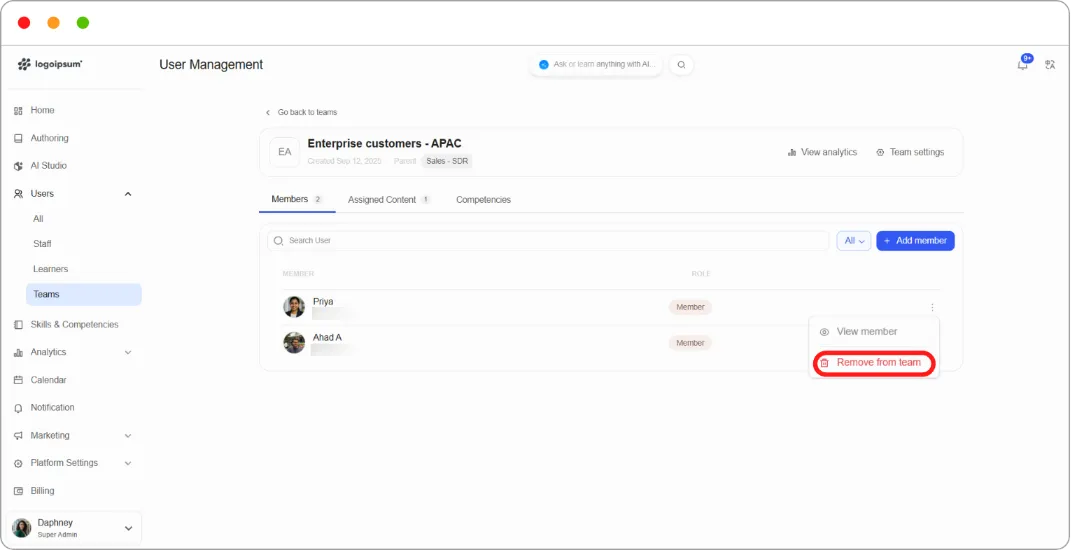
Section titled “Removing members”Step 1: On the Members tab, click the ⋮ menu at the end of the person’s row.
Step 2: Choose to remove them.
Note: Removing someone from a team does not remove them from the platform, and does not unenrol them from courses they joined through the team. To unenrol, use the Assigned Content tab.