
Setting Up Grading
Grading determines how learner scores add up to a final grade, and what counts as passing. It also decides who earns a certificate, so it’s worth setting up before you publish rather than after.
How grading works
Section titled “How grading works”Grading in Blend-ed is set in three places, and all three have to line up:
-
Course level (the Grading page) — the pass threshold, the grace period, and your assignment types with their weights.
-
Subsection level — each subsection is marked as graded and assigned to one of your assignment types.
-
Component level — individual problems can carry a weight, so a harder question counts for more within its subsection.
The Grading page covers the first of these. The second is covered below, because grading doesn’t function without it.
Opening the Grading page
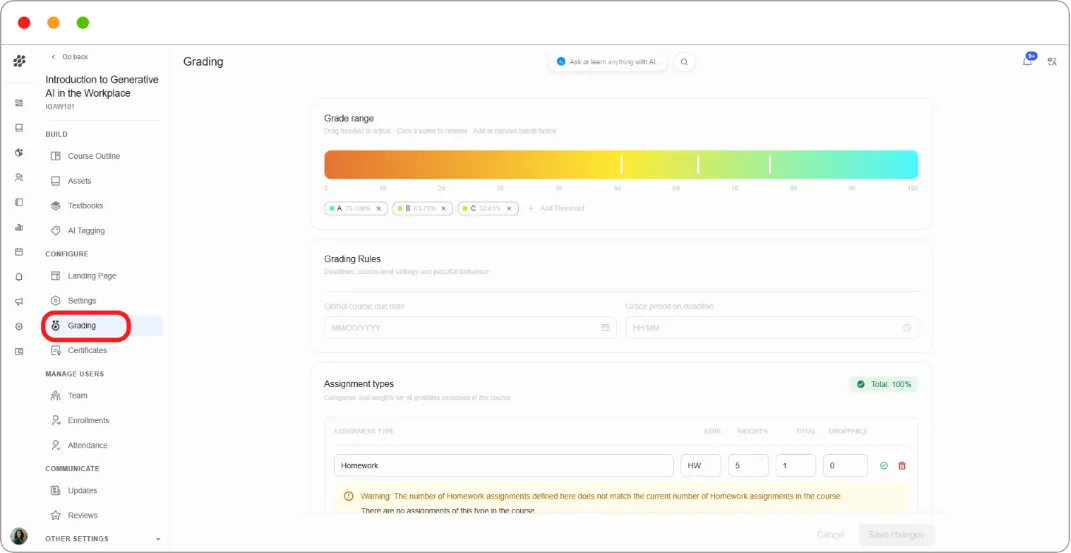
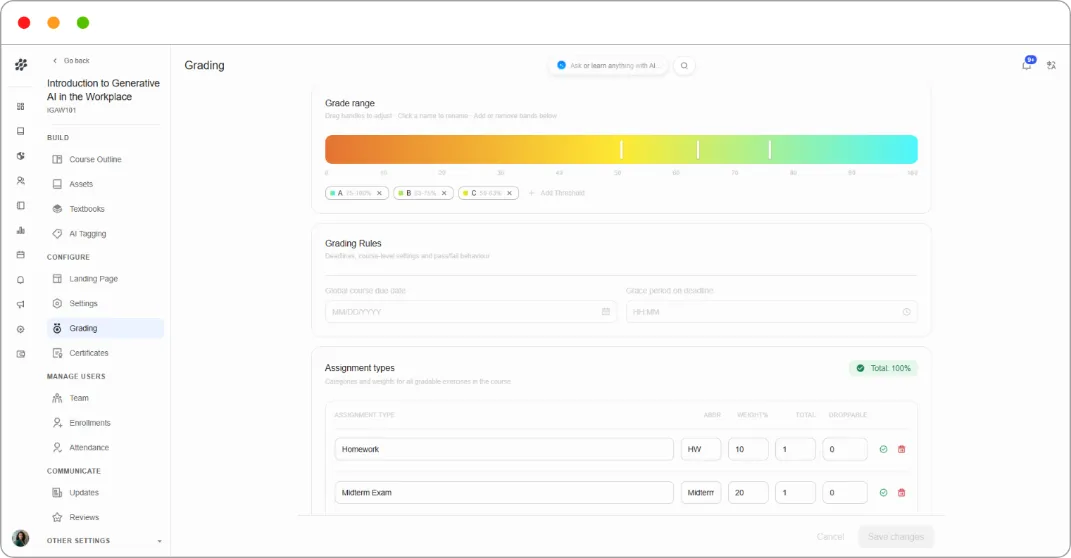
Section titled “Opening the Grading page”Open the course, then under CONFIGURE in the left navigation, click Grading.
Grade range and pass threshold
Section titled “Grade range and pass threshold”The grade range sets the score a learner needs to pass, and optionally splits the range into letter grades.
By default a course has two bands: Fail and Pass, with the boundary at 50%.
To change the pass threshold, drag the boundary marker along the range bar, or type the value directly.
To add letter grades, click the + on the range bar. Each click adds a band you can rename (A, B, C, Merit, Distinction) and position. To remove a band, click the × on it.

Tip: Set the threshold one point below your intended cutoff. If you want 71 to pass, set the boundary at 70. The range is a floor, so a learner scoring exactly at the boundary passes.
This is what drives certificates. Any learner who finishes above the Fail band qualifies for a certificate. Change the threshold after learners have completed the course and you change who qualifies, so settle it before you publish.
Grading rules and policies
Section titled “Grading rules and policies”Grace Period on Deadline gives learners extra time after a due date passes, during which submissions still count as on time.
Enter the value in Hours:Minutes format. For example, 24:00 gives everyone an extra day.
The grace period applies to the entire course. There’s no way to set a different grace period for an individual assignment.
Note: The grace period doesn’t apply to timed exams, proctored exams, or Open Response Assessments. Those enforce their own deadlines regardless of what’s set here.
Tip: A grace period of 12 to 24 hours absorbs most of the ordinary problems — timezone confusion, a lost internet connection, a bad day — without you having to handle each case individually.
Assignment types
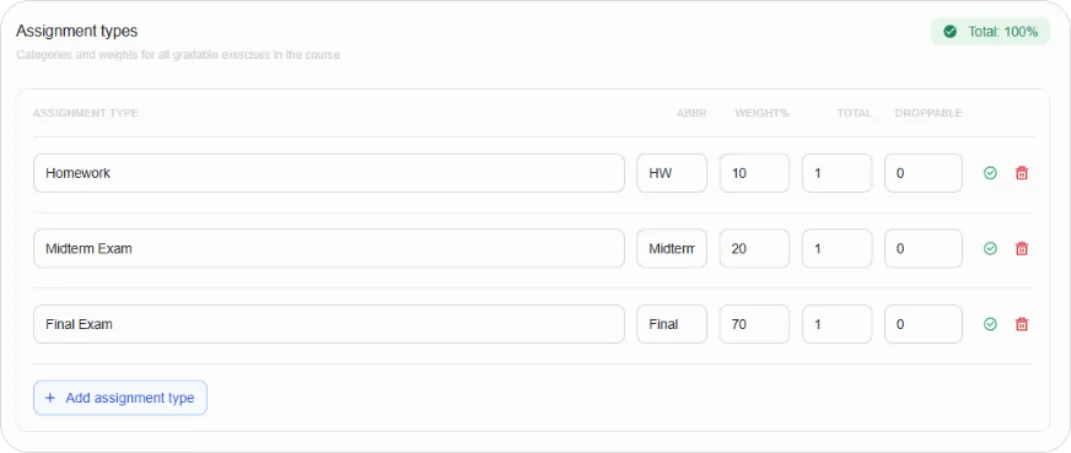
Section titled “Assignment types”An assignment type is a category of graded work: Homework, Lab, Quiz, Final Exam. Each type carries a percentage of the final grade.
A new course starts with four default types. Use them as they are, rename them, delete the ones you don’t need, or add your own.
To add a type, click New Assignment Type at the bottom of the page and fill in the fields.
| Field | What to enter |
|---|---|
| Assignment Type Name | The category name. Learners see this, so use language that makes sense to them |
| Abbreviation | A short form shown on the learner’s Progress page, for example HW |
| Weight of Total Grade | The percentage of the final grade this type is worth |
| Total Number | How many assignments of this type the course contains |
| Number of Droppable | How many of the lowest-scoring assignments of this type to discard |
Weights must total 100% across all types. If you add a type without reducing the others, you’ll end up over 100% and the policy won’t save.
Every assignment of a type counts equally. A homework subsection with 10 problems is worth exactly as much as one with 20. If you want one piece of work to carry more weight, either give it its own assignment type or adjust the weights of individual problems inside the subsection.
Droppable assignments are the practical way to handle learners who miss something. Set Number of Droppable to 1 on a ten-assignment homework type and every learner’s worst homework is discarded automatically. The system drops the lowest scores first, and only after all subsection grades are calculated.
Tip: Droppable assignments save you a great deal of individual admin. You won’t be able to grant extensions to everyone who has a genuine reason, and this handles most of those cases without anyone having to ask.
Connecting subsections to assignment types
Section titled “Connecting subsections to assignment types”This step happens outside the Grading page, and grading does nothing without it.
Setting up assignment types tells Blend-ed what the categories are and what they’re worth. It doesn’t tell it which content belongs to which category. That’s set per subsection.
-
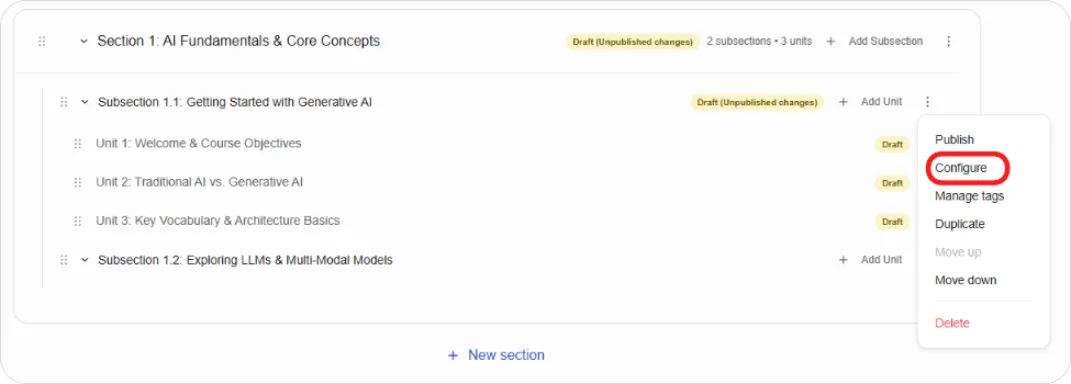
Go to BUILD > Course Outline.
-
On the subsection you want graded, open the ⋮ menu and choose Configure.
-
Set the Grading type to one of your assignment types.
-
Set a Due date if the assignment has one.
-
Save.
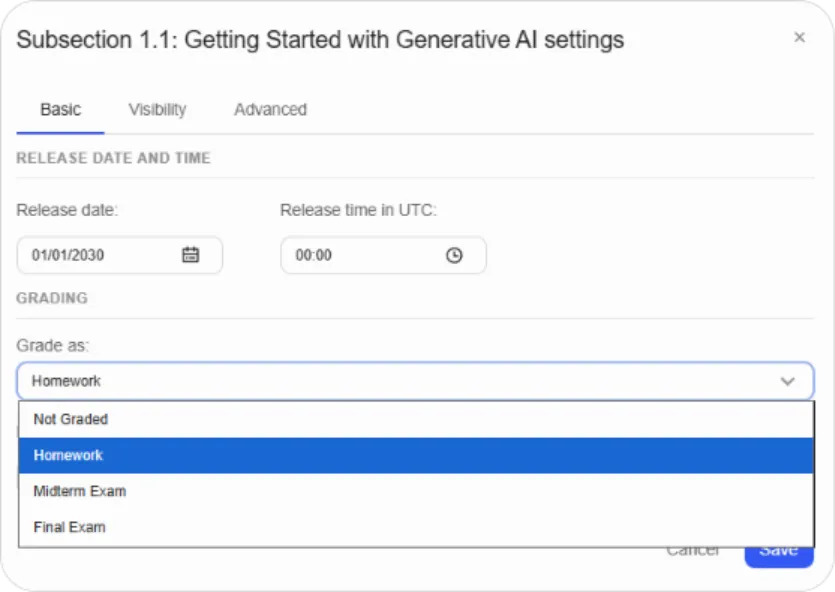
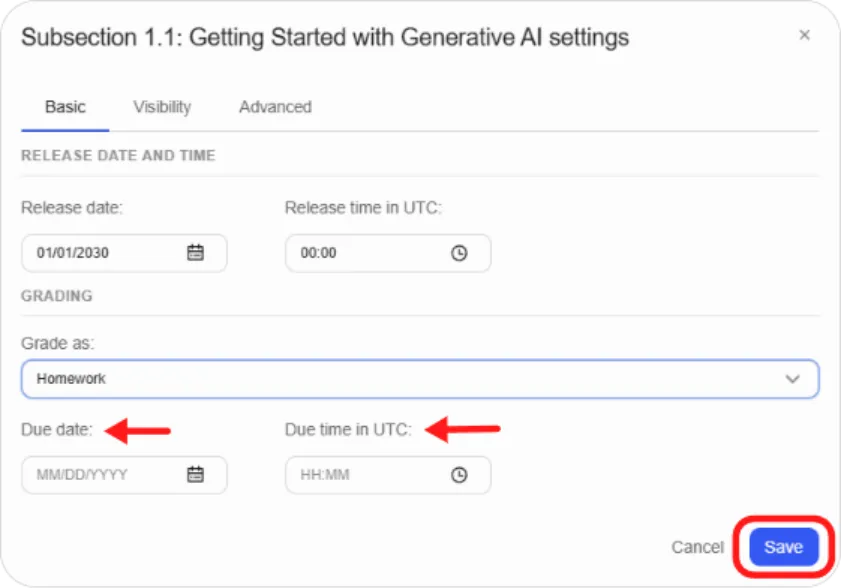
Repeat for every graded subsection.
Note: A problem in a subsection with no assignment type still shows a score, but it’s listed as a practice score on the learner’s Progress page and doesn’t count toward the final grade. This is why a saved problem reads “0 points possible (ungraded)” until its subsection is configured.
Note: Hidden sections, subsections, and units are excluded from grading entirely, even if they contain graded problems.
How the final grade is calculated
Section titled “How the final grade is calculated”Working from the bottom up:
-
Each graded problem produces a score, adjusted by its individual weight.
-
Those scores combine into a percentage for the subsection.
-
Within each assignment type, the lowest-scoring subsections are dropped, up to the Number of Droppable.
-
What remains averages to a percentage for that assignment type.
-
Each type’s percentage is multiplied by its Weight of Total Grade.
-
Those weighted figures add up to the final grade.
-
The final grade is compared against your grade range to determine pass, fail, or letter grade.
A worked example
| Assignment type | Weight | Total number | Droppable |
|---|---|---|---|
| Homework | 40% | 10 | 2 |
| Lab | 20% | 5 | 0 |
| Final Exam | 40% | 1 | 0 |
A learner averaging 80% across their best 8 homework assignments, 90% on labs, and 70% on the final exam:
(80 × 0.40) + (90 × 0.20) + (70 × 0.40) = 32 + 18 + 28 = 78%
With a pass threshold of 50%, they pass and qualify for a certificate.
Before you publish
Section titled “Before you publish”-
Weights total exactly 100%.
-
Every subsection meant to be graded has a grading type set.
-
The pass threshold is where you want it, since changing it later changes who has passed.
-
Total Number for each type matches how many subsections you’ve actually assigned to it. A mismatch skews the averages.
Common problems
Section titled “Common problems”A problem shows “0 points possible (ungraded).” Its subsection has no grading type. Set one in the subsection’s Configure settings.
Weights won’t save. They add up to more or less than 100%. Adjust the others before adding a new type.
Learners aren’t getting certificates despite passing. Check that the pass threshold is what you think it is, and that a certificate is configured for the course. See Adding a Certificate to Your Course.
Grades look lower than expected across the cohort. Total Number is probably higher than the number of subsections you’ve actually assigned to that type, so the average is being calculated against assignments that don’t exist.
What’s next
Section titled “What’s next”-
Issue certificates to learners who pass: Adding a Certificate to Your Course
-
Add graded questions to your units: Adding Content Components
-
Set up an assignment graded by you or by peers: Enhancing Your Course with Advanced Content