
How to read a lesson in another language
Who can do this: Learners enrolled in the course
You can switch a lesson into another language while you study. The lesson text and the buttons around it change to the language you choose.
Steps
Step 1: In the lesson, click the language icon at the top right.
Step 2: Choose the language you want.
The lesson reloads in that language.
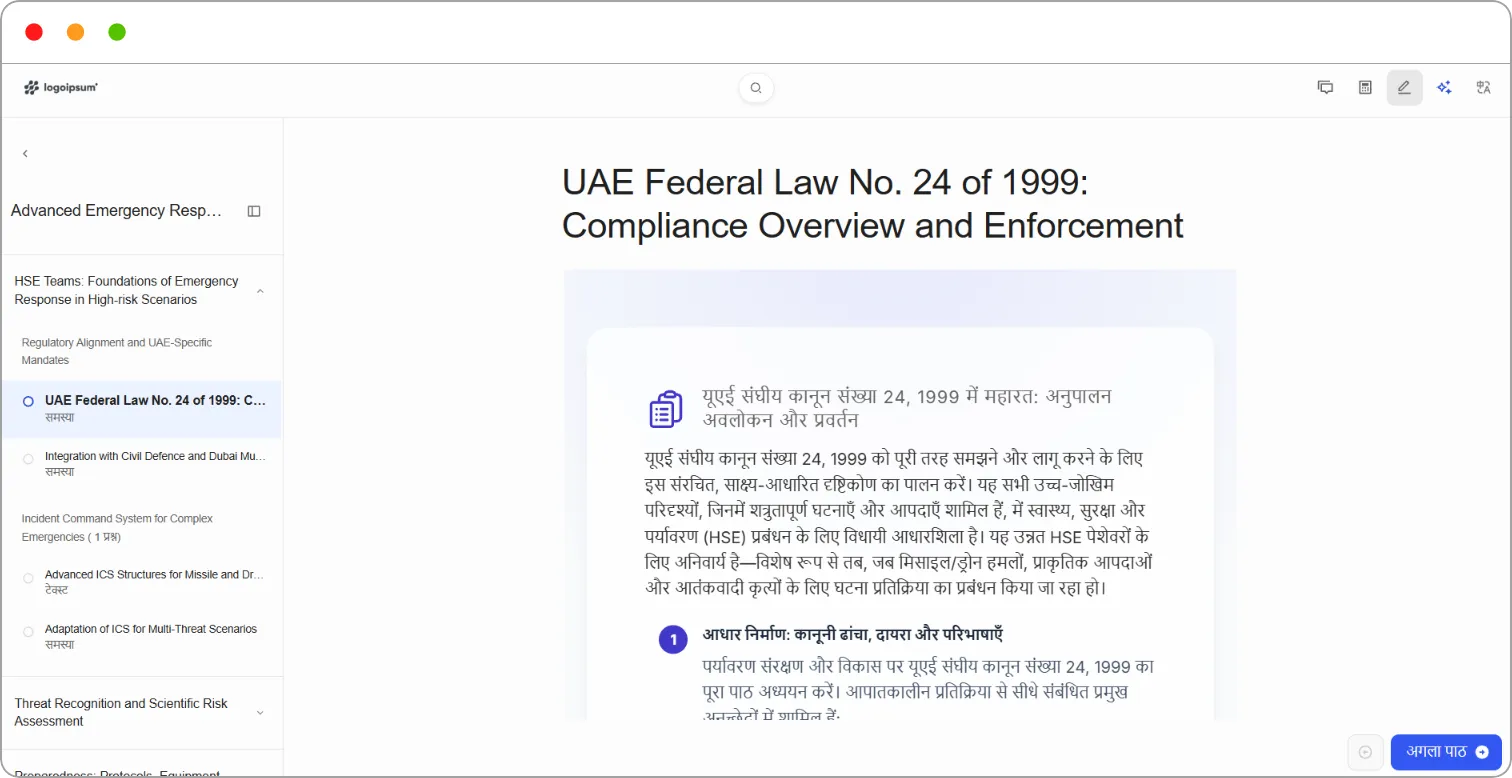
To switch back, click the language icon again and choose your original language.
Note: You can only switch to languages your instructor has translated the course into. If a course hasn’t been translated, it’s available in its original language only.
Note: The language icon at the top of every page changes the language of the whole platform, not just the lesson.
Tip: If you don’t see the language you need, ask your instructor whether the course can be translated into it.
Related articles