
How to use the Courses report
Who can do this: Admins, and staff with the View Analytics permission
The Courses report lists every course with its enrolments, completions and a health status, so you can see at a glance which courses are working.
Step 1: Go to Analytics > Courses.
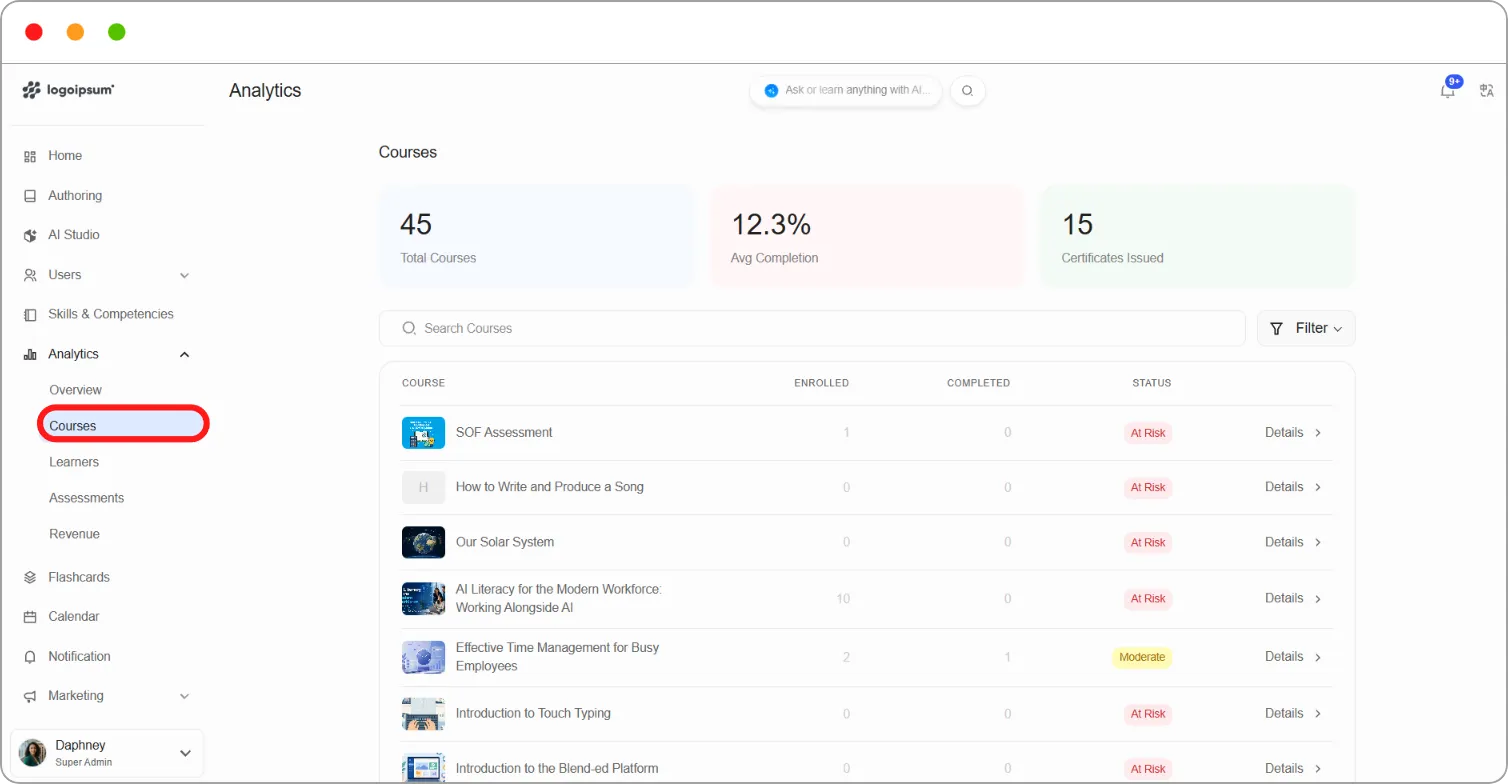
The top of the page shows Total Courses, Avg Completion and Certificates Issued.
Step 2: Find the course you want:
-
Type in Search Courses to find a course by name.
-
Click Filter to show only courses with a particular status.
Step 3: Click Details beside a course to open its report.
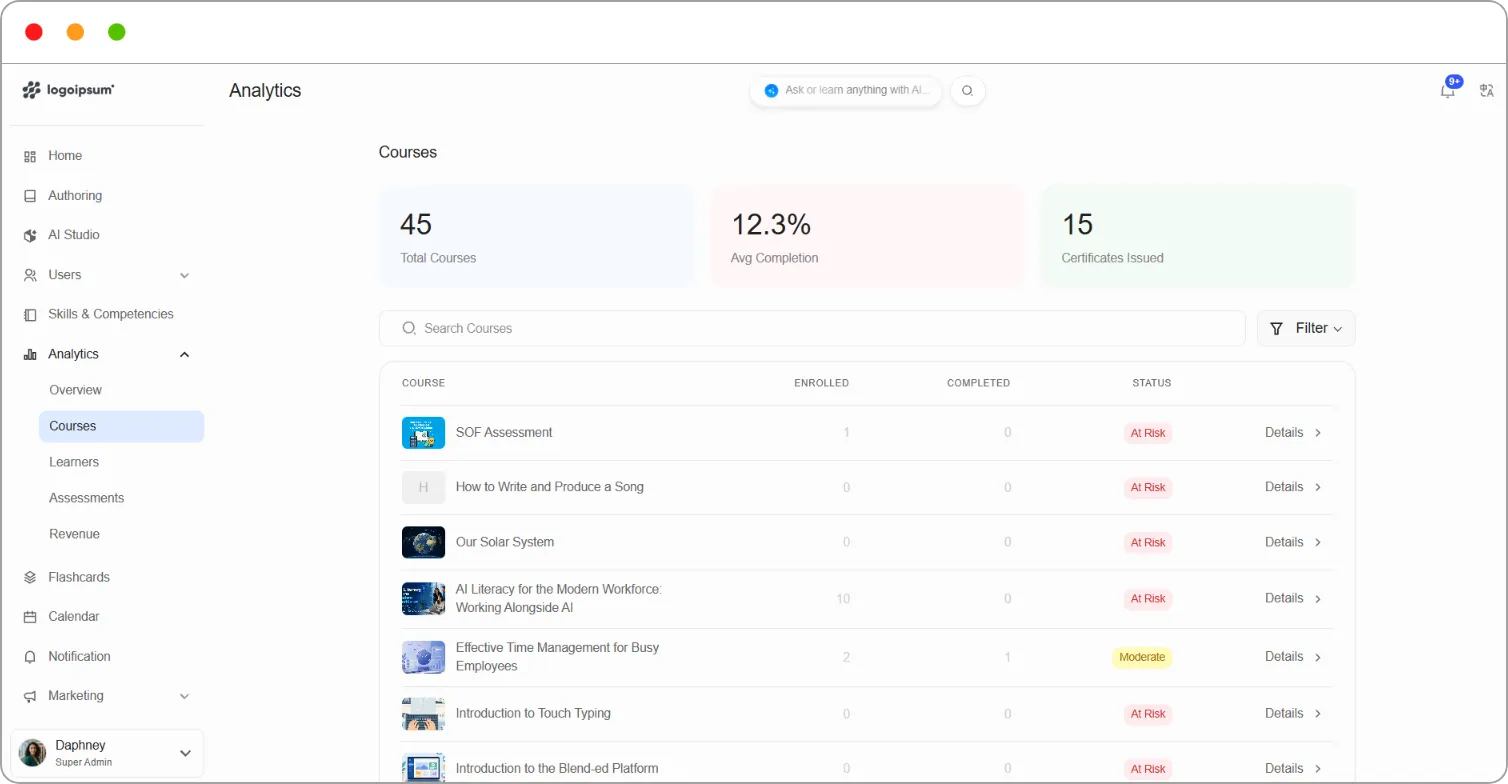
What the list shows
Section titled “What the list shows”| Column | What it shows |
|---|---|
| Course | The course name |
| Enrolled | The number of learners enrolled |
| Completed | The number of learners who’ve finished the course |
| Status | The course’s health status |
Course status
Section titled “Course status”Each course gets a status based on how its learners are doing, including how many are enrolled, how actively they engage and how many complete the course.
| Status | What it means |
|---|---|
| Healthy | The course is performing well |
| Moderate | The course is performing reasonably, with room to improve |
| Needs Improvement | The course is underperforming and may need changes |
| At Risk | The course needs attention now |
Tip: Filter by At Risk to find courses that need attention first. A course with enrolments but no completions often has a problem early on, such as an unclear first unit or a hard first assessment.
Note: A course with no enrolments may also show as At Risk, because it has no activity yet.