
How to manage a learner's assessment attempts
Who can do this: Admins, and staff with the View Analytics permission
You can change a learner’s result on a question, for example to give them another attempt or to correct a score.
Step 1: Go to Analytics > Assessments and open the course.
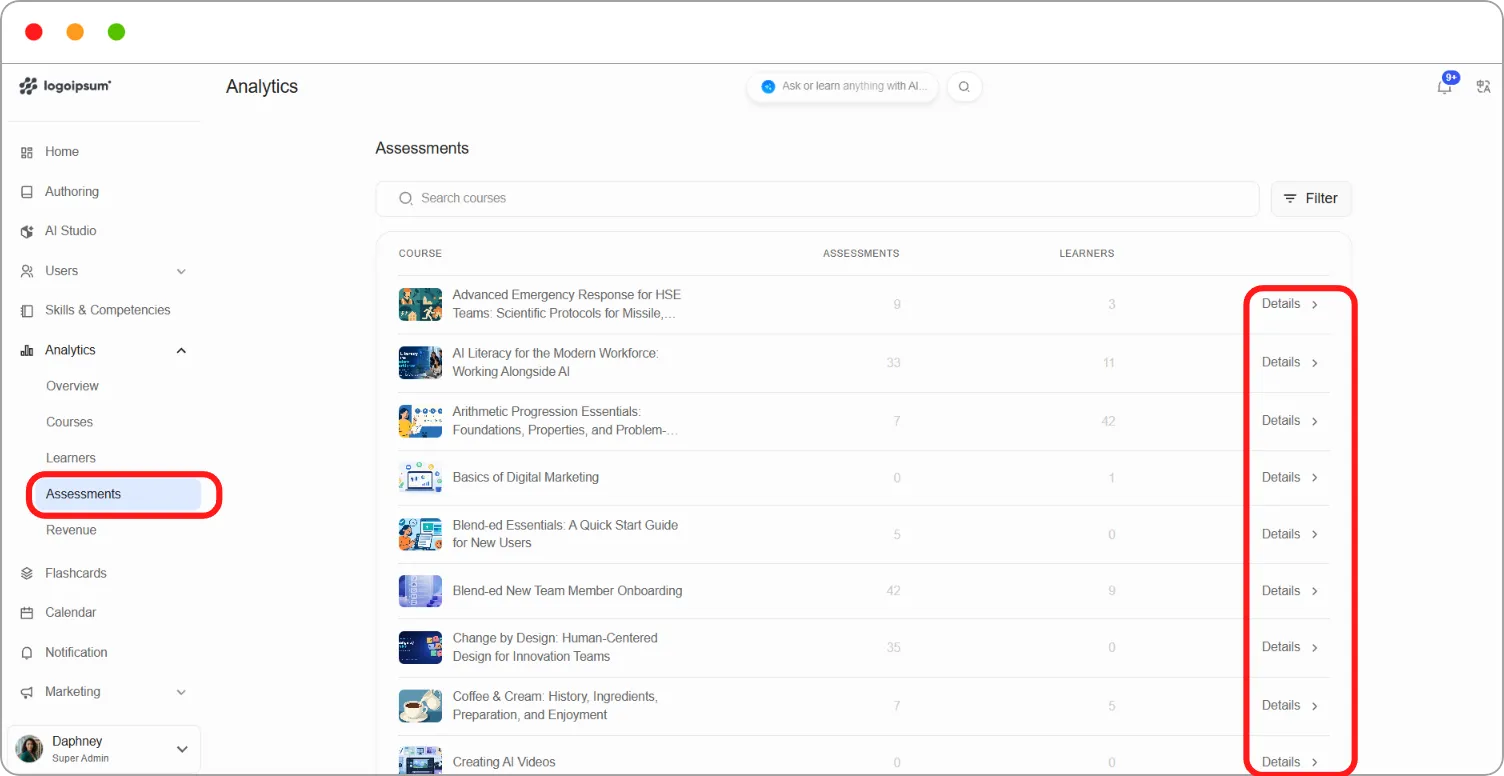
Step 2: On the Problems tab, click Details beside the question.
Step 3: Find the learner and click the ⋮ menu beside them.
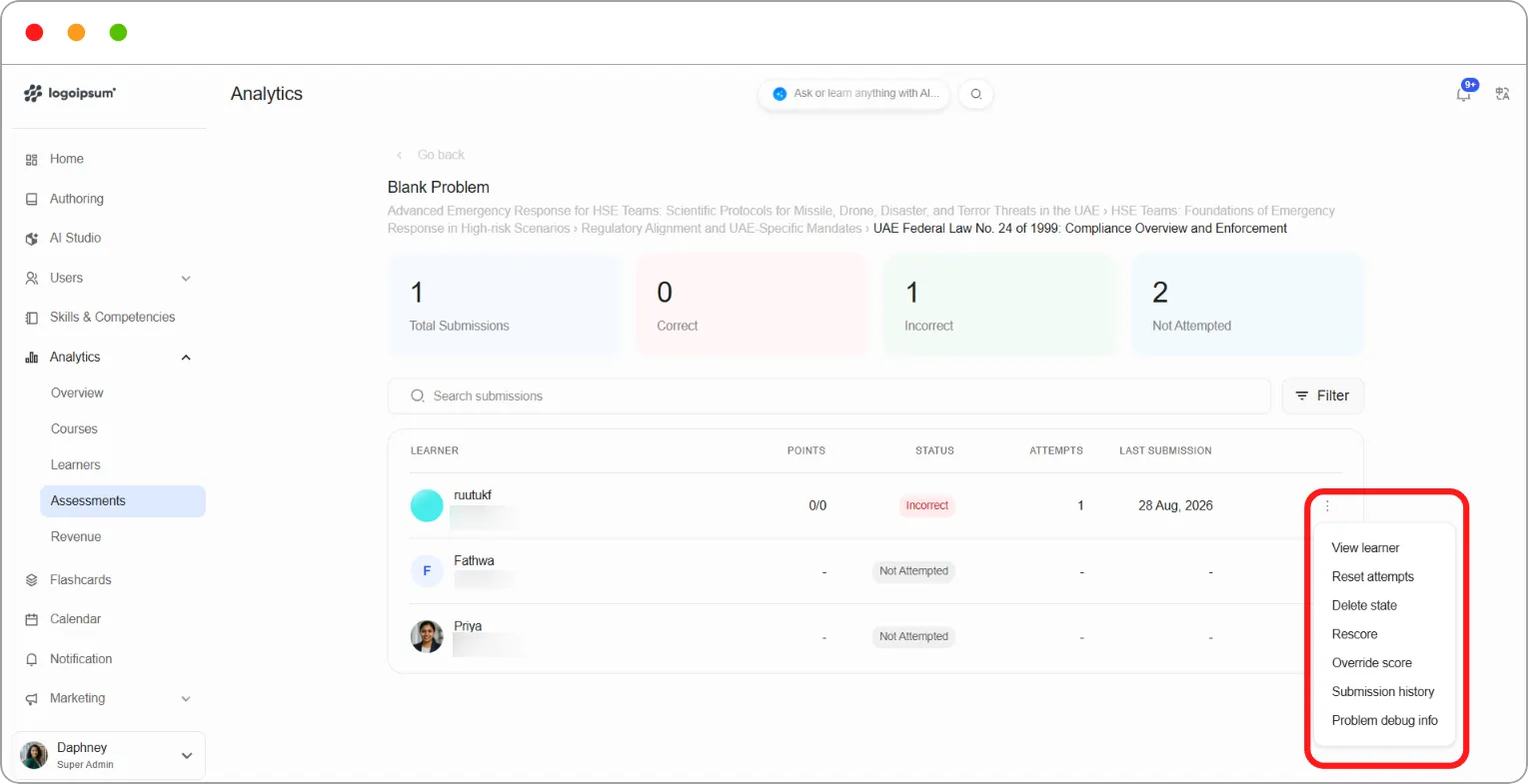
Step 4: Choose an action:
| Action | What it does |
|---|---|
| View learner | Opens the learner’s assessment results |
| Reset attempts | Sets the learner’s attempt count back to zero so they can try again. Their existing answer is kept |
| Delete state | Permanently deletes the learner’s answer, score and attempts for this question, so they start it again from scratch. This can’t be undone |
| Rescore | Grades the learner’s existing answer again using the current question settings. Use this after correcting a question’s answer or grading |
| Override score | Lets you set the learner’s score for this question manually, replacing the automatic score |
| Submission history | Shows every answer the learner has submitted, with the score for each |
| Problem debug info | Shows the learner’s stored information for this question, such as their answers, attempts and score, to help with troubleshooting |
Note: Delete state can’t be undone. If you only want to give the learner another try, use Reset attempts instead.
Tip: If you fix a mistake in a question’s correct answer, use Rescore for affected learners so their grades update. Learners won’t need to answer again.