
Users, Roles & Teams
Who this is for: Super Admins, Admins, and Staff with the User Management permission
Everyone who uses your Blend-ed platform sits in one place: the Users area. This article explains how users, roles, permissions, and teams fit together, so the rest of this section makes sense.
The three ideas
Section titled “The three ideas”A role is what someone fundamentally is. Every user has exactly one, and it decides which parts of Blend-ed they can reach at all.
| Role | What it means |
|---|---|
| Super Admin | Full control of the organisation, including other admins |
| Admin | Full control over users, courses, and organisation settings |
| Staff | Works on the platform, with access controlled by individual permissions |
| Learner | Takes courses |
Permissions apply to Staff only. A staff member with no permissions can sign in but cannot do anything. One with all of them works like an Admin. This is what lets you give a course author the ability to build courses without also giving them access to billing.
Teams are groups of users. Enrol a whole team in a course in one action instead of learner by learner, and nest teams under a parent team to mirror how your organisation is actually structured.
Tip: Role decides what someone is. Permissions decide what a staff member can do. Teams decide who gets what. Most access confusion comes from mixing up the first two.
Where everything lives
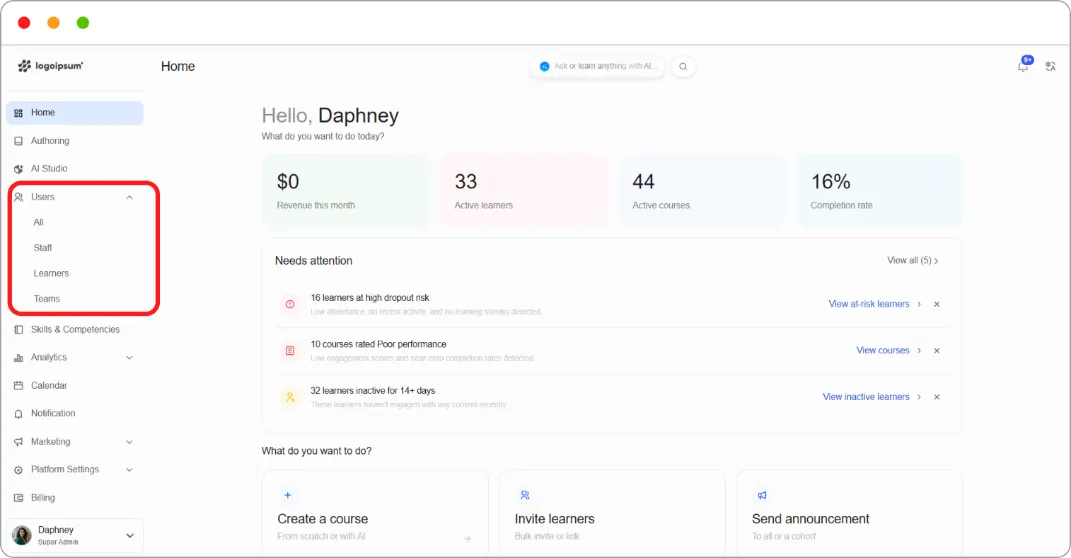
Section titled “Where everything lives”Under Users in the left navigation:
| Tab | What it holds |
|---|---|
| All | Every user, with role, status, and join date |
| Staff | Staff members and their individual permissions |
| Learners | Learners with enrolment and completion figures, plus per-learner analytics |
| Teams | Teams, their members, and the content assigned to them |
The All page also shows four counters at the top: Total Users, Admins & Staffs, Learners, and Teams.
A note on course-level roles
Section titled “A note on course-level roles”Platform roles are separate from course team roles. Someone can be a platform Admin without being on a particular course’s team. To give someone access to one specific course, see Managing Your Course Team & Learner Communication.
Related articles
Section titled “Related articles”Articles in this section
Section titled “Articles in this section”- How to invite a user via email
- How to bulk import users with a CSV file
- How to find and filter users
- How to assign or change a user’s role
- How to reset a user’s password
- How to block or unblock a user
- How to export your user list
- General overview: Staff permissions
- How to edit a staff member’s permissions
- How to clear a staff member’s permissions
- How to create a course author role
- How to create a reporting role
- How to create an enrolment manager role
- Staff support guide
- How to view a learner’s progress and analytics
- How to view a learner’s skill passport
- How to create a team
- How to add and remove team members
- How to organise teams with parent teams
- How to enrol a whole team in a course or program
- How to assign competencies to a team
- How to edit or delete a team