
How to clear a staff member's permissions
Who can do this: Super Admin, Admin, or Staff with the User Management permission
Remove every permission from a staff member in one action, rather than unticking each one.
Step 1: Go to Users > Staff.
Step 2: Click the ⋮ menu at the end of the person’s row.
Step 3: Choose Clear all permissions.
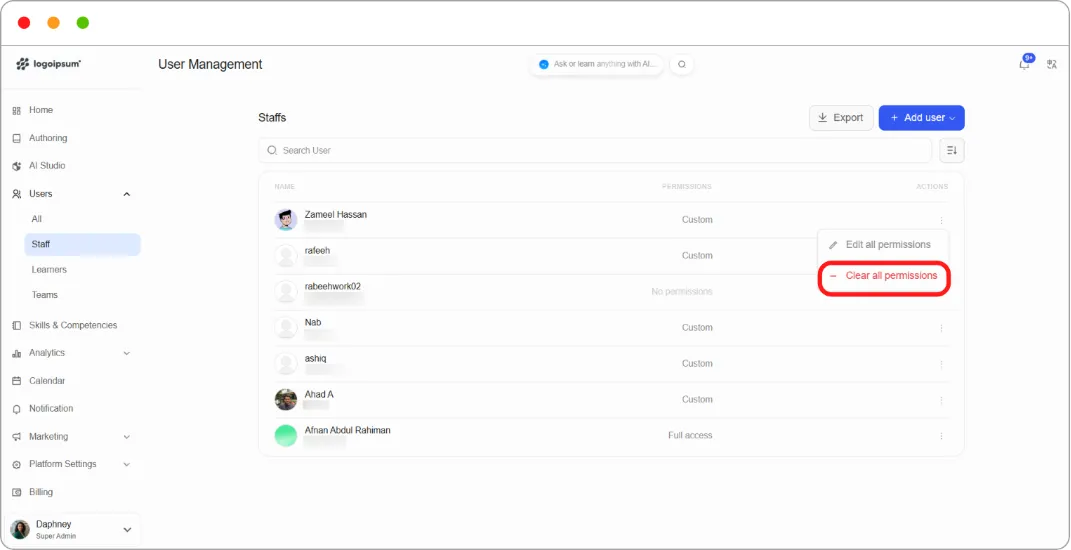
The person keeps the Staff role but can no longer do anything on the platform.
Note: This removes access, not the account. To stop someone signing in altogether, see How to block or unblock a user.
Tip: Useful when someone changes jobs internally. Clear everything, then grant the set their new role needs, rather than trying to work out which of their old permissions still apply.