
How to create an enrolment manager role
Who can do this: Super Admin, Admin, or Staff with the User Management permission
An enrolment manager runs courses rather than building them: getting the right people enrolled, keeping the schedule, and chasing learners who fall behind.
Step 1: Invite the person as Staff, or change their role to Staff.
Step 2: Go to Users > Staff, click the ⋮ menu on their row, and choose Edit all permissions.
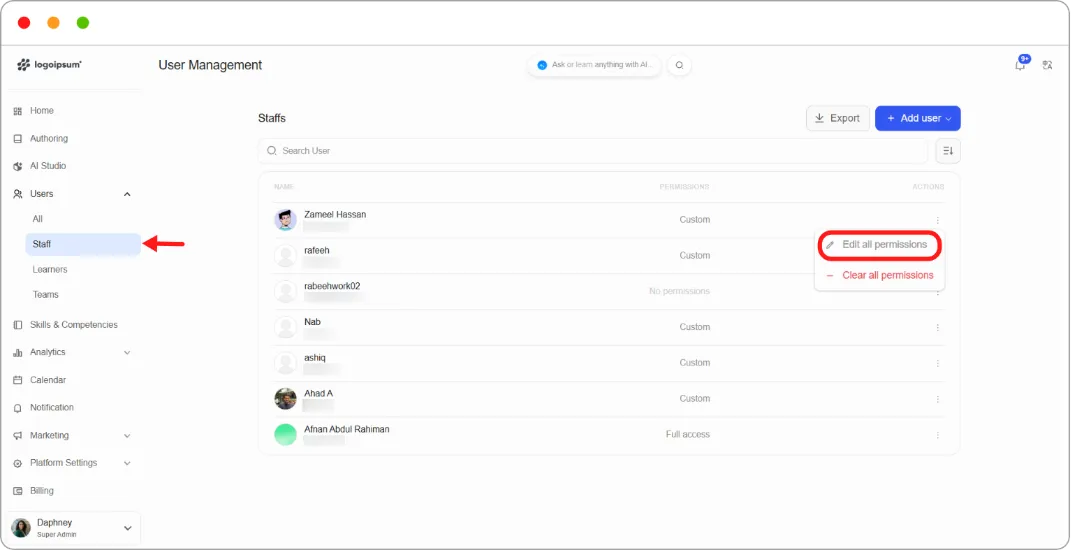
Step 3: Tick these permissions:
| Category | Permission |
|---|---|
| Courses & Programs | View Analytics |
| Live & Scheduling | Schedule Create |
| Live & Scheduling | Notification Send |
| Users & Settings | Enrollment Management |
| Others | Certificate View |
Step 4: Leave everything else unticked.
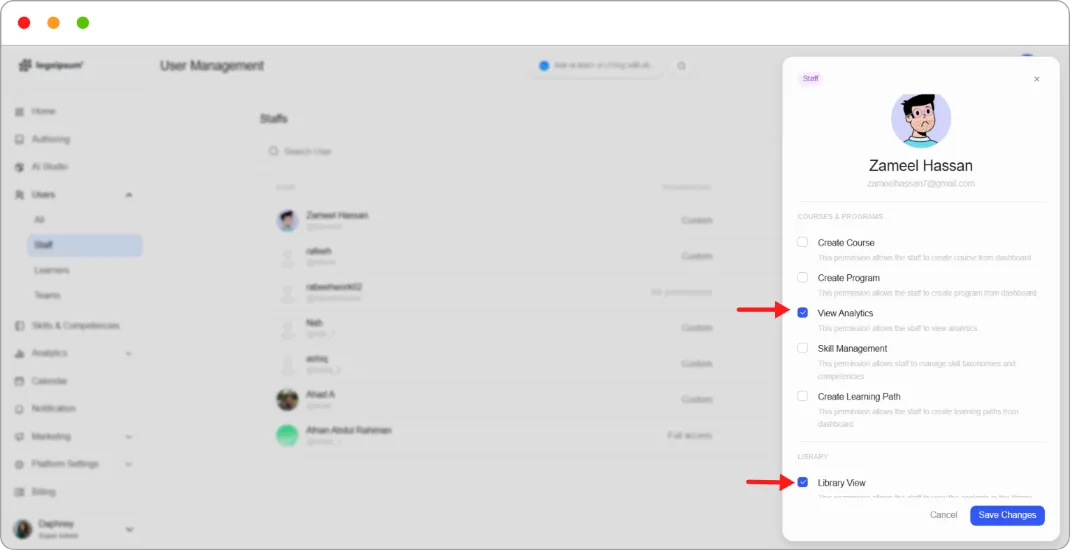
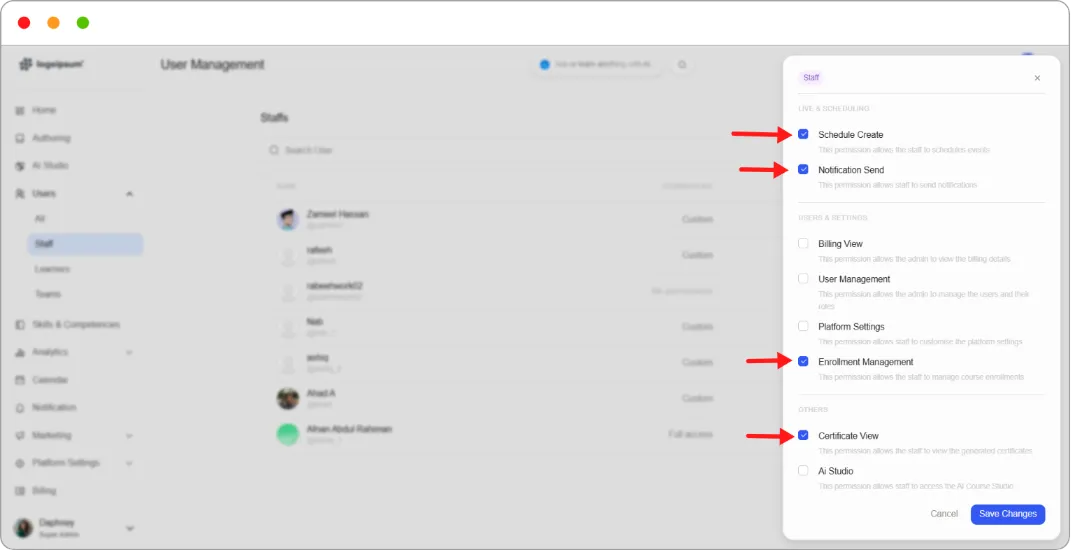
Step 5: Click Save Changes.
What they can now do
Section titled “What they can now do”Enrol and unenrol learners, schedule events on the calendar, send notifications, watch completion figures, and confirm certificates were issued.
What they cannot do
Section titled “What they cannot do”Create or edit course content, manage users or roles, or change platform settings.
Note: Enrollment Management covers course enrolments. It does not let them add new users to the platform. That needs User Management, which is a much broader grant.