
How to view a course's report
Who can do this: Admins, and staff with the View Analytics permission
A course report shows how one course is performing and how each enrolled learner is getting on.
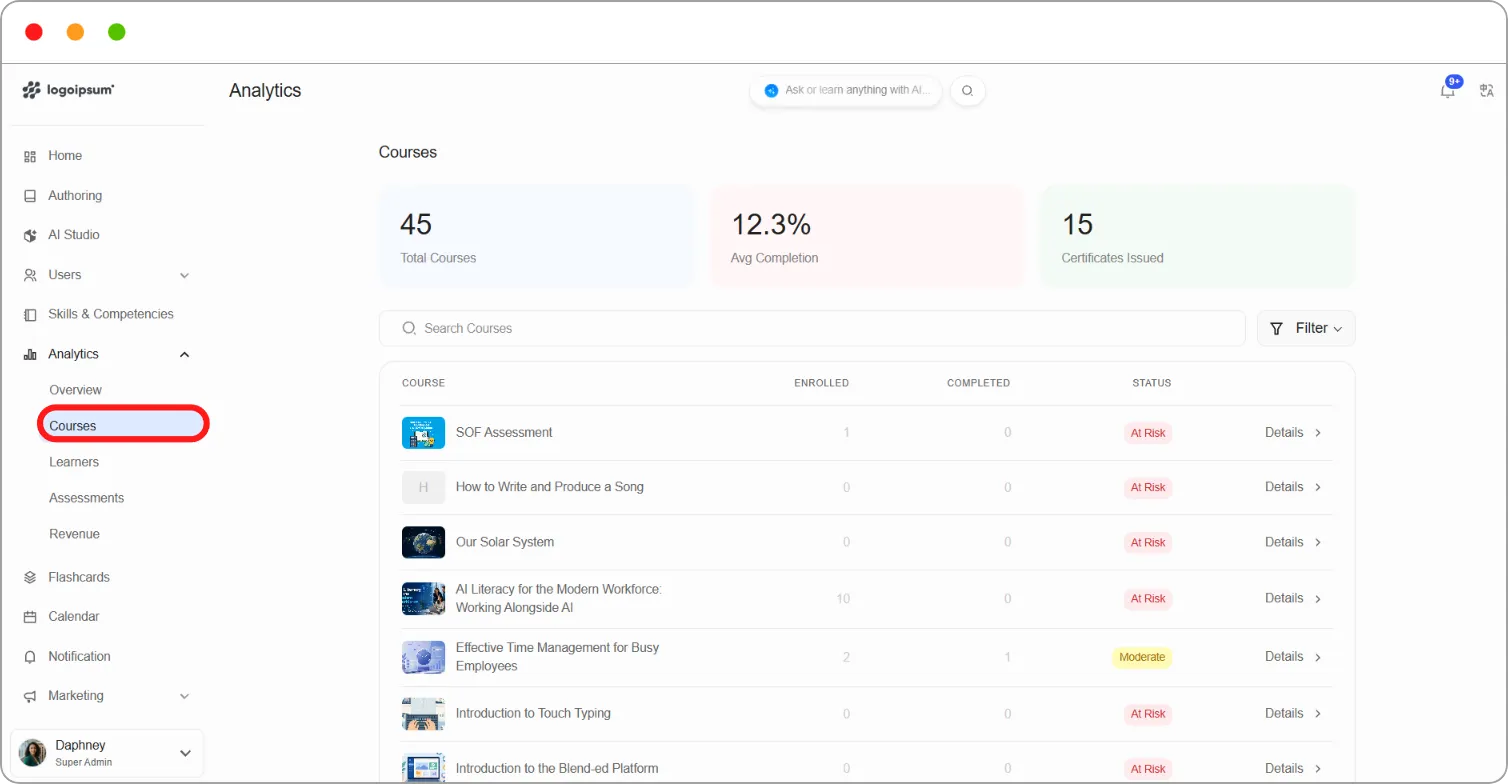
Step 1: Go to Analytics > Courses.
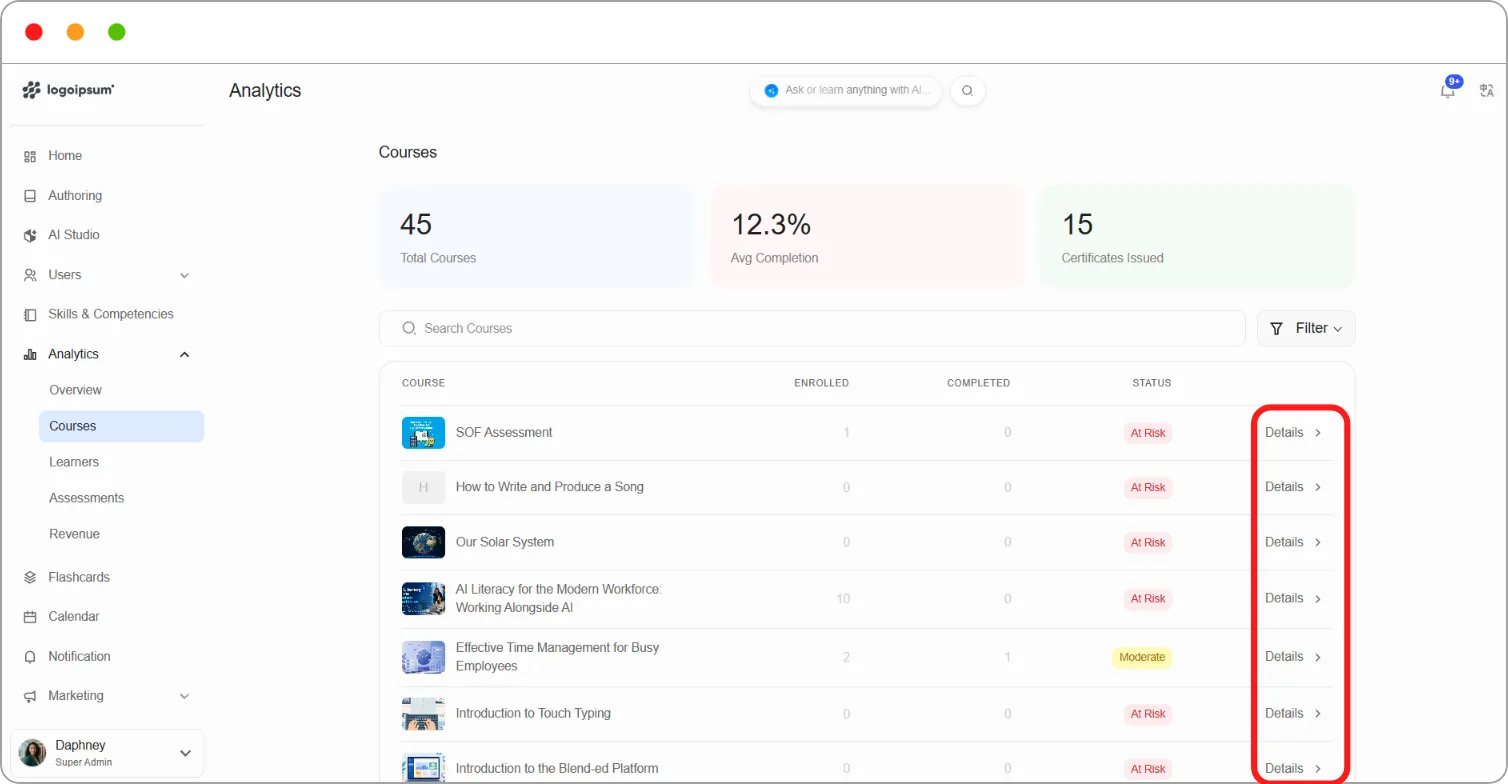
Step 2: Click Details beside the course.
The course report opens.
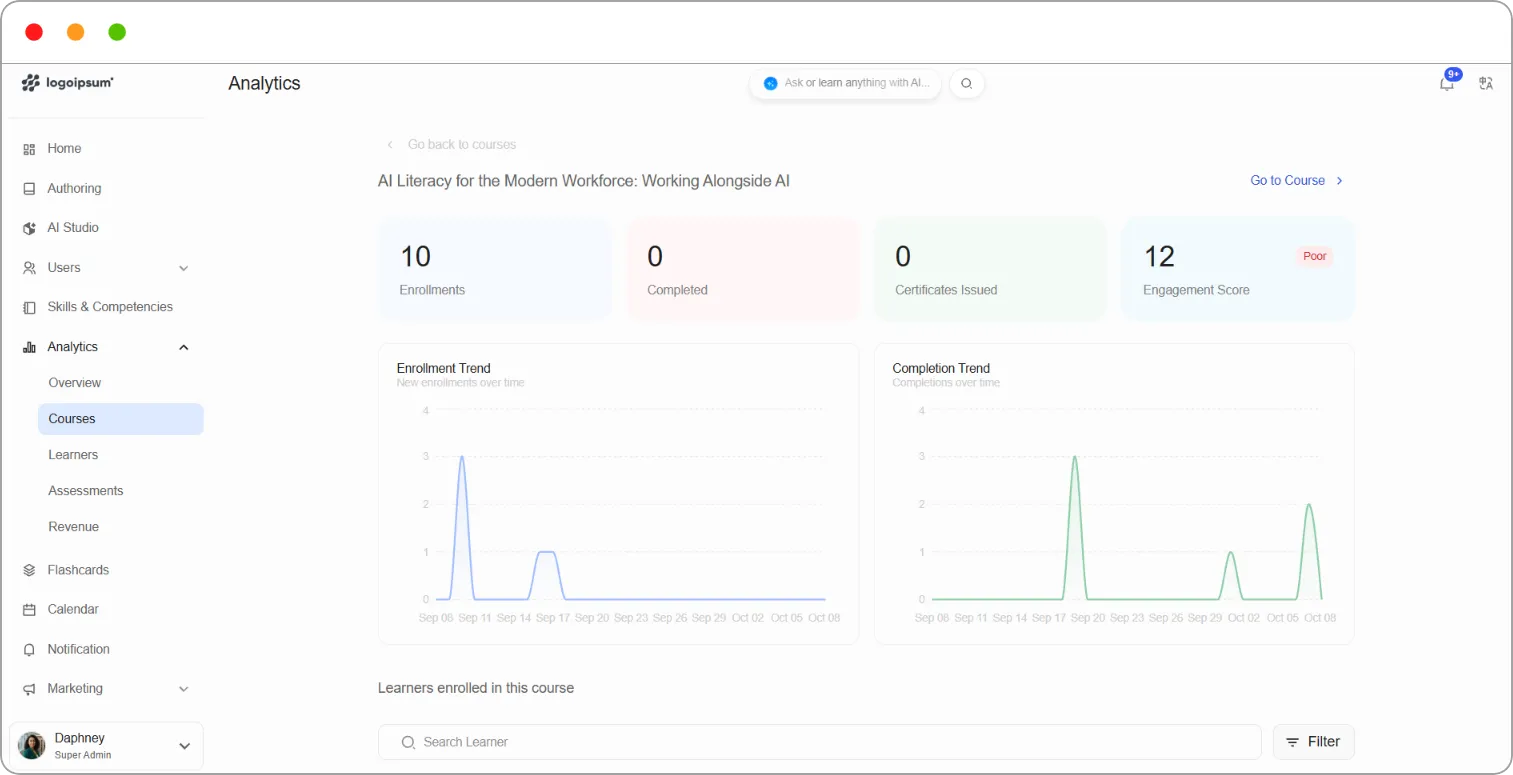
Summary cards
Section titled “Summary cards”| Card | What it shows |
|---|---|
| Enrollments | The number of learners enrolled |
| Completed | The number who’ve finished the course |
| Certificates Issued | The number of certificates earned in this course |
| Engagement Score | How actively learners take part, out of 100, with a rating such as Poor |
Charts
Section titled “Charts”| Chart | What it shows |
|---|---|
| Enrollment Trend | New enrolments over time |
| Completion Trend | Completions over time |
Hover over either chart to see the figure for a specific day.
Learners enrolled in this course
Section titled “Learners enrolled in this course”The table at the bottom lists every enrolled learner:
| Column | What it shows |
|---|---|
| Learner | The learner’s name and username |
| Active Days | The number of days they’ve been active in the course |
| Mode | Their enrolment mode, for example Honor |
| Progress | Not Started or In progress |
Use Search Learner to find a learner, or Filter to narrow the list.
Click View progress beside a learner to open the course’s Progress tab as that learner sees it, including their grades and certificate status.
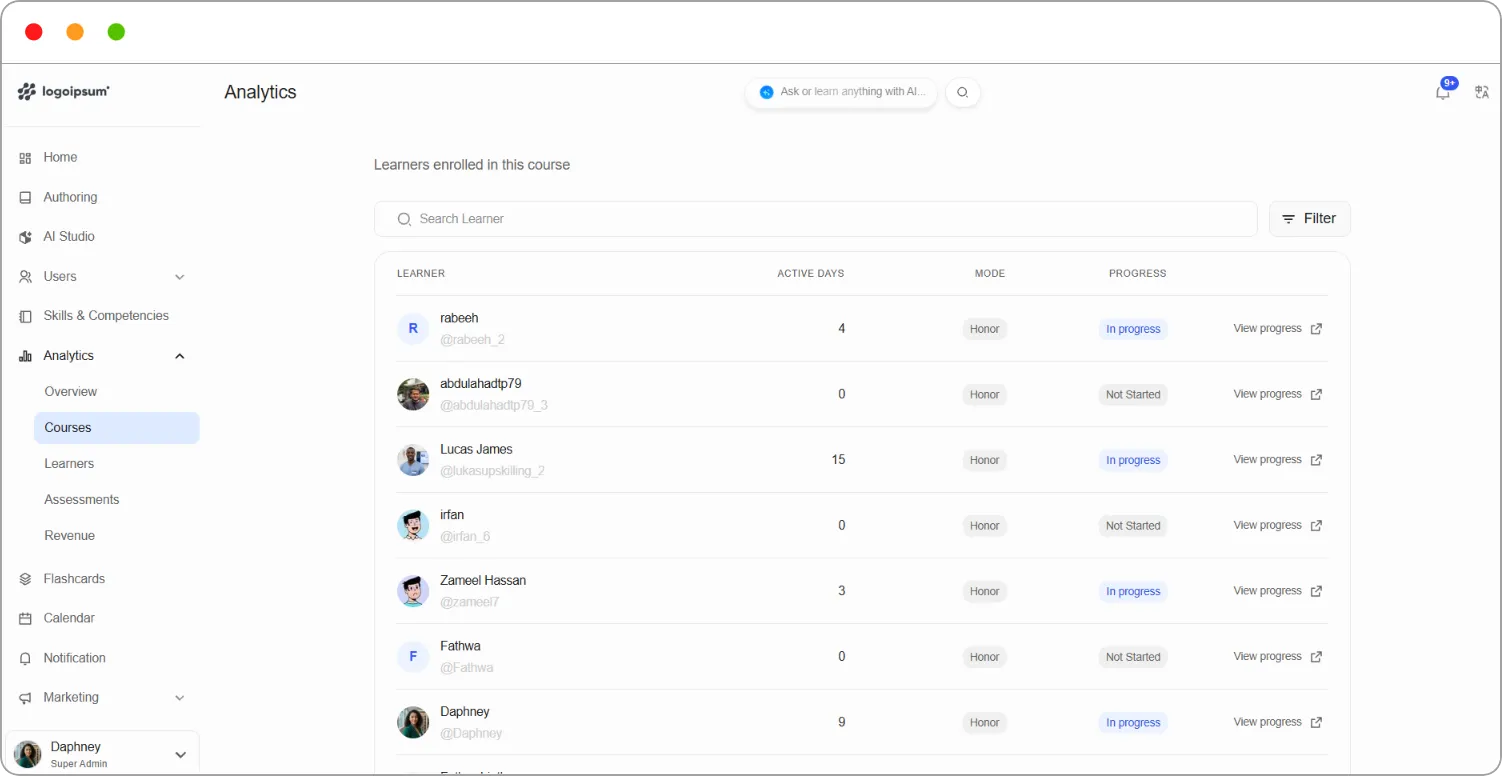
Tip: Contact learners with 0 Active Days first. They enrolled but never started, and a short reminder is often all they need.
Other options
Section titled “Other options”-
Click Go to Course at the top right to open the course in Studio.
-
Click Go back to courses to return to the Courses report.