
How to assign or change a user's role
Who can do this: Super Admin, Admin, or Staff with the User Management permission
Every user has one role, which decides what they can access. You set it when you invite someone and can change it at any time.
Before you start
Section titled “Before you start”Changing a role takes effect immediately. If you change an Admin to a Learner, they lose access to the admin area the next time they load a page.
Step 1: Go to Users > All.
Step 2: Find the user, using the search box or the Role: All filter.
Step 3: Click their row. Their details open in a panel on the right.
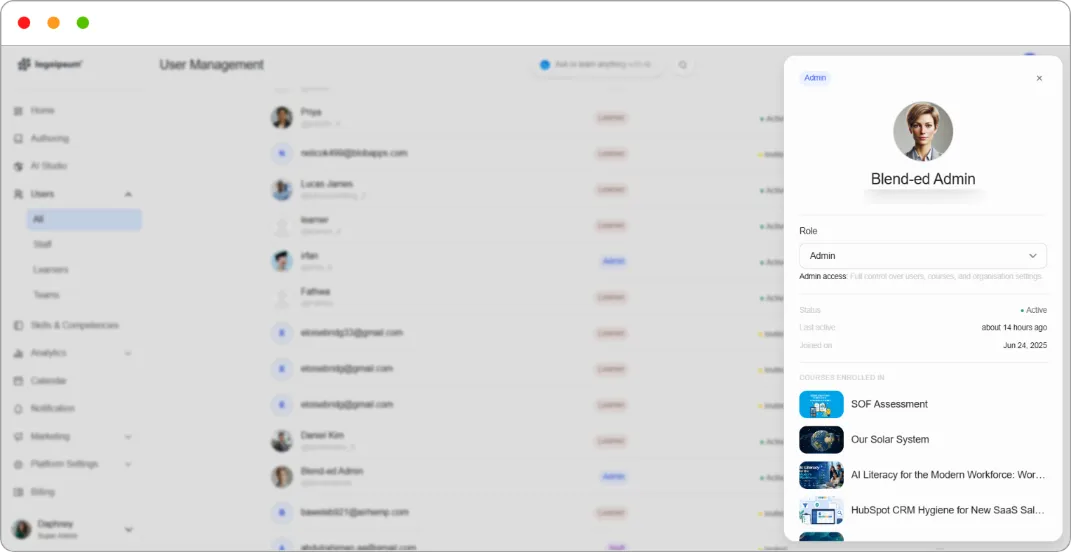
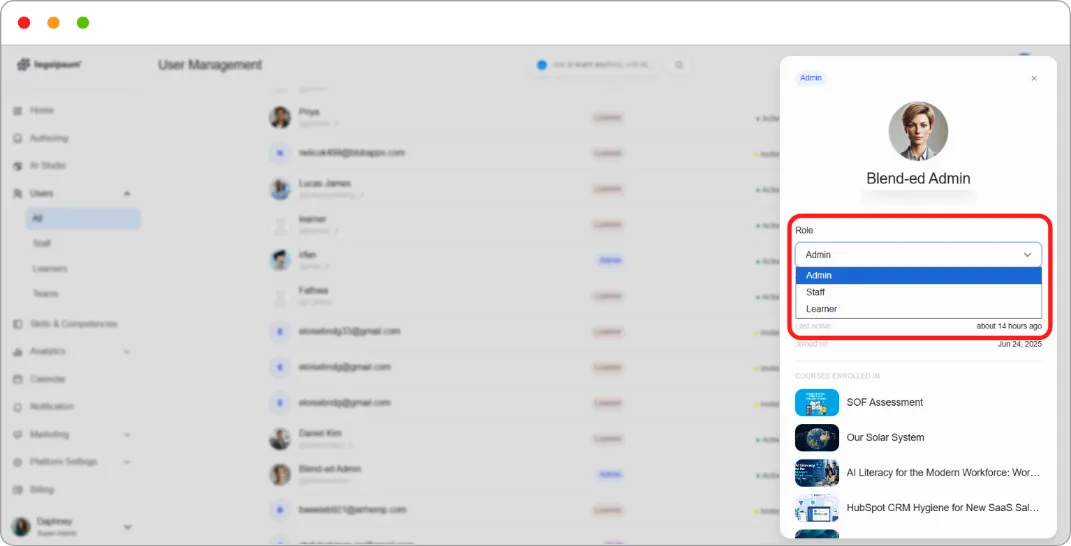
Step 4: Under Role, open the dropdown and choose the new role.
A description appears beneath the dropdown explaining what that role can do, for example “Admin access: Full control over users, courses, and organisation settings.”
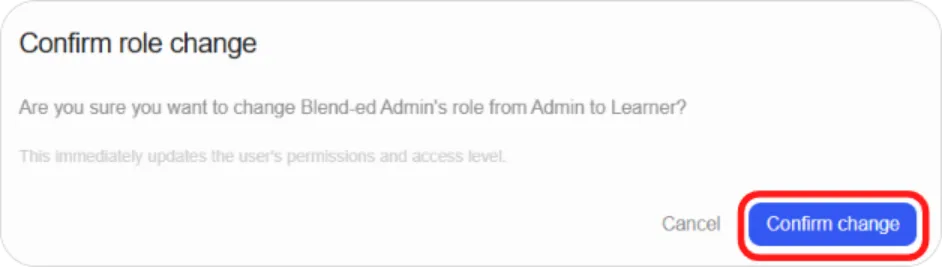
Step 5: Click on Confirm Changes,the change saves . The role badge in the table updates straight away.
What happens next
Section titled “What happens next”| Change | Effect |
|---|---|
| Learner to Staff | They reach the admin area but have no permissions yet |
| Staff to Admin | They gain full access; individual permissions no longer apply |
| Admin to Staff | They lose full access. Set permissions or they’ll have none |
| Any role to Learner | All administrative access is removed. Course enrolments and progress are unaffected |
Note: Changing someone to Staff gives them no capabilities on its own. See How to edit a staff member’s permissions.
Tip: Prefer Staff plus permissions over Admin. Admin is all or nothing; Staff lets you grant exactly what the job needs.