
How to edit or delete a team
Who can do this: Super Admin, Admin, or Staff with the User Management permission
Editing a team
Section titled “Editing a team”Step 1: Go to Users > Teams.
Step 2: Click the ⋮ menu on the team’s row, or open the team and click Team settings.
Step 3: Change the Team name, Description, or Parent team.
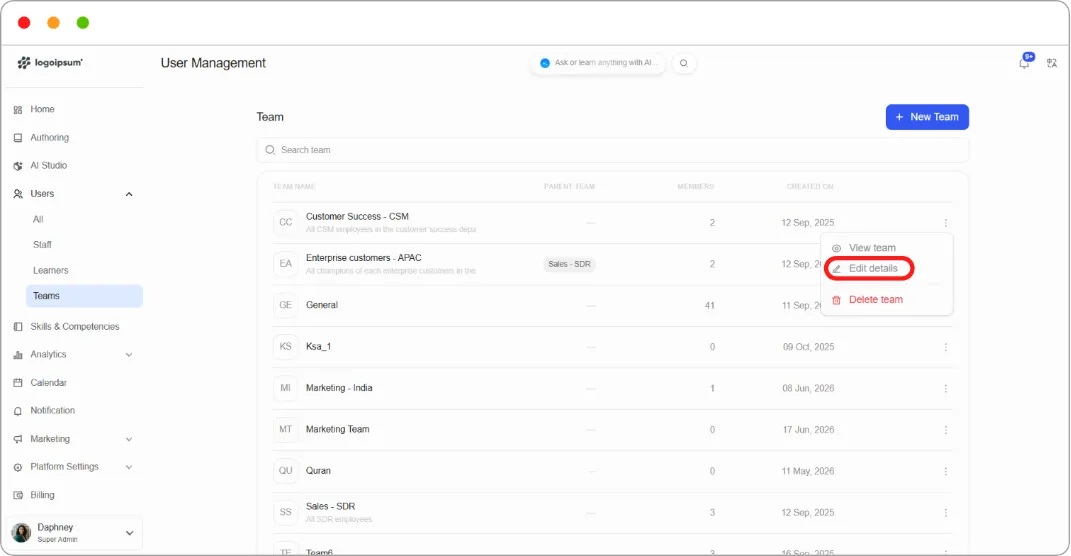
Step 4: Click Save.
Viewing team analytics
Section titled “Viewing team analytics”From the team’s page, click View analytics to see how the team is performing across its assigned content.
Deleting a team
Section titled “Deleting a team”Step 1: Go to Users > Teams.
Step 2: Click the ⋮ menu on the team’s row.
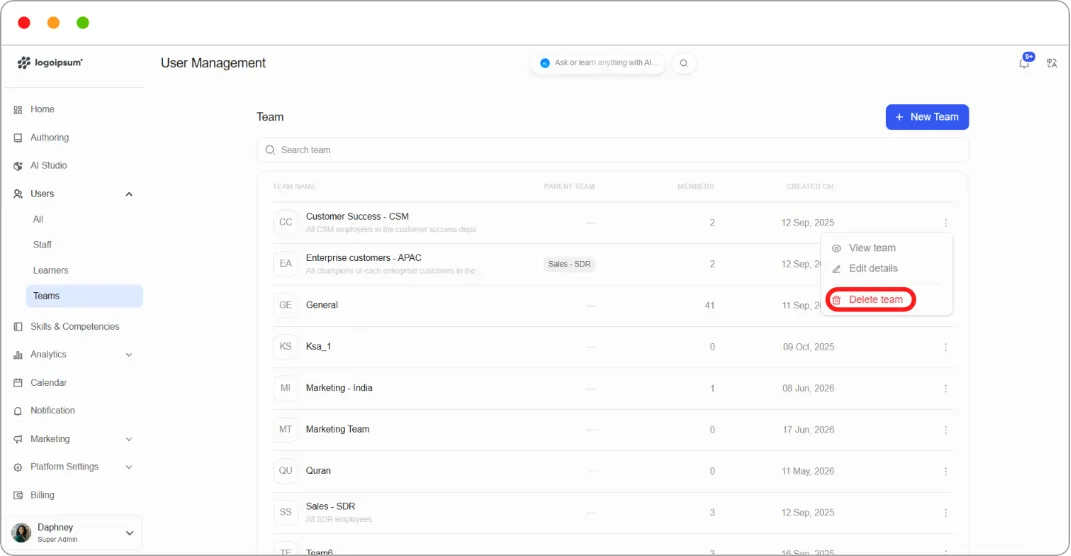
Step 3: Choose to delete it.
Warning: Before deleting, check the Assigned Content tab. Members may lose access to courses they joined through the team.
Tip: If a team is no longer used but its enrolment history matters, remove its members rather than deleting it. An empty team costs nothing to keep.