
How to enrol learners with a CSV file
Who can do this: Super Admin, Admin, or Staff with the Enrollment Management permission
Enrol many learners at once by uploading a spreadsheet. Unlike the other routes, a CSV lets you set a different enrolment mode per learner.
Step 1: Open the course, then click Enrollments.
Step 2: Click Enroll Learners, then Upload CSV file.
Step 3: Set Enrollment mode.
Step 4: Click Download CSV Template.
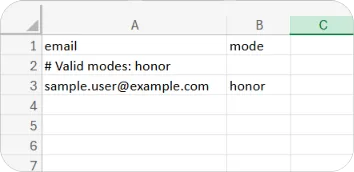
Step 5: Fill it in. The template has two columns:
| Column | What to enter |
|---|---|
| One email address per row | |
| mode | The enrolment mode for that learner |
A comment row in the template lists the modes available on this course, for example # Valid modes: honor.
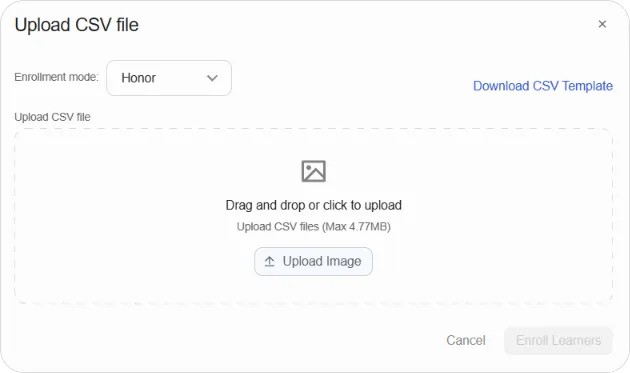
Step 6: Save the file, upload it, and confirm.
Note: Use only the modes listed in the template’s comment row. They’re the modes configured on this course. To add others, see How to change a free course to a paid course.
Tip: The mode column is per row, so one upload can put some learners on a free mode and others on a paid one. That’s the main reason to use a CSV over the other routes even for small numbers.
Tip: Test with two or three rows first. Fixing a formatting problem on a small file is much faster than on a large one.