
How to send a notification
Who can do this: Super Admin, Admin, or Staff with the Notification Send permission
Send a message to learners, staff, admins, teams, or everyone in a course or program. Notifications can go in-app, by email, or both, and can go out straight away or at a time you choose.
Step 1: Go to Notification in the left navigation.
The Notifications page shows how many notifications were Sent this month, your Avg read rate, and how many are Scheduled.
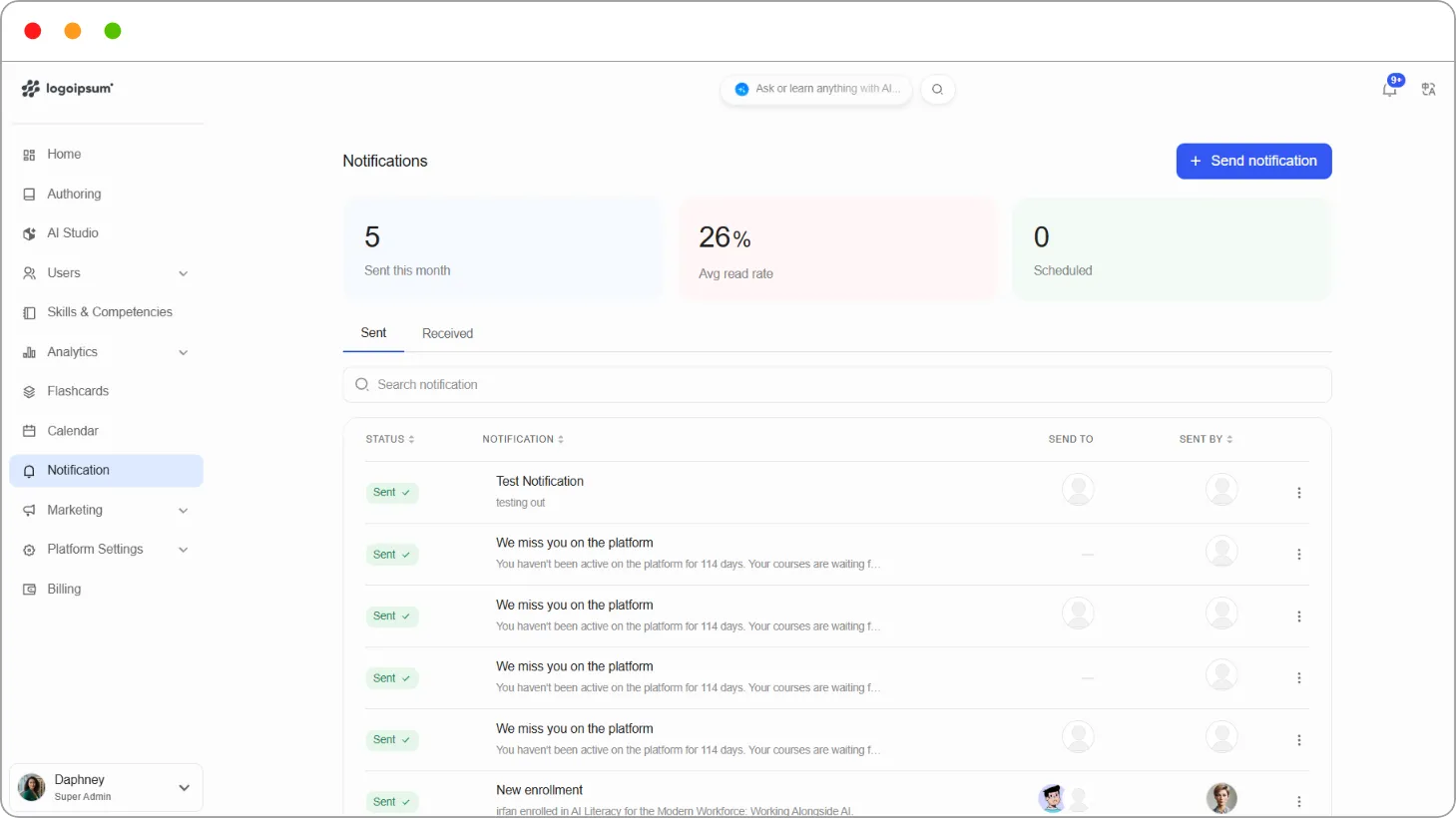
Step 2: Click + Send notification.
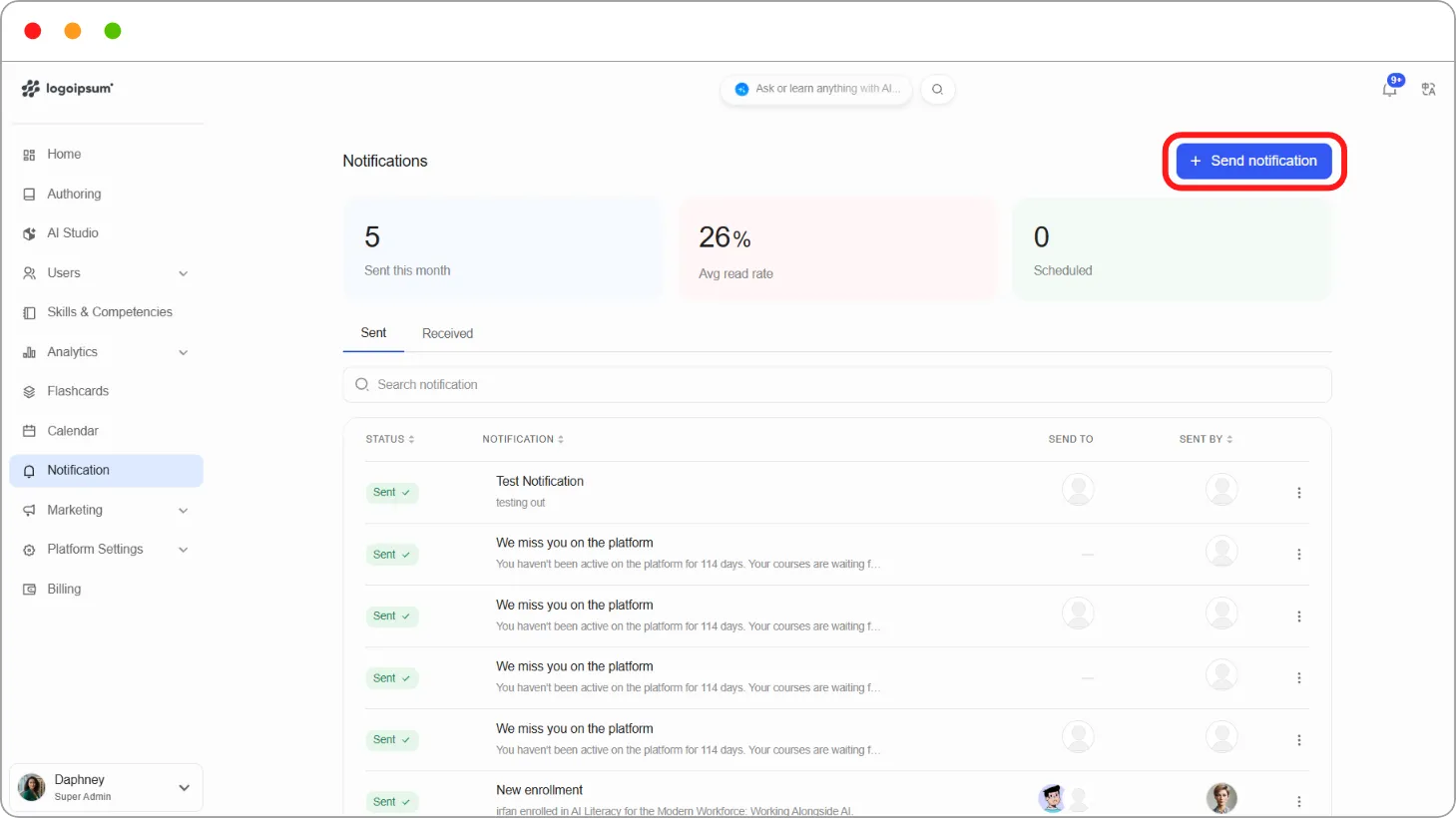
The New notification page opens.
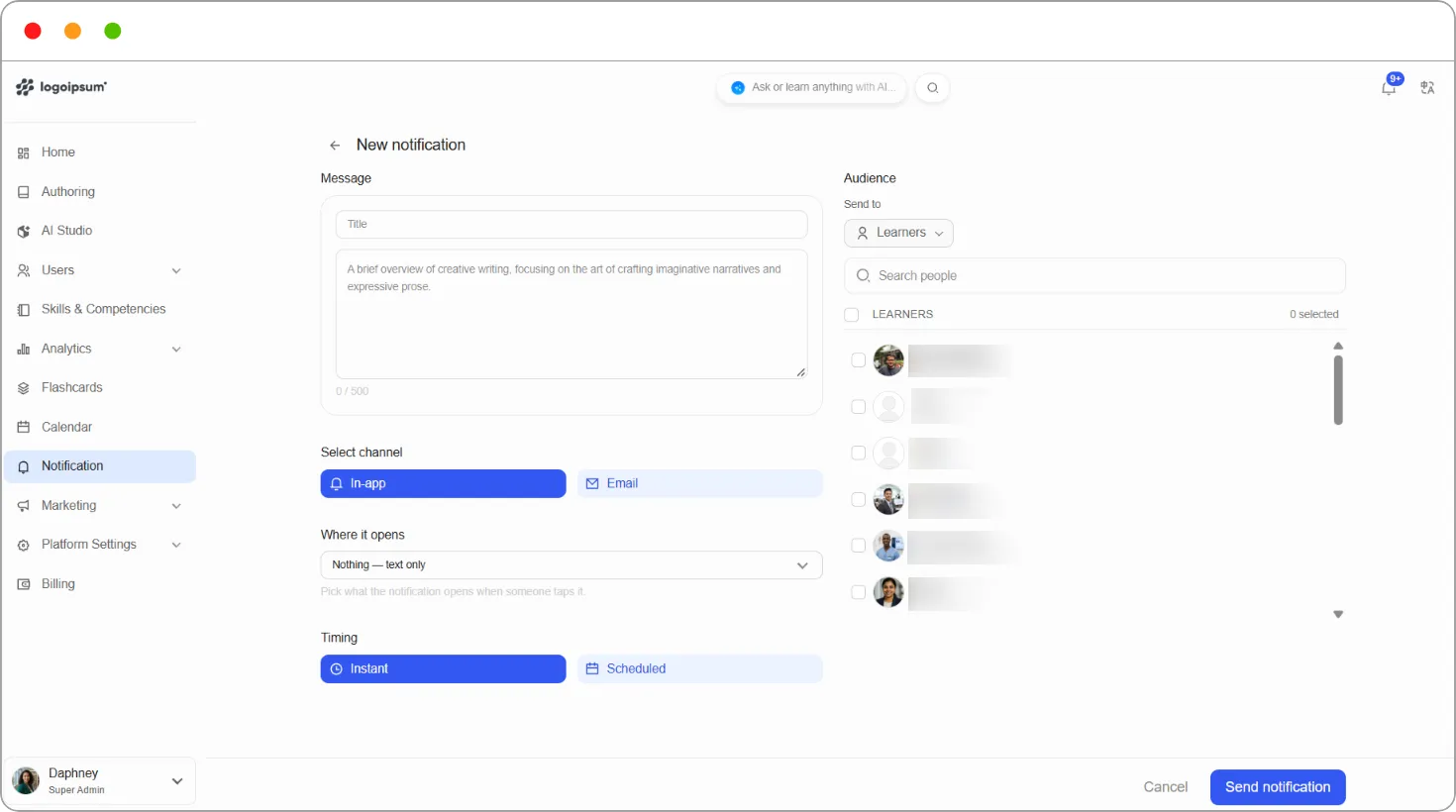
Step 3: Under Message, enter a Title and the message itself. Messages can be up to 500 characters.
Step 4: Under Select channel, choose In-app, Email, or both.
Step 5: Under Where it opens, choose what happens when someone taps the notification:
| Option | What it opens |
|---|---|
| Nothing — text only | Nothing. The notification is just a message |
| A course | A course you choose |
| A program | A program you choose |
| A support ticket | A support ticket |
| An external link | A web address you enter |
Step 6: Under Timing, choose Instant to send now, or Scheduled to send later.
Step 7: Under Audience, use Send to to choose who receives it:
| Send to | Who it reaches |
|---|---|
| Learners | Learners you select |
| Staff | Staff members you select |
| Admins | Admins you select |
| Teams | Everyone in the teams you select |
| Courses | Everyone enrolled in the courses you select |
| Programs | Everyone enrolled in the programs you select |
Step 8: Tick each person or group you want to reach. Use Search people to find them, or tick the header checkbox to select everyone in the list. The count beside the list shows how many you’ve selected.
Step 9: Click Send notification.
A confirmation reads Notification sent successfully, and the notification appears on the Sent tab.
Tip: Use Where it opens to take people straight to what you’re talking about. A notification about a new course that opens the course gets far more clicks than one that just mentions it.
Tip: Send to Courses, Programs or Teams rather than picking people one by one. The notification reaches everyone in the group, without you having to work out who’s in it.
Note: The channels available here are limited by your notification settings. See How to choose which notifications are sent.
How to send a notification to a learner from analytics tab
Section titled “How to send a notification to a learner from analytics tab”You can also send a notification from a learner’s report, without searching for them.
Step 1: Go to Analytics > Learners and click Details beside the learner.
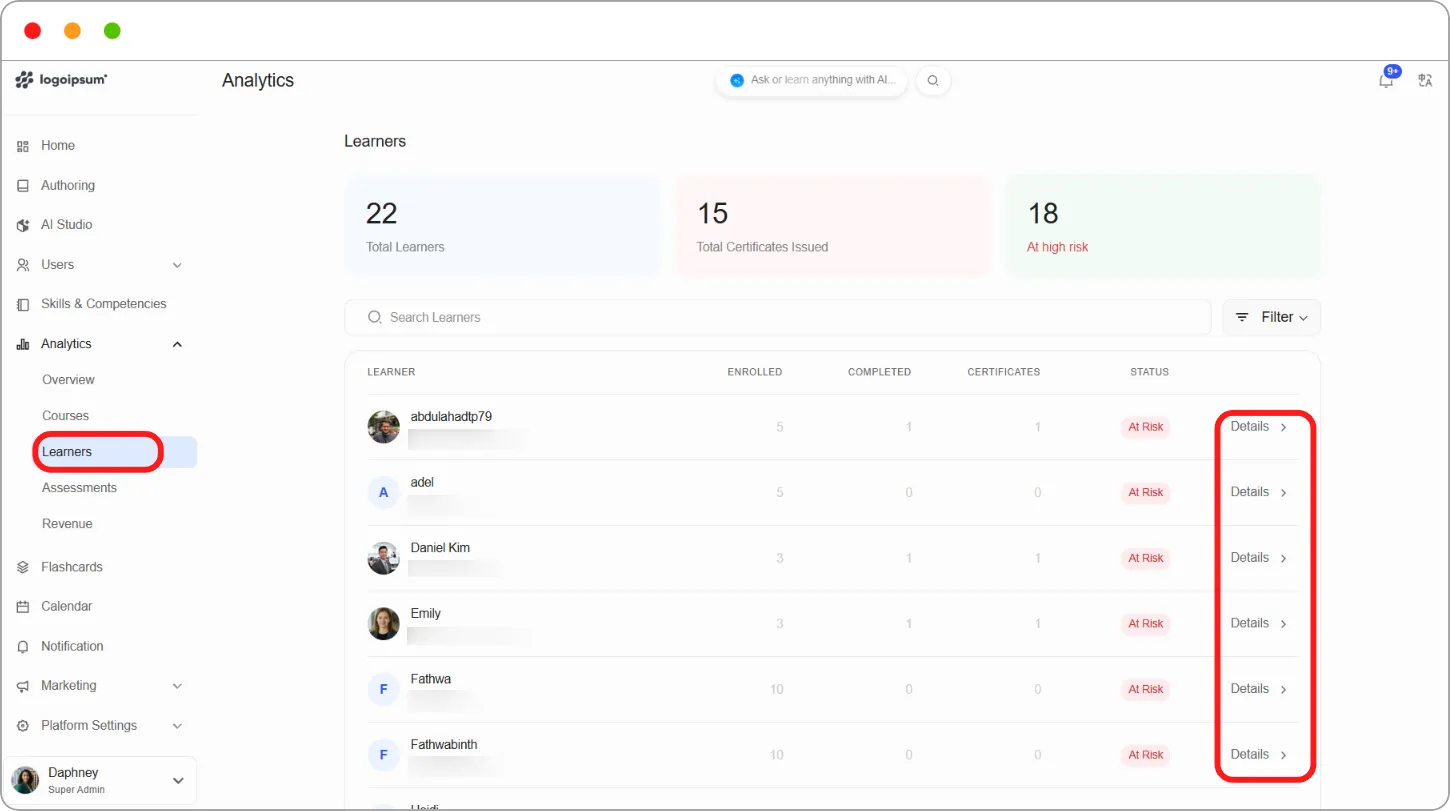
Step 2: Click Send notification at the top right.
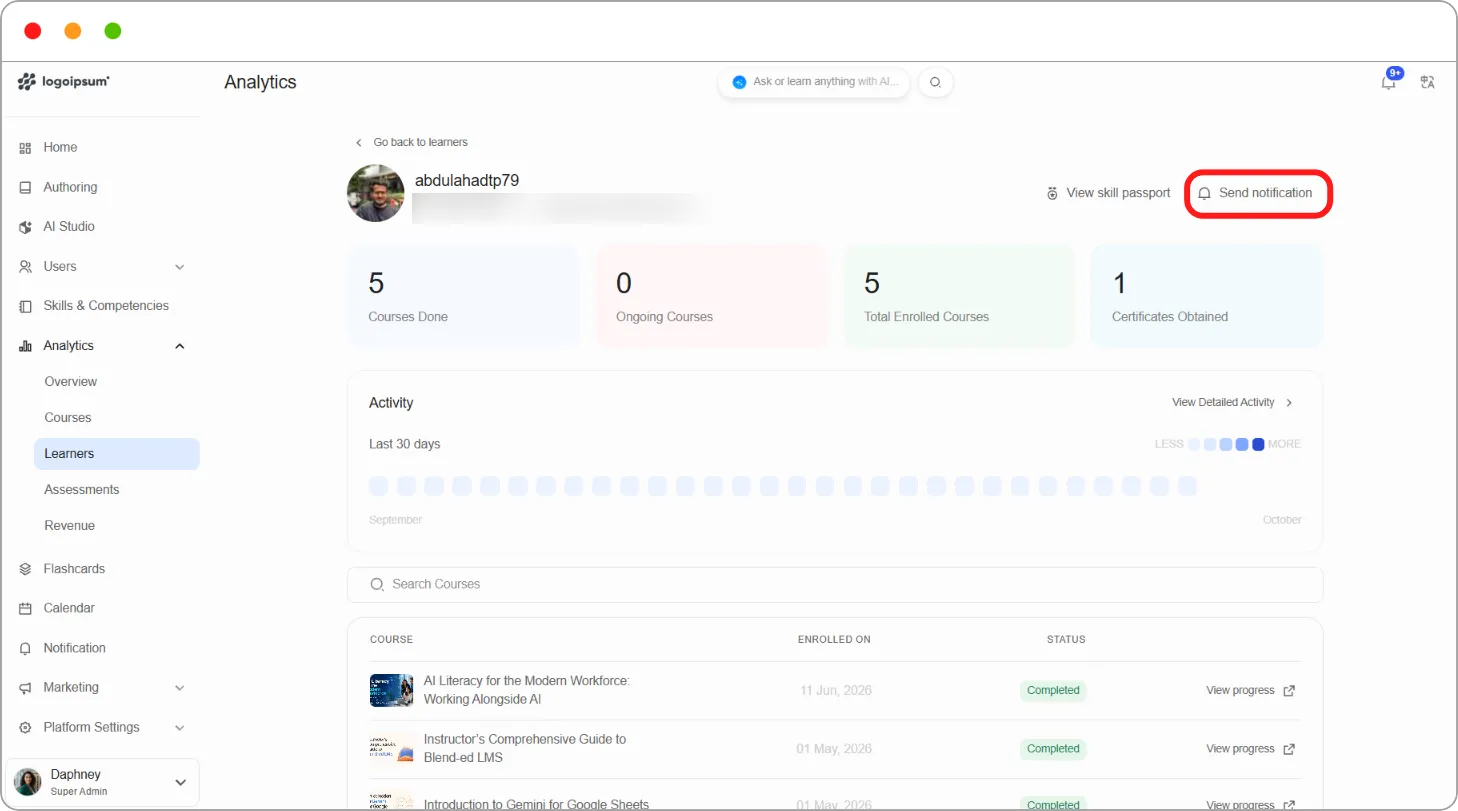
Step 3: Fill in the message, channel, Where it opens and Timing as above, then click Send notification.
Checking what you’ve sent
Section titled “Checking what you’ve sent”The Sent tab lists every notification, with its Status, the Notification title and preview, who it was Send to, and who it was Sent by. Use Search notification to find one.
Click the ⋮ menu beside a notification to:
| Option | What it does |
|---|---|
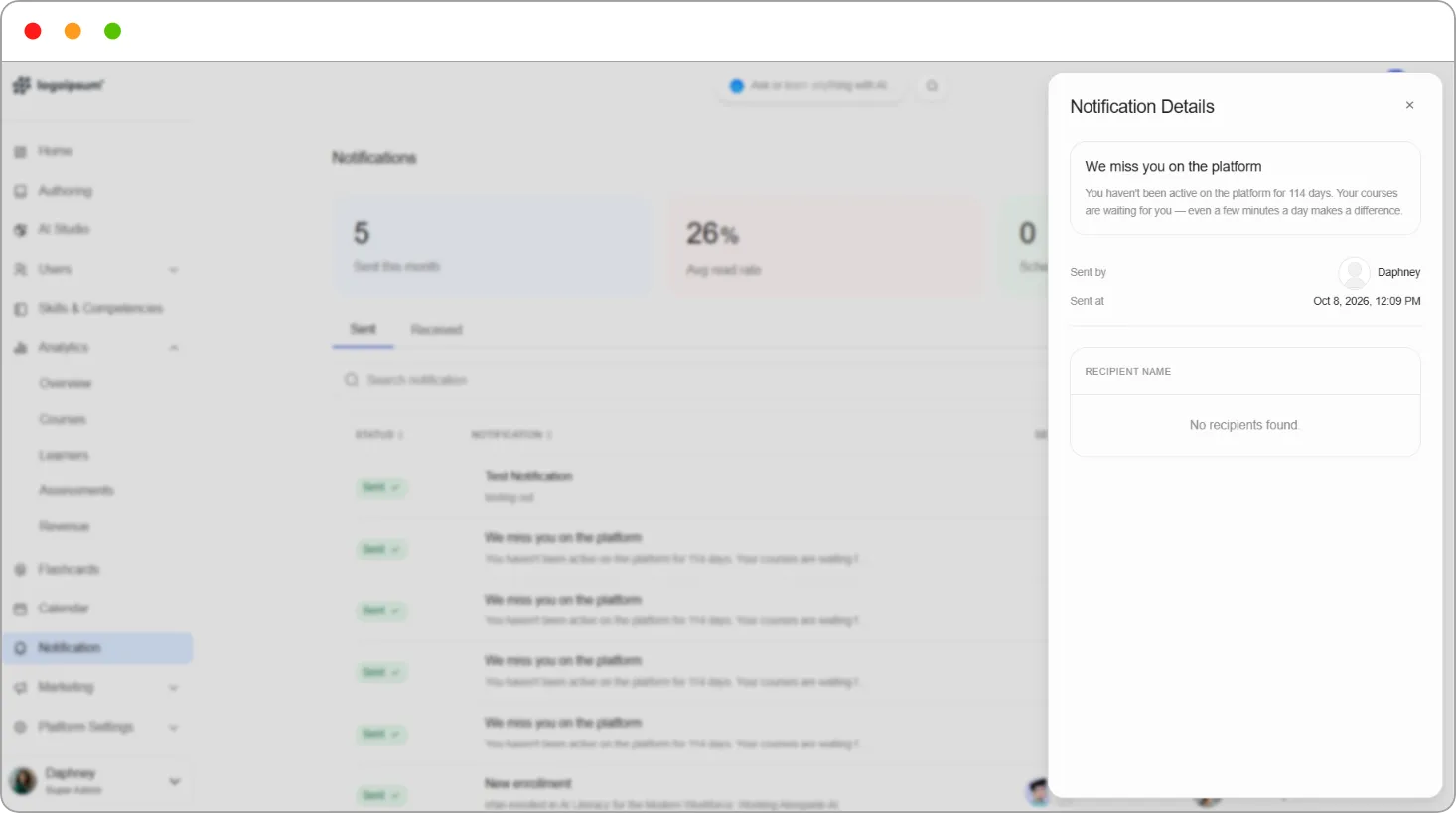
| More details | Opens Notification Details: the message, who sent it, when, and each recipient with their read status, for example Unread |
| Edit notification | Changes the notification |
| Duplicate | Creates a copy you can edit and send again |
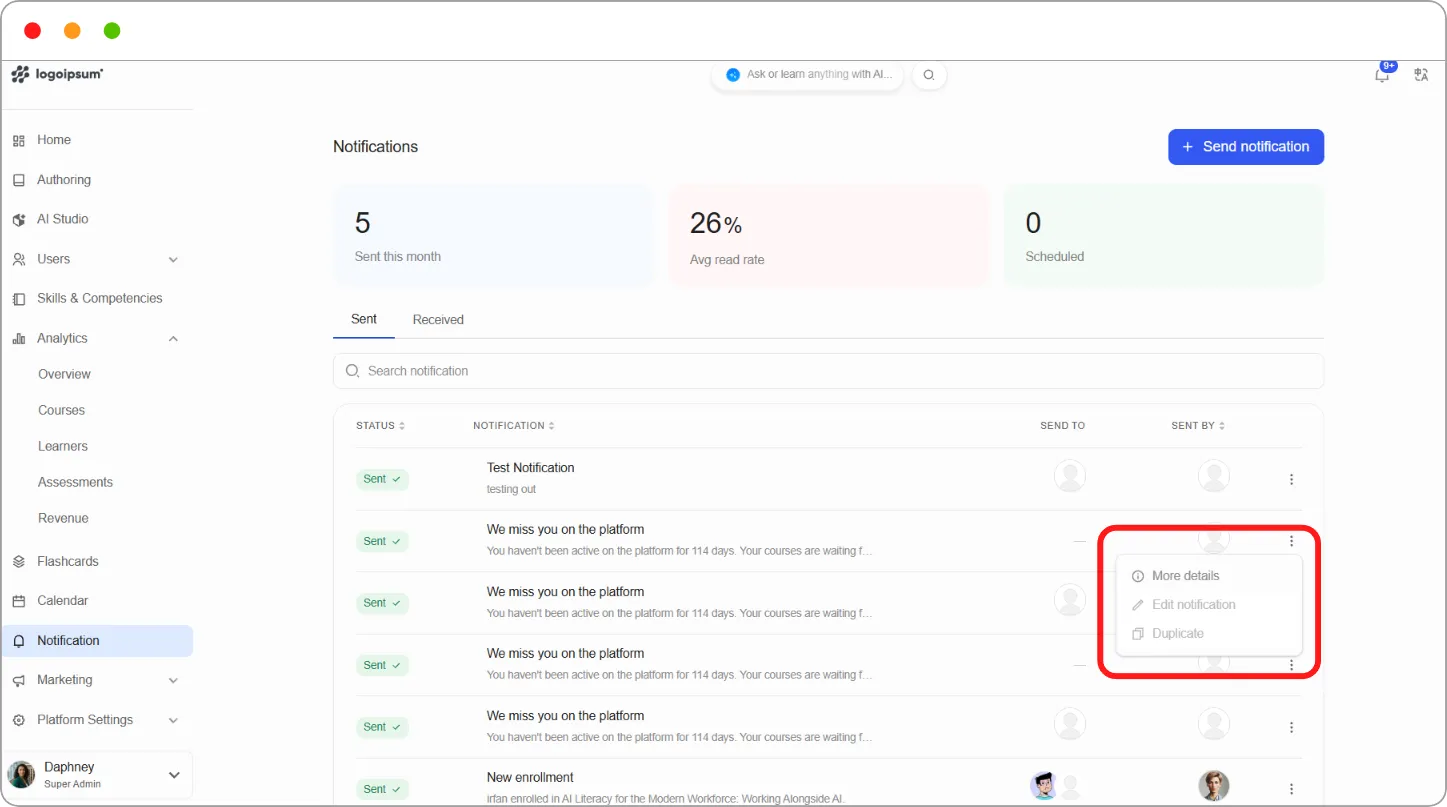
Note: Edit notification and Duplicate aren’t available for every notification. They appear greyed out when they don’t apply.
Tip: Check Avg read rate after a big send. If it’s low, try a shorter title, or send by email as well as in-app.
Notifications you’ve received
Section titled “Notifications you’ve received”The Received tab lists notifications sent to you, with their status, who sent them, and when they arrived. Click Mark all as read to clear them.