
Creating & Managing Programs
A program bundles several courses into a single offering that learners buy and enrol in once. Rather than selling five courses separately and hoping people take them all, you package them, price the bundle, and track learners across the whole thing.
Programs are also where recurring revenue lives. Alongside a one-time price, you can offer monthly or yearly subscriptions.
Where programs live
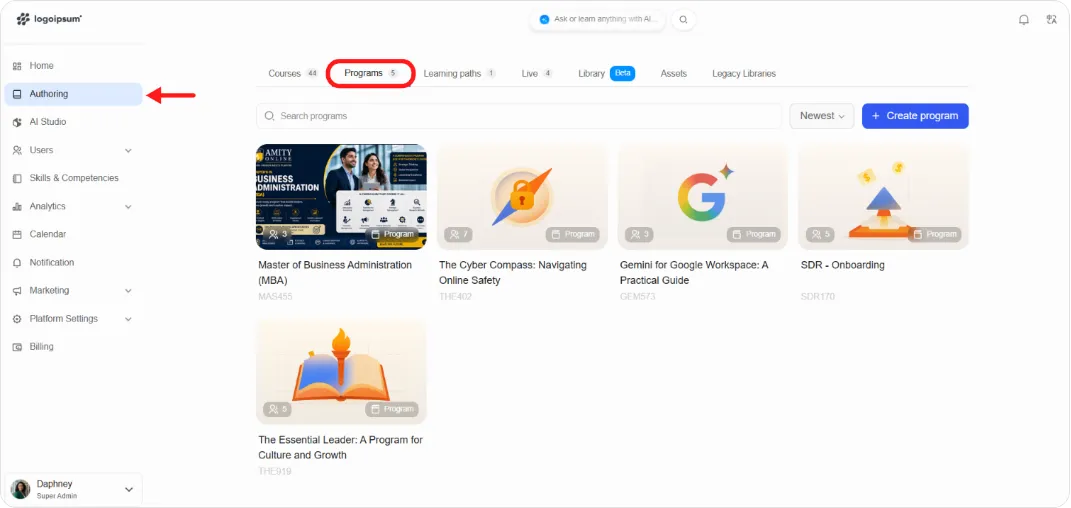
Section titled “Where programs live”From the main left navigation, click Authoring, then open the Programs tab.
The tab lists your programs as cards showing the program image, name, program code, and enrolled learner count, with search and a sort control.
Creating a program
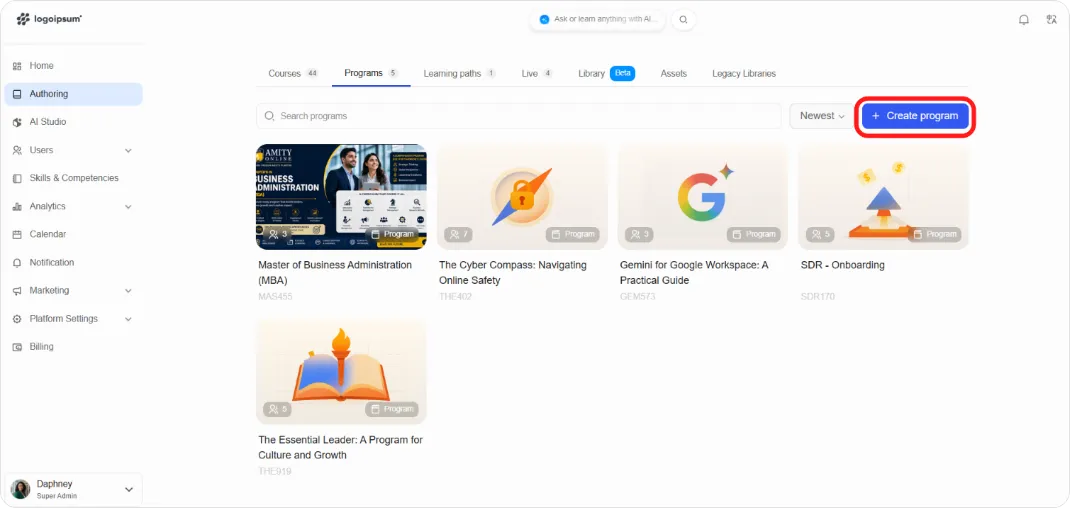
Section titled “Creating a program”Click + Create program and fill in the form.
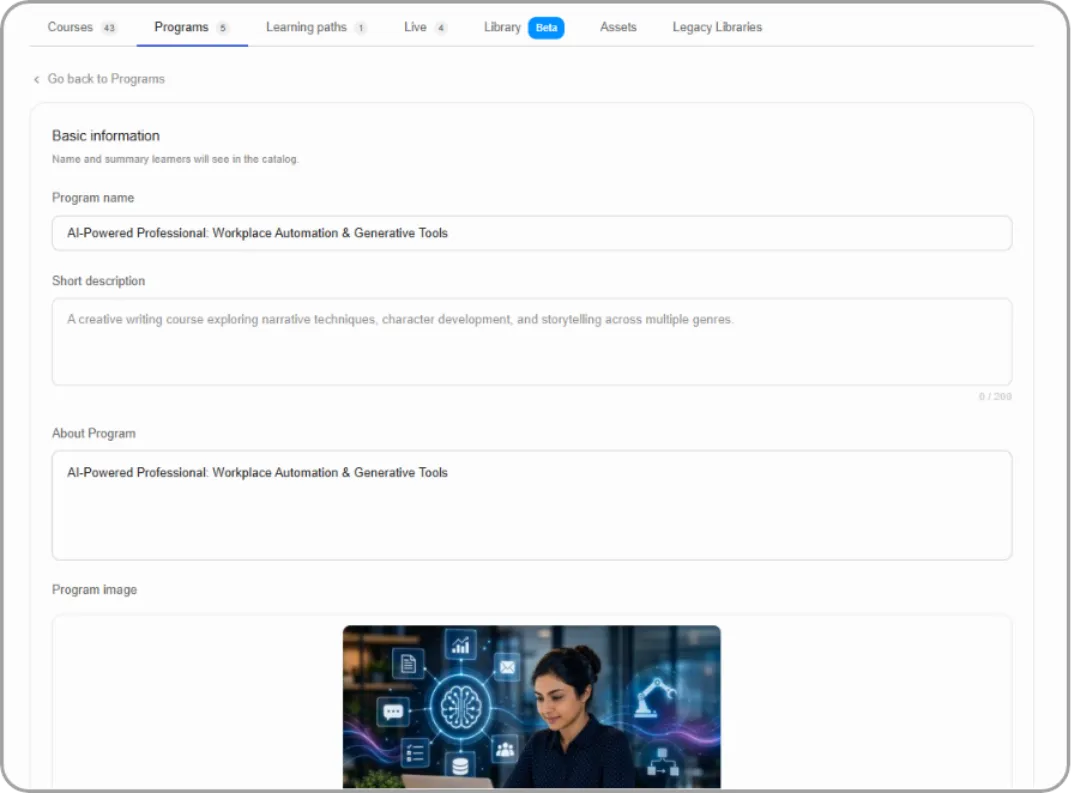
Basic information
The name and summary learners see in the catalogue.
| Field | What to enter |
|---|---|
| Program name | For example, Master of Business Administration (MBA) |
| Short description | A one-line summary, up to 200 characters |
| About Program | The fuller description shown on the program’s page |
Program image
Drag and drop or click Upload Image. PNG, JPG, JPEG, and WEBP are accepted, up to 4.77 MB.
Or use generate with AI: describe the image you want and the platform creates it.
Learning outcomes
What learners achieve by completing the program. These appear as a bullet list on the landing page.
Type an outcome and press enter. Each becomes a removable chip, so you can build up a list and prune it.
Tip: Write outcomes as capabilities rather than topics. “Build and defend a financial model” sells better than “Financial modelling,” because it tells a buyer what they’ll be able to do afterwards.
Pricing & duration
| Field | What it sets |
|---|---|
| Program price | The one-time price for the whole bundle |
| Duration and unit | Expected time to complete |
| Effort | Expected hours per week |
Click Create program.
The program management page
Section titled “The program management page”Creating a program opens its management page, with seven tabs: Overview, Courses, Learners, Fees, Team, Reviews, and Settings.
Overview
The program’s dashboard. A header shows the image, name, description, and three counters (courses, enrolled, duration), followed by:
-
Stat cards — Enrollments, Courses, Avg progress, Revenue
-
Enrollment trend — cumulative enrolments over the last 30 days
-
Progress distribution — where learners are, split between Not started, In progress, and Completed
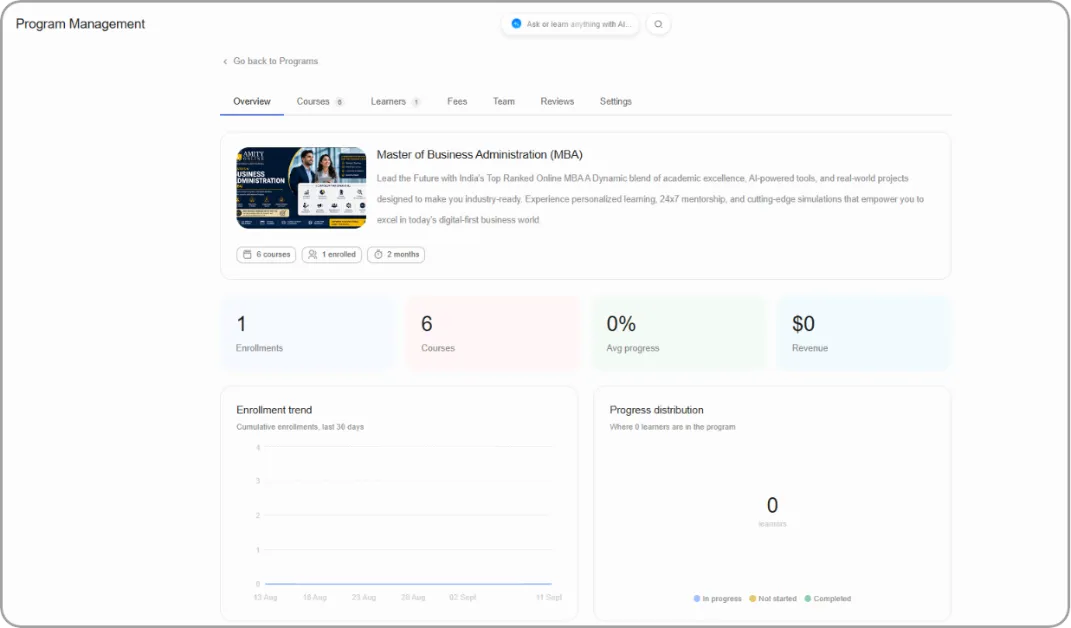
Tip: Progress distribution is the number to watch. A large Not started segment weeks after launch usually means the program is being bought and abandoned, which is a different problem from learners struggling with the content.
Adding courses
Section titled “Adding courses”-
Open the Courses tab.
-
Click + Add course.
-
Search or scroll the list, and tick the courses you want. Selections gather on the right with a count.
-
Click Add course.
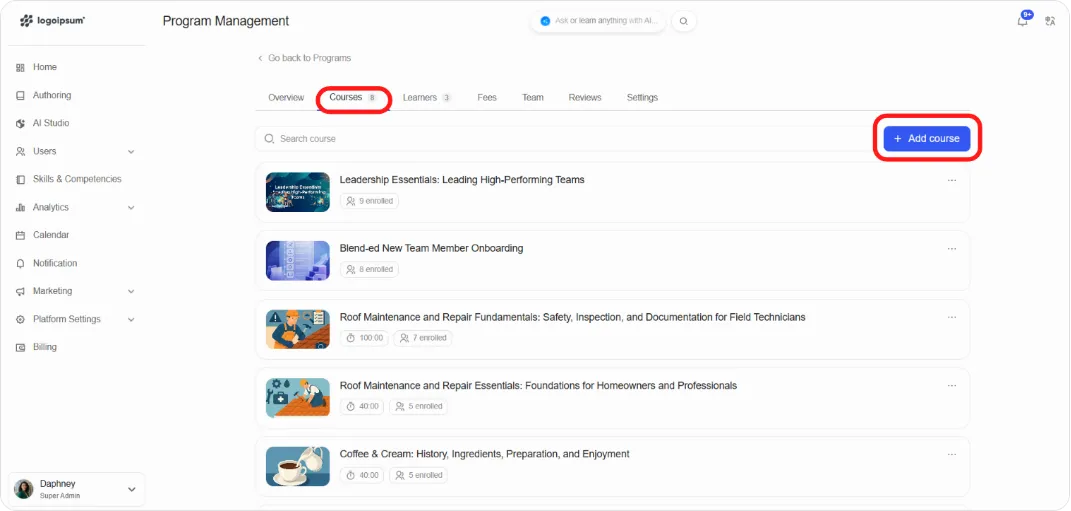
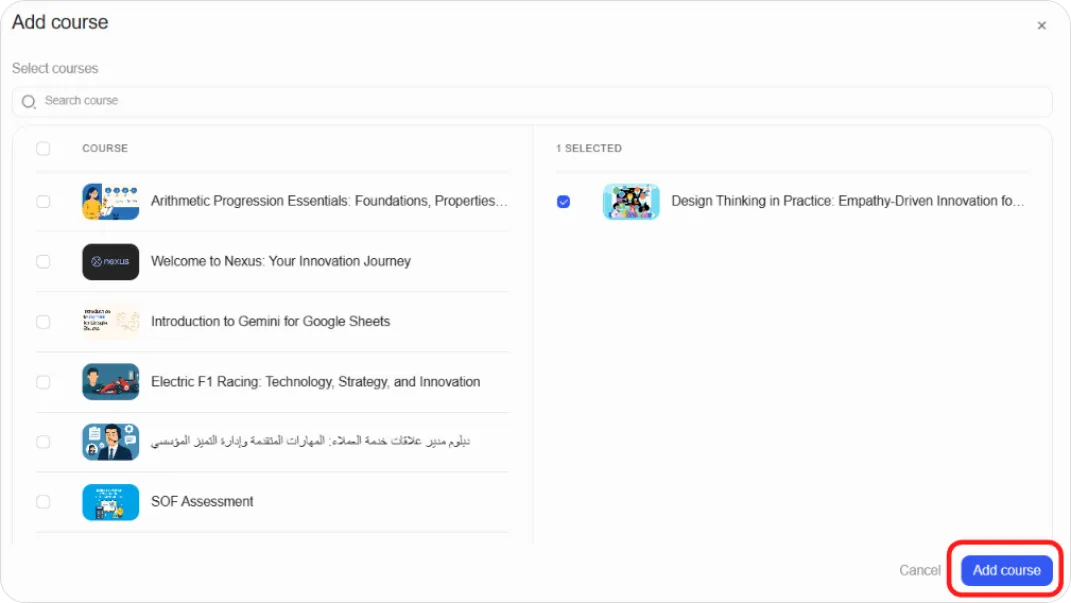
Each course in the program shows its thumbnail, title, duration, and how many learners are enrolled in it.
The ⋮ menu on each row offers View course and Remove course.
Note: Removing a course from a program doesn’t delete the course. It stays in your Courses tab and remains available on its own.
Setting prerequisite courses
Programs support prerequisite courses, so you can require learners to complete one course before another opens. This controls the order people move through a bundle without locking the whole thing into a rigid sequence.
Note: For a fully ordered journey with sequential unlocking built in, a learning path may suit better. See Creating Learning Paths.
Managing learners
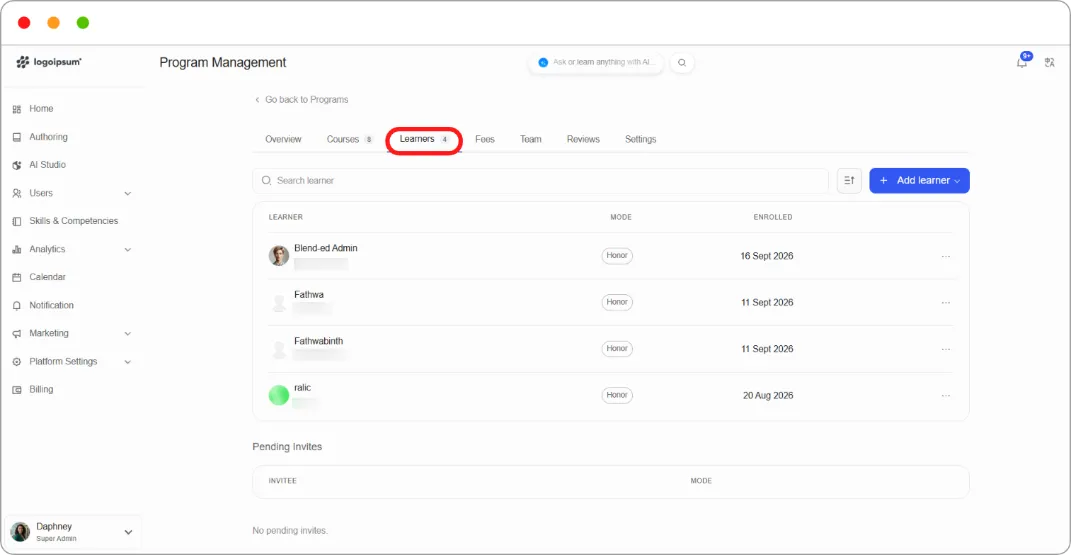
Section titled “Managing learners”The Learners tab lists everyone enrolled, with their enrolment mode and date, plus a search box and sort control.
Adding learners
Click + Add learner and choose how to add them.
Each learner row has a ⋮ menu with View profile and Remove.
Pending invites
Below the enrolled list, a Pending Invites table shows people who’ve been invited but haven’t accepted, with their intended mode.
Tracking revenue
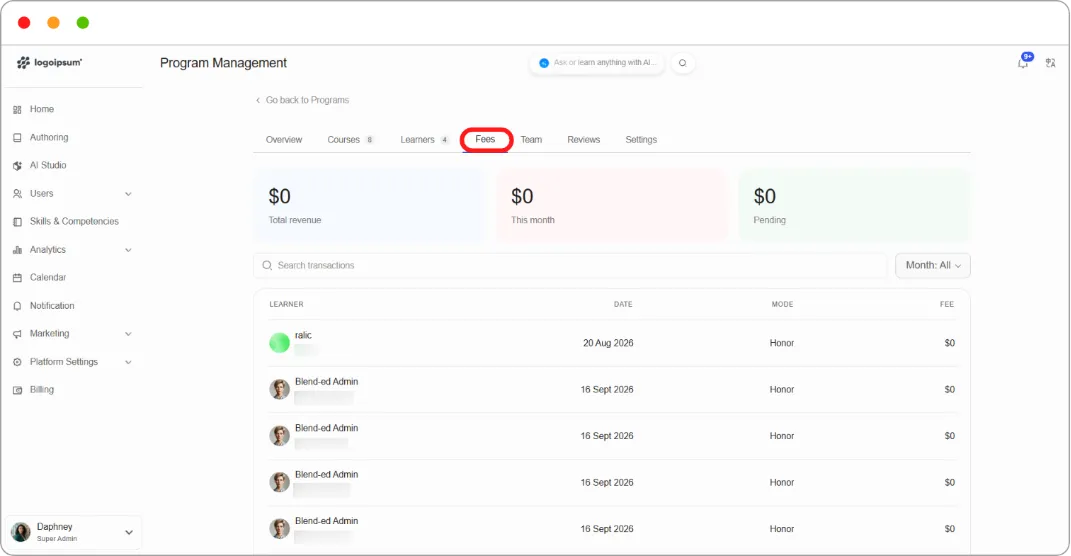
Section titled “Tracking revenue”The Fees tab shows the money side:
-
Total revenue, This month, and Pending as summary cards
-
A transaction table listing each learner, date, mode, and fee
-
Search and a month filter
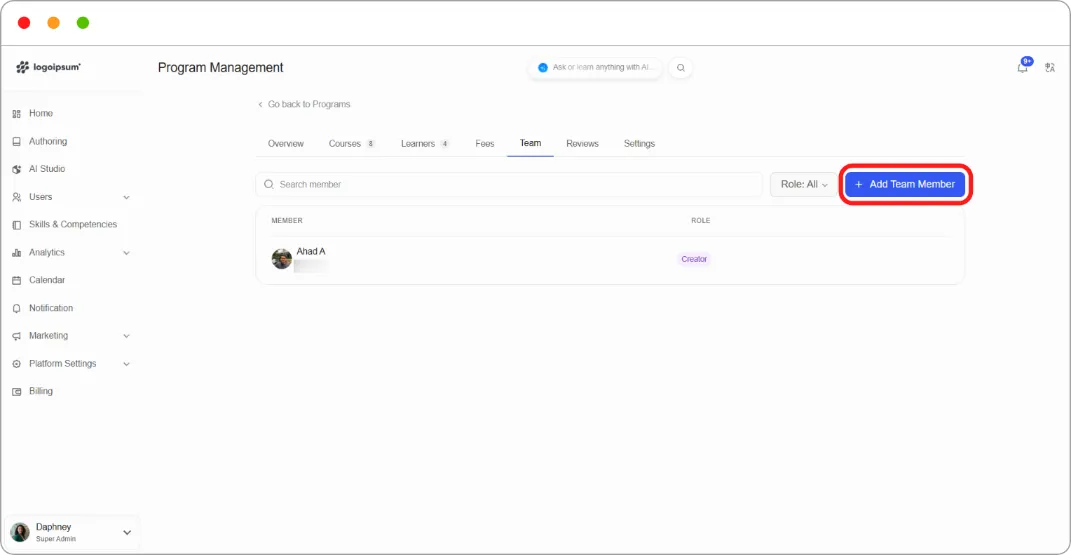
Adding team members
Section titled “Adding team members”The Team tab controls who can manage the program.
- Click + Add Team Member.
-
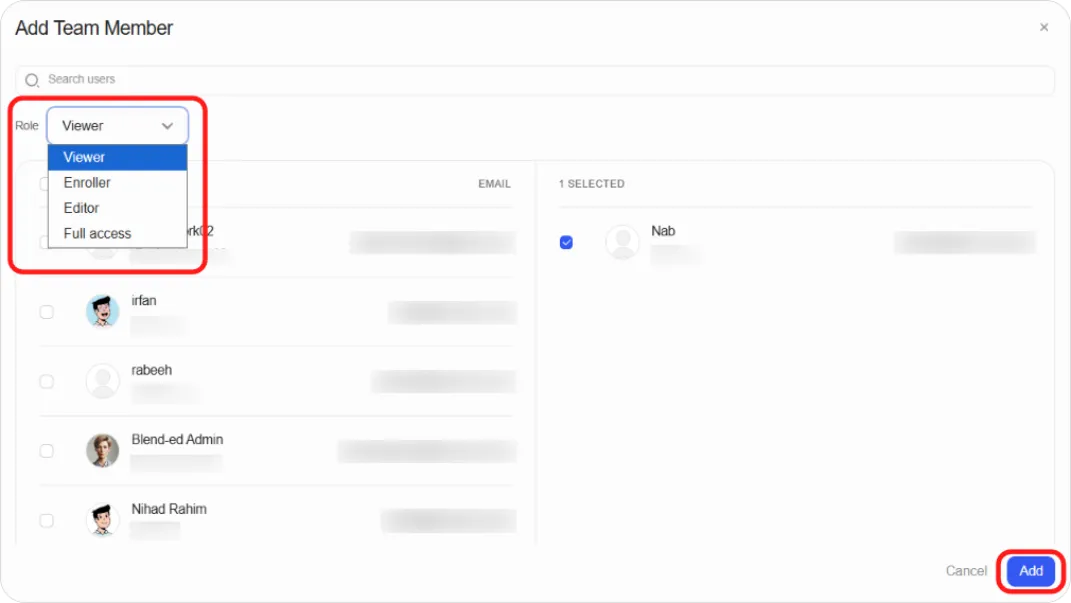
Search for users by name or email.
-
Choose a Role from the dropdown.
-
Tick the people you want and click Add.
Program settings
Section titled “Program settings”The Settings tab holds everything from the create form, plus three sections that only appear once the program exists.
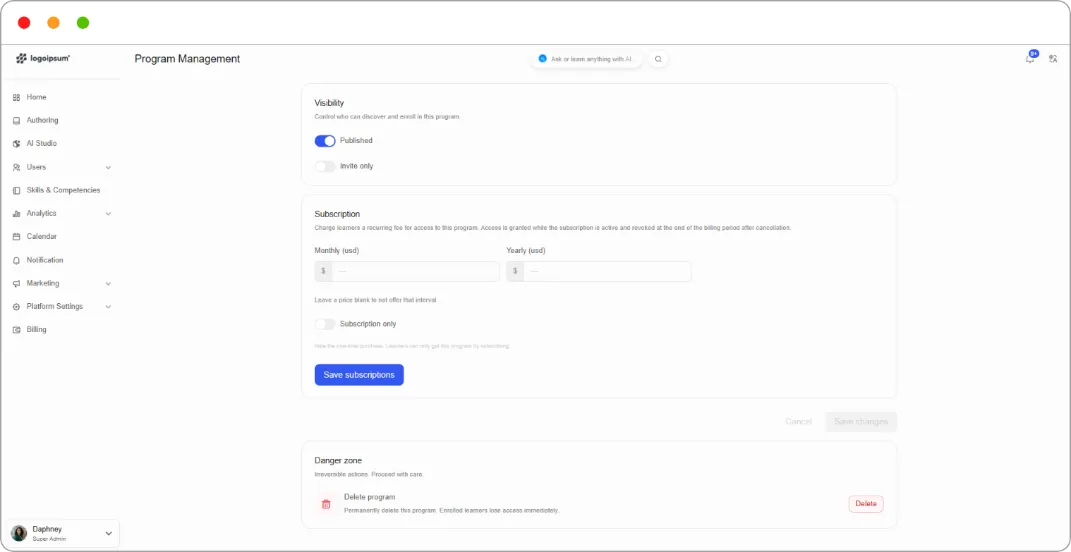
Visibility
Controls who can find and enrol in the program.
| Toggle | Effect |
|---|---|
| Published | The program is live and discoverable in the catalogue |
| Invite only | Only invited learners can enrol, even while published |
Tip: Leave Published off until the courses are in place and priced. A program that appears in the catalogue half-built is worse than one that isn’t there yet.
Subscription
Charge a recurring fee rather than, or alongside, a one-time price. Access is granted while the subscription is active and revoked at the end of the billing period after cancellation.
-
Enter a Monthly price, a Yearly price, or both. Leave one blank to not offer that interval.
-
Optionally switch on Subscription only, which hides the one-time purchase so learners can only subscribe.
-
Click Save subscriptions.
Tip: Offering both intervals with a discount on the yearly price is the standard play, and the yearly option is what smooths out your revenue. Reach for Subscription only when the program is genuinely ongoing, with content you keep adding to. On a fixed bundle it just removes a way for people to pay you.
Danger zone
Delete program permanently removes it. Enrolled learners lose access immediately.
Program, learning path, or course?
Section titled “Program, learning path, or course?”| Use | When |
|---|---|
| Course | A single subject with its own structure, grading, and certificate |
| Program | A commercial bundle of courses sold and enrolled in as one thing, with its own pricing, subscriptions, and revenue tracking |
| Learning path | An ordered journey where sequence and pacing matter, built from courses or individual competency components |
The shortest version: reach for a program when you’re selling, and a learning path when you’re sequencing.
What’s next
Section titled “What’s next”-
Build the courses a program bundles: How to Create a Course (Manual)
-
Sequence learning instead of selling a bundle: Creating Learning Paths
-
Enrol learners into individual courses: Enrollment & Publishing