
Getting around the admin view
Who this is for: Super Admins, Admins and Staff
The admin view is where you build courses, manage users, and run your platform.
Your Home page
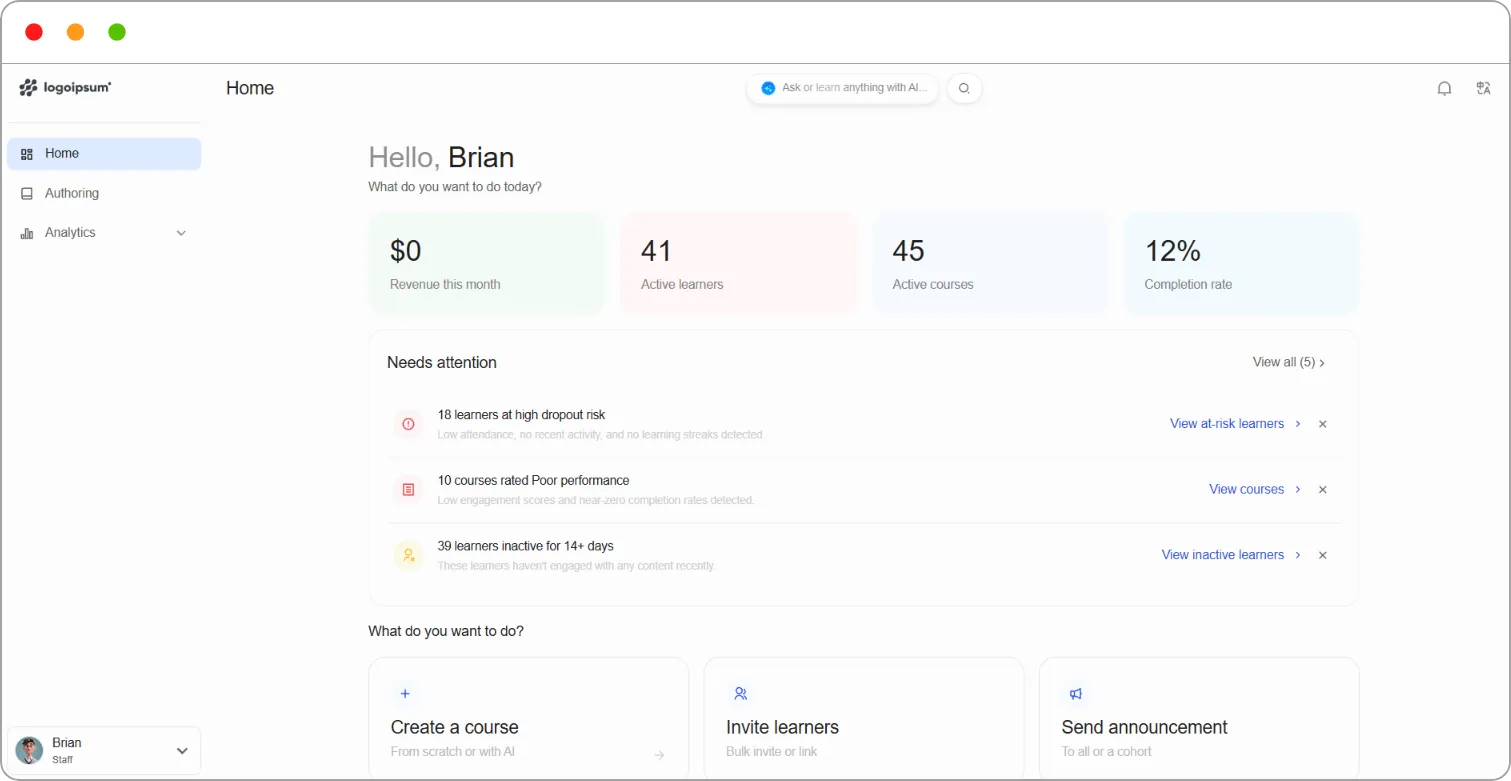
Section titled “Your Home page”When you sign in, you land on Home. It greets you by name and asks What do you want to do today?
| Area | What it shows |
|---|---|
| Summary cards | Revenue this month, Active learners, Active courses and Completion rate |
| Needs attention | Learners and courses that need action, such as learners at high dropout risk. Click a link to go straight to them, or View all to see every alert |
| What do you want to do? | Shortcuts to common tasks: Create a course (from scratch or with AI), Invite learners (bulk invite or link) and Send announcement (to all or a cohort) |
| Recent Activity | The latest learner activity on your platform. Click View all to see more |
Tip: Start each day with Needs attention. It flags problems as they appear, so you can act before a learner drops out. See General overview: Reporting & Analytics.
The left navigation
Section titled “The left navigation”| Item | What it’s for | See |
|---|---|---|
| Home | Your starting page | This article |
| Authoring | Building and editing courses | Course Creation & Authoring |
| AI Studio | Creating courses with AI | How to Create a Course with AI Studio |
| Users | Users, staff, learners and teams | Users, Roles & Teams |
| Skills & Competencies | Your skill taxonomy and competencies | How to assign competencies to a team |
| Analytics | Course, learner, assessment and revenue reports | Reporting & Analytics |
| Flashcards | Learner flashcards | How to use Flashcards |
| Calendar | Scheduling and events | Calendar & Scheduling |
| Notification | Sending notifications to users | How to send a notification |
| Marketing | Your landing page and coupons | Platform Setup, Branding & Integrations |
| Platform Settings | Branding, features, integrations and notifications | Platform Setup, Branding & Integrations |
| Billing | Your plan, usage and invoices | How to view your plan, usage and billing history |
Note: Some items only appear when the feature is switched on for your platform. See How to turn platform features on and off.
What Staff see
Section titled “What Staff see”Staff see Home, plus only the parts of the navigation their permissions allow. For example, a staff member with Create Course and View Analytics sees Home, Authoring and Analytics, and nothing else.
Note: In Authoring, Staff only see courses they’re on the course team for. If the list is empty, ask the course’s owner to add you to its team. See Managing Your Course Team & Learner Communication.
Note: If you’re Staff and can’t find something you need, ask your administrator to check your permissions. See How to edit a staff member’s permissions.
At the top of every page
Section titled “At the top of every page”| Item | What it does |
|---|---|
| Ask or learn anything with AI | Opens the AI search assistant |
| Bell icon | Shows your notifications |
| Language icon | Changes the language of the platform |
Your user menu
Section titled “Your user menu”Click your name at the bottom of the left navigation. Your role is shown under your name. The menu offers:
| Option | What it does |
|---|---|
| Switch Org | Moves you to another organisation you belong to |
| View as Learner | Switches to the learner view |
| Help & Support | Raises a support ticket |
| About | Shows your organisation’s contact information |
| Logout | Signs you out |
Note: Your profile, notification preferences and wishlist are only available in the learner view. See General overview: Account & Billing.