
How to view revenue and record an off-platform payment
Who can do this: Admins, and staff with the View Analytics permission
The Revenue page shows every course and program purchase on your platform. You can also record payments taken outside the platform.
Viewing revenue
Section titled “Viewing revenue”Step 1: Go to Analytics > Revenue.
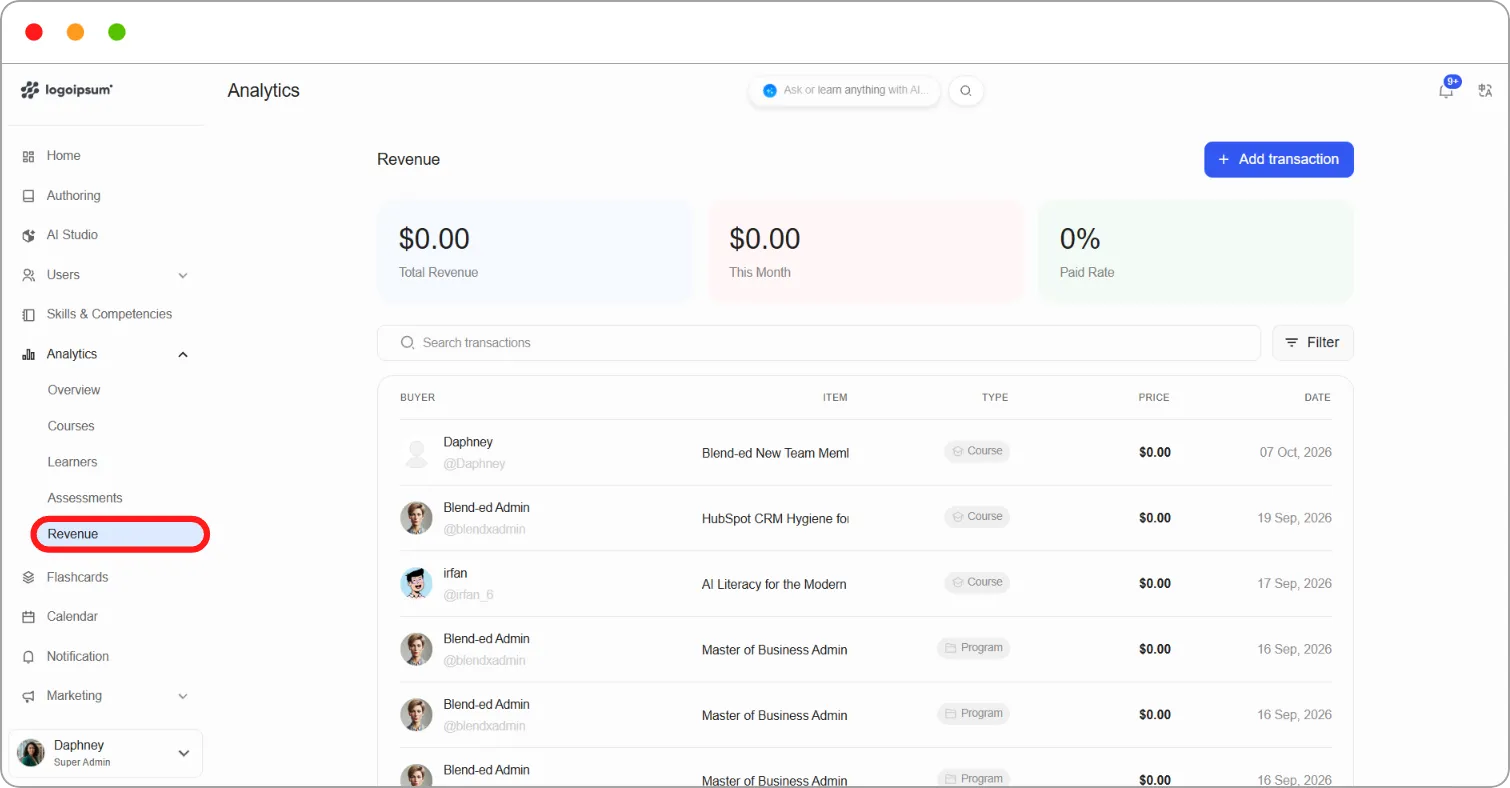
The top of the page shows:
| Card | What it shows |
|---|---|
| Total Revenue | All revenue to date |
| This Month | Revenue so far this month |
| Paid Rate | The percentage of transactions that were paid rather than free |
Below, each transaction shows the Buyer, the Item they bought, its Type (Course or Program), the Price and the Date.
Use Search transactions to find a transaction, or Filter to narrow the list.
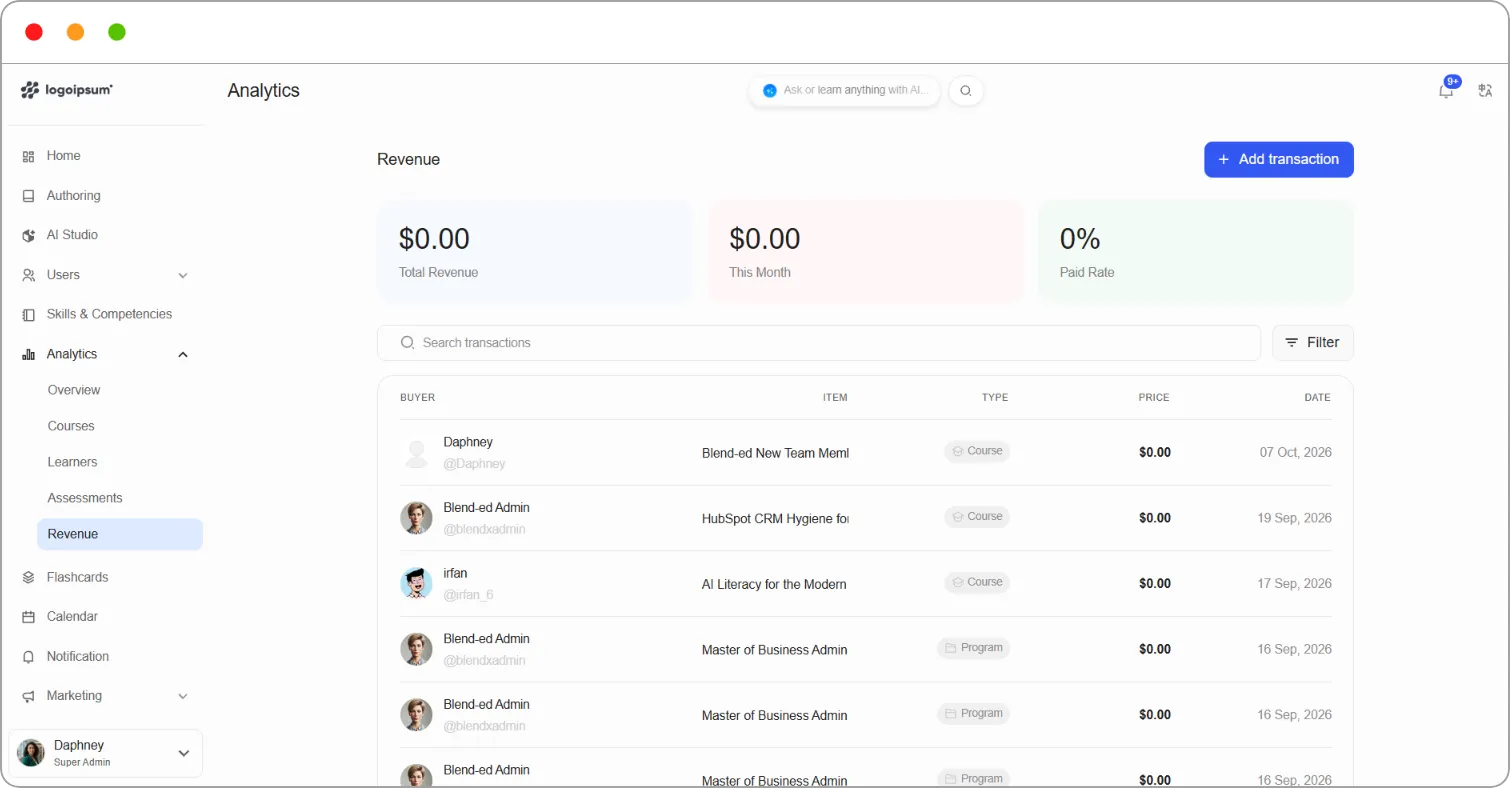
Recording an off-platform payment
Section titled “Recording an off-platform payment”Use this to log a payment a learner made outside Blend-ed, such as cash, bank transfer or invoice, so every payment is recorded in one place.
Before you start: The learner must already be enrolled in the course or program.
Step 1: On the Revenue page, click + Add transaction.
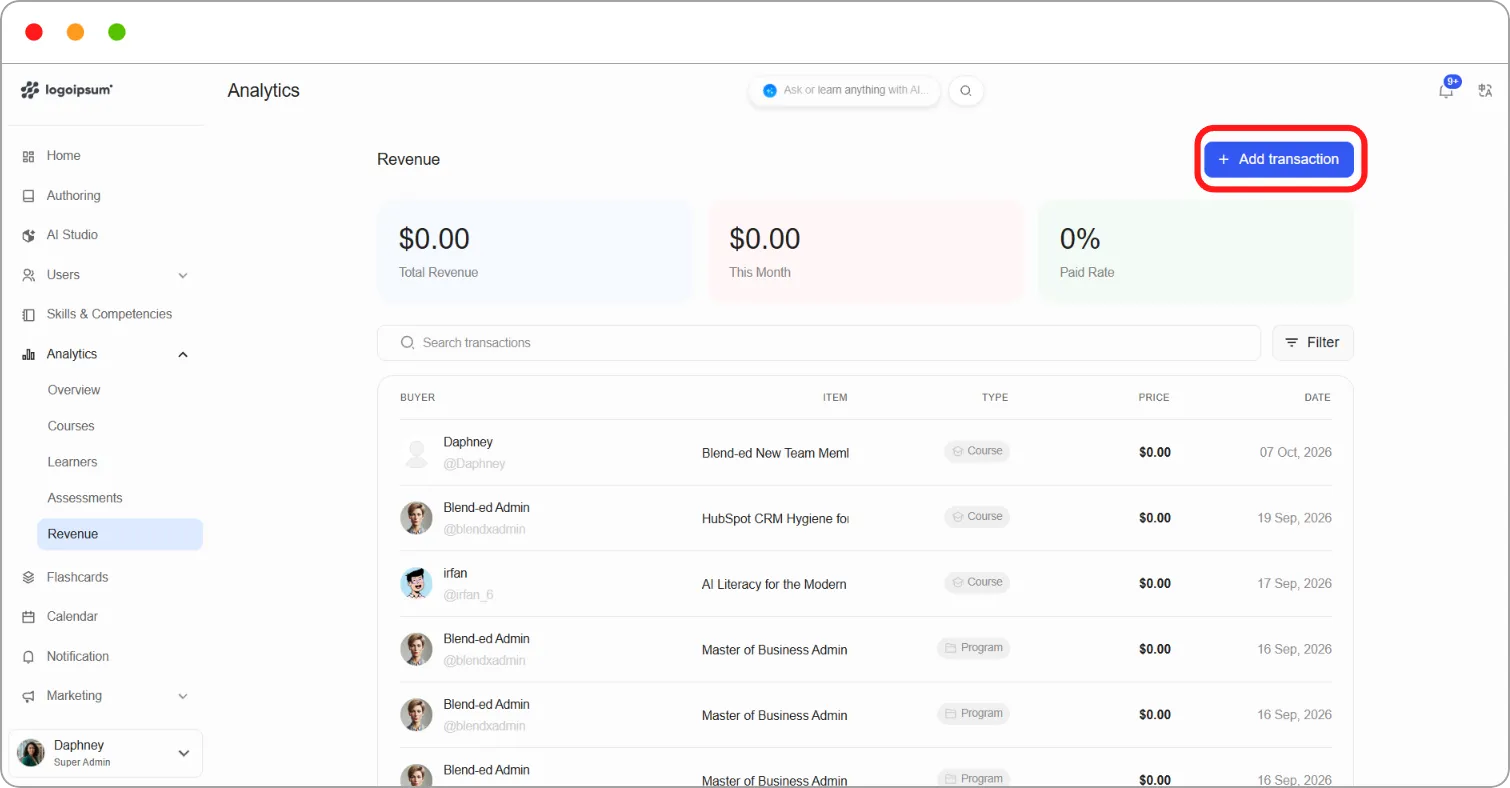
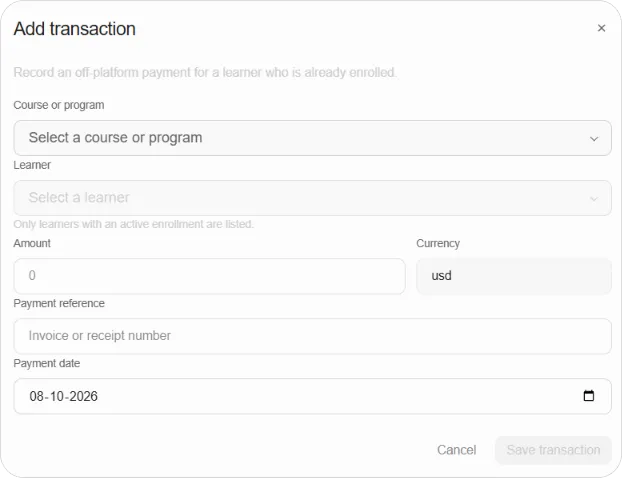
Step 2: Under Course or program, choose what the learner paid for.
Step 3: Under Learner, choose the learner. Only learners with an active enrolment are listed.
Step 4: Enter the Amount and check the Currency.
Step 5: Enter the Payment reference, such as an invoice or receipt number.
Step 6: Check the Payment date, and change it if the payment was made on another day.
Step 7: Click Save transaction.
The payment now appears in the transaction list and is included in your revenue totals.
Tip: Always add a payment reference. It makes it easy to match the transaction to your accounting records later.
Note: Adding a transaction doesn’t enrol the learner. Enrol them first. See How to enrol learners manually.