
How to manage your Skill Passport
Who can do this: Learners
Your Skill Passport shows the competencies you’re building and how far you’ve progressed in each. You can keep it private or share it with a link.
How skills and competencies fit together
Section titled “How skills and competencies fit together”A competency is a broad area of ability, such as Cybersecurity or Leadership. Each competency is made up of skills, the specific things you can do, such as Password Managers or Recognizing Secure Websites (HTTPS).
As you complete course content linked to a skill, your progress in that competency grows.
Viewing your Skill Passport
Section titled “Viewing your Skill Passport”Go to Skill Passport in the left navigation.
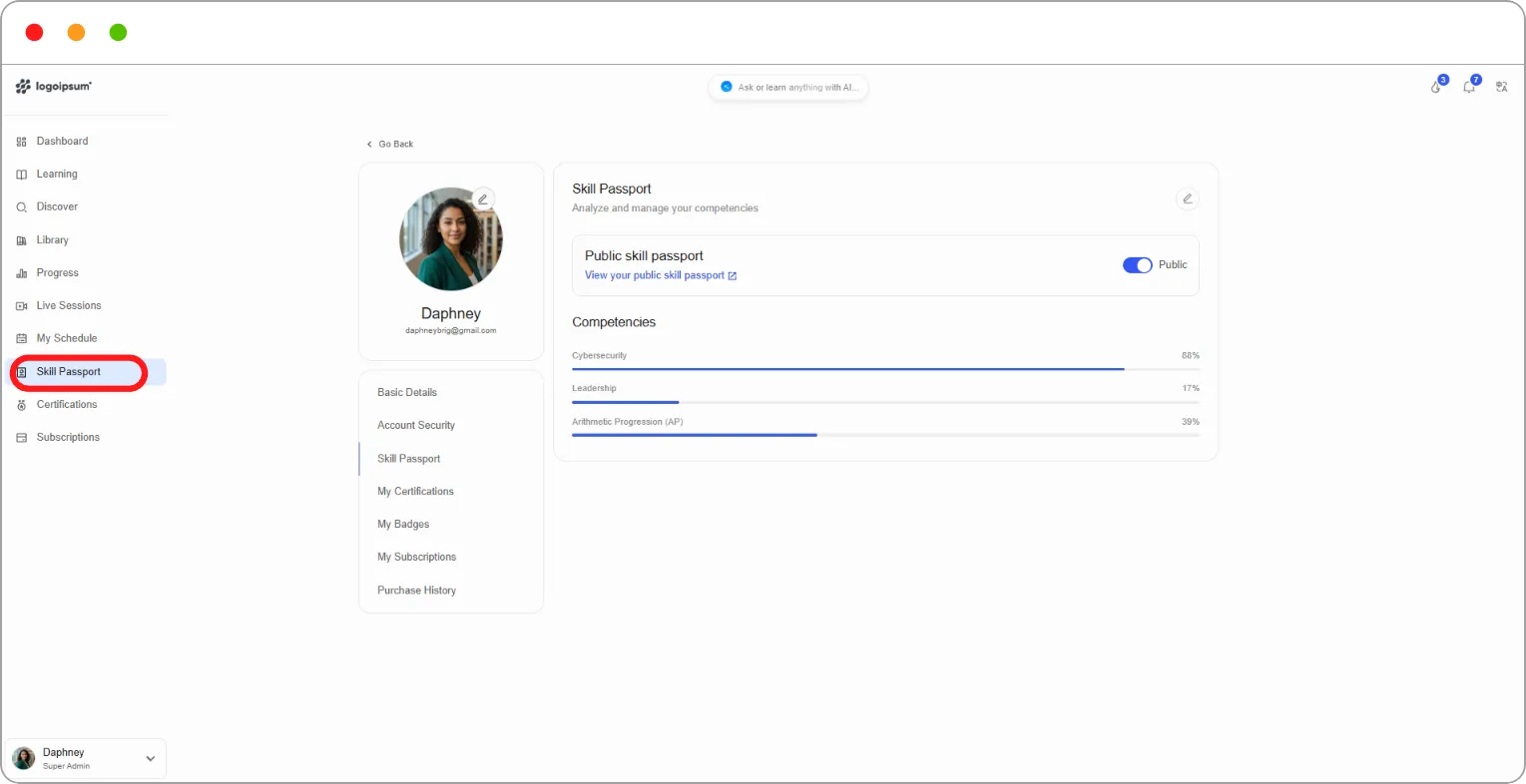
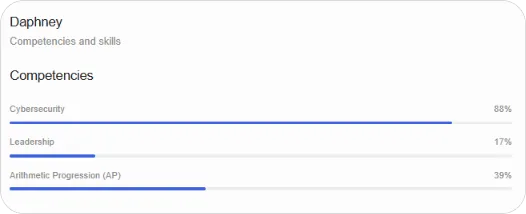
Under Competencies, each competency shows a progress bar and a percentage.
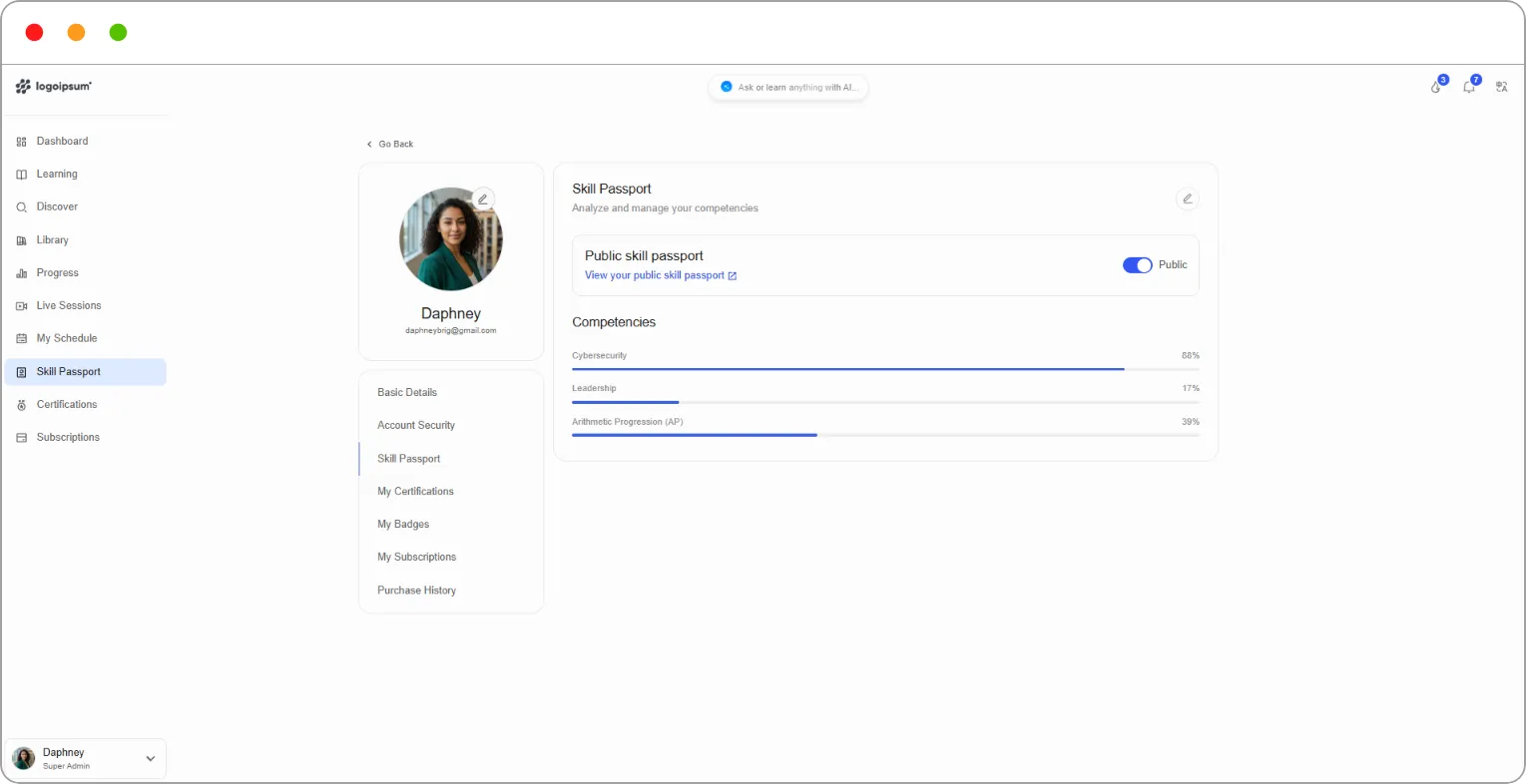
Note: If you see You don’t have any competencies yet, none have been added to your passport. Your organisation may also assign competencies to you through your team.
Adding competencies
Section titled “Adding competencies”You can add any competency your organisation has made available.
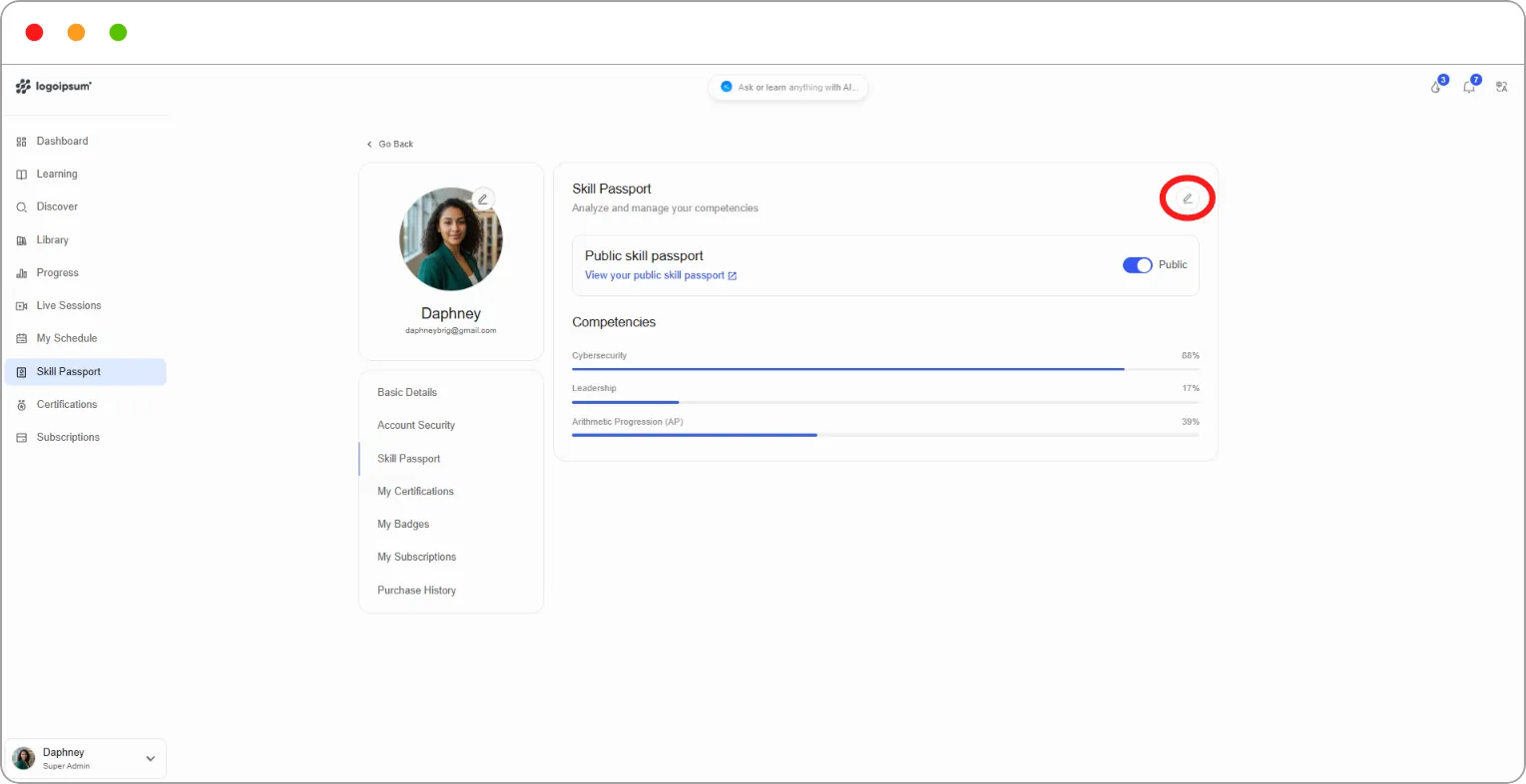
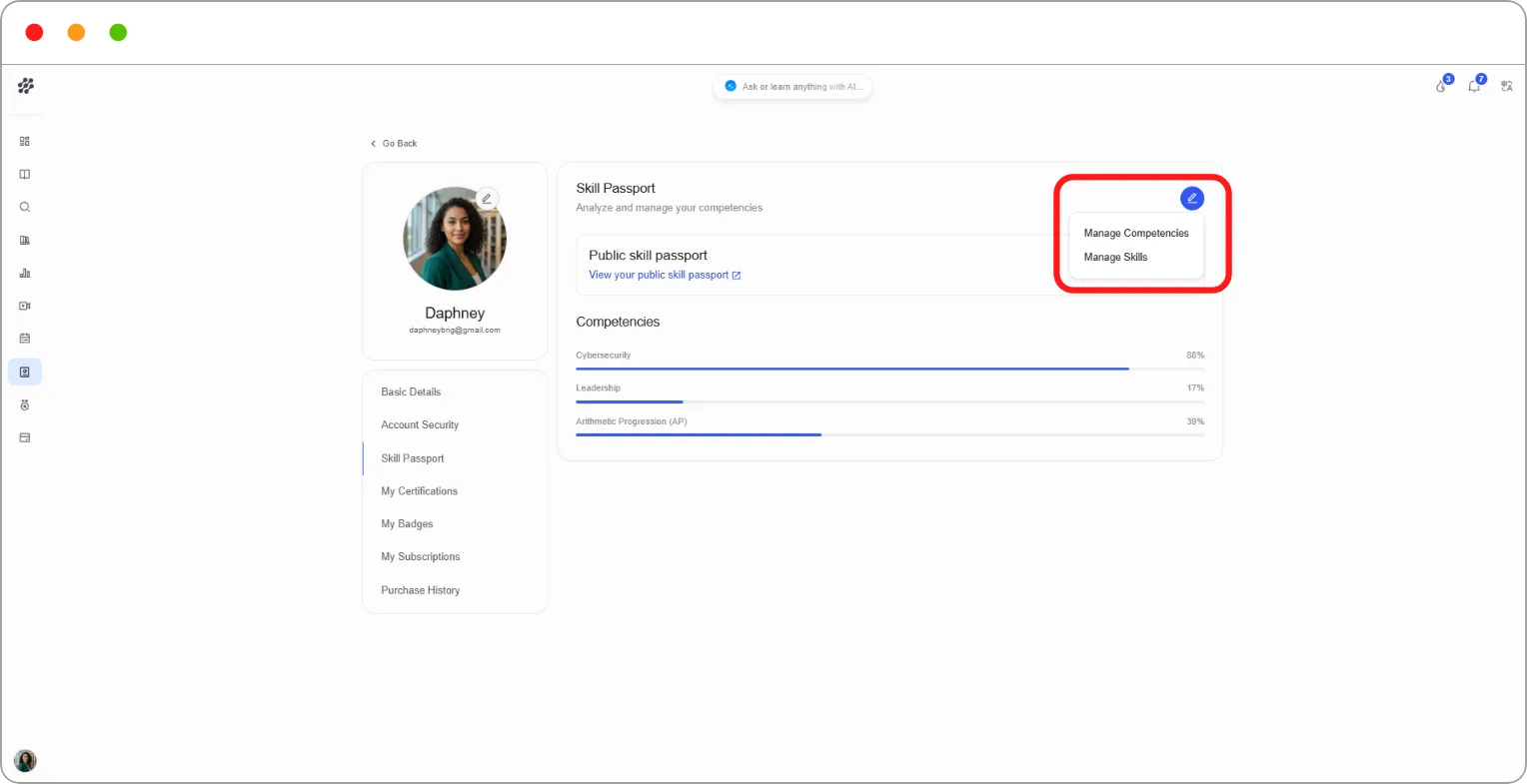
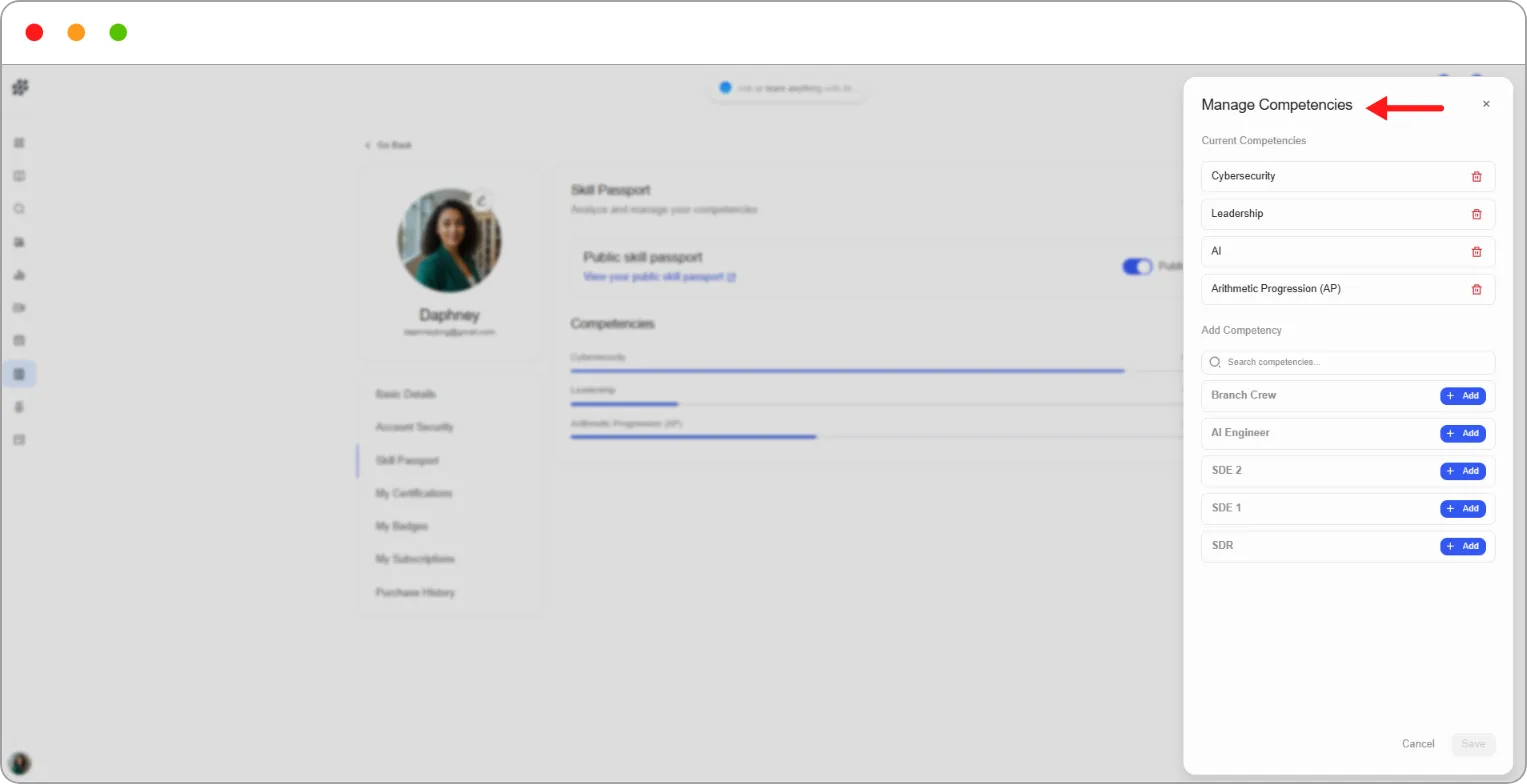
Step 1: On the Skill Passport page, click the edit (pencil) icon.
Step 2: In the Manage Competencies window, find a competency under Add Competency. Use Search competencies… to narrow the list.
Step 3: Click + Add beside each competency you want.
The competencies you’ve added appear under Current Competencies.
Step 4: Click Save.
Managing skills
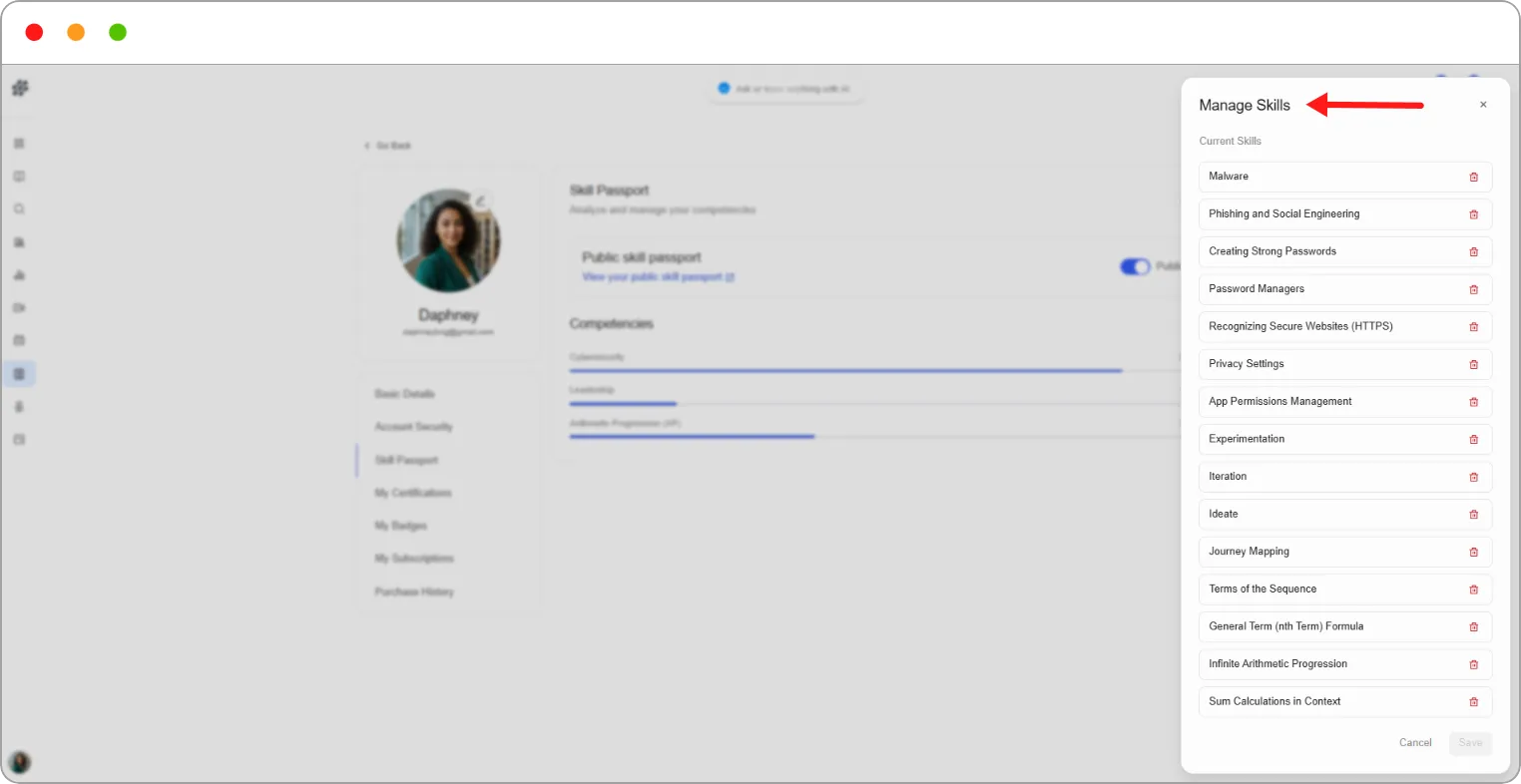
Section titled “Managing skills”Skills are added to your passport for you, so there’s nothing to set up. You can remove any skill you don’t want to show.
The Manage Skills window lists your Current Skills. To remove one, click the bin icon beside it, then click Save.
Sharing your Skill Passport
Section titled “Sharing your Skill Passport”Your passport is Private by default.
Step 1: On the Skill Passport page, switch on Public skill passport.
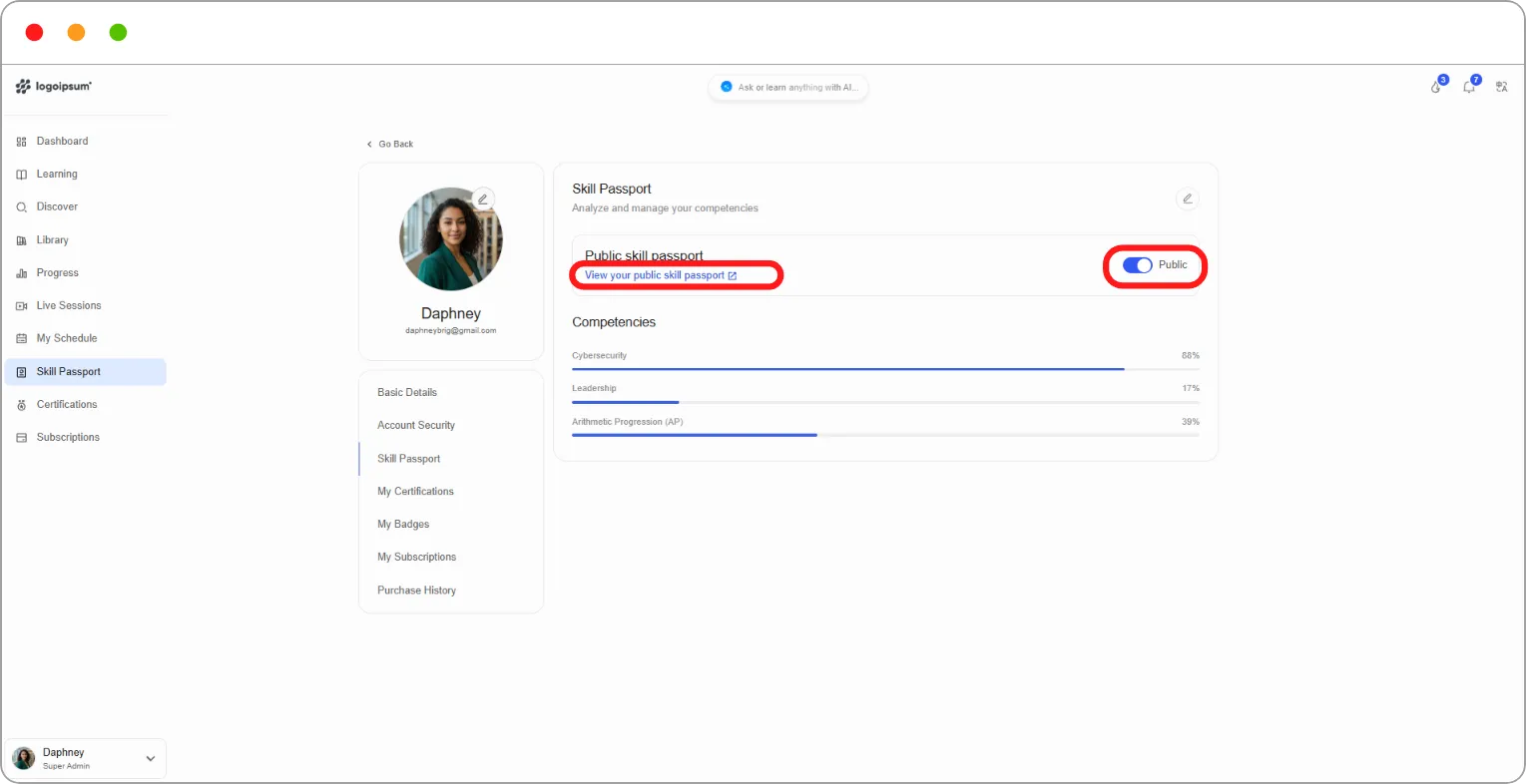
Anyone with the link can now view your passport.
Your public passport page opens, showing your name and your competencies.
Step 2: Copy that page’s link and send it to anyone you want to share your passport with.
Tip: Make your passport public when applying for a role or a promotion. It shows evidence of your skills, not just a list of courses.
Note: Skills verified in your passport also earn you points. See How streaks, points and the leaderboard work.
Related articles