
How to use your Library
Who can do this: Learners
Your Library collects the files shared in your courses, such as guides, worksheets and slides, in one place. You can preview them in the browser or download them to keep.
Steps
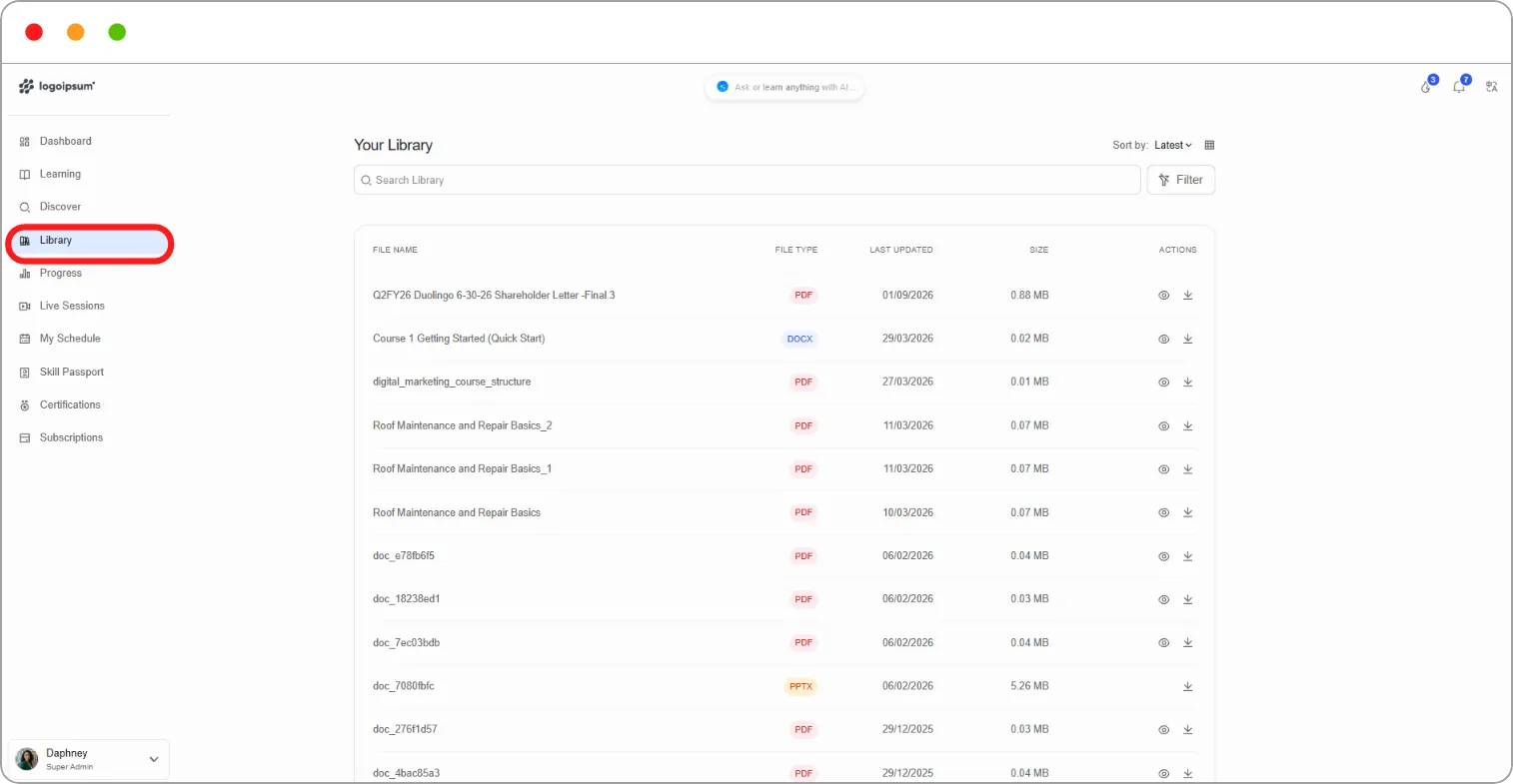
Step 1: Go to Library in the left navigation.
Your Library lists every file with its File Name, File Type (for example PDF or DOCX), Last Updated date and Size.
Step 2: Find the file you need:
-
Type in Search Library to find a file by name.
-
Click Filter to narrow the list.
-
Use Sort by to change the order, for example Latest first.
-
Click the grid icon to switch to a grid view.
Step 3: Under Actions, choose what to do:
| Icon | What it does |
|---|---|
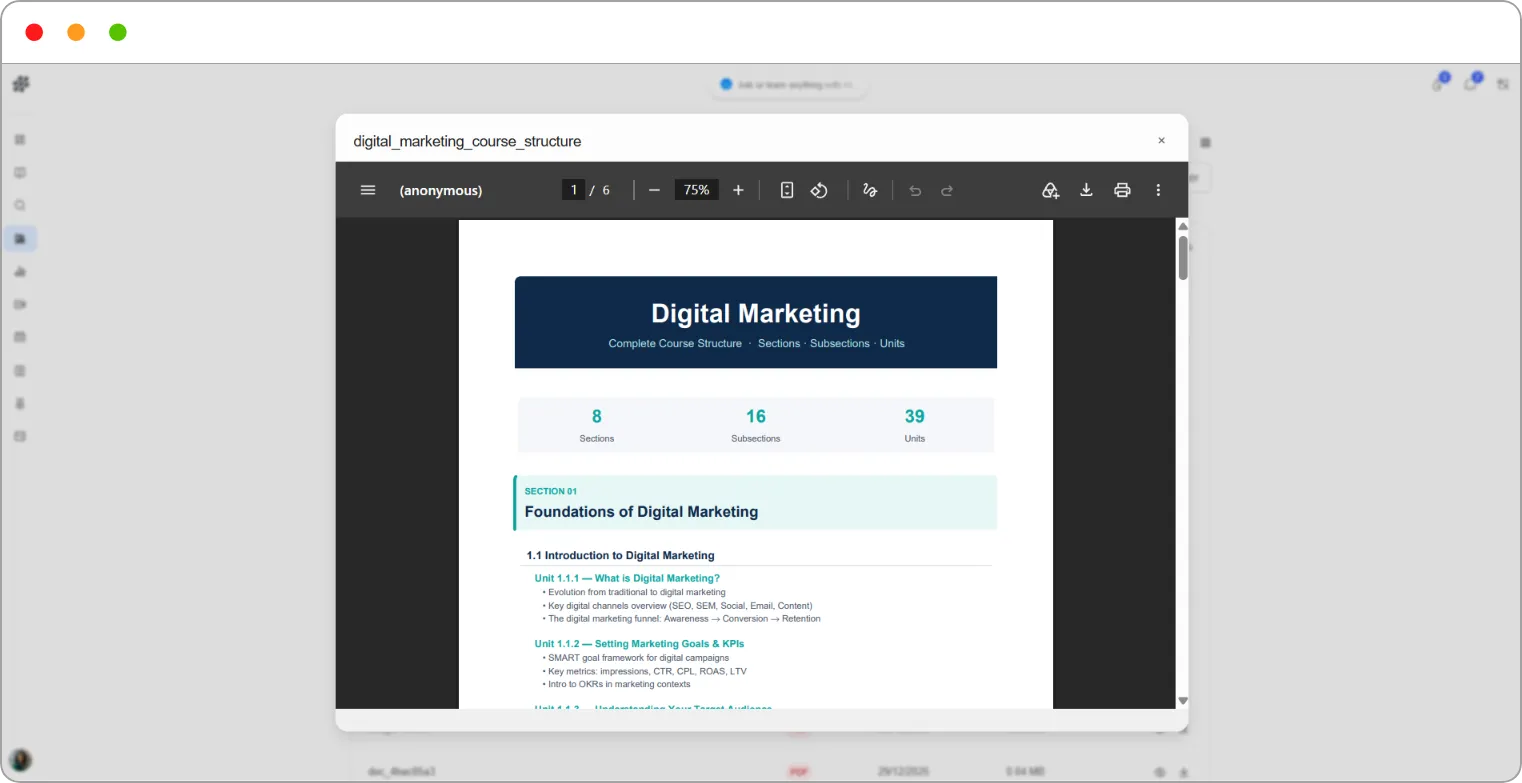
| Eye | Opens a preview of the file in the browser |
| Download arrow | Downloads the file to your device |
Tip: Download files you’ll need offline, such as reference sheets, before you travel or lose access to the course.
Note: If you can’t see the Library in your navigation, it hasn’t been switched on for your platform.
Related articles