
How to find your way around a course
Who can do this: Learners enrolled in the course
Every course opens on its course home page. From here you can start or resume the course and reach its other tabs.
Opening a course
Section titled “Opening a course”Step 1: Go to Learning in the left navigation.
Step 2: On the My Learning tab, click the course you want.
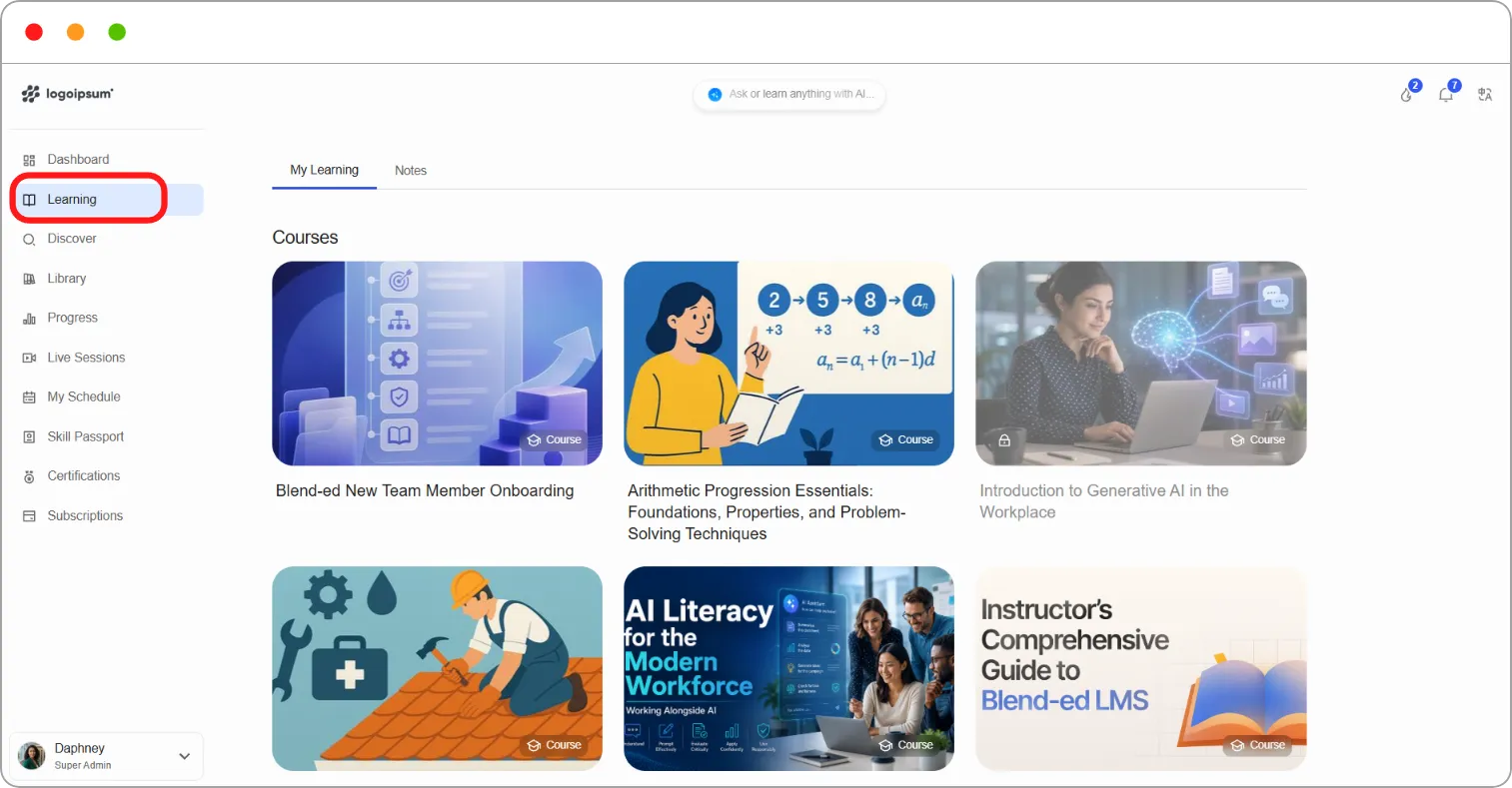
The course home page opens on the Course tab.
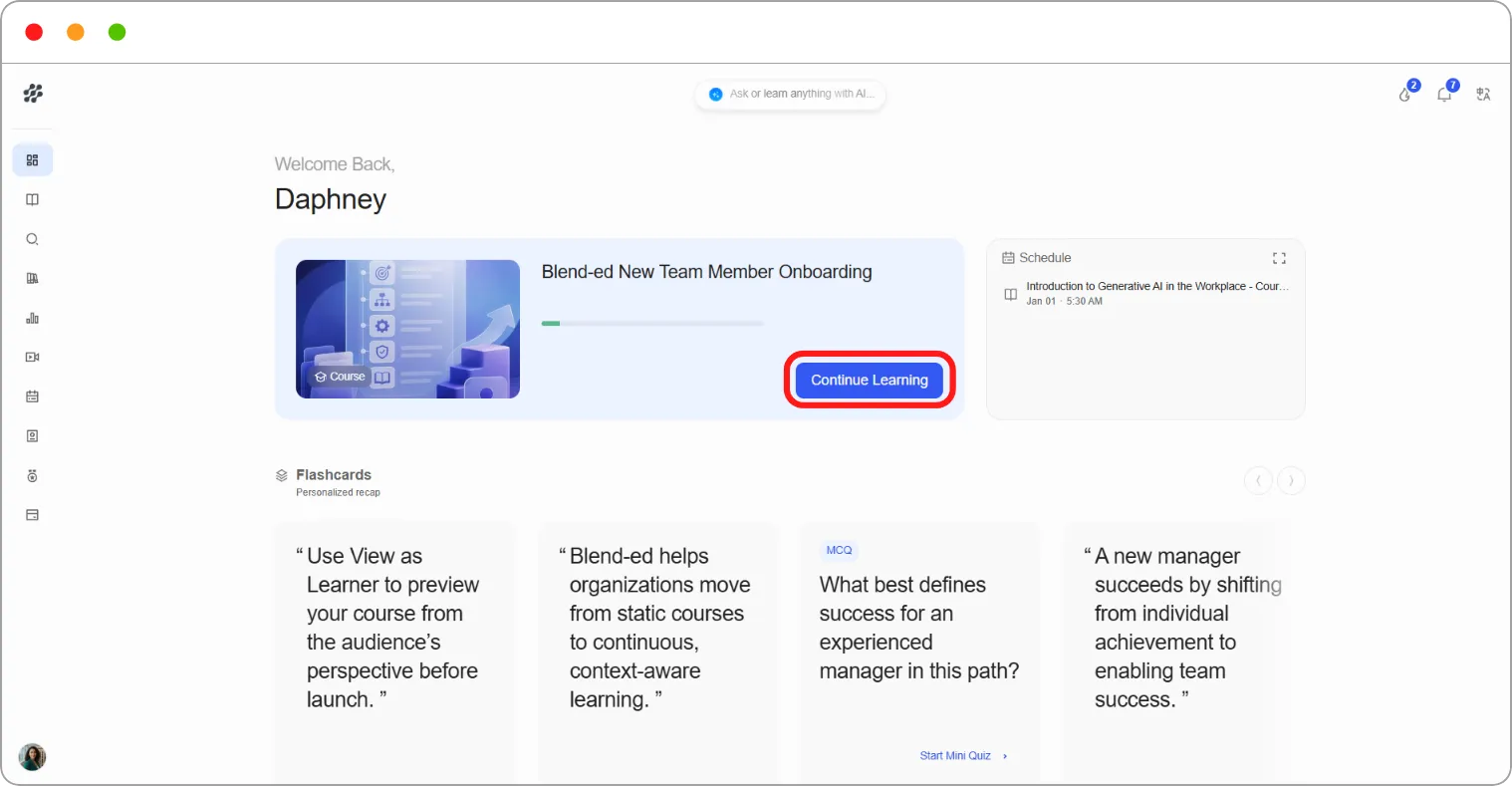
Tip: To pick up where you left off, click Continue Learning on your Dashboard instead. It takes you straight to your last lesson.
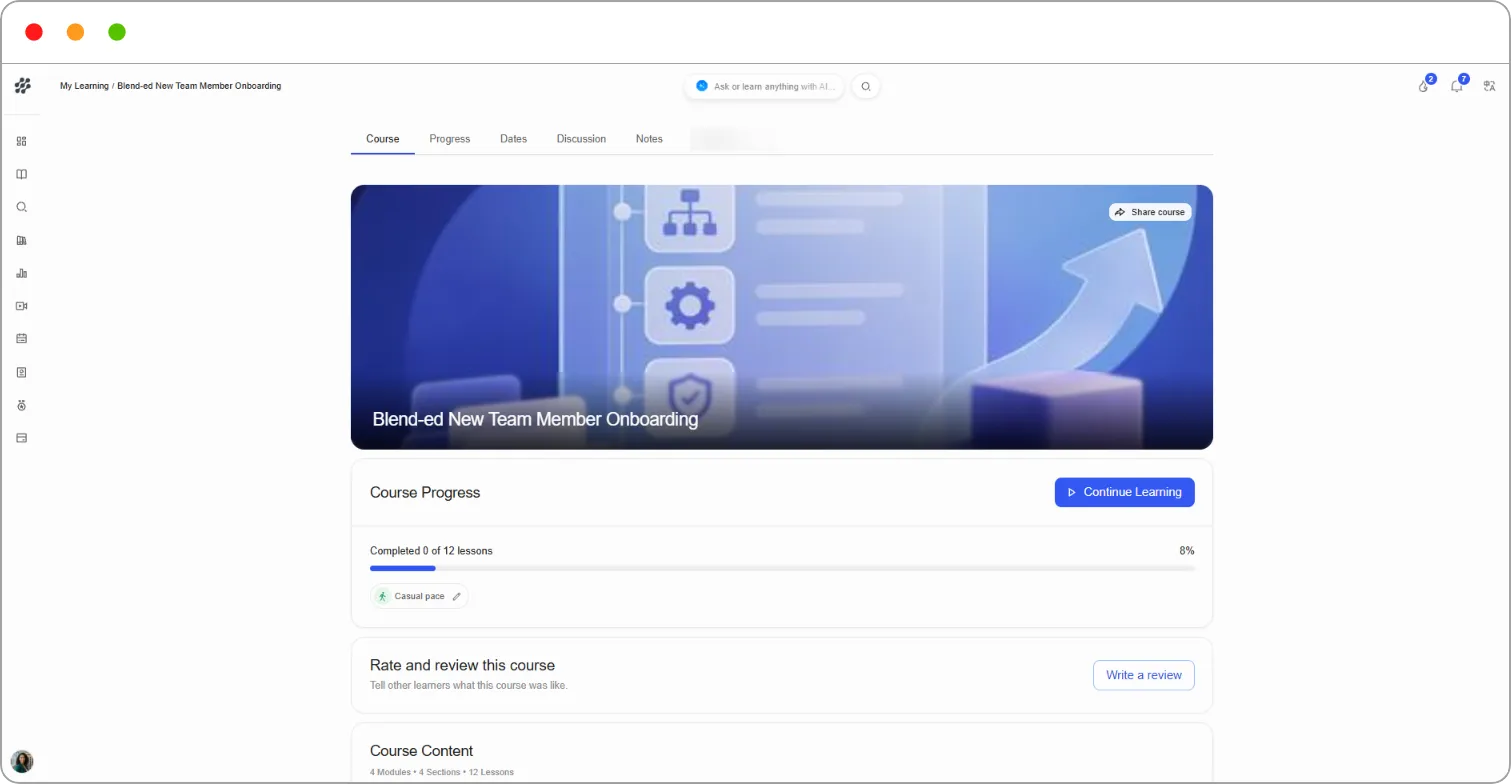
The course home page
Section titled “The course home page”The Course tab shows:
-
Course Update — the latest announcement from your instructor, when there is one. Click Read more to see the full message.
-
Course Progress — how many lessons you’ve completed, as a number and a percentage.
-
Start course or Continue Learning — takes you into the lessons. The button reads Start course until you begin.
-
Set your pace — sets a weekly learning goal for the course. See Setting a weekly learning goal below.
-
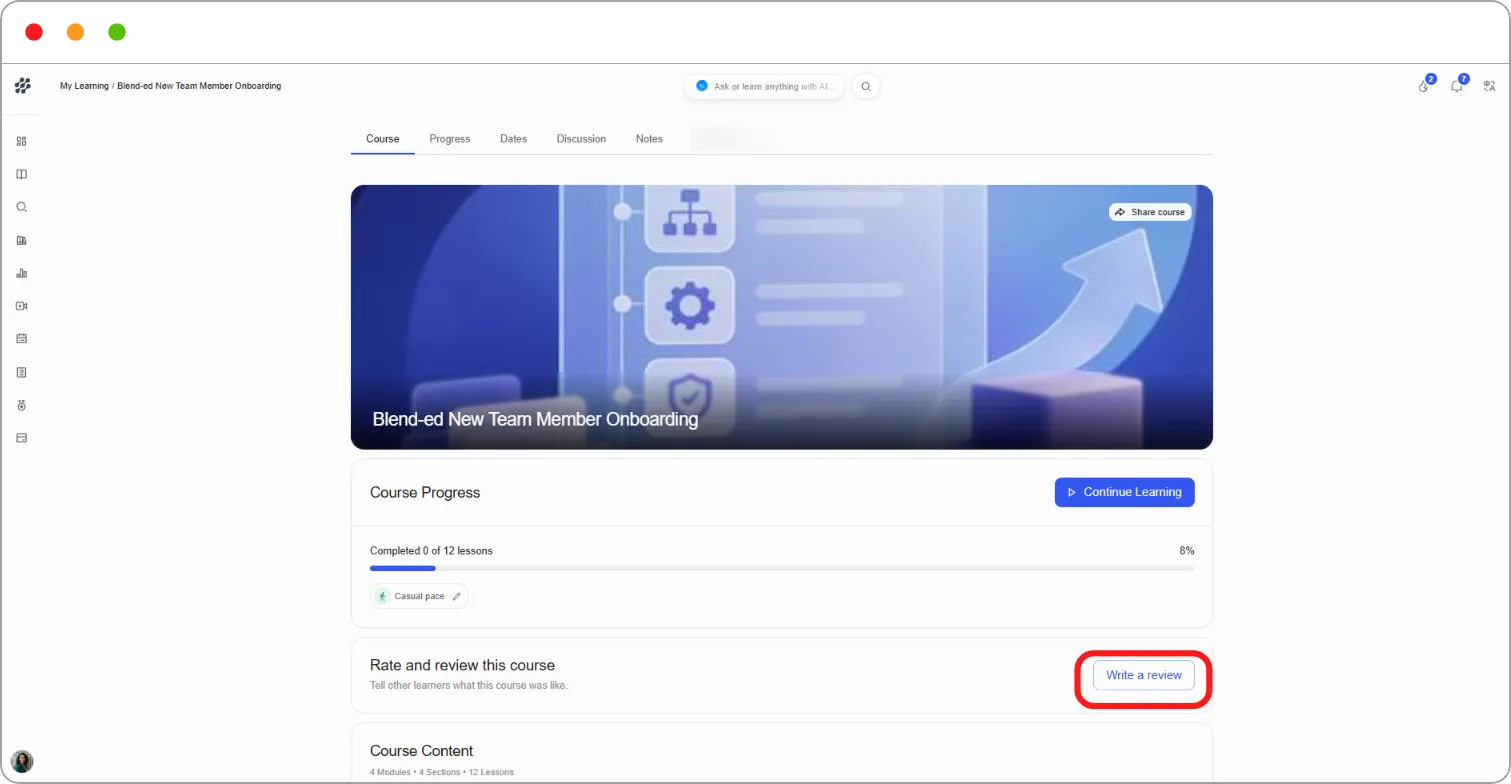
Rate and review this course — click Write a review to tell other learners what the course was like.
-
Course Content — the full outline of sections, subsections and units. Click a section to expand it.
To send someone a link to the course, click Share course on the course banner.
Setting a weekly learning goal
Section titled “Setting a weekly learning goal”A weekly goal helps you keep a steady rhythm through a course.
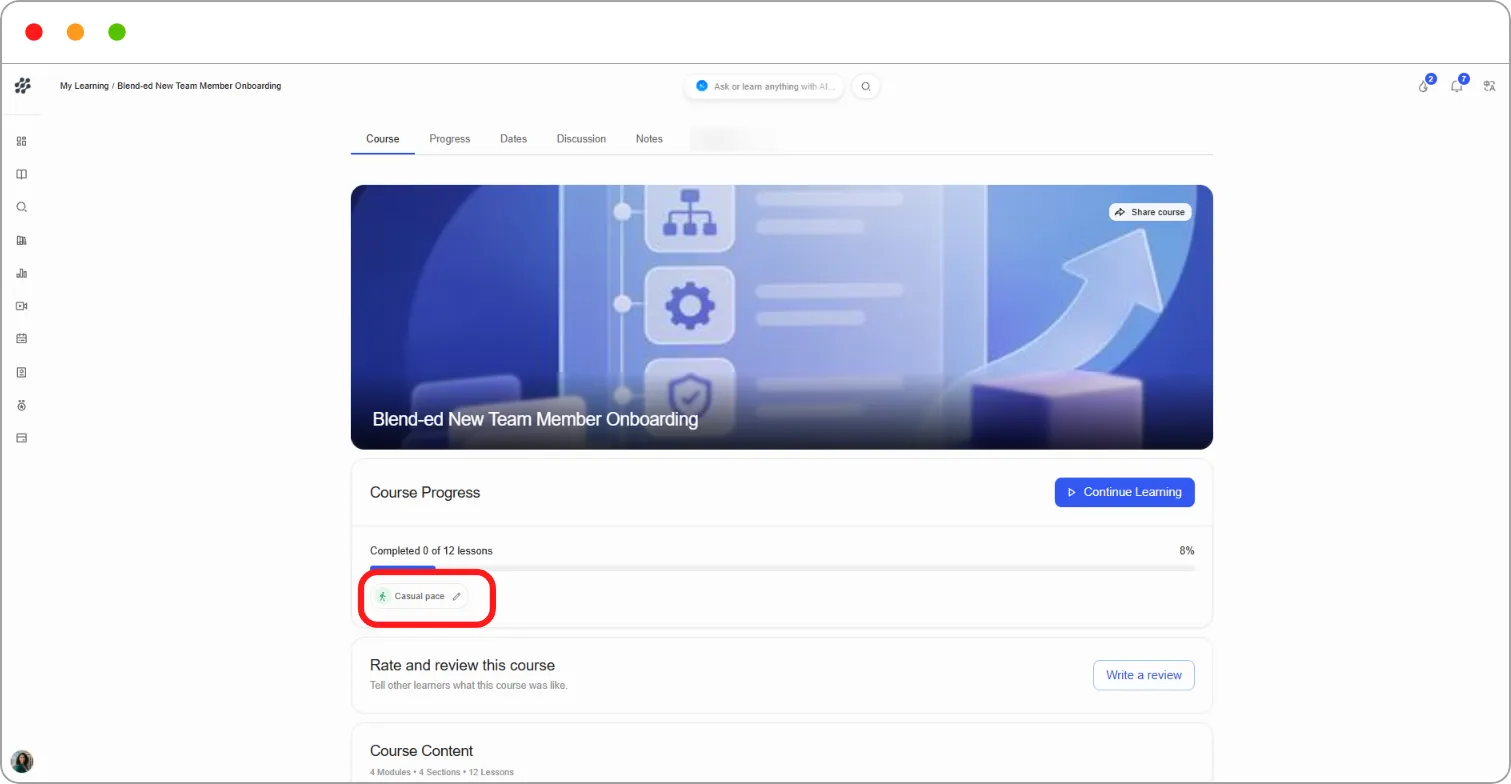
Step 1: On the course home page, click Set your pace under Course Progress.
Step 2: In the Weekly learning goal window, choose a goal:
| Goal | How often you’ll study |
|---|---|
| Casual | 1 day/week |
| Regular | 3 days/week |
| Intense | 5 days/week |
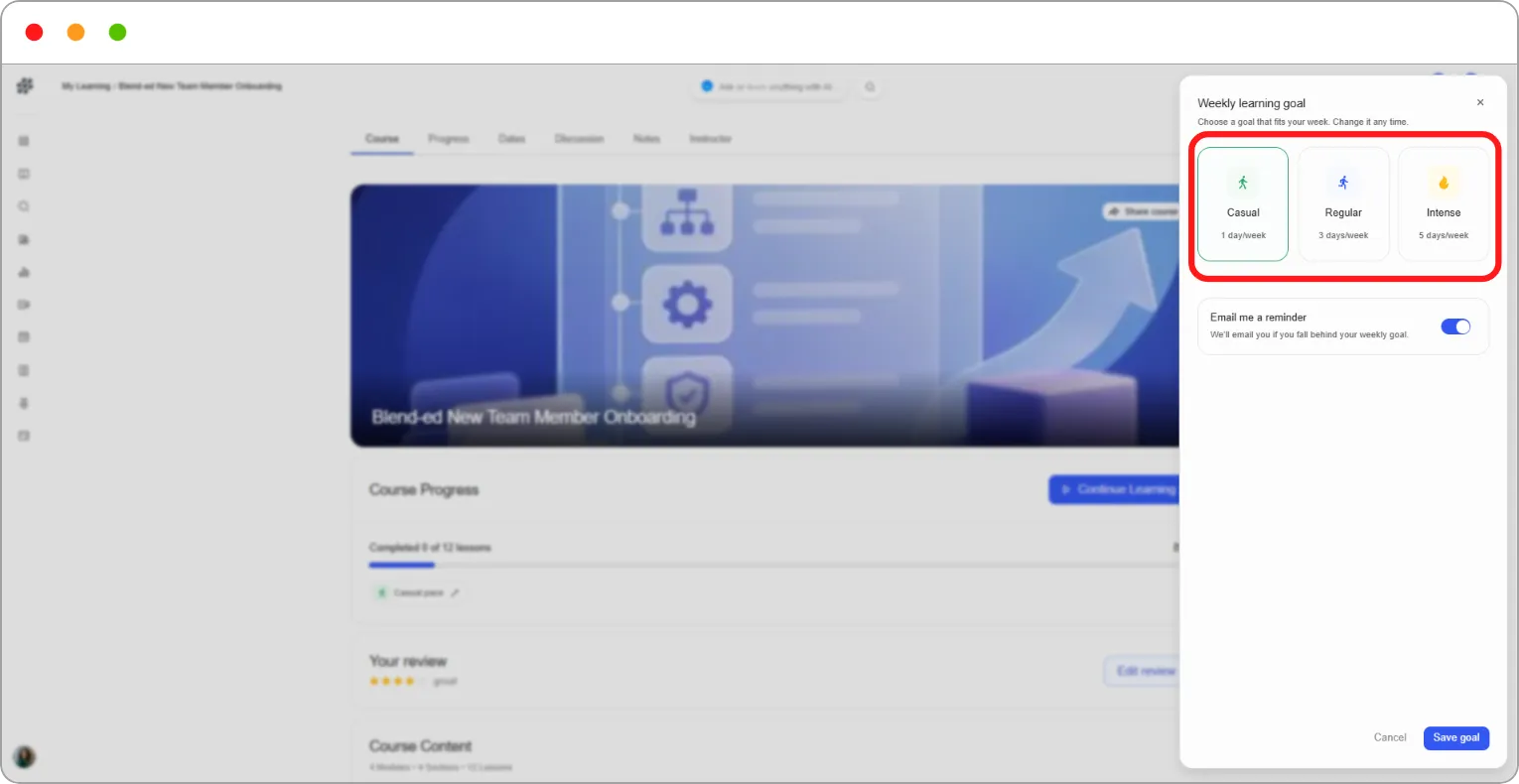
Step 3: To get an email if you fall behind, switch on Email me a reminder.
Step 4: Click Save goal.
Your chosen goal now shows under Course Progress in place of Set your pace. Click it to change your goal at any time.
Tip: Start with Casual if you’re unsure. It’s easier to step up to a bigger goal than to keep missing one.
Rating and reviewing a course
Section titled “Rating and reviewing a course”Step 1: On the course home page, click Write a review.
Step 2: Under Your rating, click a star from one to five.
Step 3: Enter a Review title, a short headline for your review.
Step 4: In Review details, share what worked, what didn’t, and who the course is for.
Step 5: Click Submit review.
Your review now appears on the course home page under Your review. To change it, click Edit review.
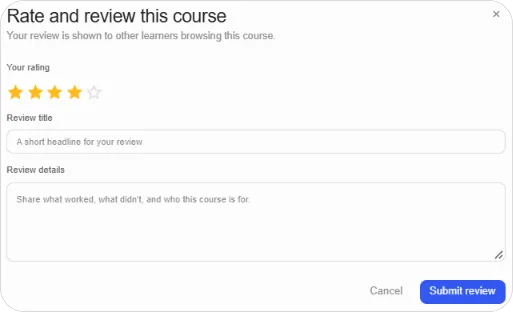
Note: Your review is shown to other learners browsing this course.
The course tabs
Section titled “The course tabs”| Tab | What it holds |
|---|---|
| Course | The course home page, described above |
| Progress | Your grades and certificate status. See How to track your progress |
| Dates | Important dates for the course |
| Discussion | The course discussion board. See How to take part in course discussions |
| Notes | Your highlights and notes for this course. See How to highlight text and take notes |
Important dates
Section titled “Important dates”The Dates tab lists the key dates for the course in order, such as your enrolment date and any deadlines. Today’s date is marked Today so you can see what’s coming next.
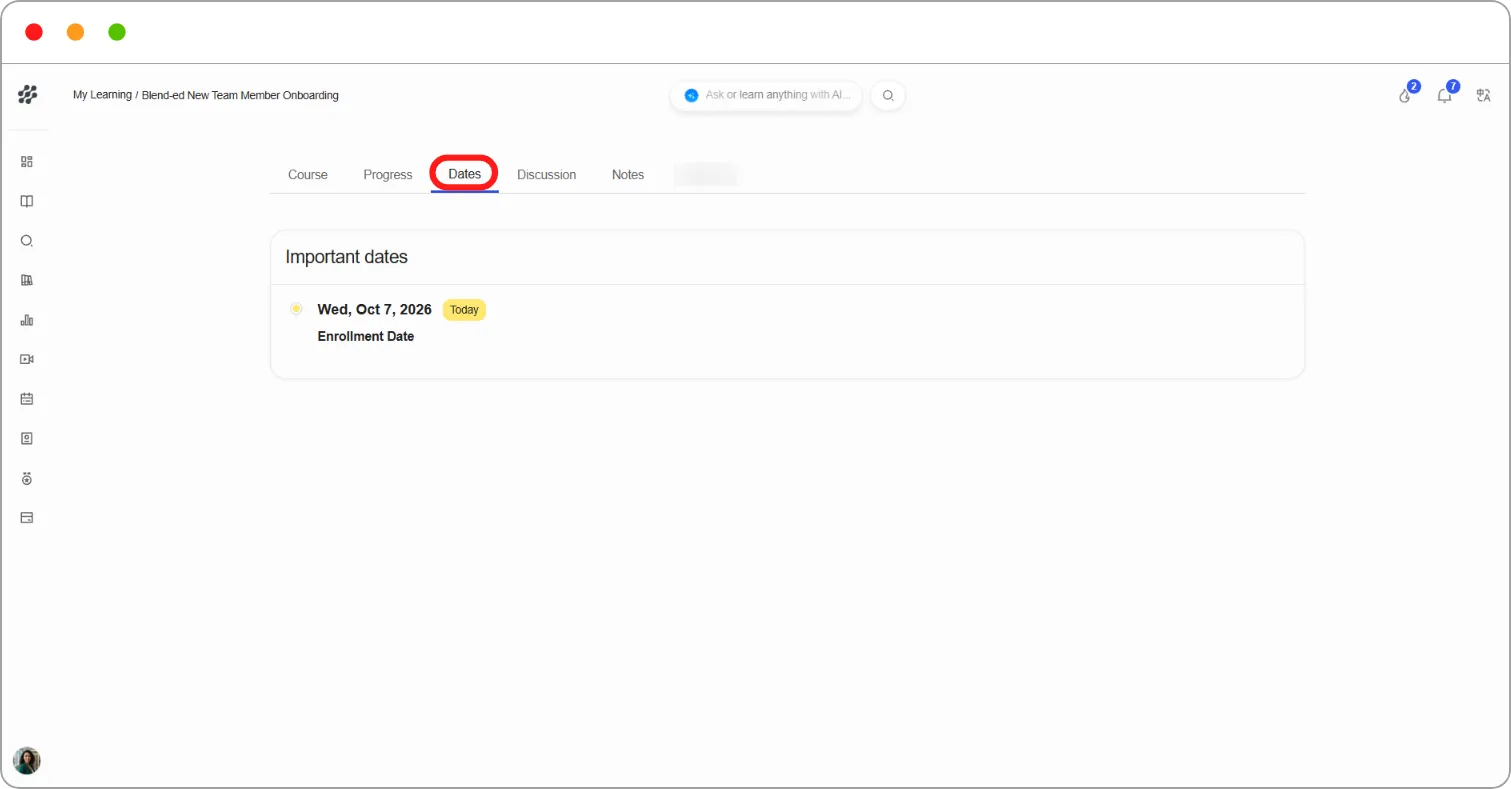
Tip: Check the Dates tab when you first join a course. Graded work often has a due date, and missing it can affect whether you pass.
Related articles