
How to reset a forgotten password
Who this is for: Everyone
If you can’t sign in because you’ve forgotten your password, reset it from the sign-in page.
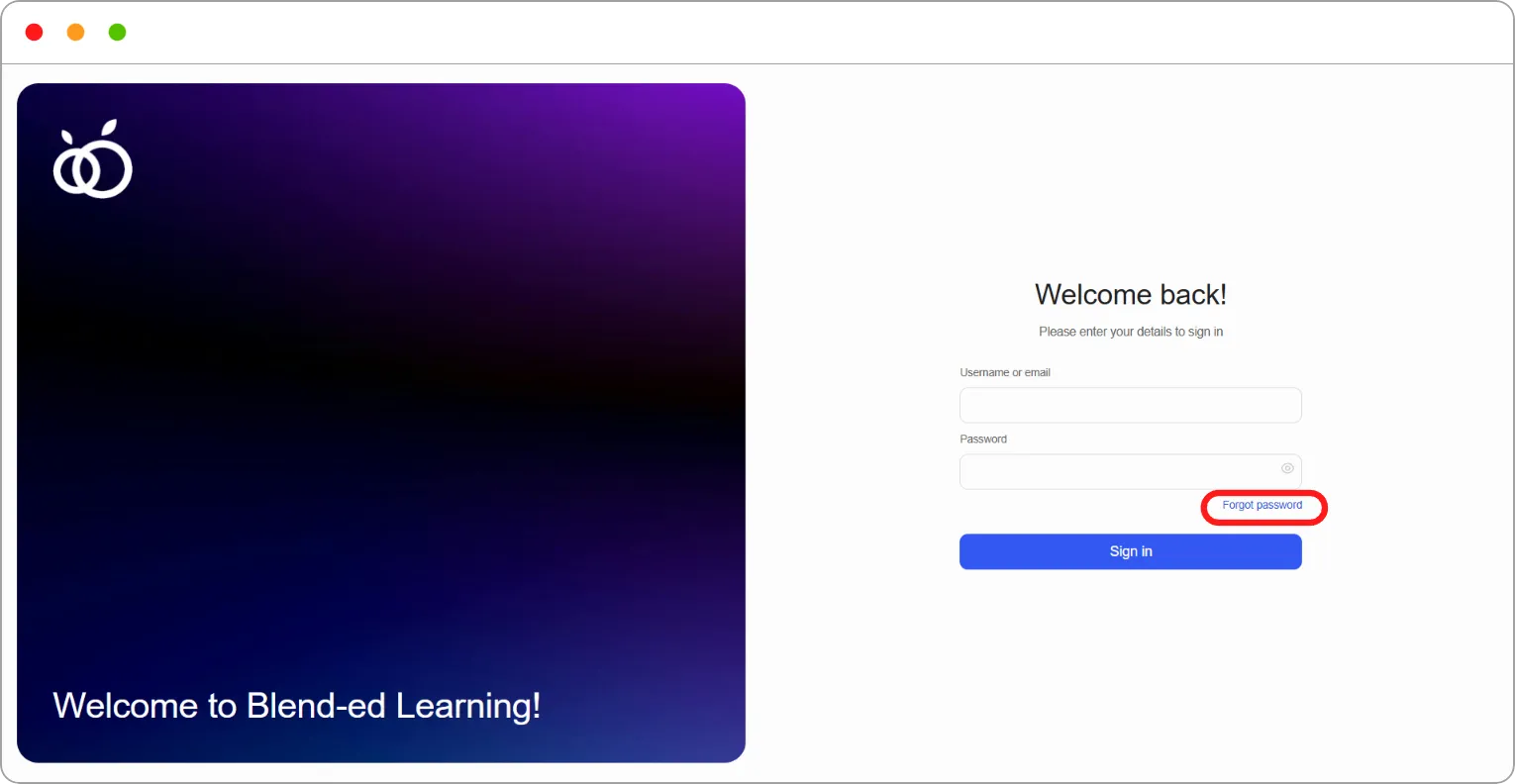
Step 1: On the sign-in page, click Forgot password.
The Reset password page opens.
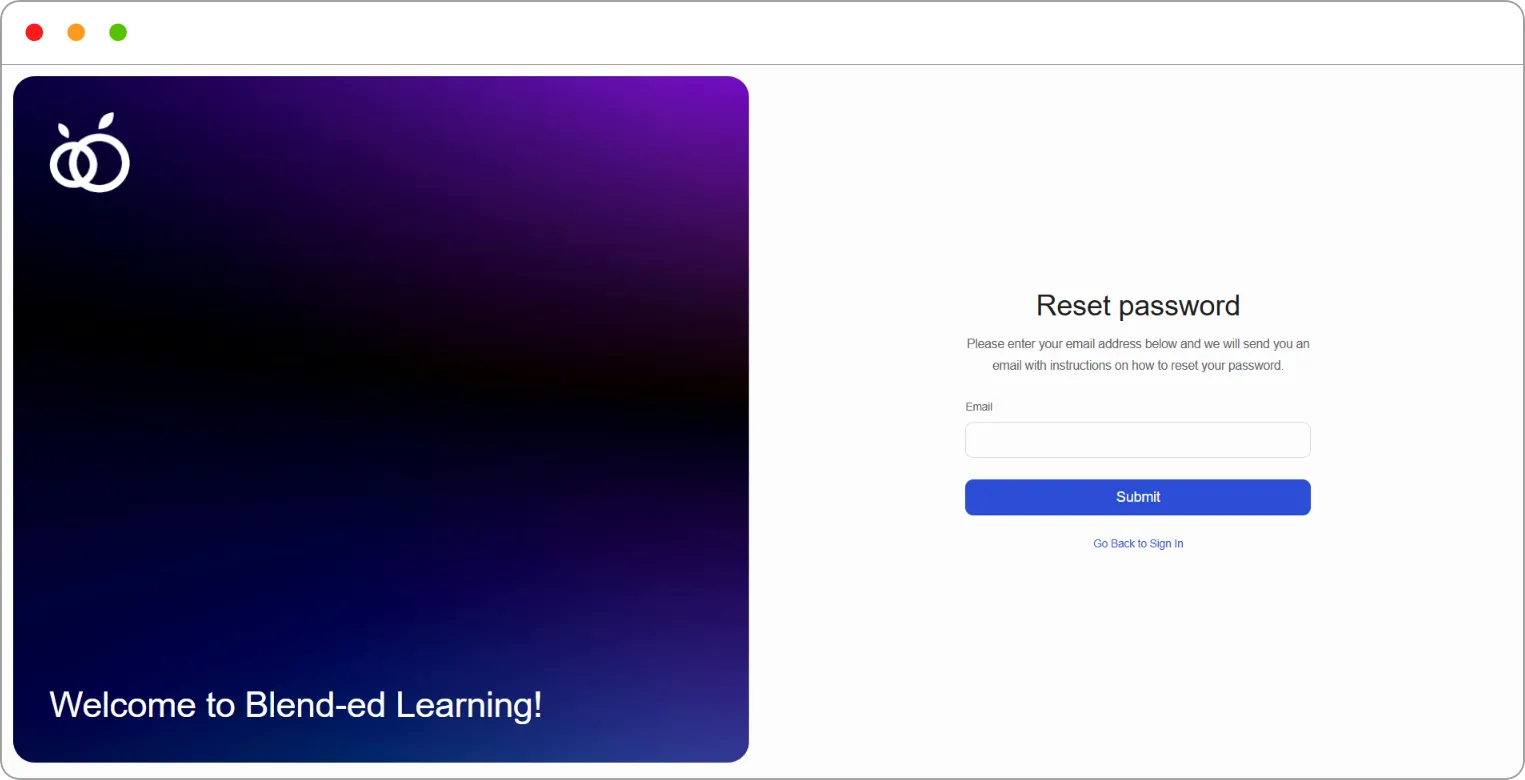
Step 2: Enter your Email.
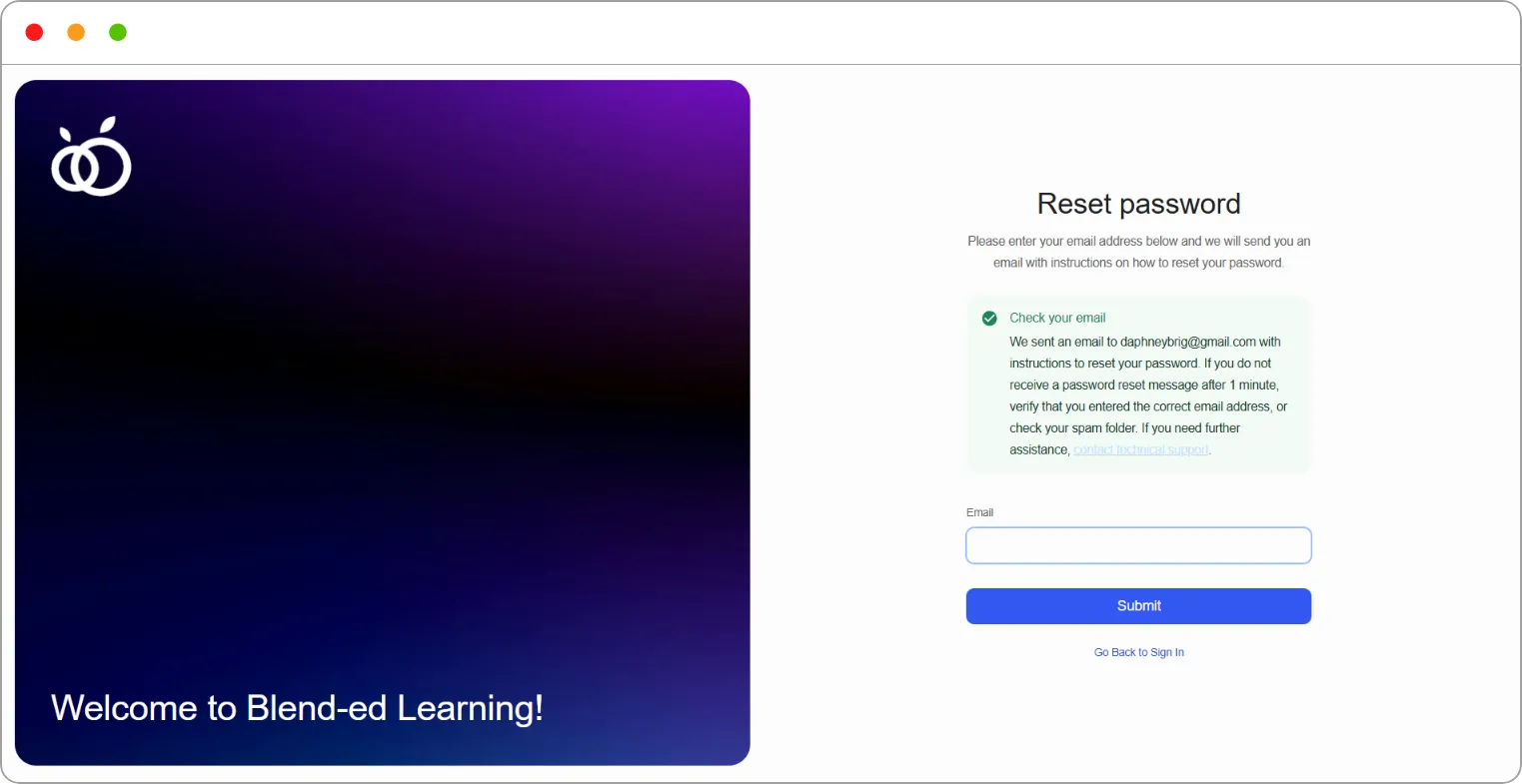
Step 3: Click Submit.
A Check your email message confirms that reset instructions have been sent.
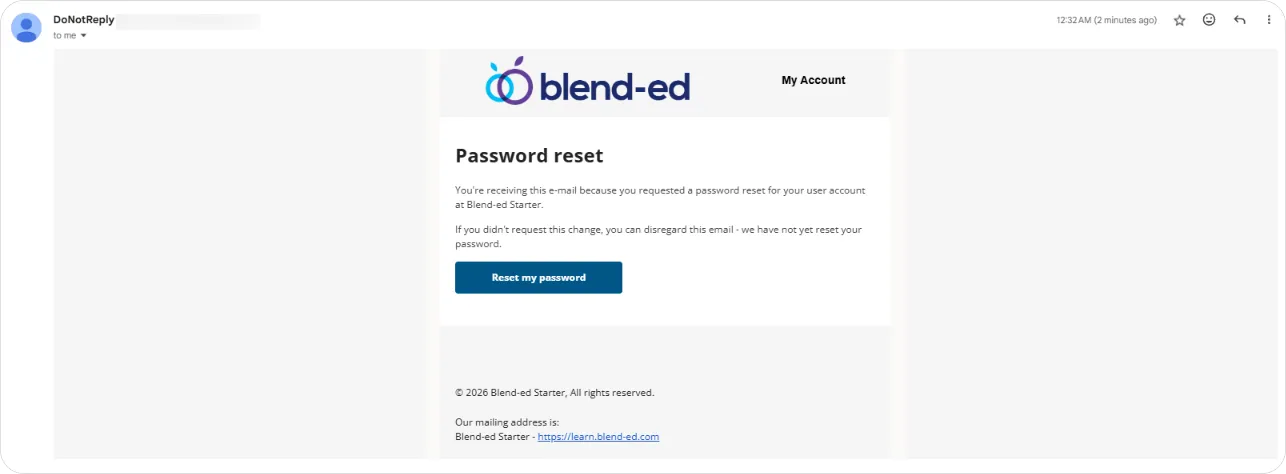
Step 4: Open the email titled Password reset on [your organisation].

Step 5: Click Reset my password, then follow the steps to set a new password.
Step 6: Sign in with your new password.
To return to the sign-in page without resetting, click Go Back to Sign In.
Tip: If the email doesn’t arrive within a minute, check your spam folder and make sure you entered the email address your account uses.
Note: If you didn’t ask for a reset, you can ignore the email. Your password won’t change unless you click the link.
Note: If you’re already signed in, you can also reset your password from your profile. See How to reset your password.