
How to invite a user via email
Who can do this: Super Admin, Admin, or Staff with the User Management permission
Invite one person or several at once by email. They receive an invitation and appear in your user list with the status Invited until they complete registration.
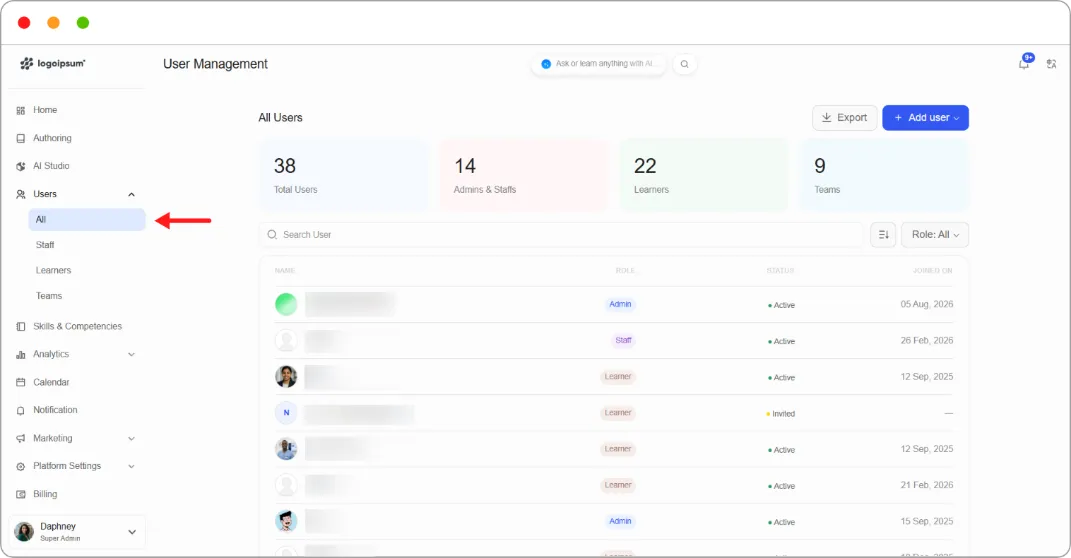
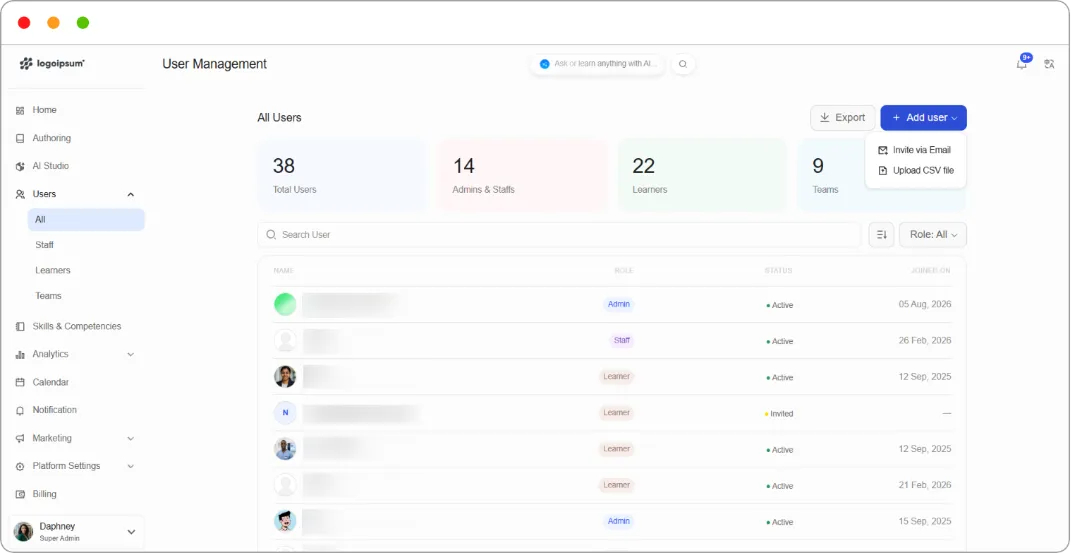
Step 1: Go to Users > All.
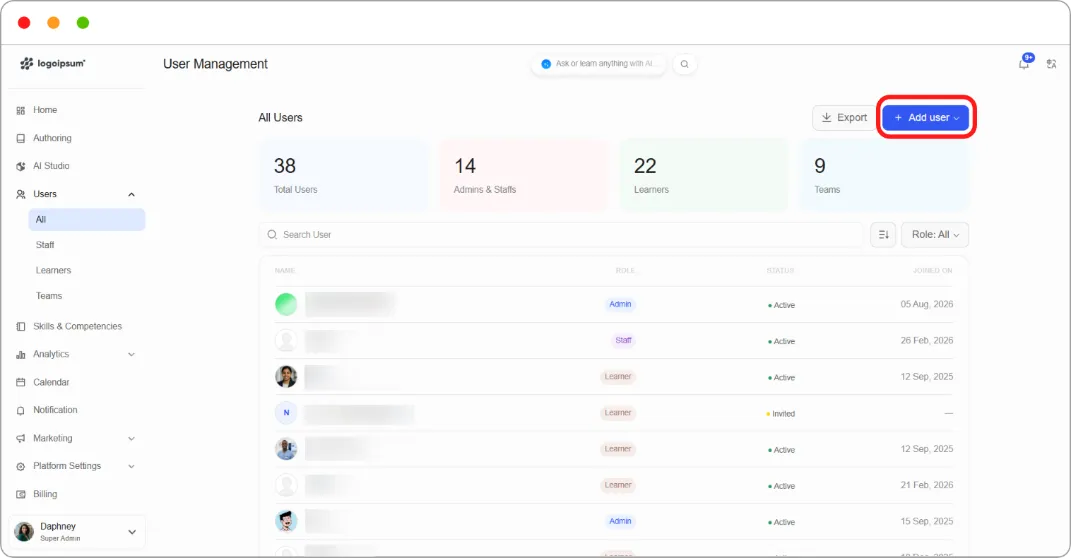
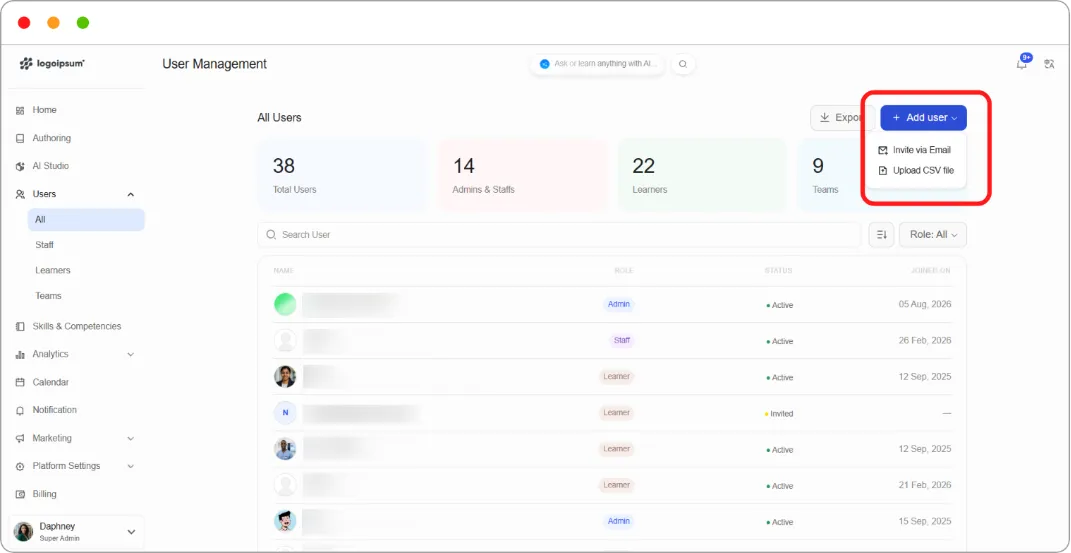
Step 2: Click + Add user at the top right, then choose Invite via Email.
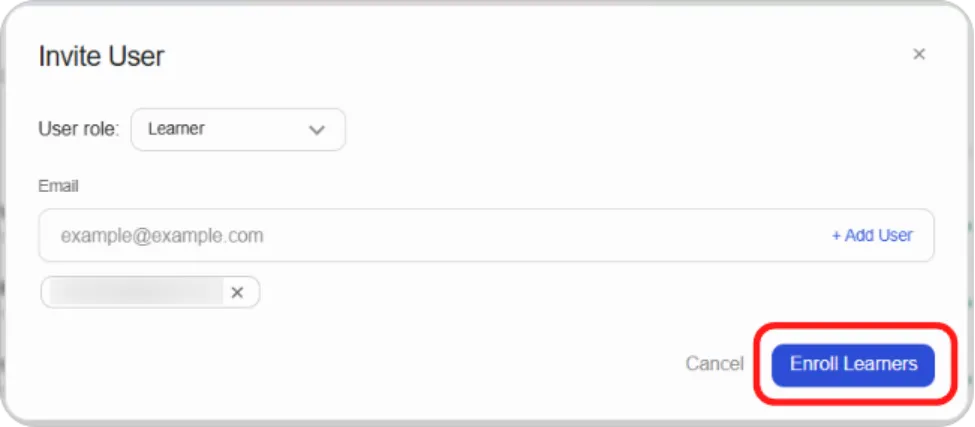
Step 3: In the Invite User dialog, set User role to the role these people should have.
Step 4: Type an email address into the Email field and click + Add User.
The address appears below the field as a chip. Repeat for each person you want to invite with this role.
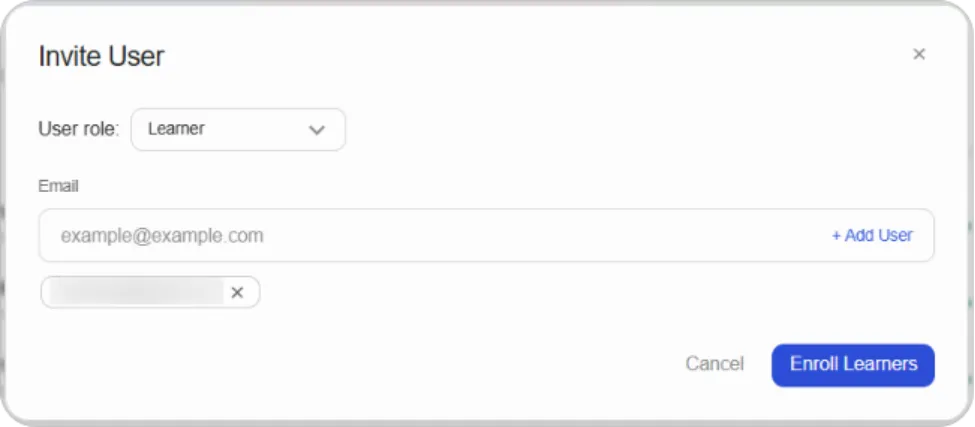
To remove an address before sending, click the × on its chip.
Step 5: Click Enroll Learners to send the invitations.
Each person appears in your user list with the status Invited. Until they register, their row shows their email address instead of a name, and the JOINED ON column shows a dash.
Note: The role applies to every address in the dialog. To invite an admin and a learner, send two separate invitations with the role changed between them.
Tip: Invite people as Learners if you’re unsure. It’s easy to change afterwards, and starting with less access is safer than starting with more.
What the person receives
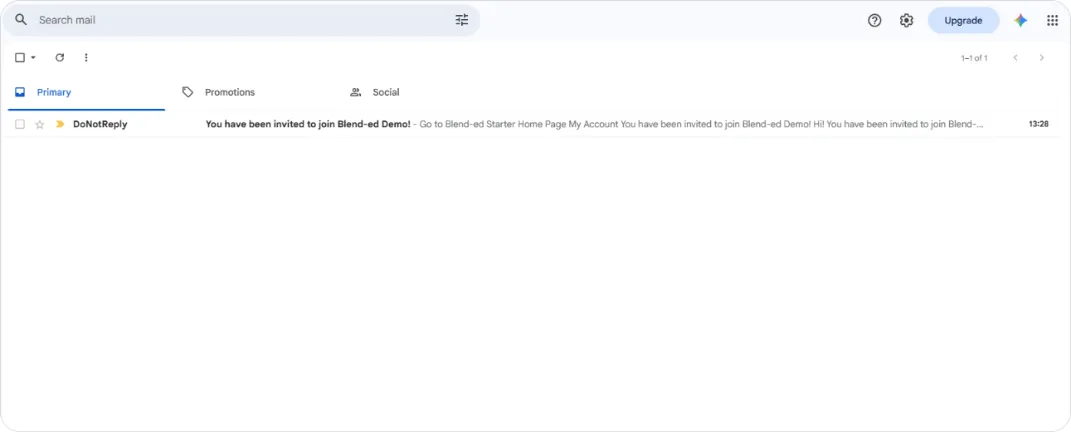
Section titled “What the person receives”The invited person gets an email titled You have been invited to join [your organisation] with a Complete Registration button.
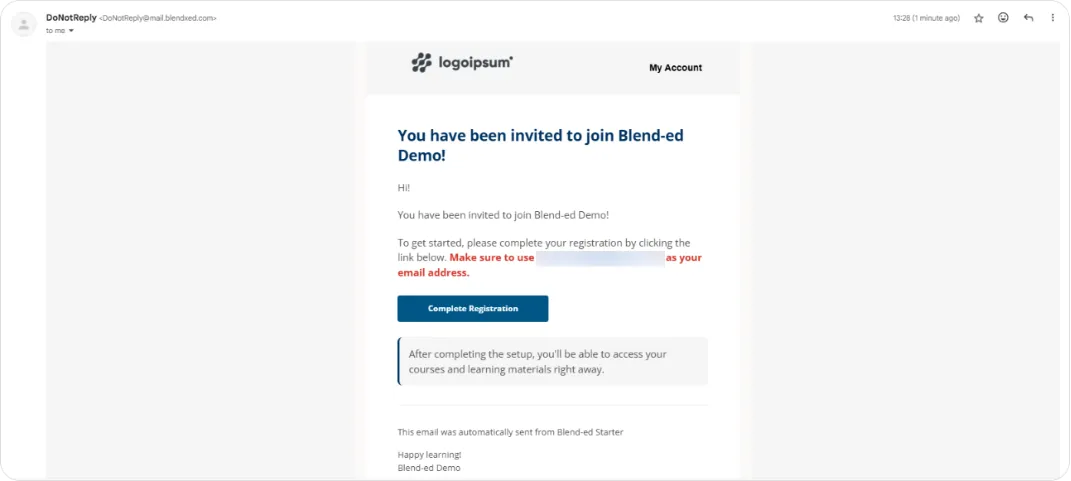
Clicking the button opens a registration page where they enter:
| Field | Notes |
|---|---|
| Full name | Required |
| Pre-filled from the invitation and can’t be changed | |
| Public username | Between 2 and 30 characters |
| Password | Must meet the platform’s password criteria |
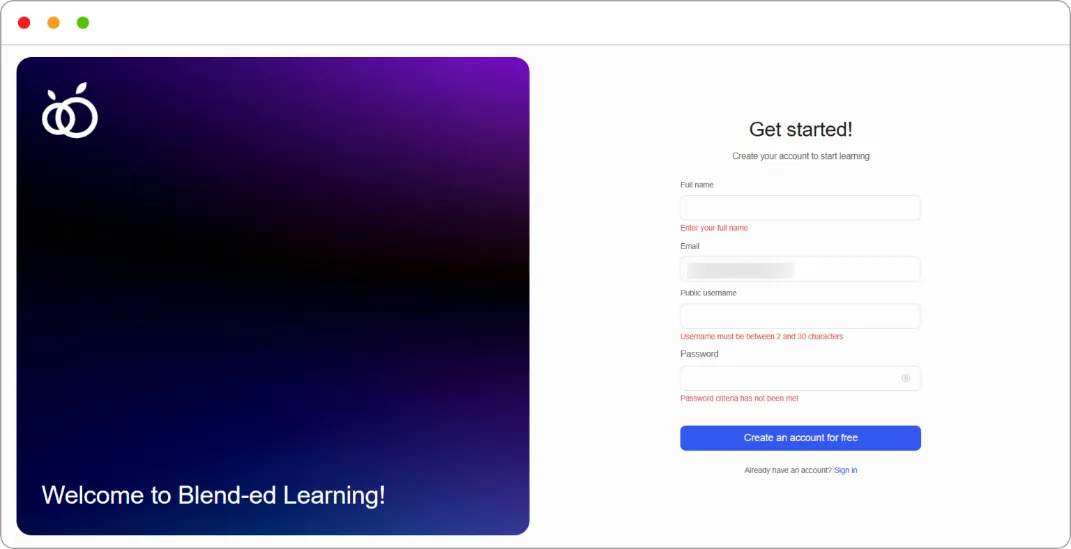
Once they click Create an account for free, their status changes to Active and their name replaces the email address in your user list.
Note: They must register with the email address the invitation was sent to. The invitation email states this explicitly, and the address is locked on the registration form.
Tip: If someone says the invitation never arrived, ask them to check their Promotions and Spam folders. The email comes from a DoNotReply address, which some inboxes filter.