
How to connect a payment gateway
Who can do this: Super Admin, Admin, or Staff with the Platform Settings permission
A payment gateway is what lets you charge for courses and programs. Blend-ed supports four.
Before you start
Section titled “Before you start”Switch on Payments under Platform Settings > Features. For recurring billing, also switch on Subscriptions.
Choosing a gateway
Section titled “Choosing a gateway”| Gateway | Best for |
|---|---|
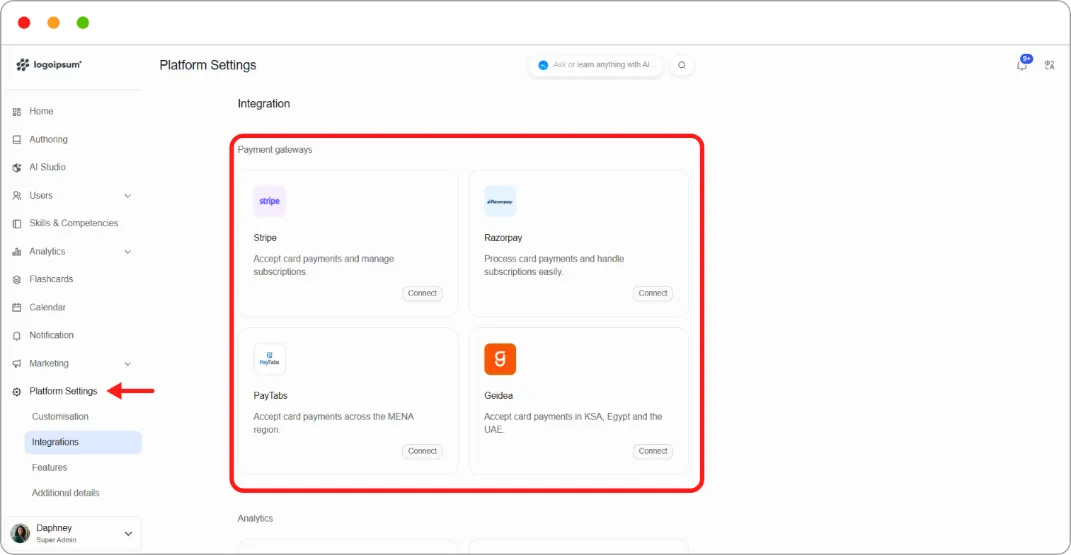
| Stripe | Card payments and subscriptions, internationally |
| Razorpay | Card payments and subscriptions, with strong coverage in India |
| PayTabs | Card payments across the MENA (the Middle East and North Africa)region |
| Geidea | Card payments in Saudi Arabia, Egypt, and the UAE |
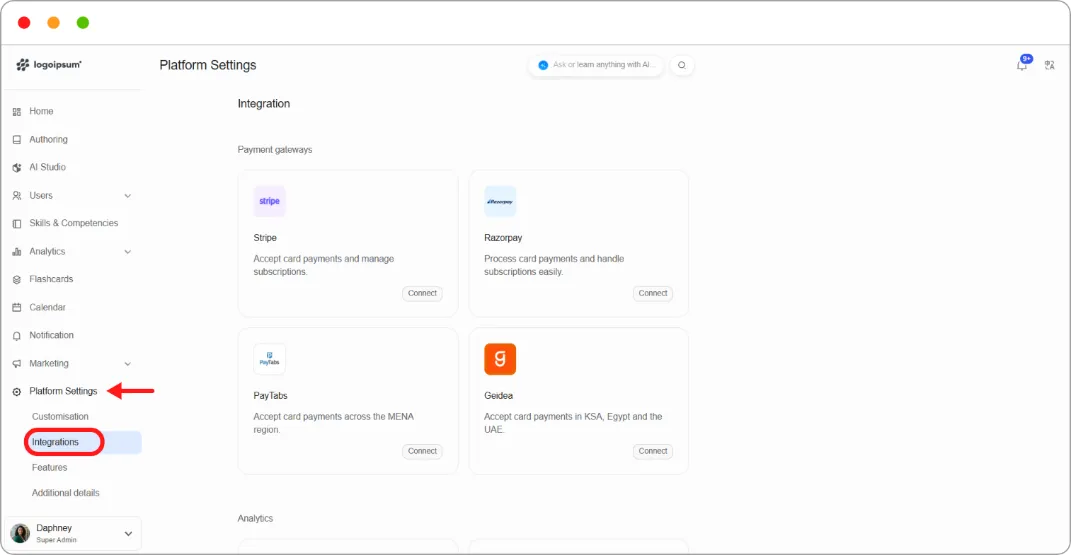
Step 1: Go to Platform Settings > Integrations.
Step 2: Under Payment gateways, find the gateway you want and click Connect.
Step 3: Enter your credentials from that provider and click Save.
See the article for your gateway: How to connect Stripe, How to connect Razorpay, How to connect PayTabs, How to connect Geidea.
Updating credentials later
Section titled “Updating credentials later”Open the gateway’s configuration again. Saved secrets are shown as dots rather than their full value, but the fields remain editable, so you can paste a new credential over the old one.
Note: Keep a copy of your credentials in your own password manager. Blend-ed doesn’t display saved secrets back to you.
Tip: Use your provider’s test credentials first and make a test purchase before switching to live keys.