
How to create a reporting role
Who can do this: Super Admin, Admin, or Staff with the User Management permission
A reporting role can see what’s happening on the platform without being able to change anything. Useful for managers, stakeholders, and anyone who needs numbers but shouldn’t edit content.
Step 1: Invite the person as Staff, or change their role to Staff.
Step 2: Go to Users > Staff, click the ⋮ menu on their row, and choose Edit all permissions.
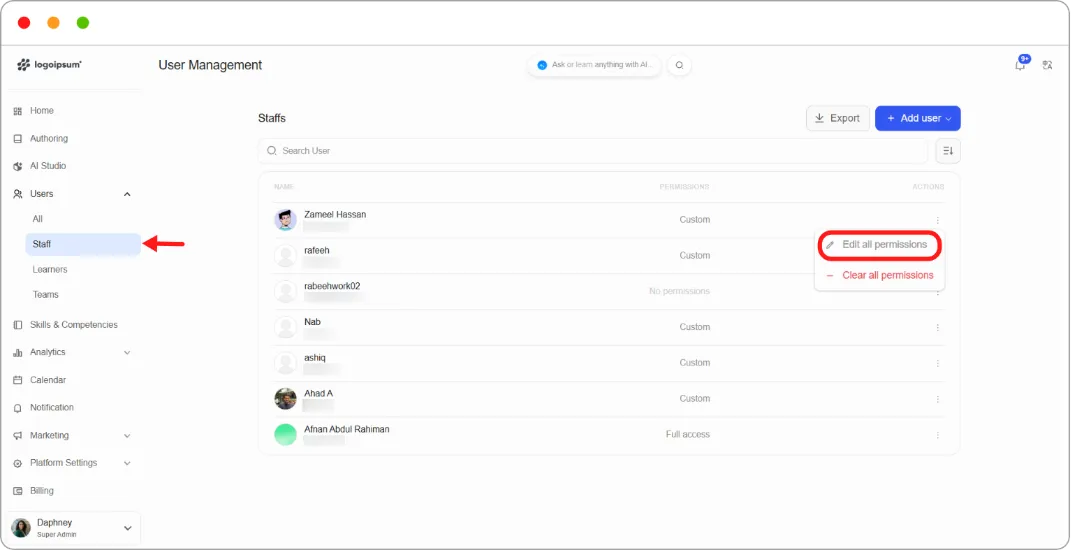
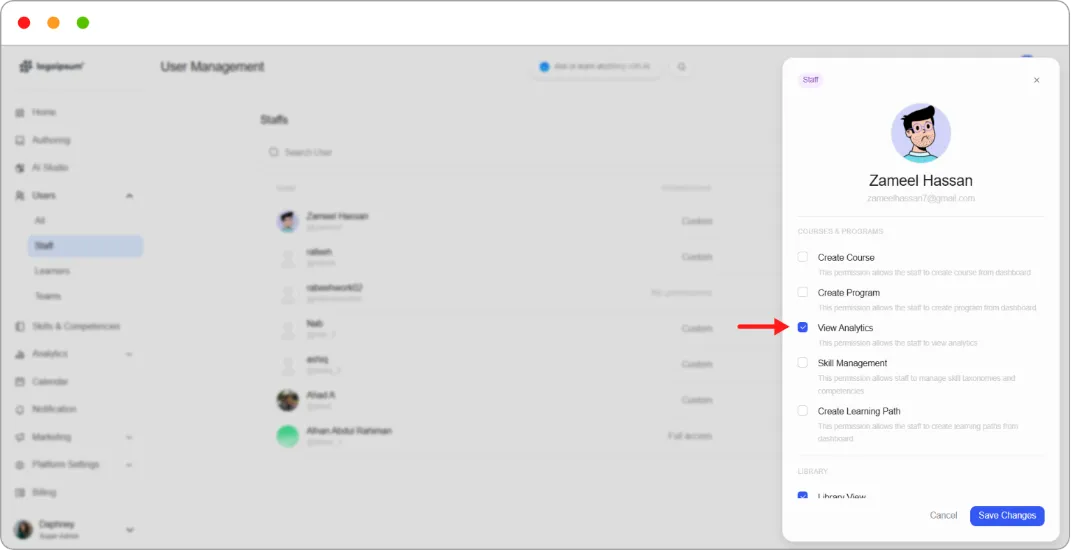
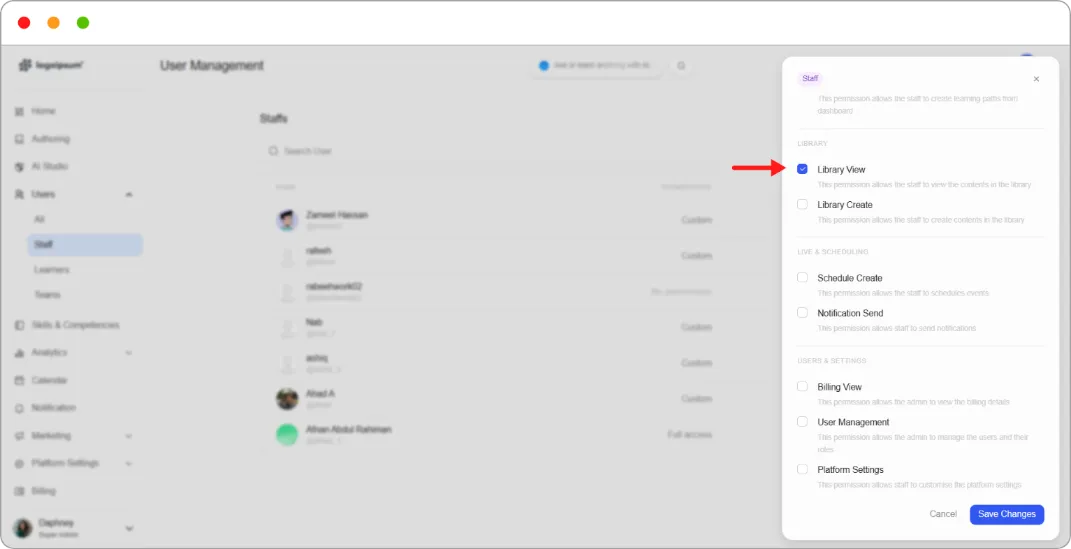
Step 3: Tick these permissions:
| Category | Permission |
|---|---|
| Courses & Programs | View Analytics |
| Library | Library View |
| Others | Certificate View |
Step 4: Leave everything else unticked. In particular, leave Billing View off unless this person genuinely needs financial figures.
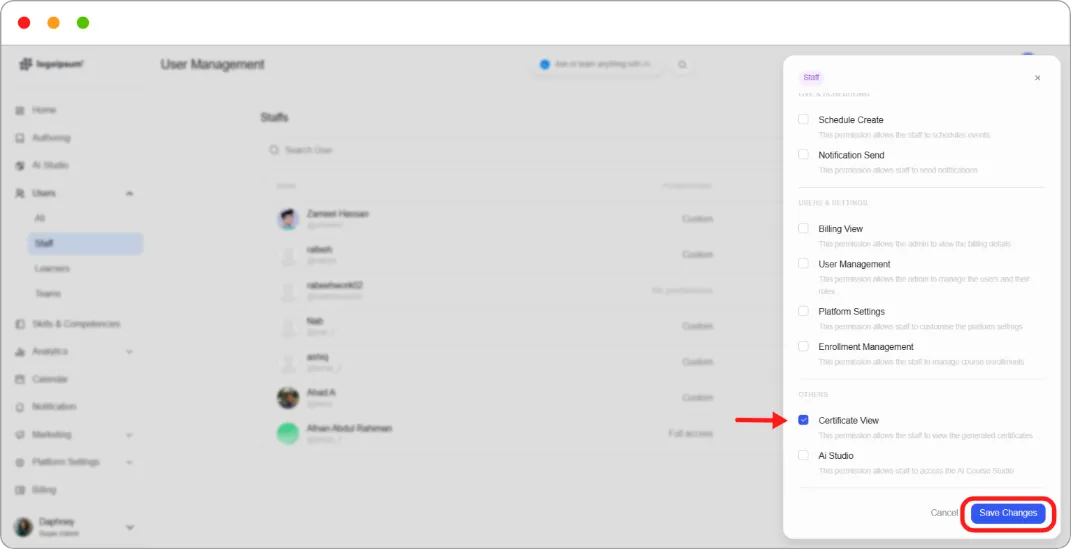
Step 5: Click Save Changes.
What they can now do
Section titled “What they can now do”View analytics across courses and learners, see generated certificates, and browse the content library.
What they cannot do
Section titled “What they cannot do”Create or edit anything, manage users, or change any setting.
Tip: This is the safest role to hand out. If someone asks for access and you’re not sure what they actually need, start here and add permissions when they hit a wall.