
How to use the calculator
Who can do this: Learners enrolled in the course
Every lesson has a built-in calculator, so you can work through numbers without leaving the course.
Steps
Step 1: In the lesson, click the calculator icon at the top right.
The calculator opens below the icon.
Step 2: Type your sum into Calculator Input, for example (12 + 8) * 3.
Step 3: Click =.
The answer appears in Result.
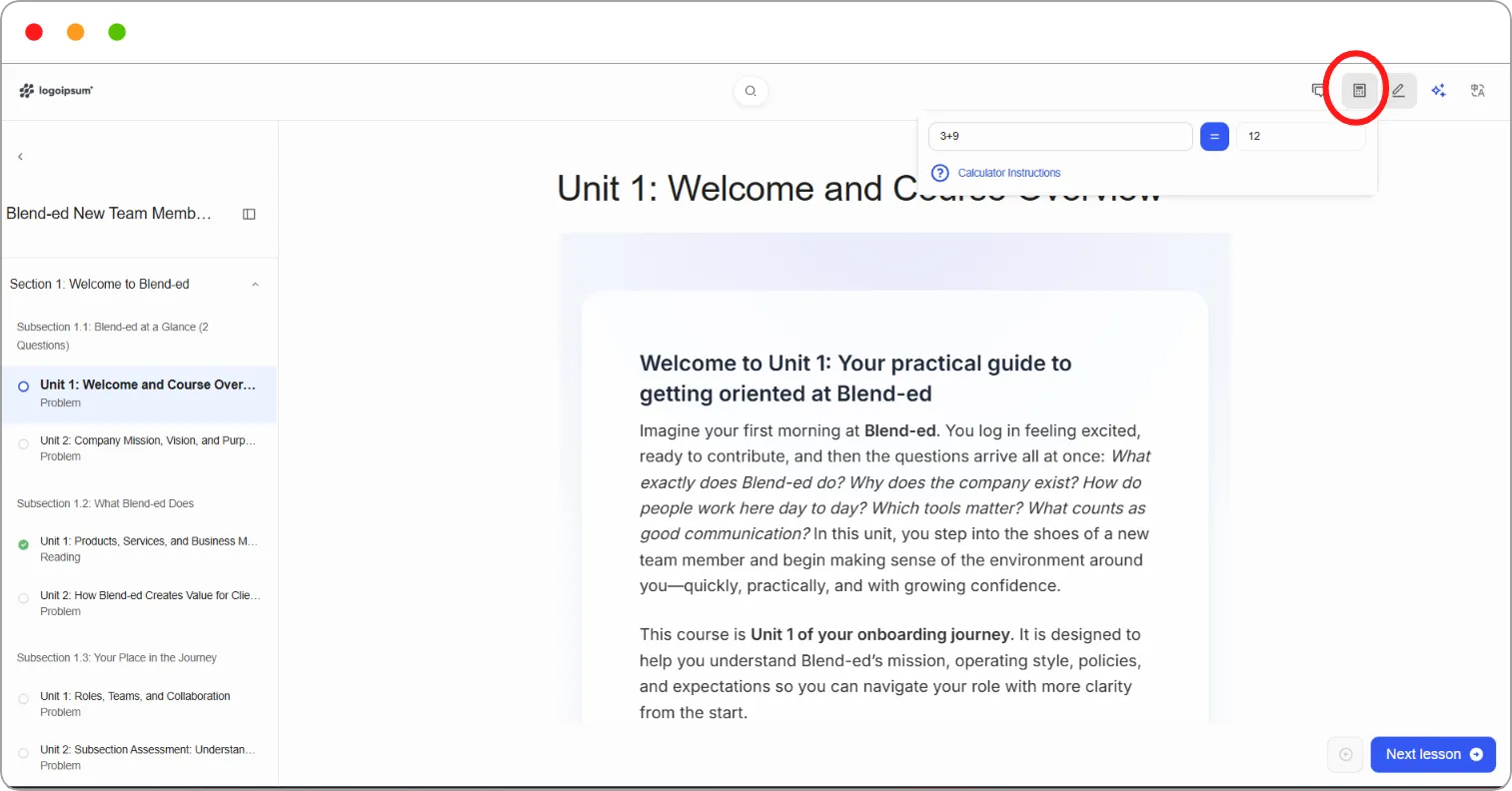
Click the calculator icon again to close it.
Tip: Click Calculator Instructions to see which operators and functions the calculator supports.
Related articles