
How learners buy a paid course
Who this is for: Learners, and staff who want to know what learners experience
Buying a paid course works one of two ways, depending on whether your platform has the shopping cart switched on.
| Shopping cart | What learners do |
|---|---|
| On | Add courses to a cart, then check out |
| Off | Buy each course directly |
Your administrator sets this under Platform Settings > Features. See How to turn platform features on and off.
Buying with the shopping cart on
Section titled “Buying with the shopping cart on”Step 1: Find the course in the catalogue and open it.
Step 2: Click Add to cart.
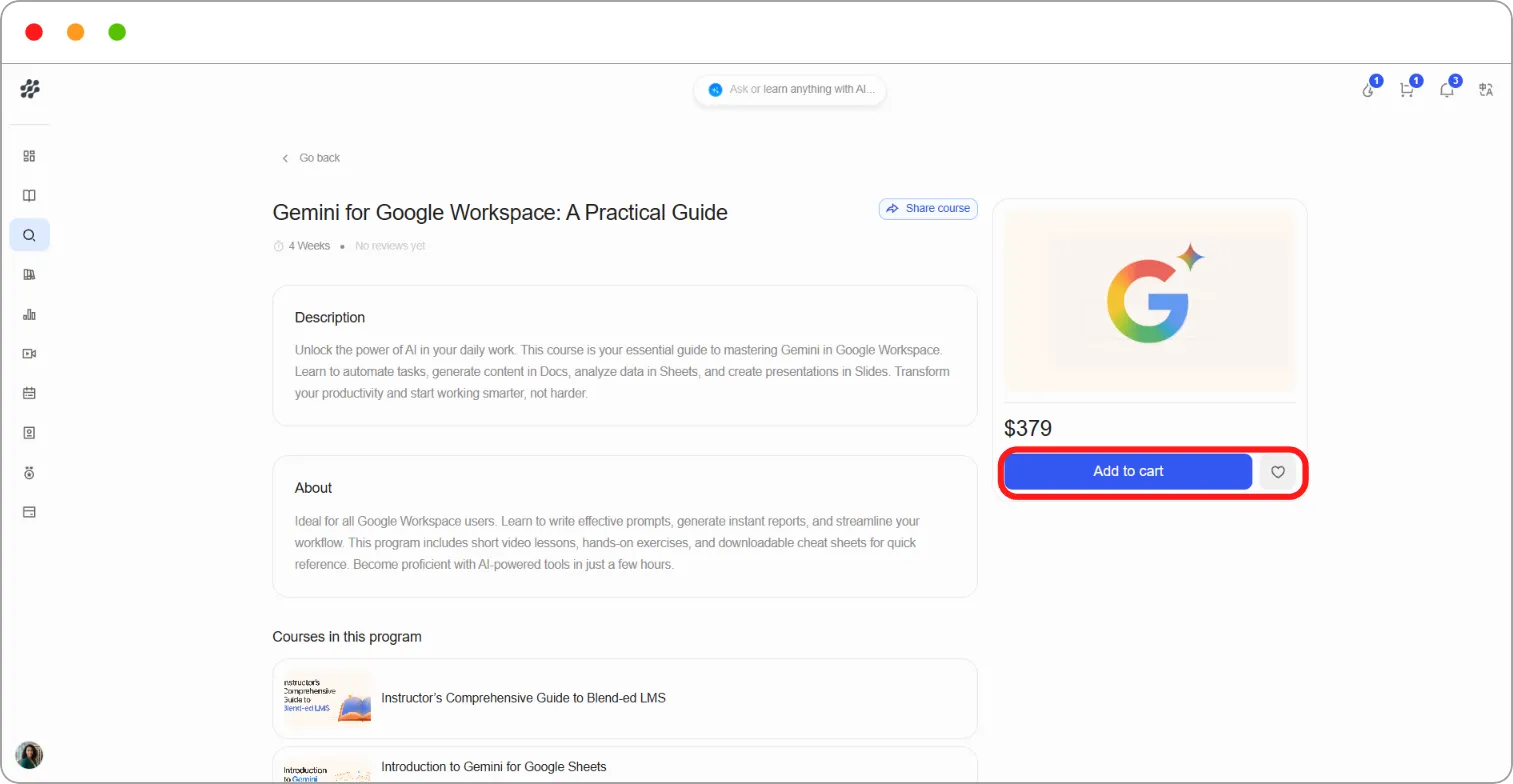
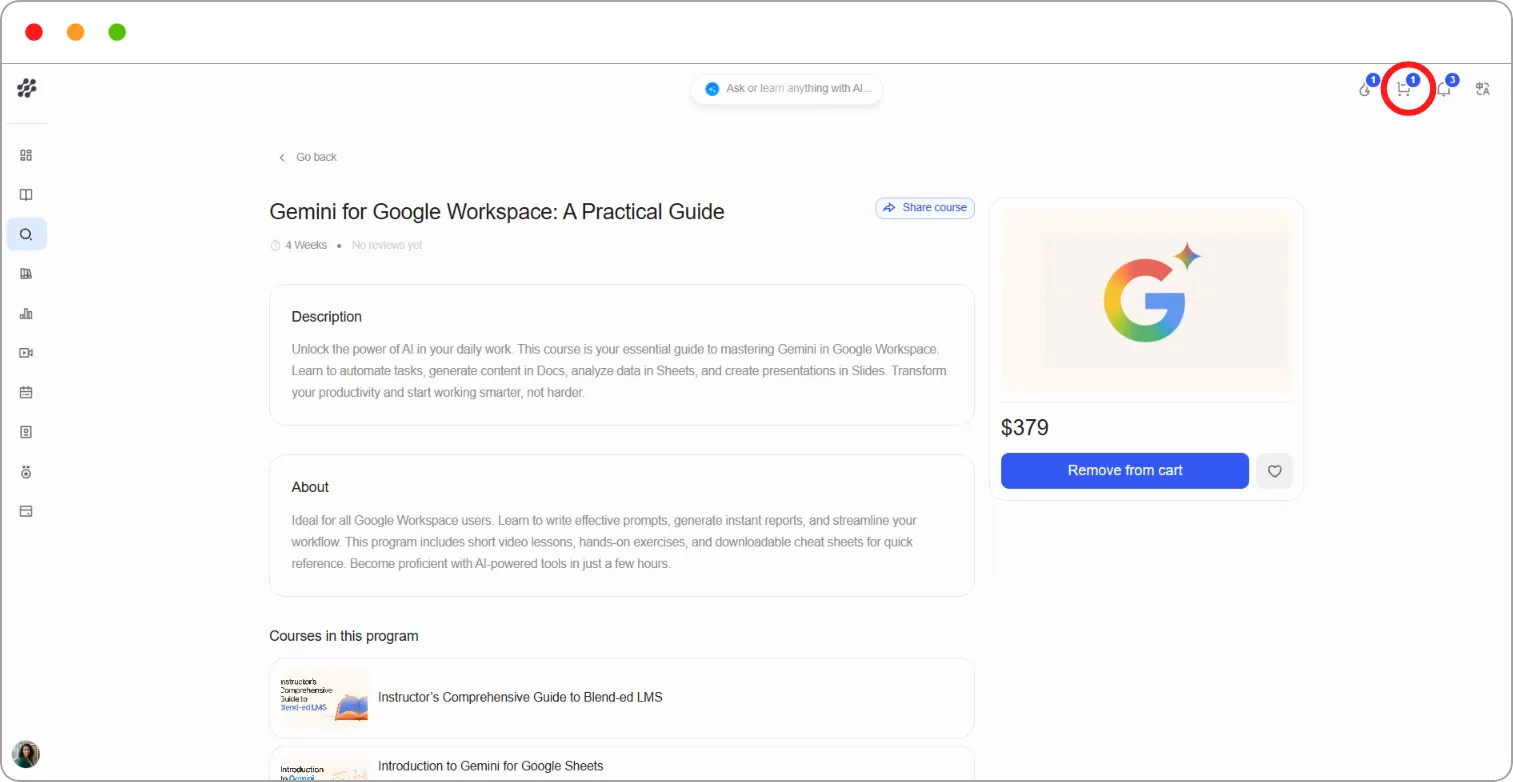
Step 3: Open the cart from the icon at the top right of the screen.
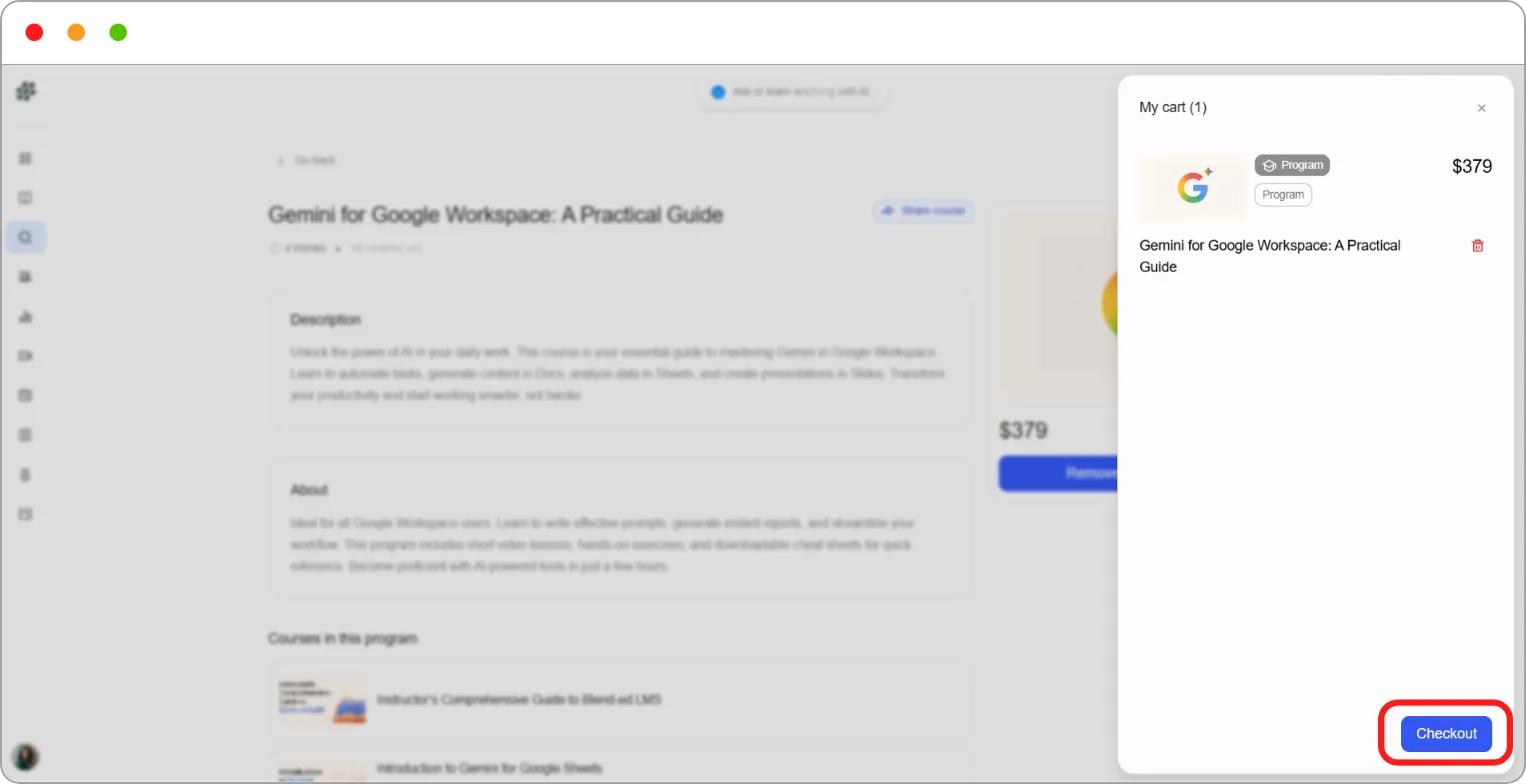
Step 4: Review what’s in the cart, then click Checkout.
Step 5: Complete the payment.
Step 6: You’re enrolled. The course appears in My Learning.
Tip: The cart is worth using when you’re buying several courses. Add everything first, then pay once.
Buying with the shopping cart off
Section titled “Buying with the shopping cart off”Step 1: Find the course in the catalogue and open it.
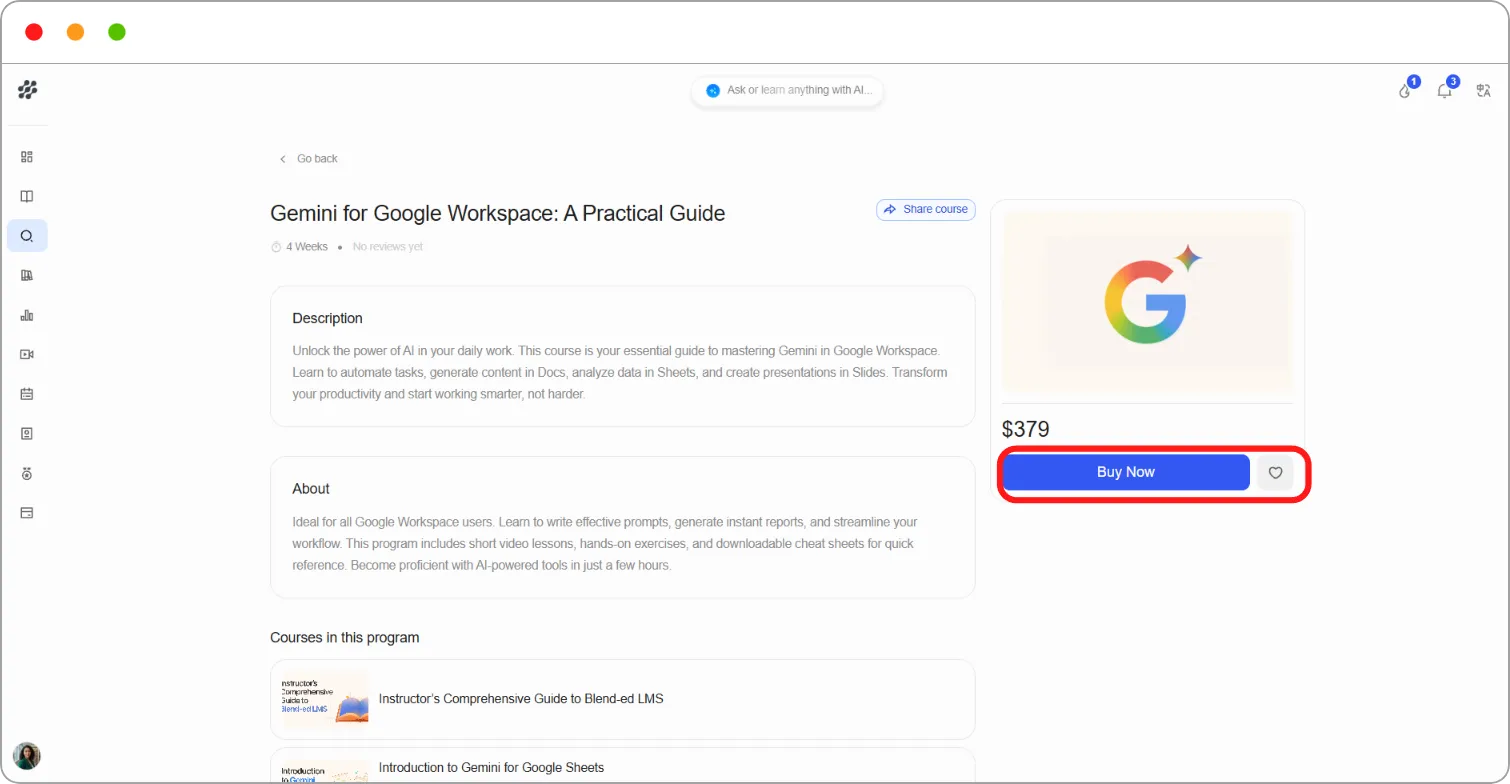
Step 2: On the enrolment panel, click Buy Now.
Step 3: Complete the payment.
Step 4: You’re enrolled. The course appears in My Learning.
Choosing an enrolment plan
Section titled “Choosing an enrolment plan”Some courses offer more than one way to enrol. Choose enrollment plan on the course page lists each mode with what it costs and what it includes, so you can see what you get for paying before you do.
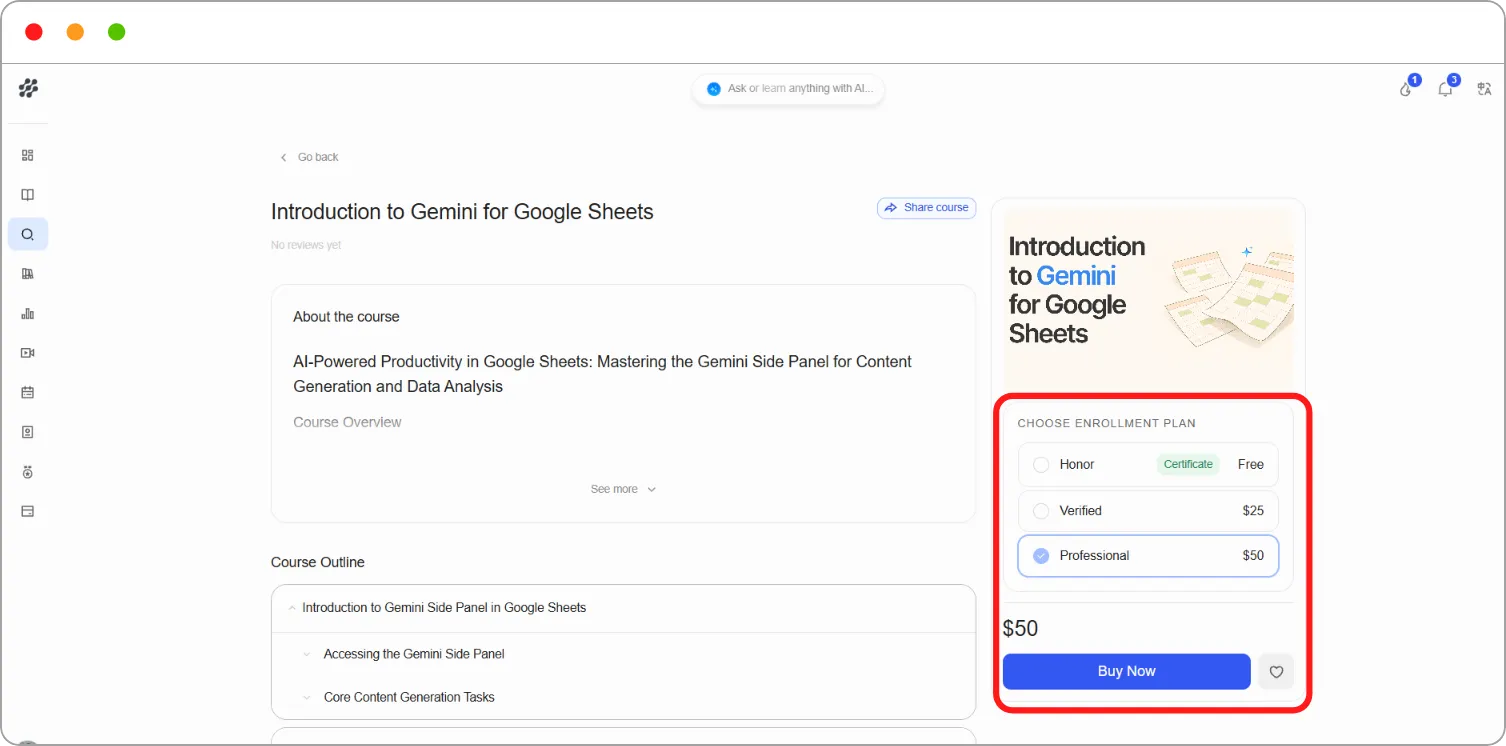
Where a free mode is available alongside a paid one, you can usually start free and upgrade later.
After you buy
Section titled “After you buy”The course moves into My Learning, where you’ll find Start course, your progress, and your lesson count.
Your purchase appears in your purchase history. See Account & Billing.
Note: If you can see a course but there’s no way to buy it, the course is invite only. Contact your administrator.