
How to view, download and share your certificates
Who can do this: Learners who have earned a certificate
You earn a certificate when you reach the pass grade in a course that offers one. Every certificate you’ve earned is kept in My Certifications.
When you earn a certificate
Section titled “When you earn a certificate”Once you reach the pass grade, the course Progress tab shows Your certificate is available! marked Earned.
Click View my certificate to open it.
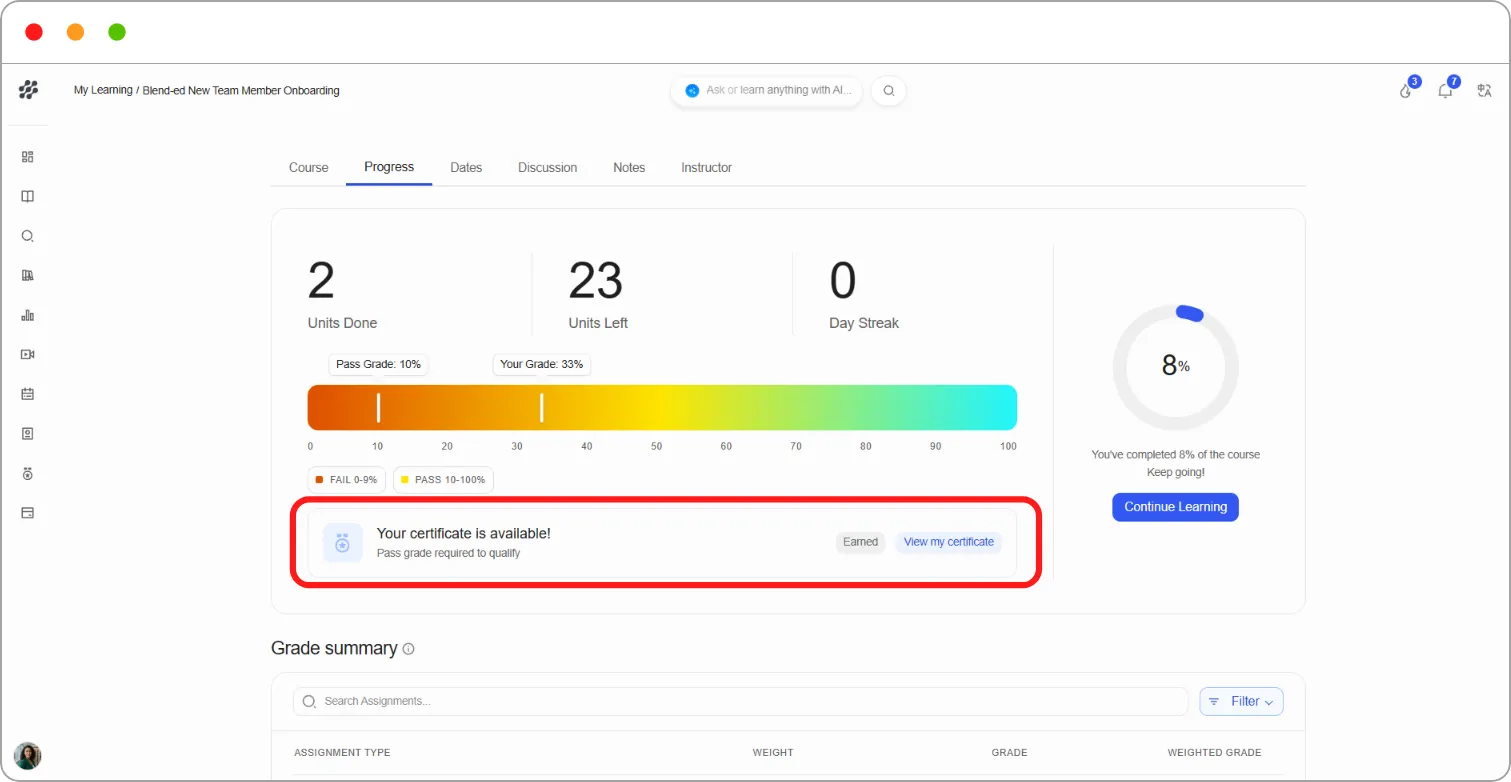
Note: Each course sets its own pass grade. You can see it on the grade bar of the Progress tab, marked Pass Grade.
Viewing all your certificates
Section titled “Viewing all your certificates”Step 1: Go to Certifications in the left navigation.
My Certifications lists every certificate you’ve earned. Each one shows:
-
its status, for example Active
-
the course name
-
the Expiry Date, or No expiry
-
the date you completed the course
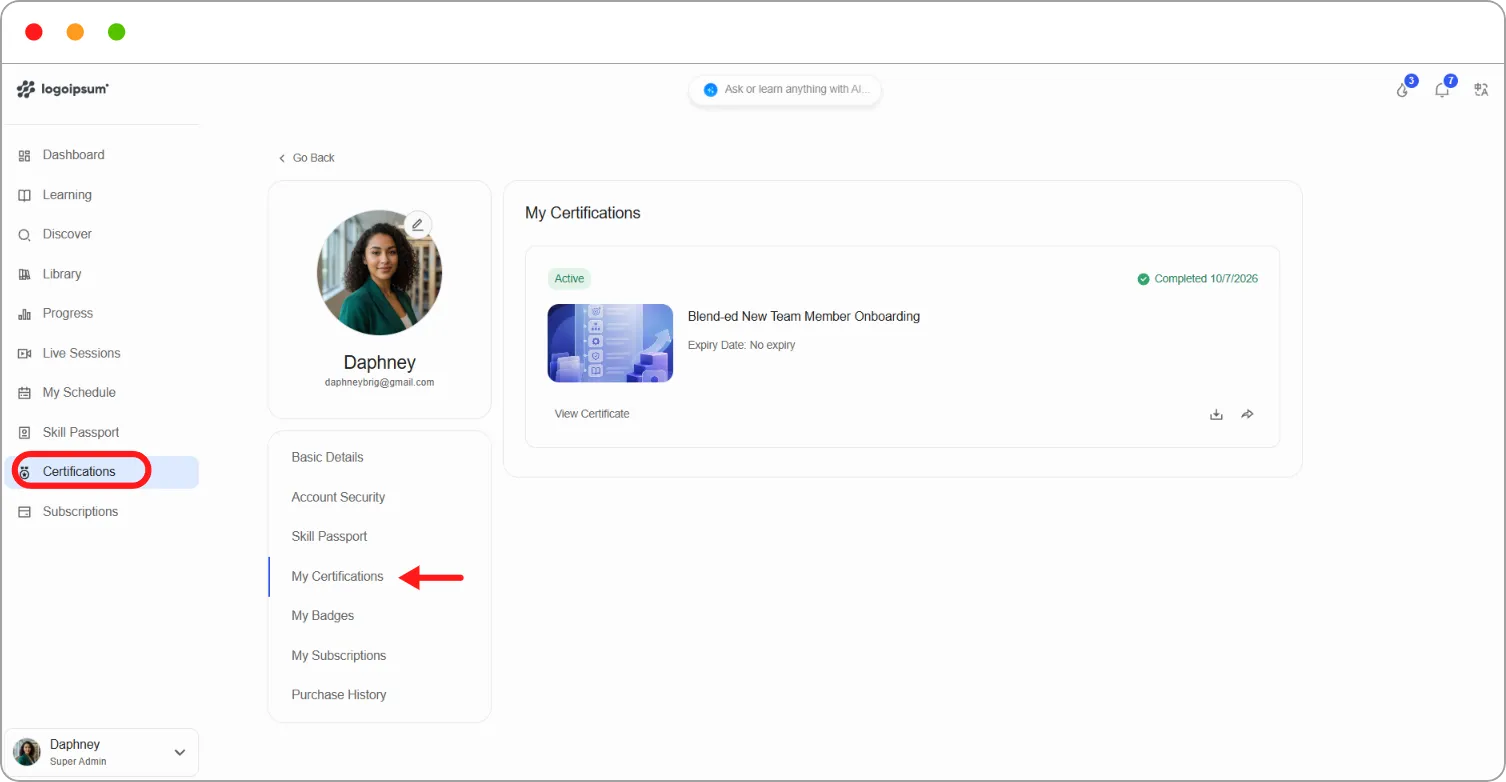
Step 2: Choose what to do with a certificate:
| Action | What it does |
|---|---|
| View Certificate | Opens the certificate |
| Download icon | Downloads a copy of the certificate |
| Share icon | Shares the certificate. A Certificate shared confirmation appears |
What’s on the certificate page
Section titled “What’s on the certificate page”The certificate page opens with [Your name], you earned a certificate! and shows the certificate itself. Underneath, More about [your name]‘s accomplishment lists:
| Field | What it means |
|---|---|
| Certificate ID Number | A unique code that identifies this certificate |
| Issued On | The date the certificate was issued |
| Validity | How long it’s valid, for example Does not expire |
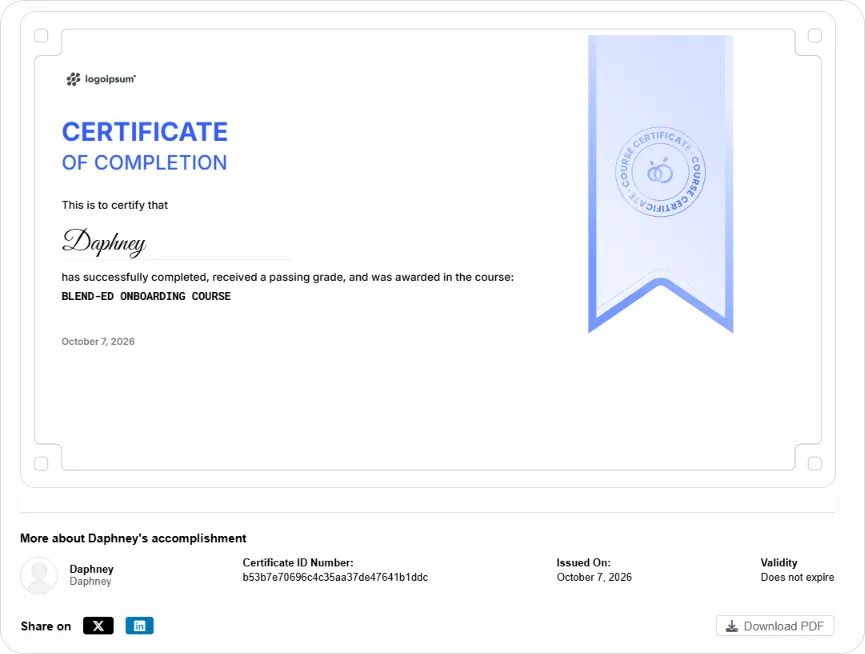
Tip: Share the certificate page link rather than a downloaded copy when someone needs to verify it. The link shows the Certificate ID Number and validity, which a file can’t prove on its own.
Tip: To add a certificate to your LinkedIn profile, go to Progress, find the course under Completed courses, and click Add to LinkedIn.
Related articles