
How to use Flashcards
Who can do this: Learners
Flashcards give you a personalised recap of what you’ve been studying. They appear on your Dashboard and are built from the courses you’re working through.
Where to find them
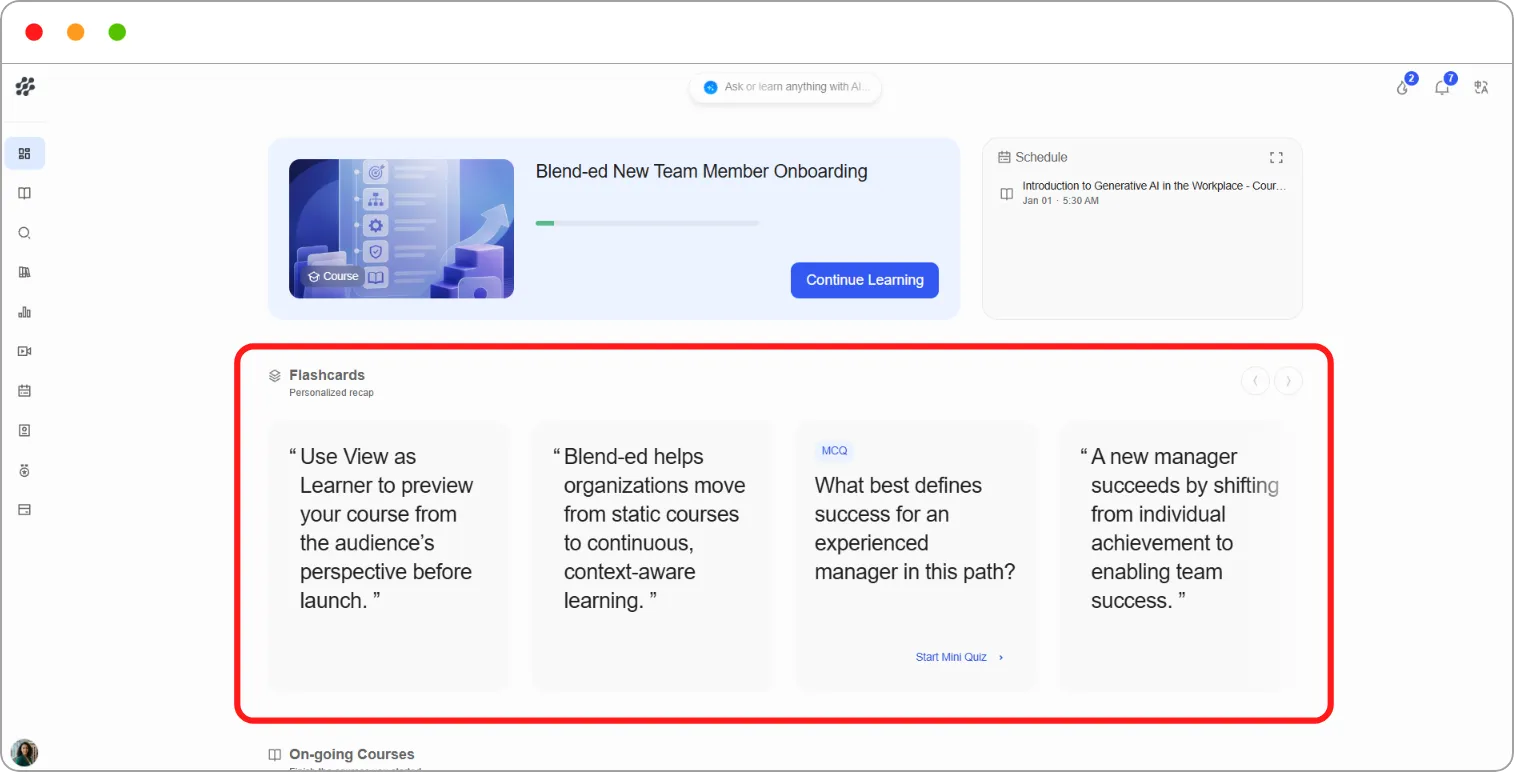
Section titled “Where to find them”Go to Dashboard and scroll to Flashcards (Personalized recap). Use the arrows at the top right of the row to move through the cards.
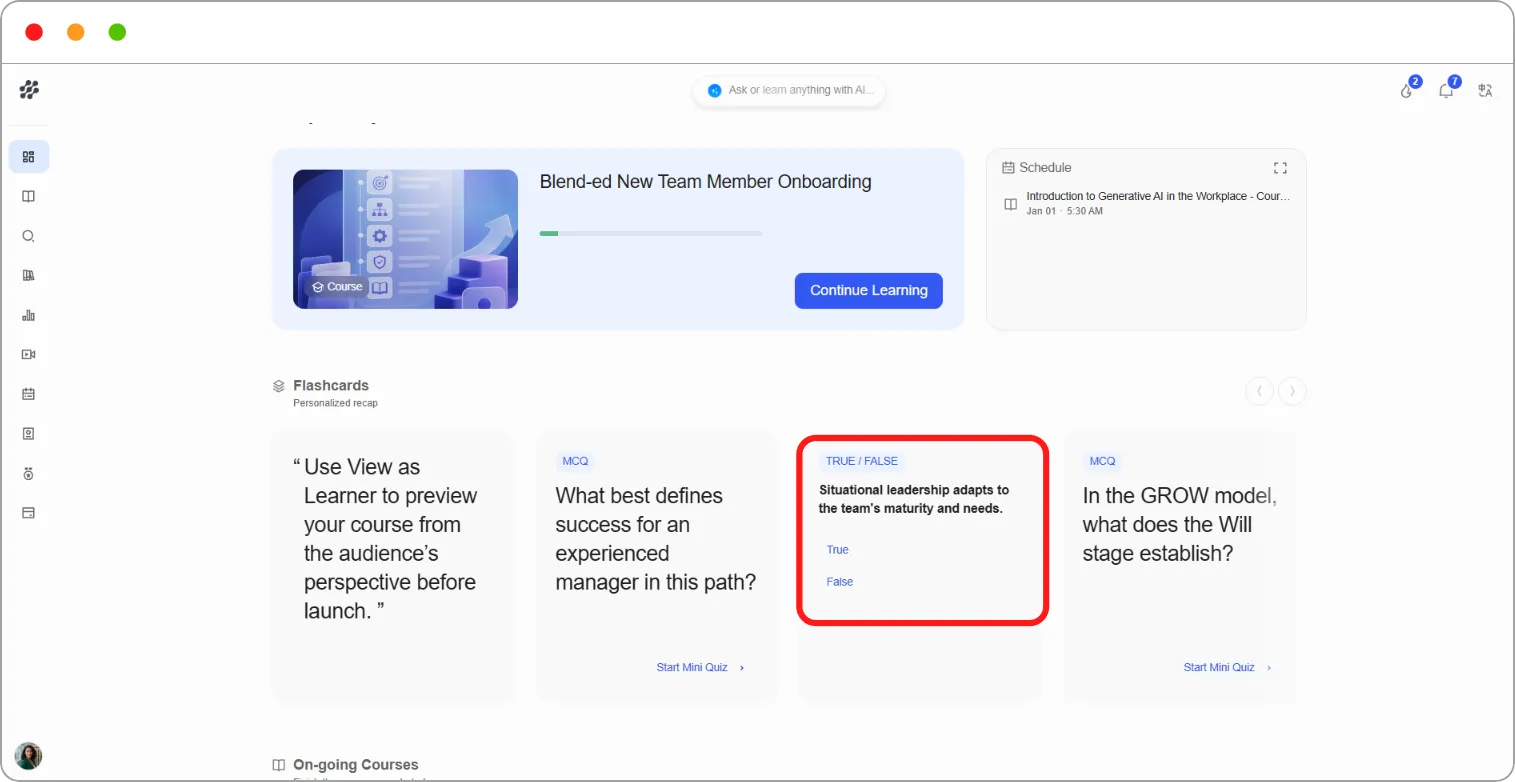
Types of card
Section titled “Types of card”| Card | What you do |
|---|---|
| TRUE / FALSE | Read the statement, decide whether it’s true, then click Reveal answer |
| MCQ | Click Start Mini Quiz and choose the right answer from the options |
| Key point (in quotation marks) | Read it as a quick reminder of an important idea from your course |
Checking a True/False card
Section titled “Checking a True/False card”Step 1: Read the statement and decide on your answer.
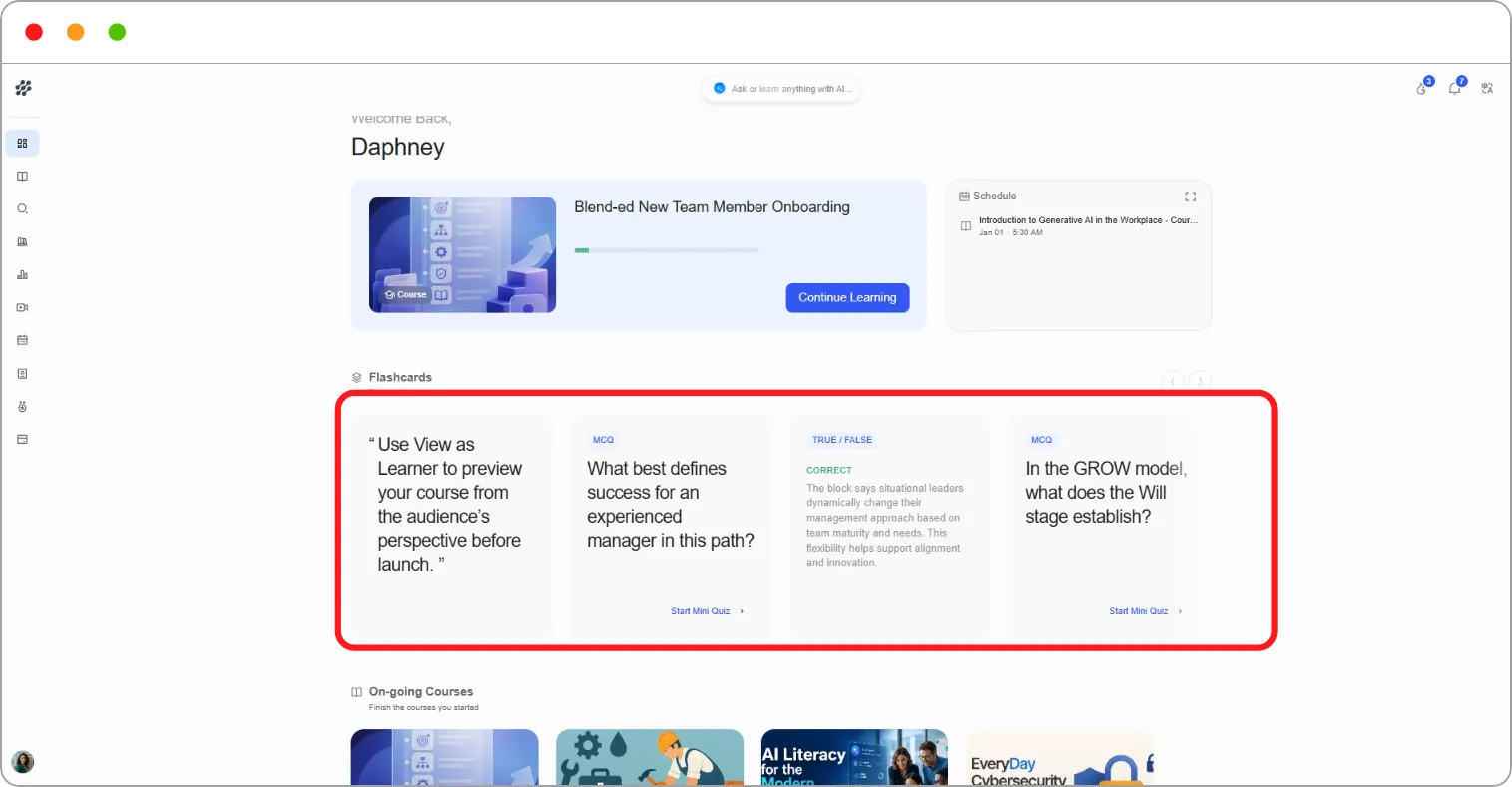
Step 2: Click Reveal answer.
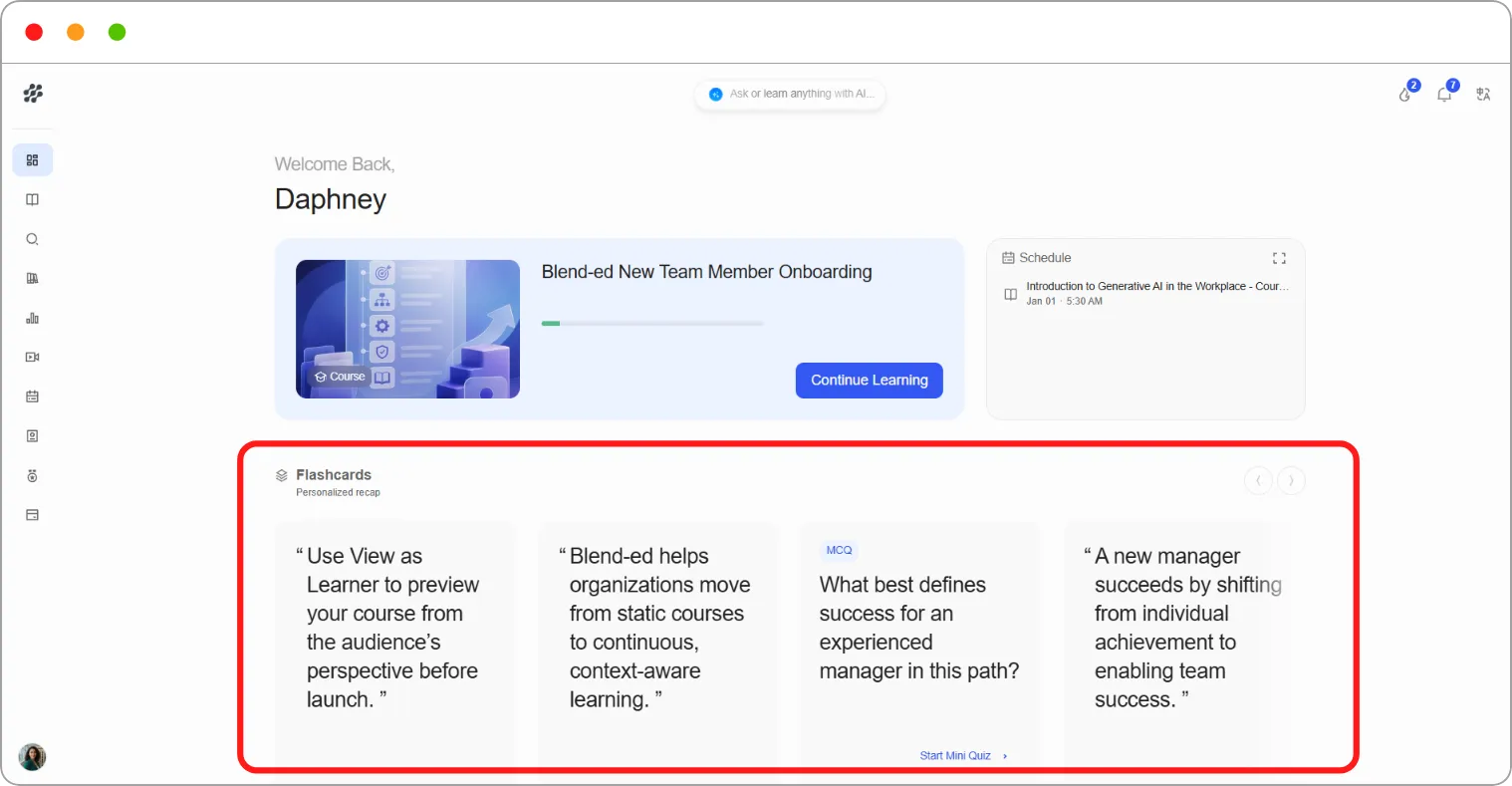
The card shows whether the statement is correct, with a short explanation of why.
Tip: Decide on your answer before you click Reveal answer. Recalling it yourself does far more for your memory than reading the answer.
Answering an MCQ card
Section titled “Answering an MCQ card”Step 1: Read the question and click Start Mini Quiz.
The answer options appear on the card.
Step 2: Click the answer you think is right.
The card shows whether your answer is correct, with a short explanation of why.
Note: Your cards change as you progress, so check back after each study session for a fresh recap.
Note: If you don’t see Flashcards on your Dashboard, they haven’t been switched on for your platform.
Related articles