
How to choose which notifications are sent
Who can do this: Super Admin, Admin, or Staff with the Platform Settings permission
Control which notifications your organisation sends and on which channels.
Before you start
Section titled “Before you start”Switch on Notification settings under Platform Settings > Features.
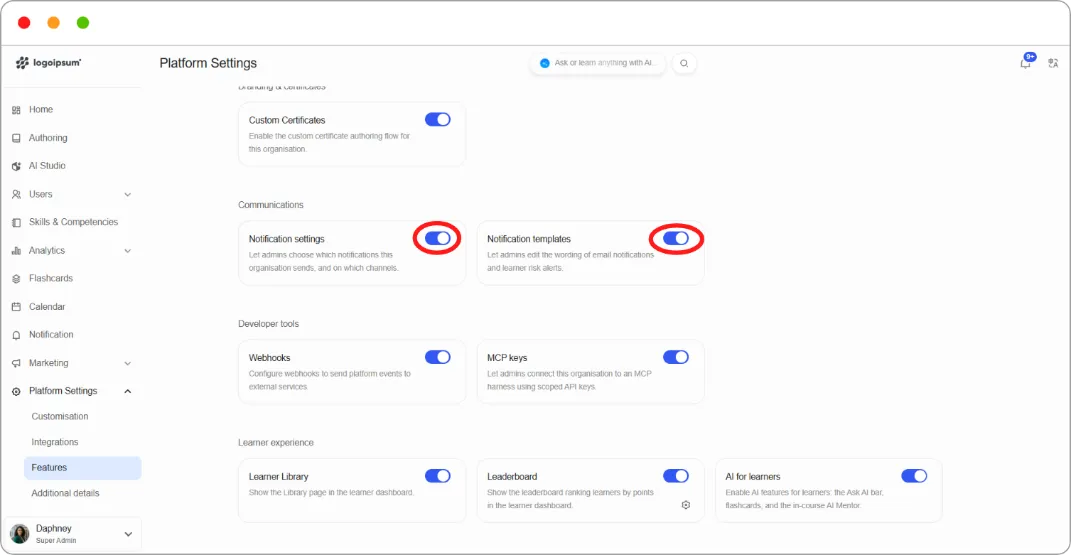
Step 1: Go to Platform Settings > Notification settings.
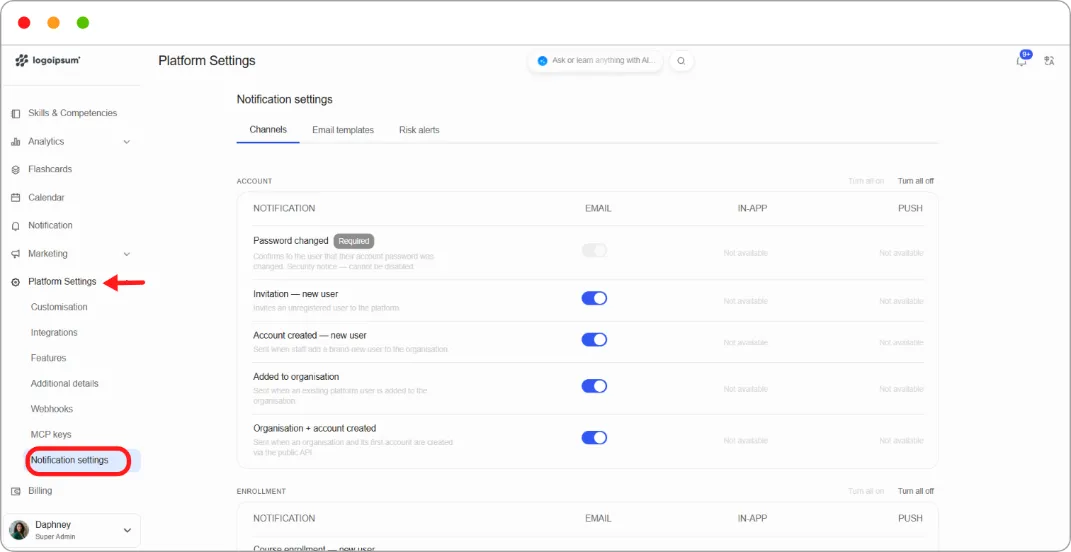
Step 2: Stay on the Channels tab.
Step 3: Notifications are grouped by category. Each row shows the notification, a description of when it’s sent, and a toggle for each channel.
| Channel | Delivery |
|---|---|
| To the learner’s email address | |
| In-app | Inside Blend-ed |
| Push | To the mobile app |
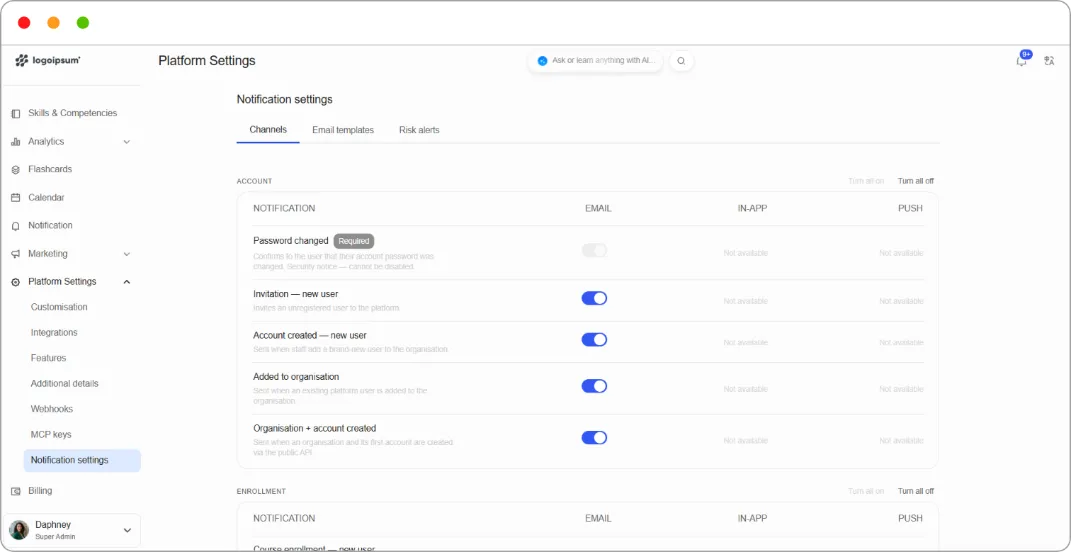
Step 4: Switch channels on or off per notification.
Step 5: Use Turn all on or Turn all off beside a category heading to change a whole group at once.
Changes save as you make them.
Notifications you can’t turn off.
Section titled “Notifications you can’t turn off.”Some notifications are marked Required and can’t be turned off. These are transactional or security messages a learner must receive:
| Notification | Why |
|---|---|
| Password changed | Security notice |
| Guest purchase — success | Receipt and access details |
| Payment failed | Warns that access will be revoked |
Where a channel isn’t offered for a notification, it reads Not available.
The notification categories
Section titled “The notification categories”Account
| Notification | Sent when |
|---|---|
| Password changed | A user’s account password was changed |
| Invitation — new user | An unregistered user is invited to the platform |
| Account created — new user | Staff add a brand-new user to the organisation |
| Added to organisation | An existing platform user is added to the organisation |
| Organisation + account created | An organisation and its first account are created through the public API |
Enrollment
| Notification | Sent when |
|---|---|
| Course enrollment — new user | An unregistered user is enrolled and must register first |
| Course enrollment — success | A learner is enrolled in a course |
| Course enrollment — update | A learner’s enrolment changes |
| Program enrollment — success | A learner is enrolled in a program |
| Learner self-enrolled | A learner enrols themselves. Tells the course team; enrolments performed by staff aren’t announced |
| Course update | A course update is published from Studio |
| Audit access expiring soon | An audit learner’s access is about to end |
Certificates
| Notification | Sent when |
|---|---|
| Certificate earned | A learner earns a course certificate |
| Certificate expired | A learner’s certificate expires and their graded attempts are reset |
Payments
| Notification | Sent when |
|---|---|
| Guest purchase — success | A guest checkout completes |
| Payment failed | A subscription payment fails |
| Purchase completed | Tells the course team a learner bought their course, or program staff that a learner bought their program |
Support
| Notification | Sent when |
|---|---|
| Support ticket raised | A learner raises a support ticket |
| Support ticket status updated | A ticket’s status changes |
| Support ticket assigned | A ticket is assigned to a staff member |
| Support ticket comment added | A comment is added to a ticket |
| Mobile crash alert | A crash report is forwarded from the mobile app |
| Discussion — response to your post | Someone responds to a post you wrote |
| Discussion — comment on a response to your post | Someone comments on a response to your post |
| Discussion — comment on your response | Someone comments on a response you wrote |
| Discussion — new post | A new post is added to a course discussion |
AI course creation
| Notification | Sent when |
|---|---|
| AI course creation complete | An AI-generated course finishes building |
Learner risk
| Notification | Sent when |
|---|---|
| Learner risk alert | A learner is flagged as at risk of not completing a course |
Teams
| Notification | Sent when |
|---|---|
| Team notification | An in-app message is sent to every member of a team |
Broadcasts
| Notification | Sent when |
|---|---|
| Custom broadcast | Staff compose an ad-hoc announcement |
Note: For Custom broadcast, the sender picks channels per send. These settings cap what they may pick rather than deciding it.
Tip: Turning everything on is the fastest route to learners muting your emails. Decide which notifications genuinely need to reach an inbox and leave the rest in-app.
Tip: The Support category mixes staff-facing and learner-facing notifications. Discussion notifications go to learners; ticket notifications mostly go to staff. Review them separately.