
How to use the Learners report
Who can do this: Admins, and staff with the View Analytics permission
The Learners report lists every learner with their enrolments, completions, certificates and risk status.
Step 1: Go to Analytics > Learners.
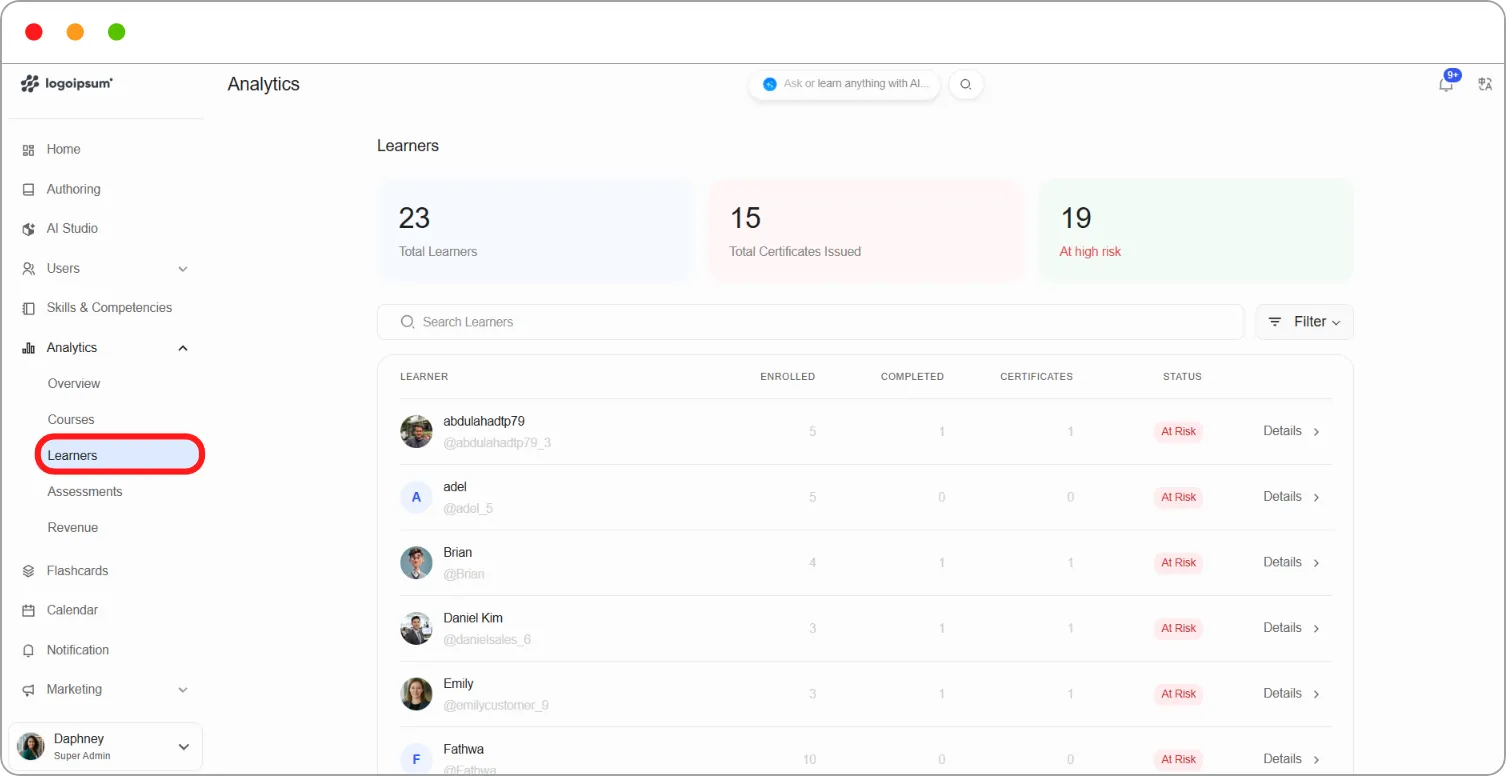
The top of the page shows:
| Card | What it shows |
|---|---|
| Total Learners | The number of learners on your platform |
| Total Certificates Issued | The number of certificates learners have earned |
| At high risk | The number of learners at high risk of dropping out |
Step 2: Find the learner you want:
-
Type in Search Learners to find a learner by name or username.
-
Click Filter to narrow the list.
Step 3: Click Details beside a learner to open their report.
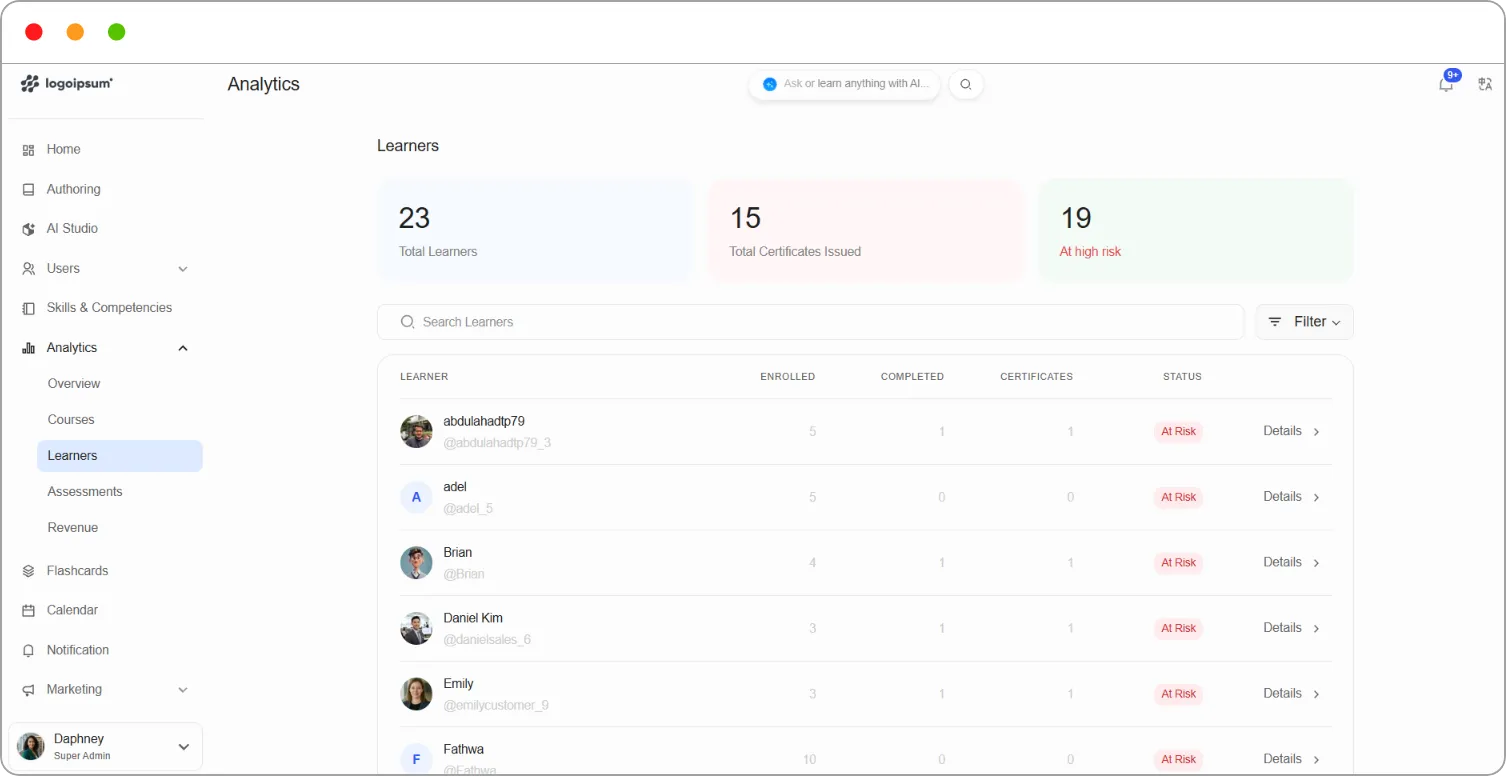
What the list shows
Section titled “What the list shows”| Column | What it shows |
|---|---|
| Learner | The learner’s name and username |
| Enrolled | The number of courses they’re enrolled in |
| Completed | The number of courses they’ve finished |
| Certificates | The number of certificates they’ve earned |
| Status | Their risk status, for example At Risk |
Note: A learner is marked At Risk based on five risk factors: attendance, recent activity, learning streaks, engagement score and course progress. Open the learner’s report to see which factors apply. See How to view a learner’s report.