
How to enrol learners into a course
Who can do this: Super Admin, Admin, or Staff with the Enrollment Management permission
Enrol learners directly rather than waiting for them to find the course. Each route lets you set the enrolment mode as you go.
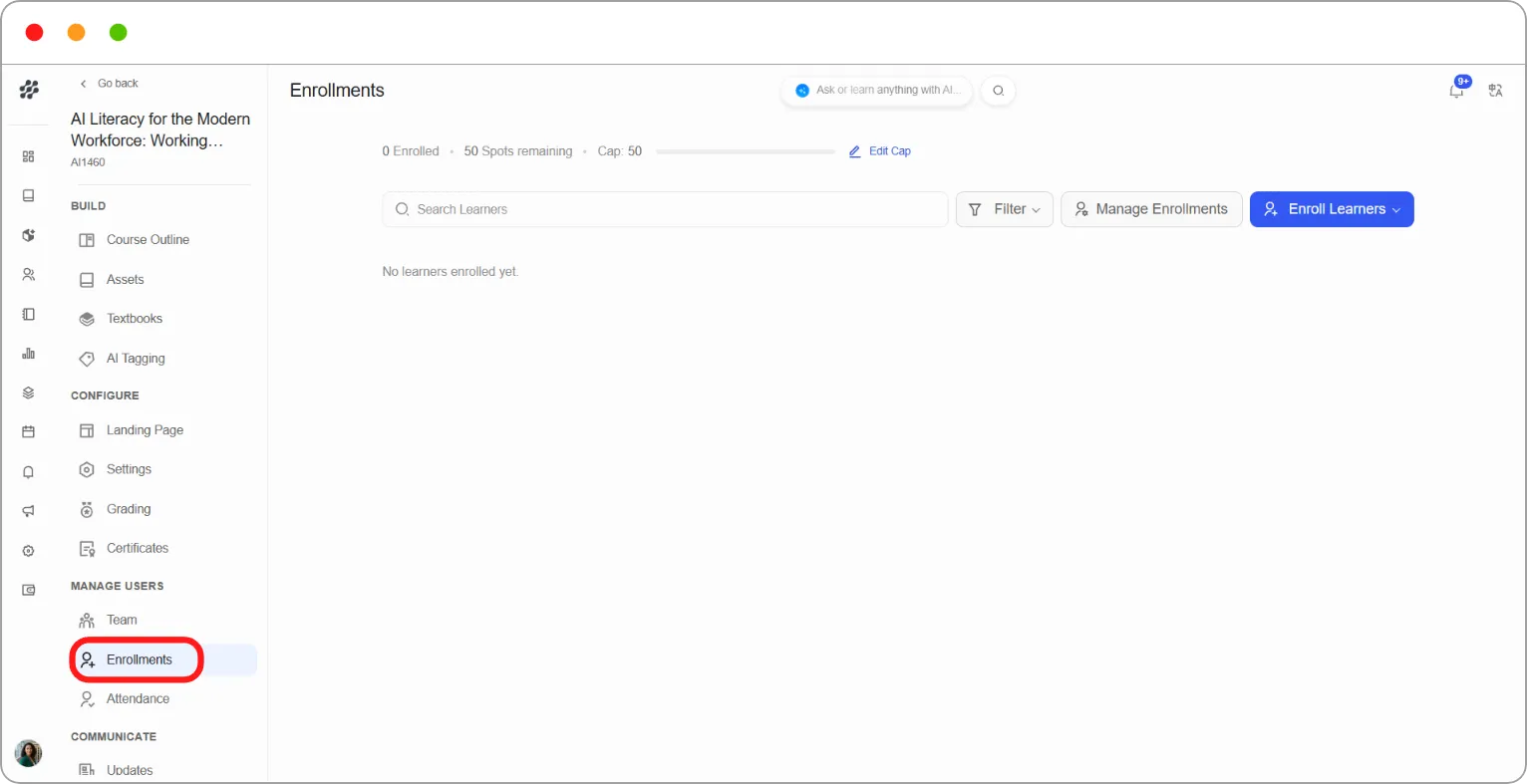
Step 1: Open the course, then under MANAGE USERS click Enrollments.
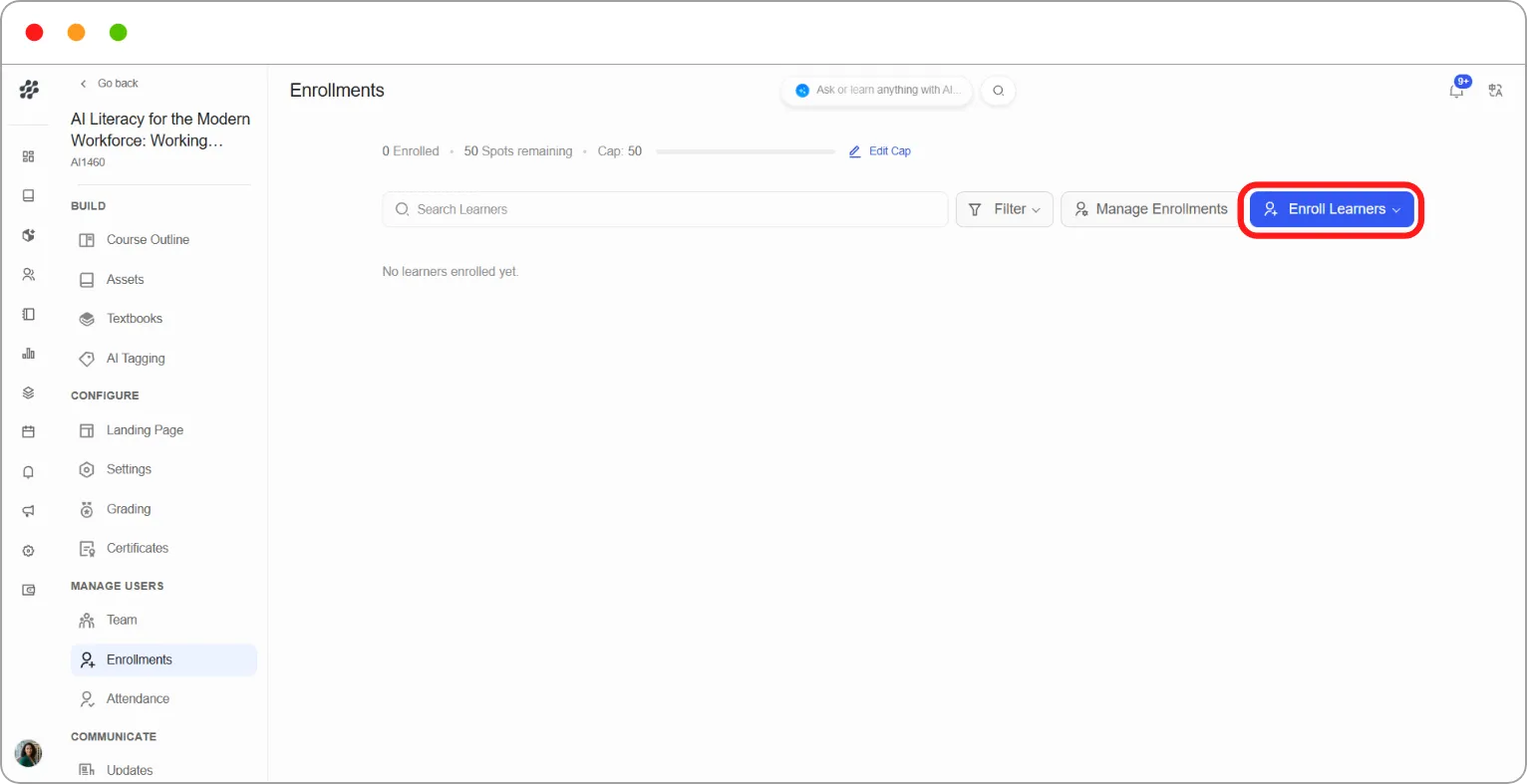
The page shows how many learners are enrolled, how many spots remain, and the course cap.
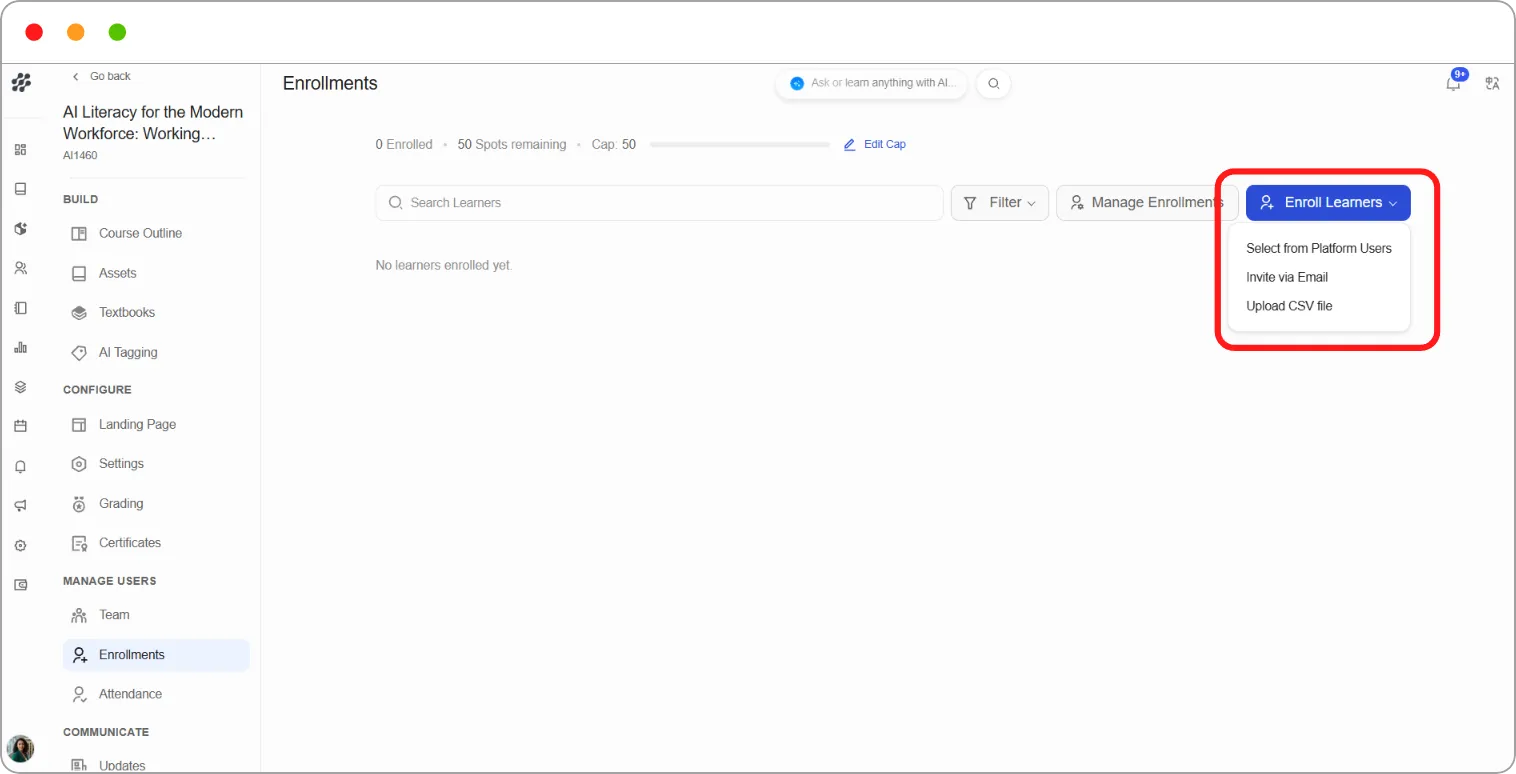
Step 2: Click Enroll Learners and choose a route:
| Route | Use it when |
|---|---|
| Select from Platform Users | The learners already have Blend-ed accounts |
| Invite via Email | They don’t have accounts yet |
| Upload CSV file | You’re enrolling many people at once |
Select from Platform Users
Section titled “Select from Platform Users”-
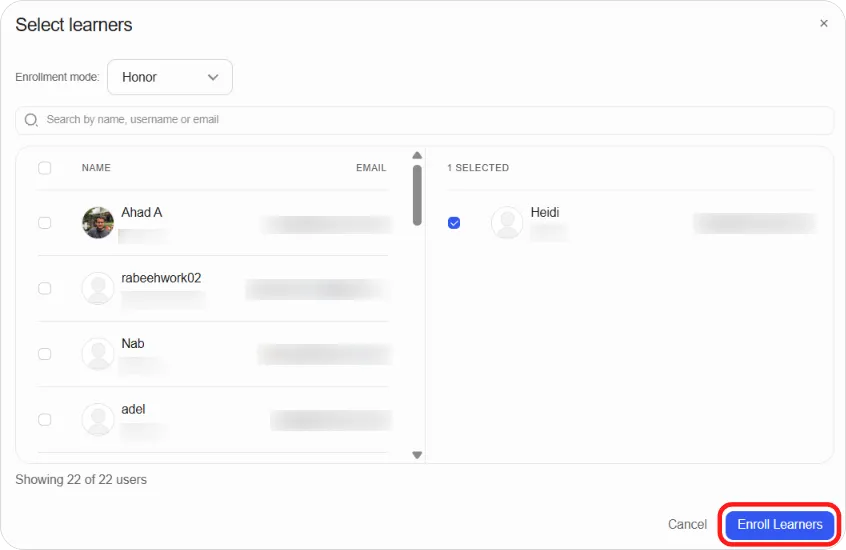
Set Enrollment mode.
-
Search by name, username, or email, or scroll the list.
-
Tick each learner. Selections gather on the right with a running count.
-
Click Enroll Learners.
Invite via Email
Section titled “Invite via Email”-
Set Enrollment mode.
-
Type an email address and click + Add Learner. Repeat for each person.
-
Click Enroll Learners.
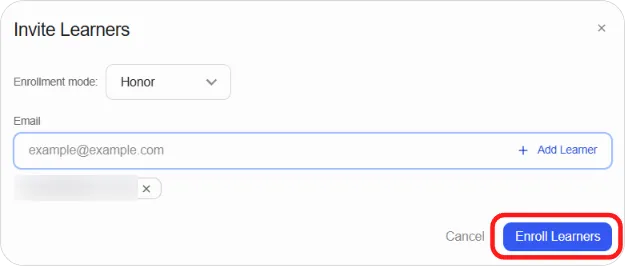
People without a Blend-ed account receive an invitation and are enrolled once they register.
Upload CSV file
Section titled “Upload CSV file”For bulk enrolment, see How to enrol learners with a CSV file.
After enrolling
Section titled “After enrolling”A confirmation reads Learners enrolled successfully. The new learners appear in the table with their status, enrolment date, and mode.
Tip: Use Select from Platform Users when you can. It avoids typos in email addresses, which are the most common reason an enrolment appears not to have worked.