
How to view assessment results
Who can do this: Admins, and staff with the View Analytics permission
The Assessments report shows how learners are performing on the questions in each course. You can view results by question or by learner.
Choosing a course
Section titled “Choosing a course”Step 1: Go to Analytics > Assessments.
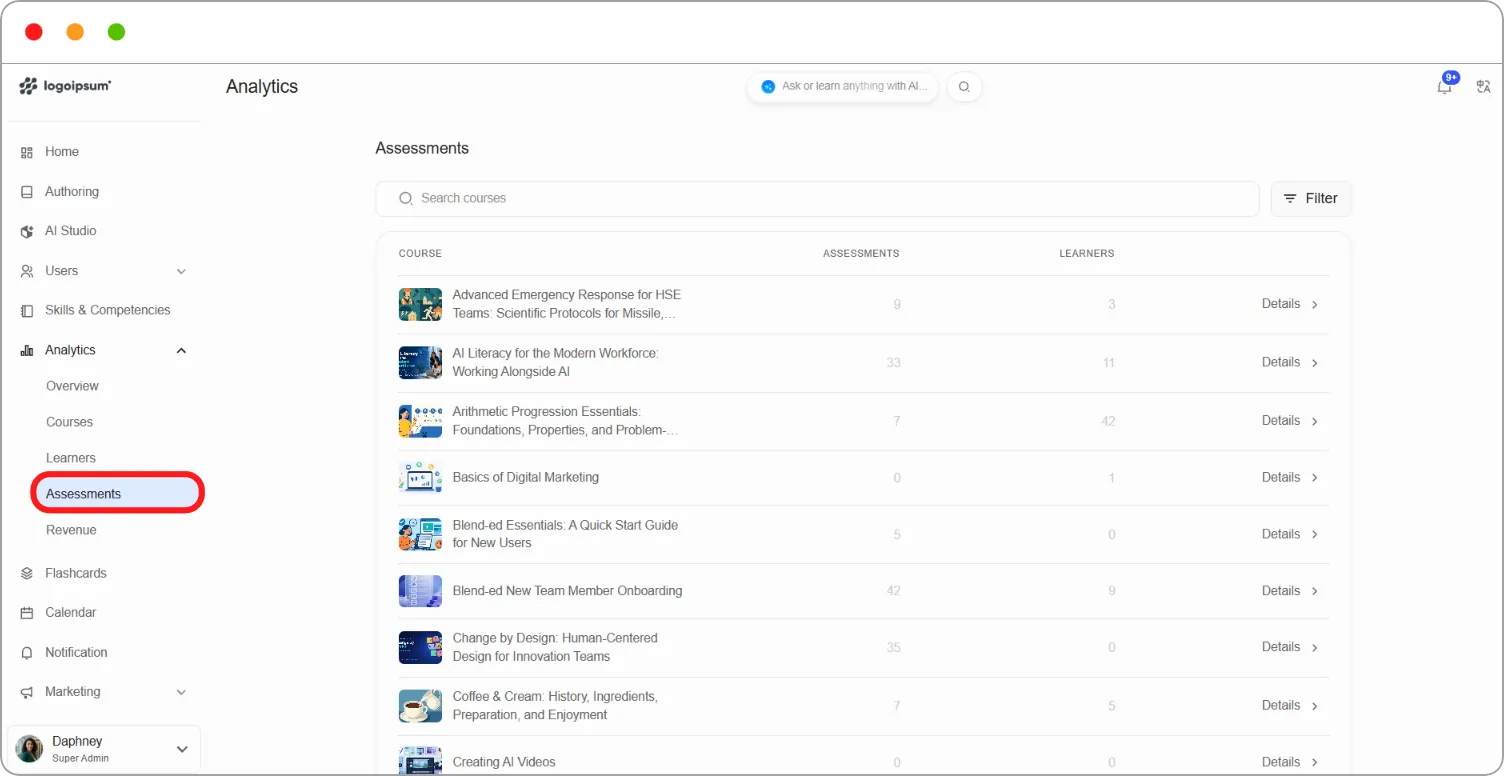
Each course shows its number of Assessments and Learners. Use Search courses to find a course.
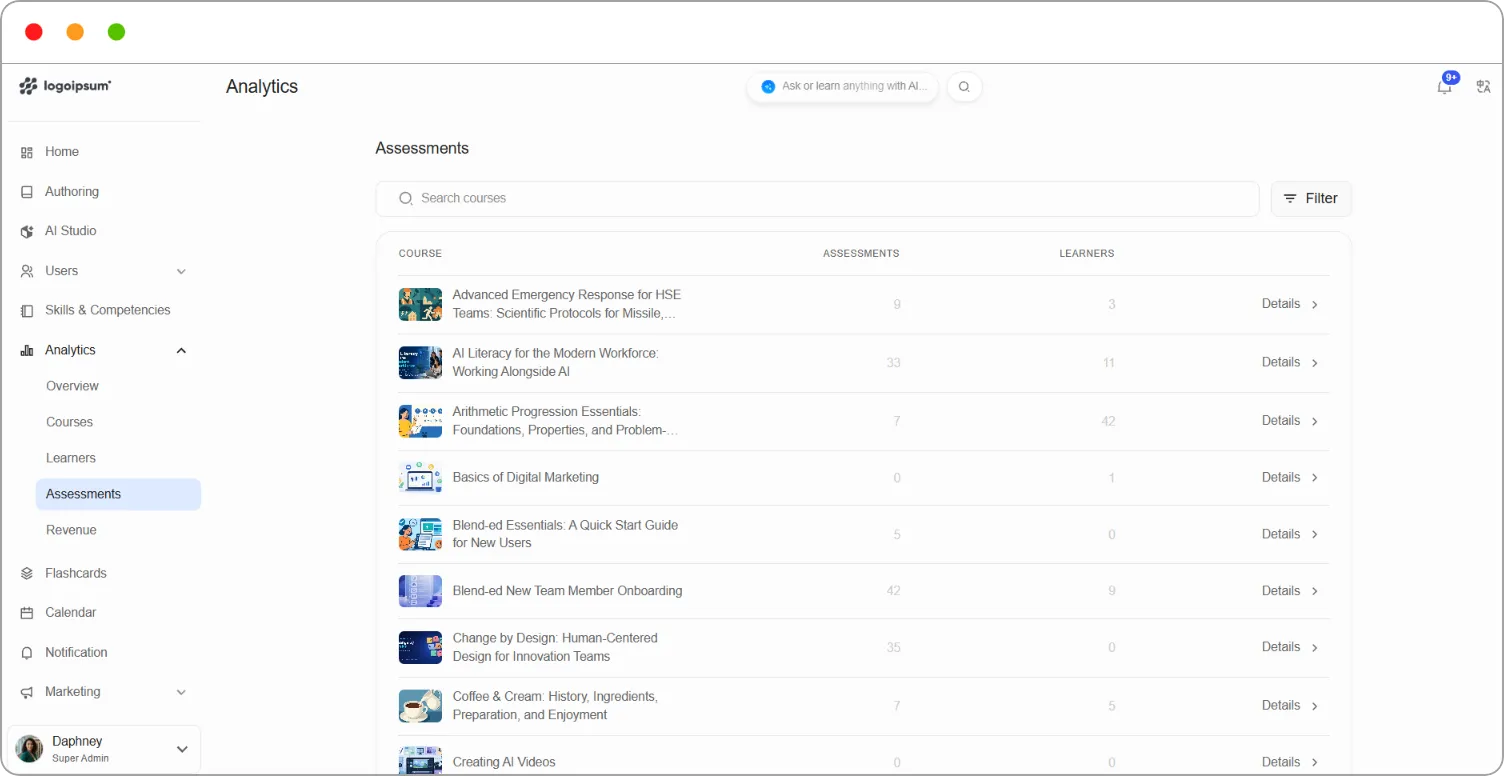
Step 2: Click Details beside the course.
The course’s assessment report opens. The top shows Total Assessments, Total Submissions and Learners.
Viewing results by question
Section titled “Viewing results by question”Step 1: Click the Problems tab.
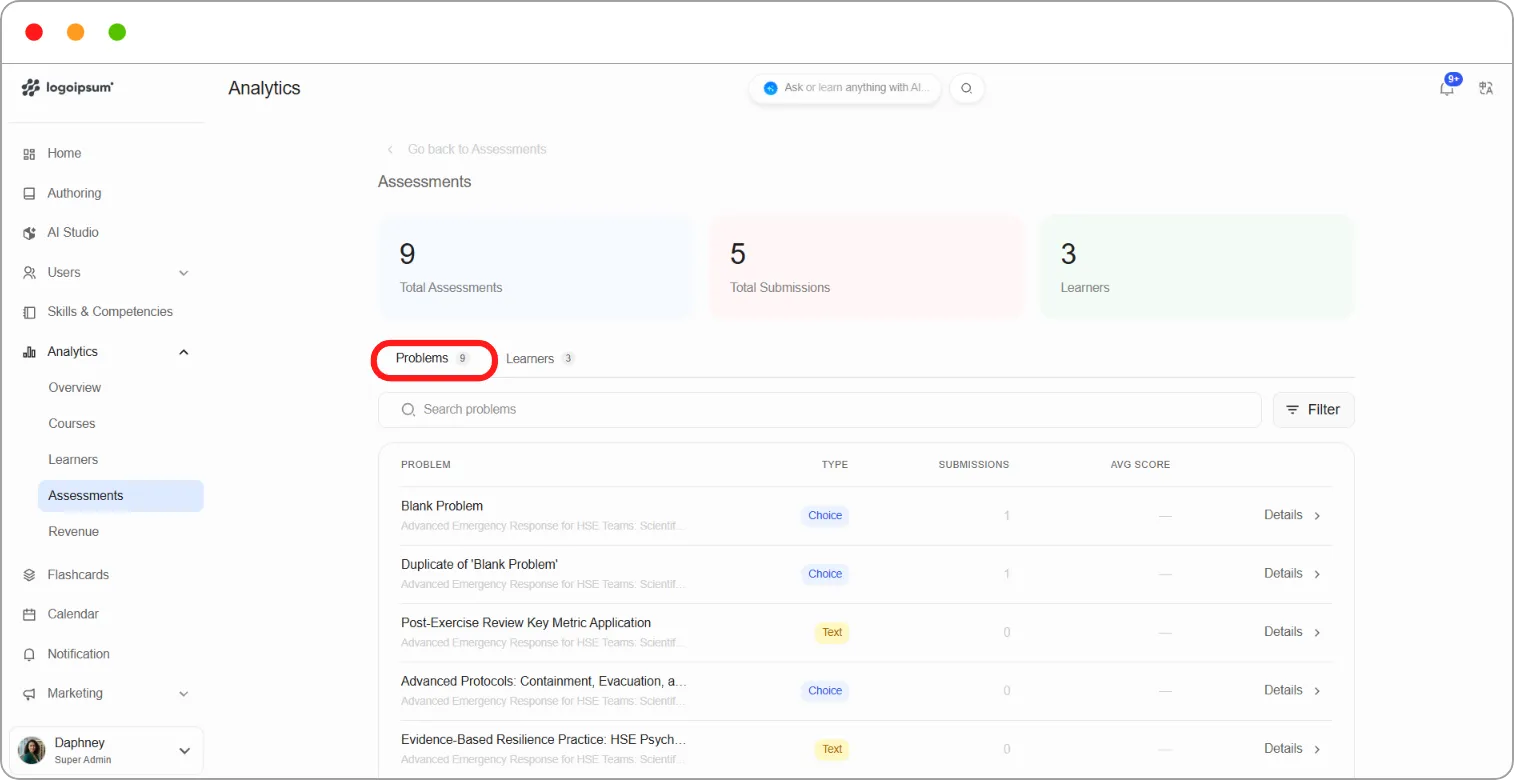
Each question shows:
| Column | What it shows |
|---|---|
| Problem | The question name and the course it belongs to |
| Type | The question type, for example Choice |
| Submissions | How many times learners have submitted an answer |
| Avg Score | The average score |
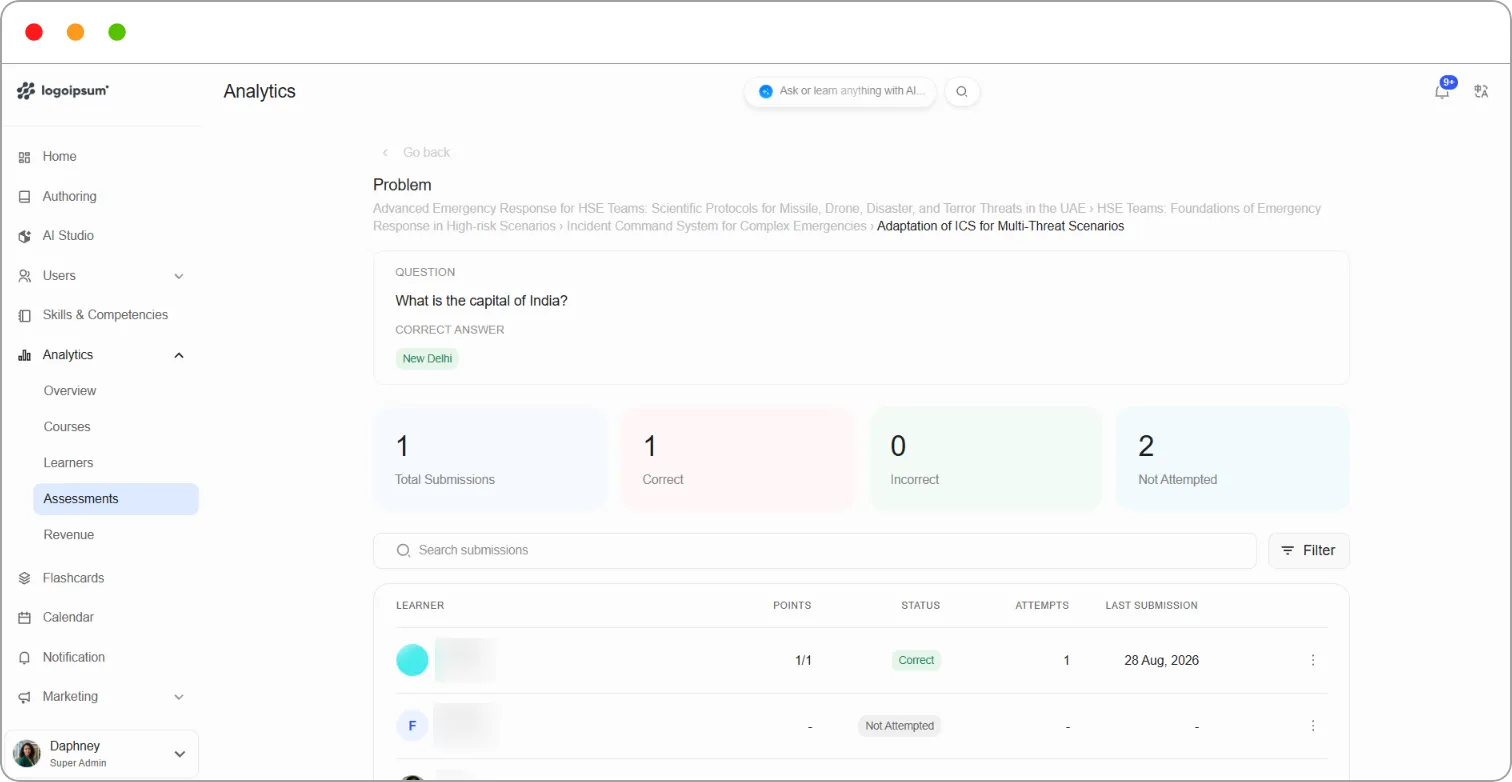
Step 2: Click Details beside a question.
The question page shows the Question, the Correct Answer, and totals for Total Submissions, Correct, Incorrect and Not Attempted.
Below, each learner’s result shows their Points, Status, Attempts and Last Submission date.
Tip: A question with many Incorrect answers and few Correct ones is worth reviewing. The question may be unclear, or the topic may need more coverage in the lesson before it.
Viewing results by learner
Section titled “Viewing results by learner”Step 1: Click the Learners tab.
Each learner shows the date they Enrolled On, how many assessments they’ve Attempted (for example 10/33) and their Avg Score.
Step 2: Click Details beside a learner.
The learner’s page shows Total Assessments, Attempted, Correct and Not Attempted, followed by each question with its Type, Points, Status and Last Submission date.
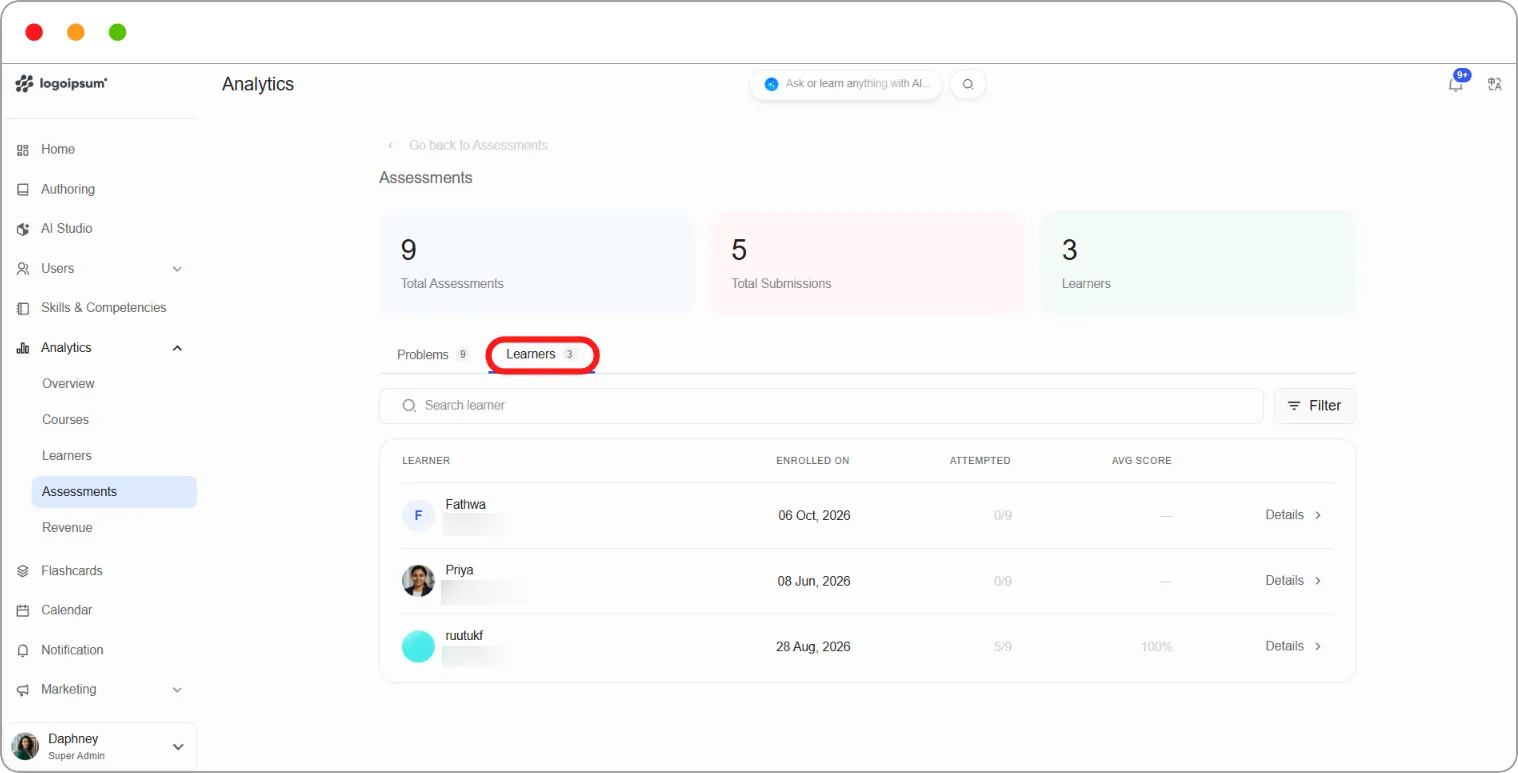
Use Search and Filter on any of these pages to narrow the list.