
Reporting & Analytics
Who can do this: Admins, and staff with the View Analytics permission
Reporting & Analytics shows how your courses, learners, assessments and revenue are performing. Use it to spot learners who need support, courses that aren’t working, and where your income is coming from.
Where everything lives
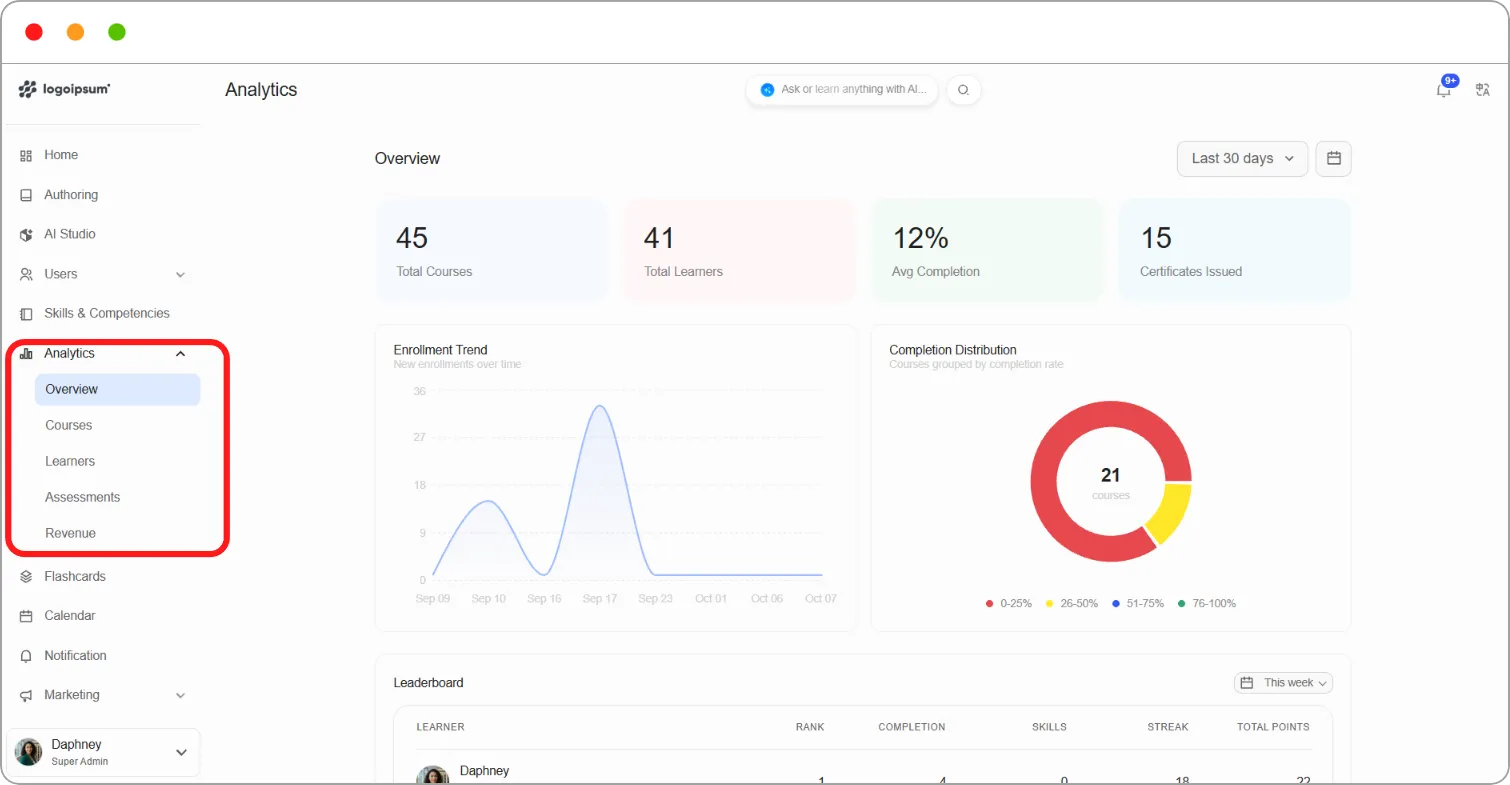
Section titled “Where everything lives”Go to Analytics in the left navigation. It has five pages:
| Page | What it shows |
|---|---|
| Overview | Platform-wide totals, enrolment and completion trends, the leaderboard and items that need attention |
| Courses | Every course with its enrolments, completions and health status |
| Learners | Every learner with their enrolments, completions, certificates and risk status |
| Assessments | Assessment results by course, by question and by learner |
| Revenue | Course and program purchases, plus payments recorded off the platform |
Note: All figures in Analytics update in real time, so you always see the latest activity.
Note: Reports can’t be exported. To share figures, take a screenshot or copy the numbers you need.
Needs attention
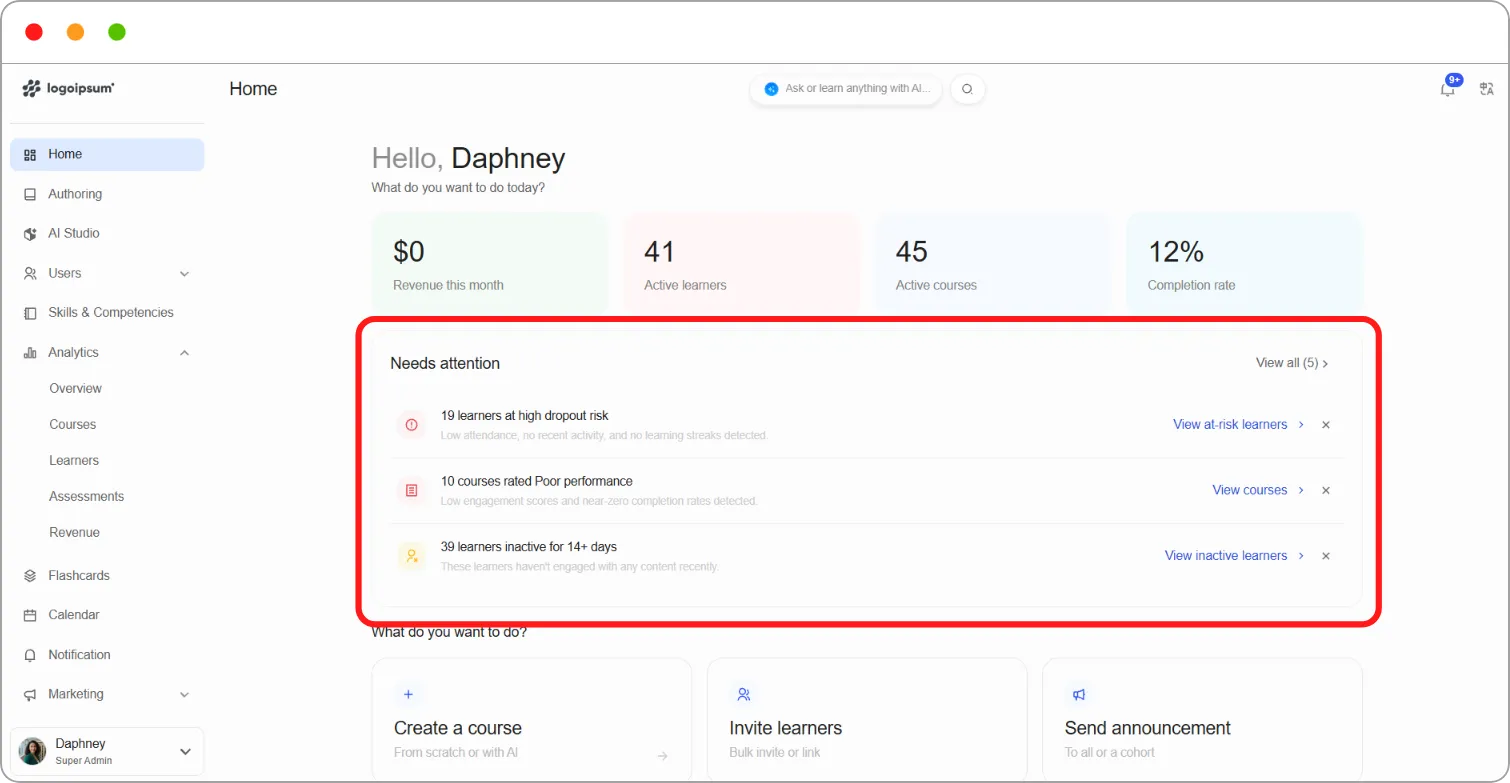
Section titled “Needs attention”The Needs attention panel flags problems as soon as they appear, so you don’t have to search for them. It appears on your Home page and on the Analytics Overview. Click View all to see every alert.
| Alert | What it means |
|---|---|
| Learners at high dropout risk | Learners with low attendance, no recent activity and no learning streaks |
| Courses rated Poor performance | Courses with low engagement scores and near-zero completion rates |
| Learners inactive for 14+ days | Learners who haven’t engaged with any content recently |
| Learners with Poor engagement (0–39) | Learners whose engagement score is in the Poor range |
| Courses below 30% completion | Courses with enrolled learners but very few completions |
Click the link beside an alert, such as View at-risk learners or View courses, to go straight to the learners or courses involved. Click × to dismiss an alert.
Tip: Check Needs attention at the start of each week. Reaching out to a learner after 14 days of inactivity is far more effective than waiting until they’ve dropped out.
Giving staff access to Analytics
Section titled “Giving staff access to Analytics”Step 1: Go to Users > Staff.
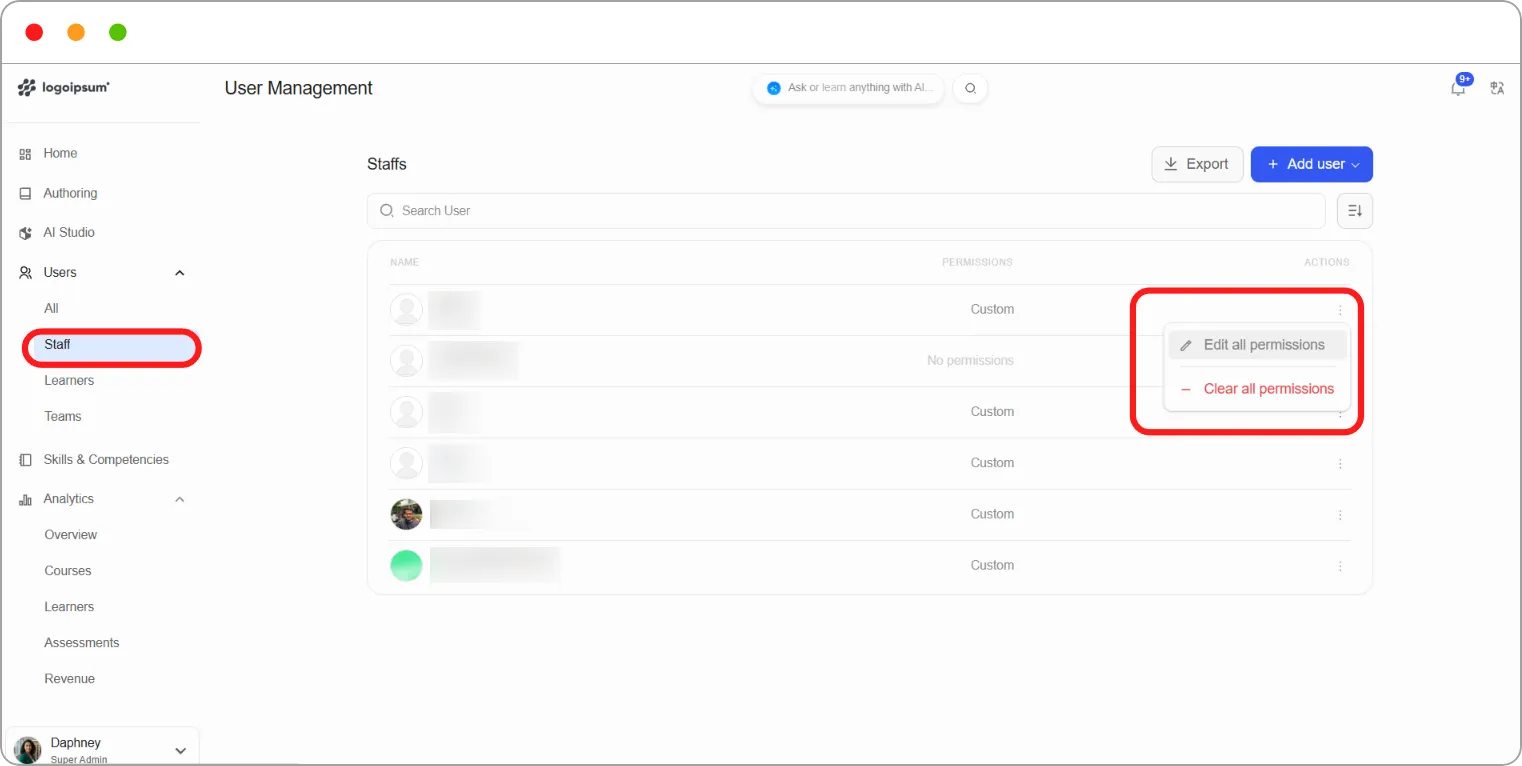
Step 2: Click the staff member you want to give access to.
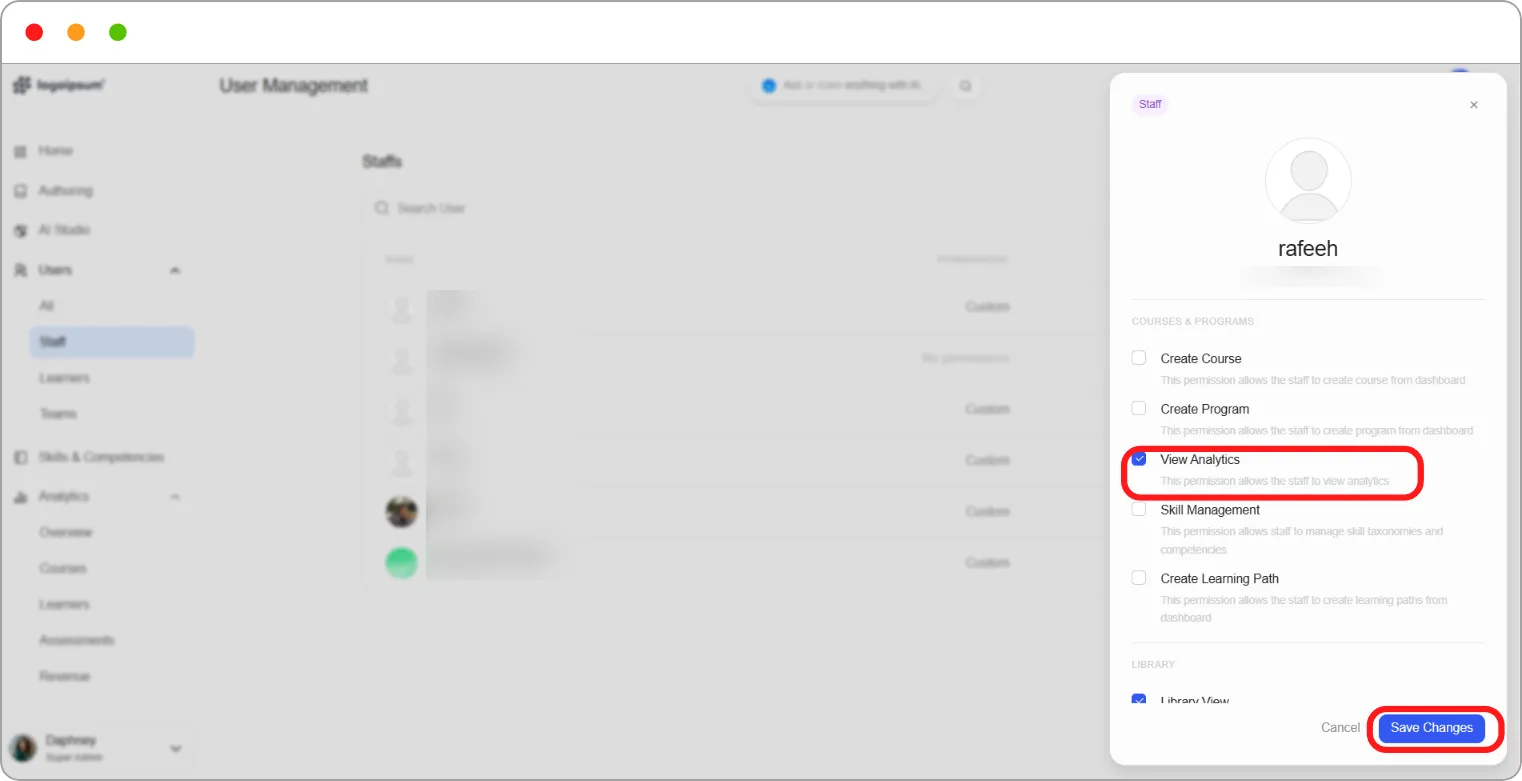
Step 3: Under permissions, tick View Analytics.
Step 4: Click Save Changes.
Note: Staff with the View Analytics permission can see reports for every course and learner on the platform, not just their own. Give this permission only to staff who need it.