
How to configure learner risk alerts
Who can do this: Super Admin, Admin, or Staff with the Platform Settings permission
Risk alerts are messages sent to learners who are falling behind. Blend-ed tracks five risk factors and you control how each alert is worded.
Before you start
Section titled “Before you start”Switch on Notification templates under Platform Settings > Features.
The five risk factors
Section titled “The five risk factors”| Risk factor | Signal |
|---|---|
| Attendance | attendance |
| Recent Activity | recent_activity |
| Learning Streaks | learning_streaks |
| Engagement Score | engagement_score |
| Course Progress | course_progress |
Each shows a status of Default until you customise it.
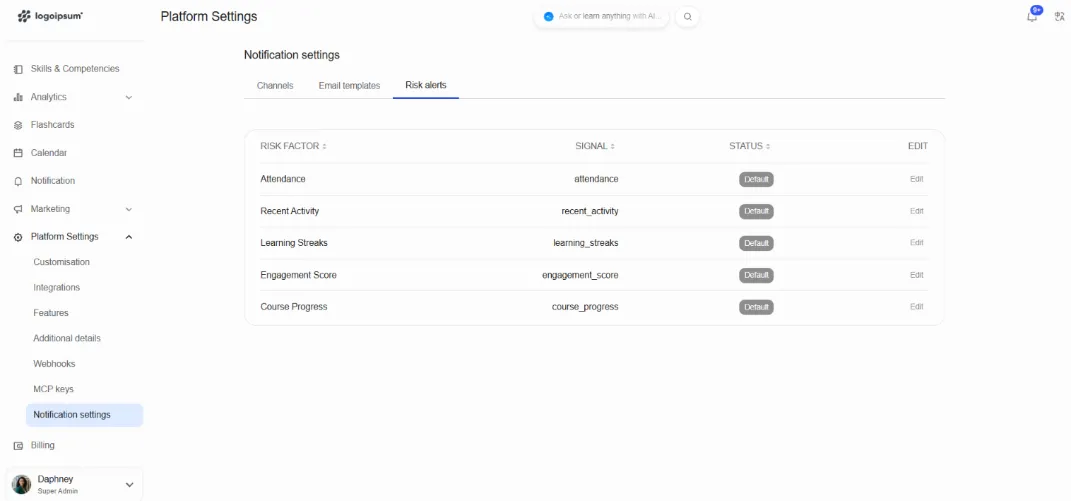
Step 1: Go to Platform Settings > Notification settings and open the Risk alerts tab.
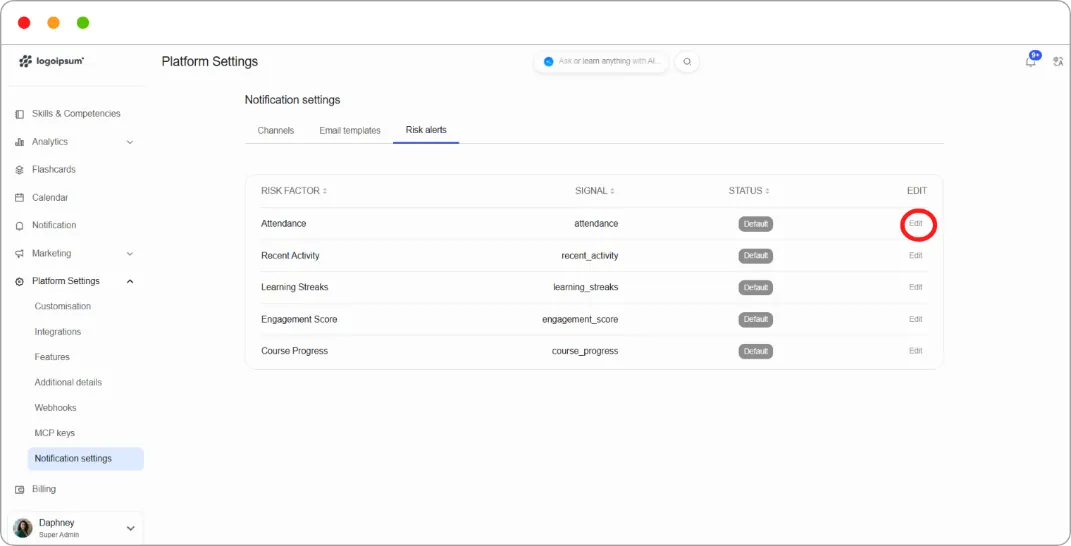
Step 2: Click Edit on the risk factor you want to change.
Step 3: Edit the Notification title and the Message.
Step 4: Insert the {value} variable by clicking it under Available variables. It fills in with the learner’s actual figure, so “Your attendance is currently at {value}%” becomes “Your attendance is currently at 65%”.
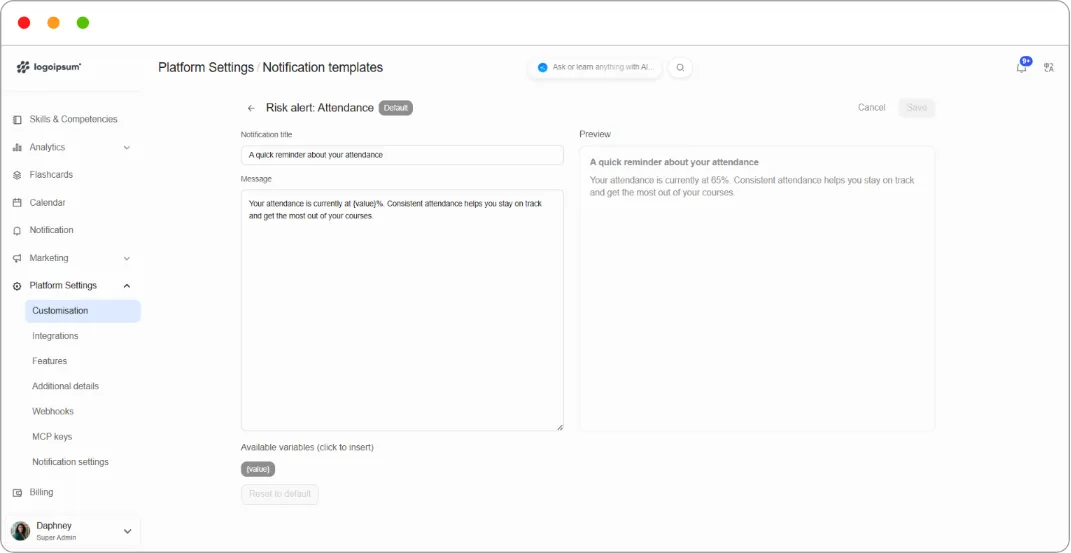
Step 5: Check the Preview on the right.
Step 6: Click Save.
To undo, click Reset to default.
Tip: Write these as a supportive nudge, not a warning. The learner receiving one is already behind, and a message that reads as a telling-off makes disengagement more likely rather than less.
Tip: Include {value} where it helps. “Your attendance is at 65%” prompts action in a way that “your attendance is low” doesn’t.