
Creating Learning Paths
A learning path is an ordered journey through several courses. Rather than enrolling learners in courses one at a time and hoping they take them in a sensible order, you define the sequence once and enrol people in the path.
Paths can be built from full courses, from individual competency components, or from both. That second option is what makes them personalised: instead of assigning a whole course to cover one gap, you can assemble a path from the specific knowledge atoms a learner actually needs.
Where learning paths live
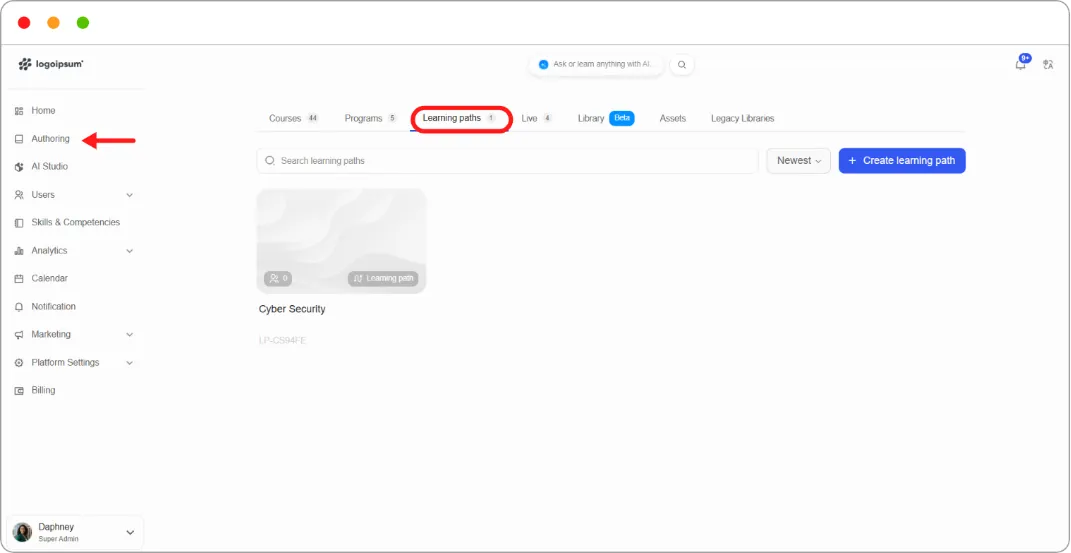
Section titled “Where learning paths live”From the main left navigation, click Authoring, then open the Learning paths tab.
Creating a path
Section titled “Creating a path”-
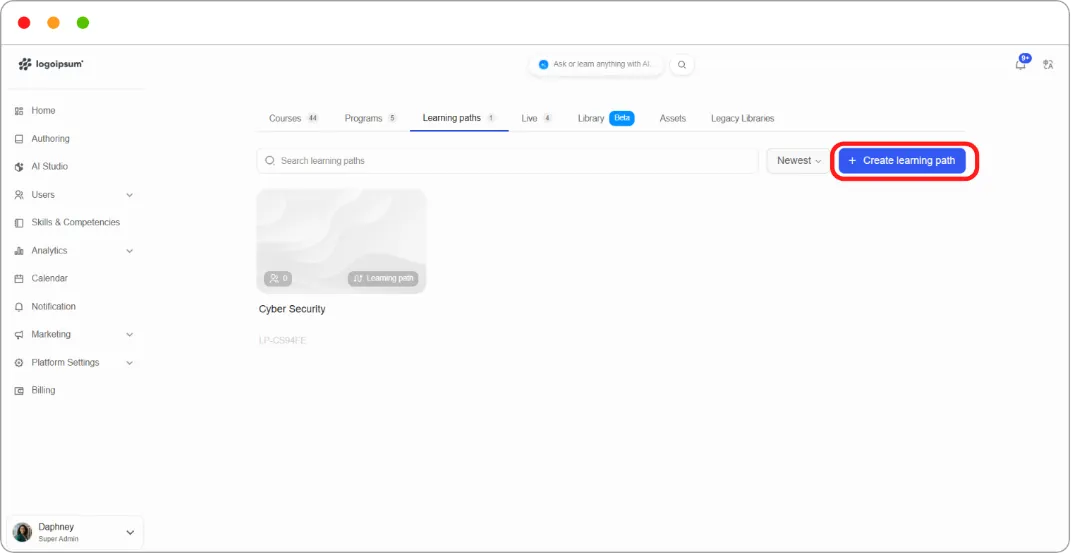
On the Learning paths tab, start a new path.
-
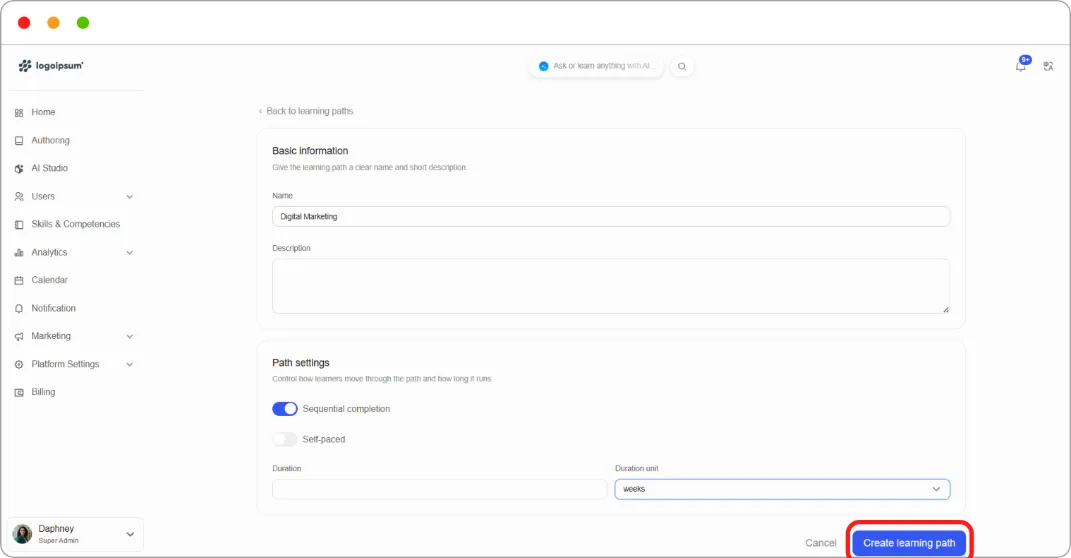
Under Basic information, enter:
-
Name — for example, Cyber Security
-
Description — a short summary of what the path covers
-
-
Set the Path settings (below).
-
Click Create learning path.
Path settings
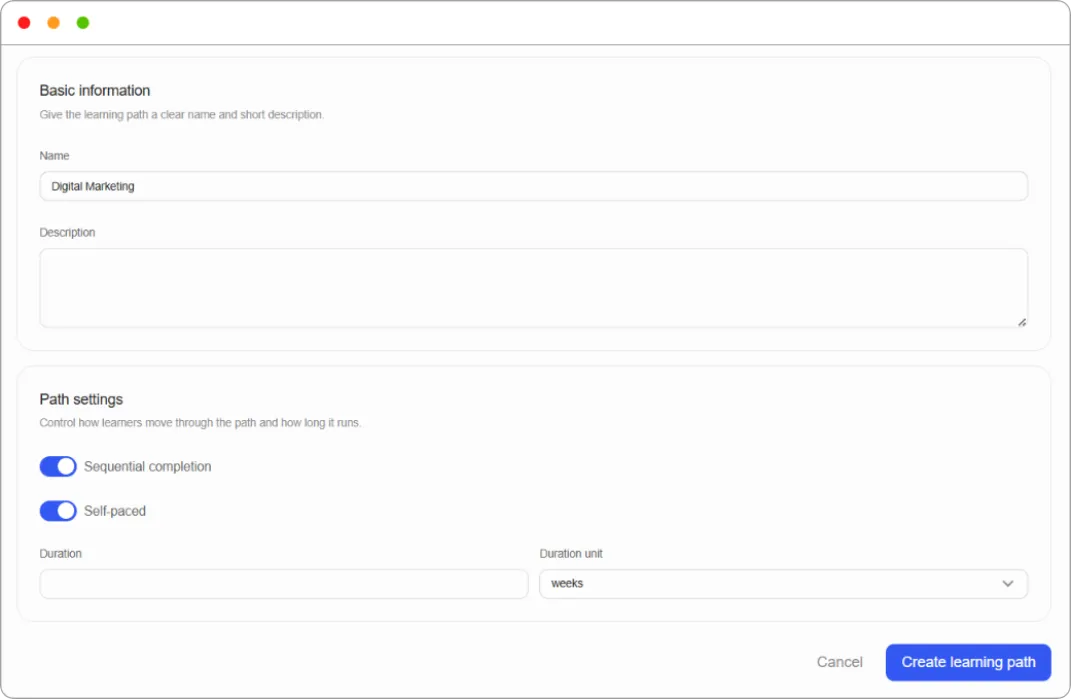
These control how learners move through the path and how long it runs.
| Setting | What it does |
|---|---|
| Sequential completion | Learners must finish each course before the next unlocks. On by default. Switch off to let them take courses in any order |
| Self-paced | Learners move at their own speed with no fixed schedule. Off by default, which makes the path instructor-led |
| Duration | How long the path is expected to take |
| Duration unit | days, weeks, or months |
Choosing your settings
The two toggles are independent, which gives you four combinations:
-
Sequential and instructor-led — a structured programme running to a schedule. Best where order matters and a cohort moves together.
-
Sequential and self-paced — learners start when they like but must work through in order. Best for onboarding and skill progressions where later material assumes earlier material.
-
Non-sequential and instructor-led — a set of courses to complete within a defined period, in whatever order suits.
-
Non-sequential and self-paced — a fully open collection. Best for optional development where learners choose their own route.
Tip: Leave Sequential completion on unless you have a reason to turn it off. Most paths exist precisely because the order matters, and learners who skip ahead tend to hit material they aren’t ready for.
The learning path management page
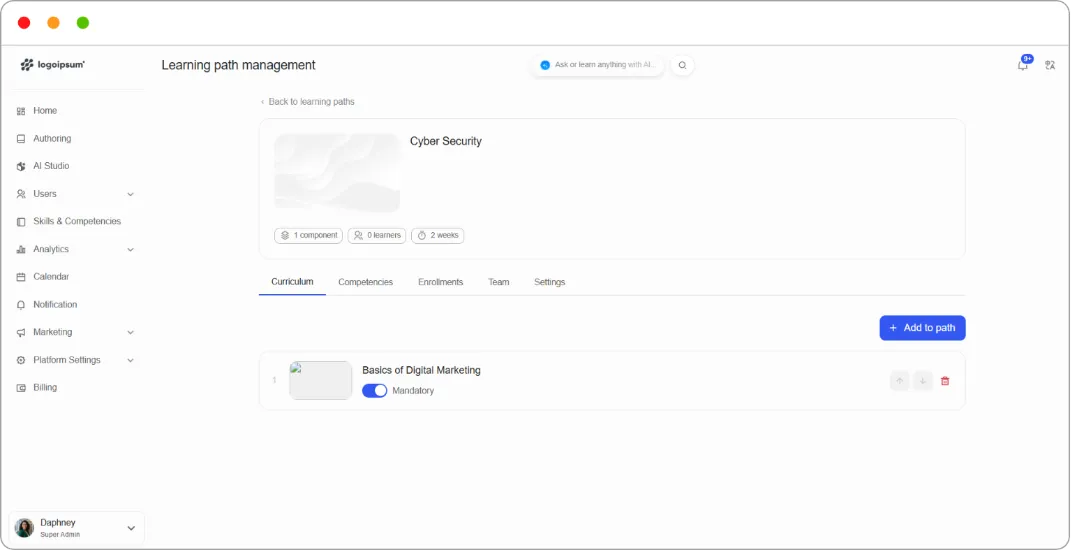
Section titled “The learning path management page”Creating a path opens its management page. The header shows the cover image, the path name, and three counters: components, learners, and duration.
Five tabs run beneath it: Curriculum, Competencies, Enrollments, Team, and Settings.
Adding courses to the path
Section titled “Adding courses to the path”A new path is empty, showing No courses yet.
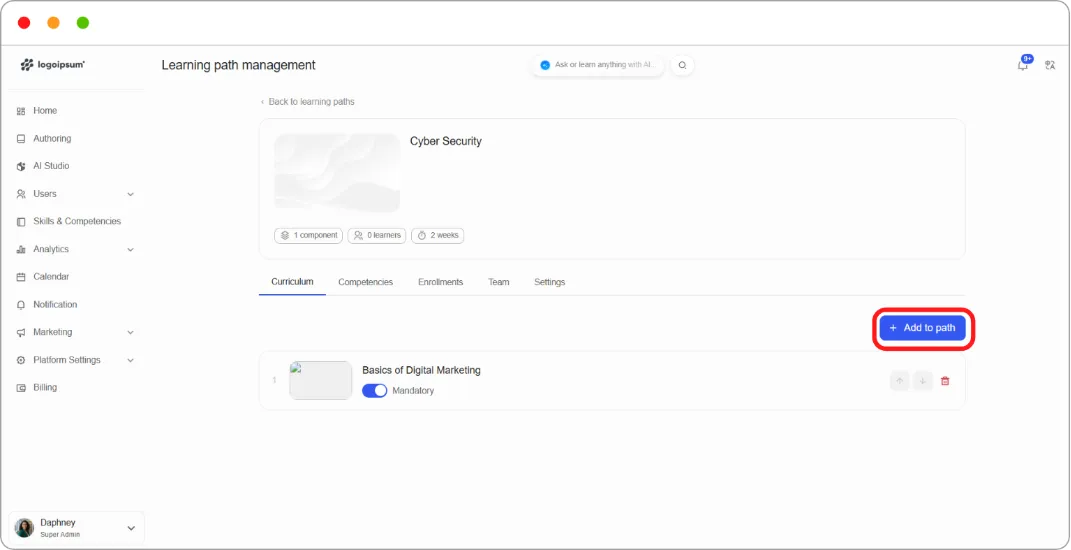
- On the Curriculum tab, click + Add to path.
-
Stay on the Courses tab.
-
Search, or scroll the list.
-
Tick the courses you want. Selections gather in the panel on the right with a running count.
-
Click Add to path.
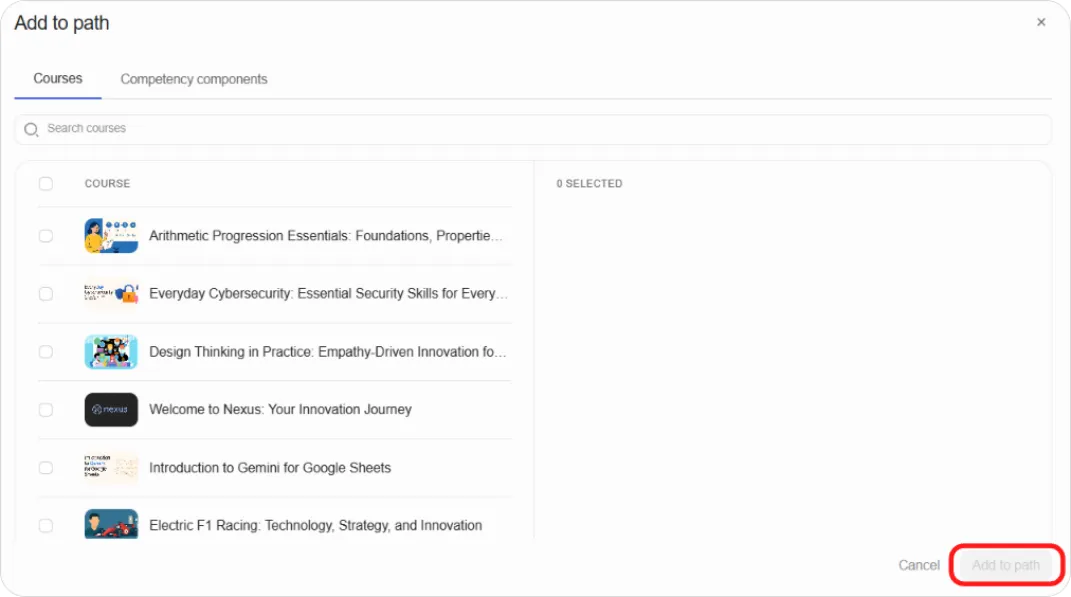
Selections survive searching, so you can search, tick, clear the search, search again, and tick more before adding them all at once.
Ordering and managing courses
Each course in the curriculum shows its position number, thumbnail, and title, with three controls:
-
Mandatory toggle — whether the course is required or optional within the path.
-
Up and down arrows — reorder the path.
-
Trash icon — remove the course.
Note: Order matters most when Sequential completion is on, since it determines the unlock sequence. Switch a course to optional with the Mandatory toggle when it’s useful background rather than a requirement.
Adding competency components
Section titled “Adding competency components”The Competency components tab in the Add to path window is where paths become personalised.
Instead of adding whole courses, you add individual components tied to a competency — the microlearning pieces, or knowledge atoms, that make up a skill. A learner who needs three specific capabilities gets a path built from exactly those pieces, rather than three full courses wrapped around them.
-
Click + Add to path.
-
Open the Competency components tab.
-
Search and select the components you want.
-
Click Add to path.
Tip: Mix the two. A path can open with a foundational course, then narrow to specific competency components for the gaps that particular audience has. This keeps paths short, which is usually what makes people finish them.
Linking competencies
Section titled “Linking competencies”The Competencies tab links a competency to the whole path, so that completing the path is recorded as evidence of that competency.
-
Open the Competencies tab.
-
Click + Link competency.
-
Search and select the competency.
Linking a competency also pulls its components into the path.
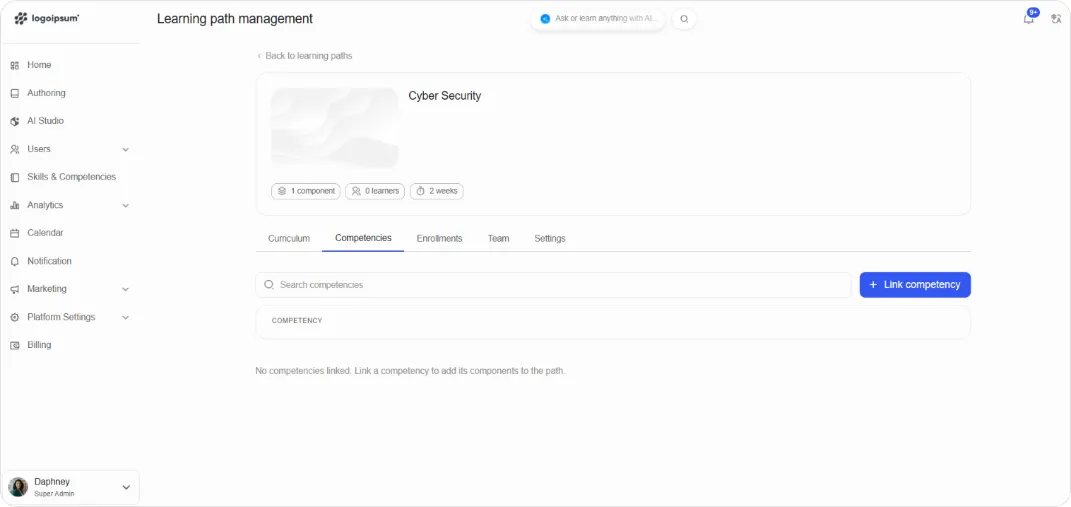
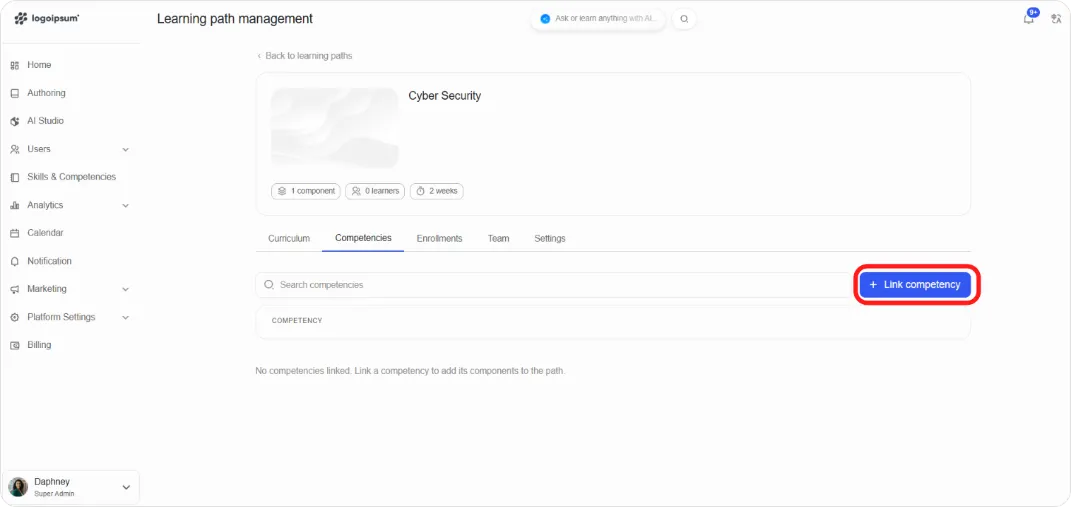
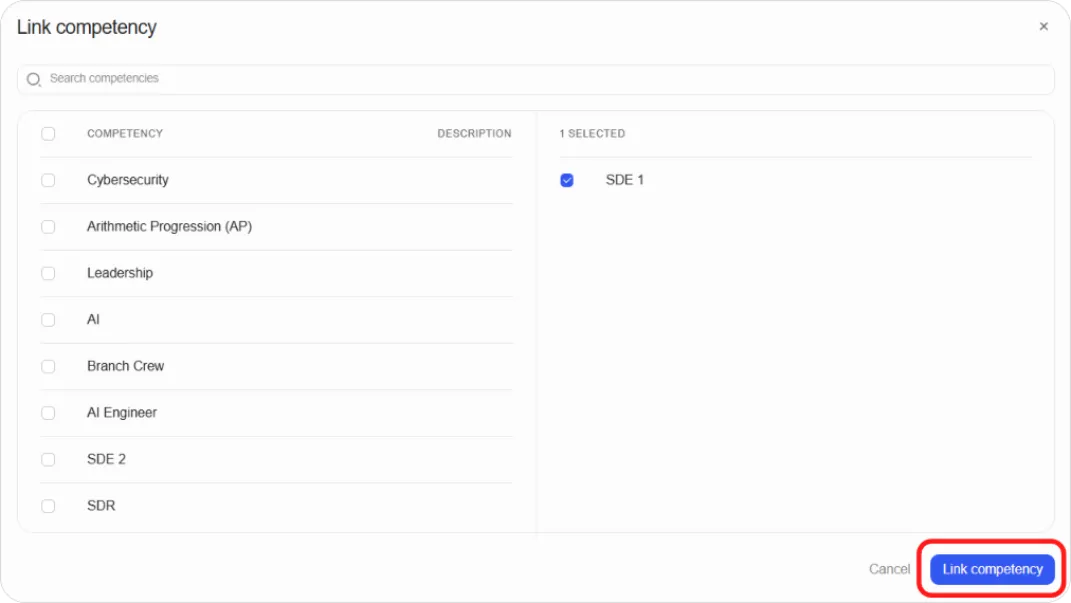
This is what connects a learning path to the Skill Passport. Learners finishing the path see the competency reflected in their profile rather than just a list of completed courses.
Enrolling learners
Section titled “Enrolling learners”-
Open the Enrollments tab.
-
Click + Enroll learners.
-
Search by name or email, or scroll the list.
-
Tick the learners you want. Selections gather on the right with a count.
-
Click Enroll learners.
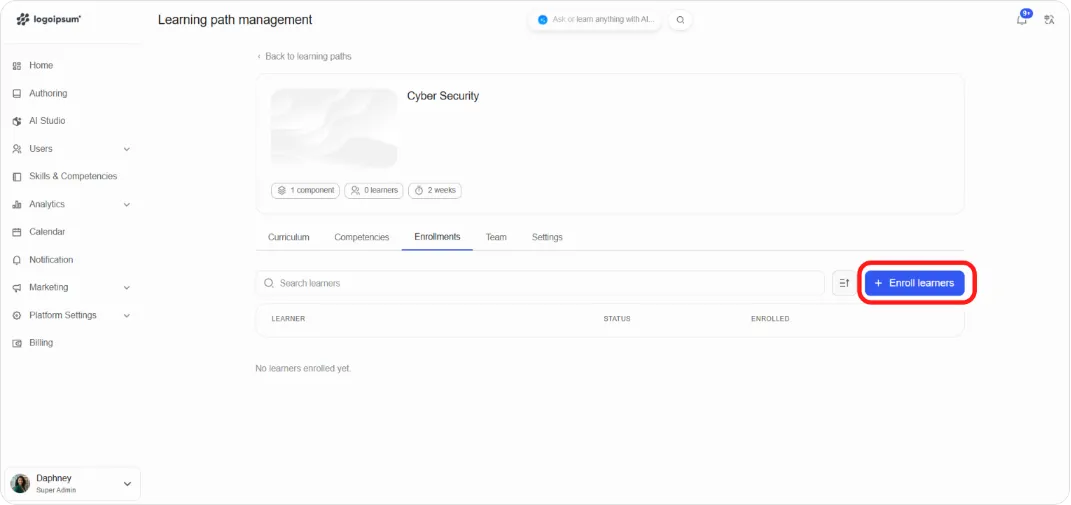
The Enrollments table then lists each learner with their status and enrolment date, and a search box for finding people once the list grows.
Tip: Build the curriculum before enrolling anyone. On a sequential path, learners enrolled early may start course one before you’ve finished deciding what course two should be.
Editing path details
Section titled “Editing path details”The Settings tab holds:
-
Name
-
Description
-
Cover image — drag and drop or click to upload. PNG, JPG, JPEG, and WEBP are accepted, up to 4.77 MB
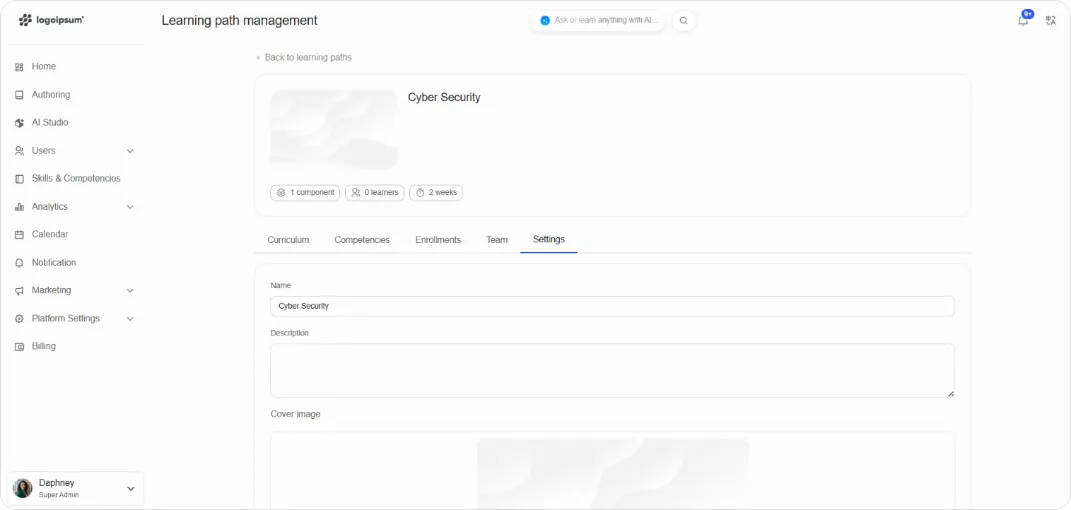
Tip: Add a cover image. Paths without one show a generic placeholder in the learner’s catalogue, and a path that looks unfinished tends to get treated as optional.
Path, program, or course?
Section titled “Path, program, or course?”| Use | When |
|---|---|
| Course | A single subject with its own structure, grading, and certificate |
| Learning path | An ordered journey across several courses or competency components, where sequence and pacing matter |
| Program | A grouping of courses that belong together as a qualification |
See Creating & Managing Programs for the difference in practice.
What’s next
Section titled “What’s next”-
Build the courses a path is made from: How to Create a Course (Manual)
-
Group courses into a qualification instead: Creating & Managing Programs
-
Add learners to individual courses: Enrollment & Publishing