
How to remove a learner's access to a course
Who can do this: Super Admin, Admin, or Staff with the Enrollment Management permission
Unenrolling removes a learner’s access. Use it when someone was enrolled by mistake, has left your organisation, or no longer needs the course.
Step 1: Open the course, then click Enrollments.
Step 2: Click Manage Enrollments.
Step 3: Find the learners you want to remove, using Search Learners or Filter.
Step 4: Tick the checkbox beside each learner. The Unenroll button turns red once at least one is selected.
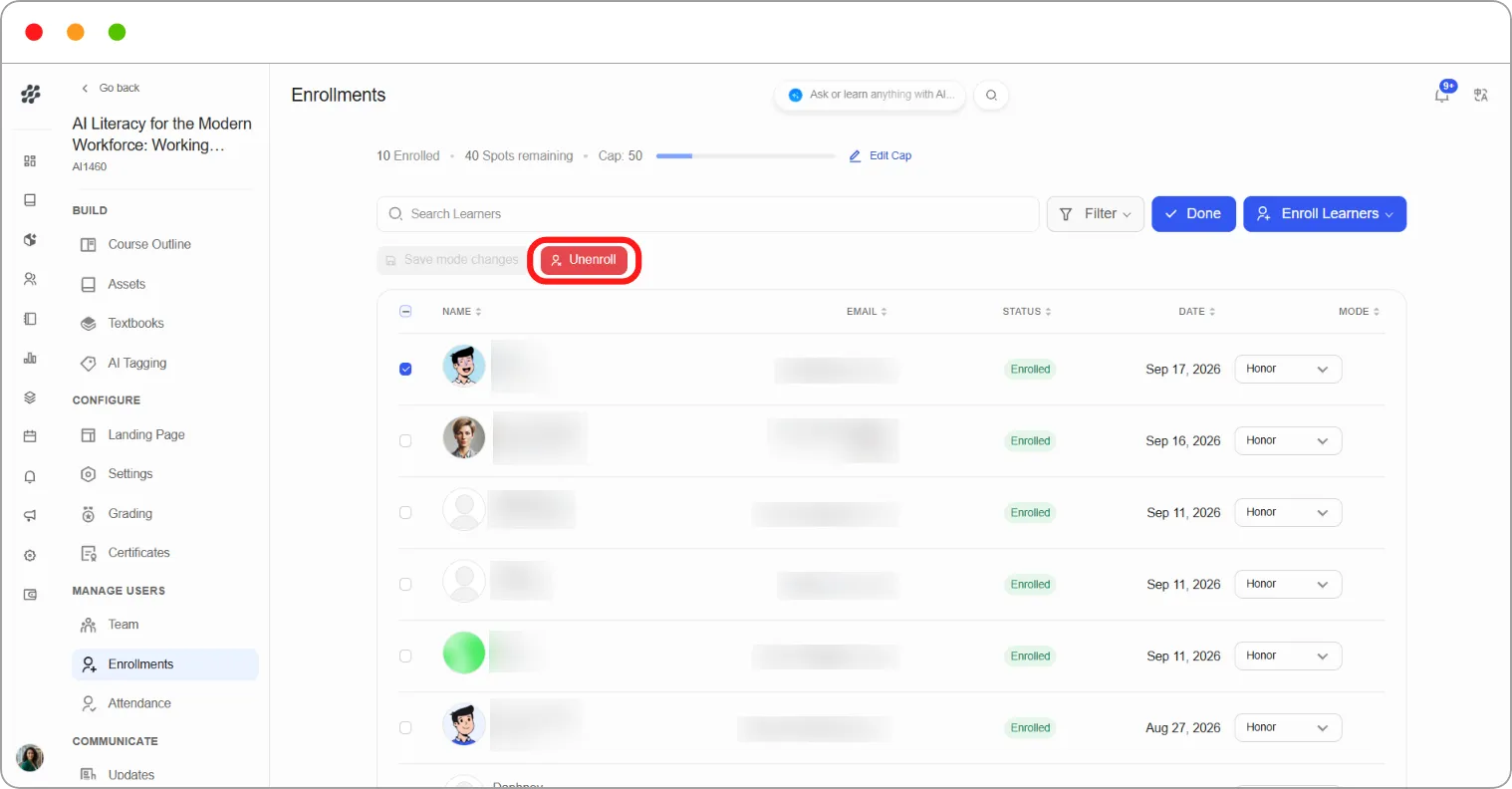
Step 5: Click Unenroll.
A confirmation appears: “You are about to unenroll N learner(s) from this course. They will lose access immediately. This action cannot be undone.”
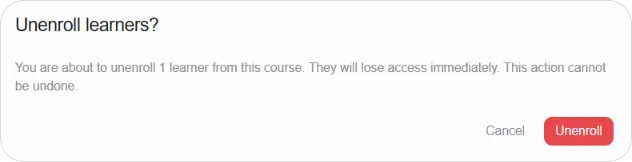
Step 6: Click Unenroll to confirm, or Cancel.
Step 7: Click Done to leave editing mode.
What happens to the learner
Section titled “What happens to the learner”| Access | Removed immediately |
|---|---|
| Progress | Kept. If you re-enrol them later, they resume where they left off |
| Certificate | Any certificate already earned remains valid |
Warning: Access is removed immediately. A learner part-way through a course loses it mid-session.
Tip: Because progress survives, unenrolling is the right tool for someone who shouldn’t have access now but might return. You aren’t destroying their work.
Tip: To move someone between modes rather than remove them, use the Mode dropdown instead. See How to change a learner’s enrolment mode.