
How to work through a lesson
Who can do this: Learners enrolled in the course
Lessons are organised into sections, subsections and units. A unit is a single page of the course, and it can hold reading, videos, questions and other activities.
Steps
Step 1: On the course home page, click Start course or Continue Learning.
The lesson view opens, with the course outline on the left and the current unit on the right.
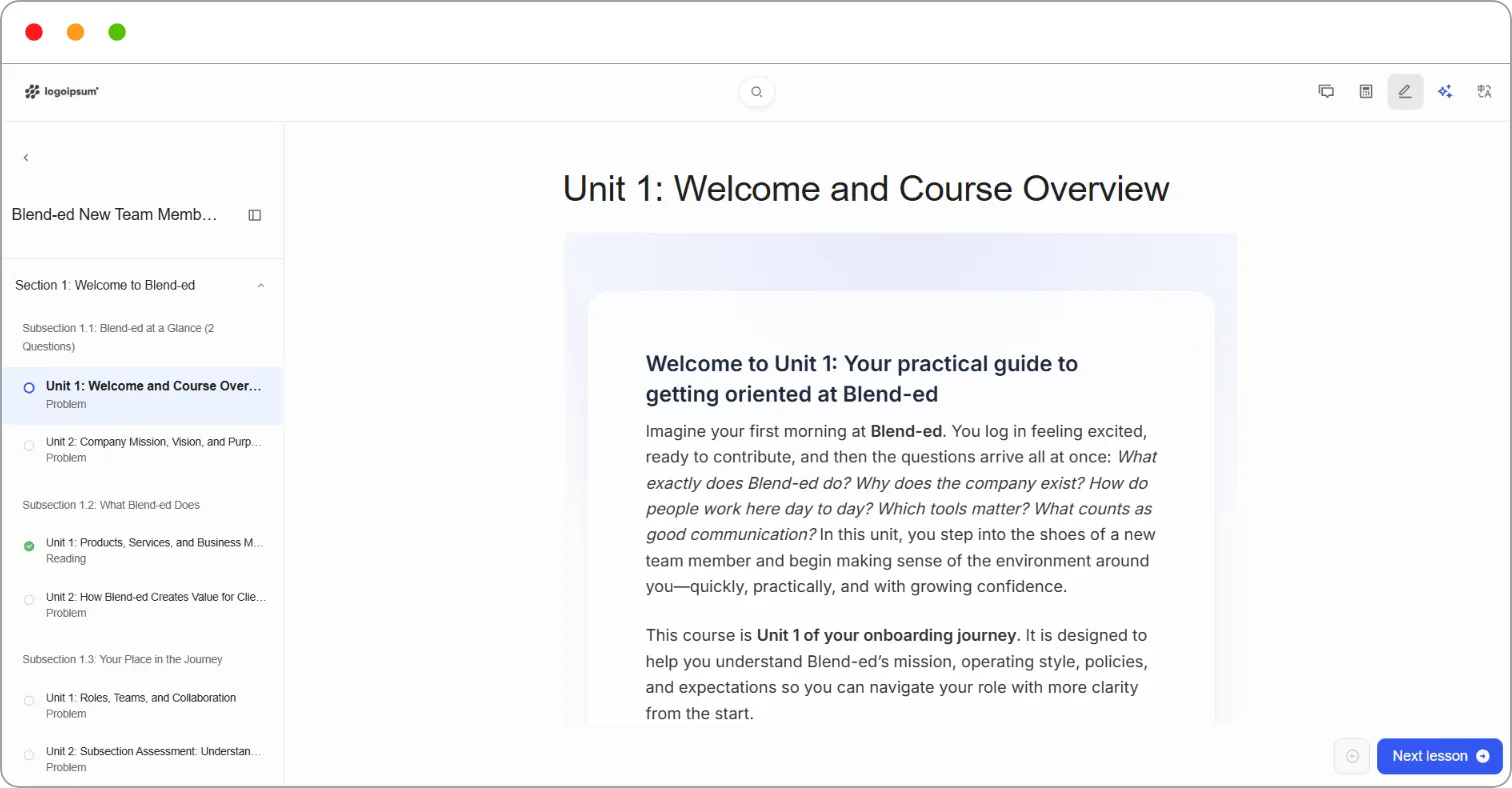
Step 2: Work through the content in the unit from top to bottom.
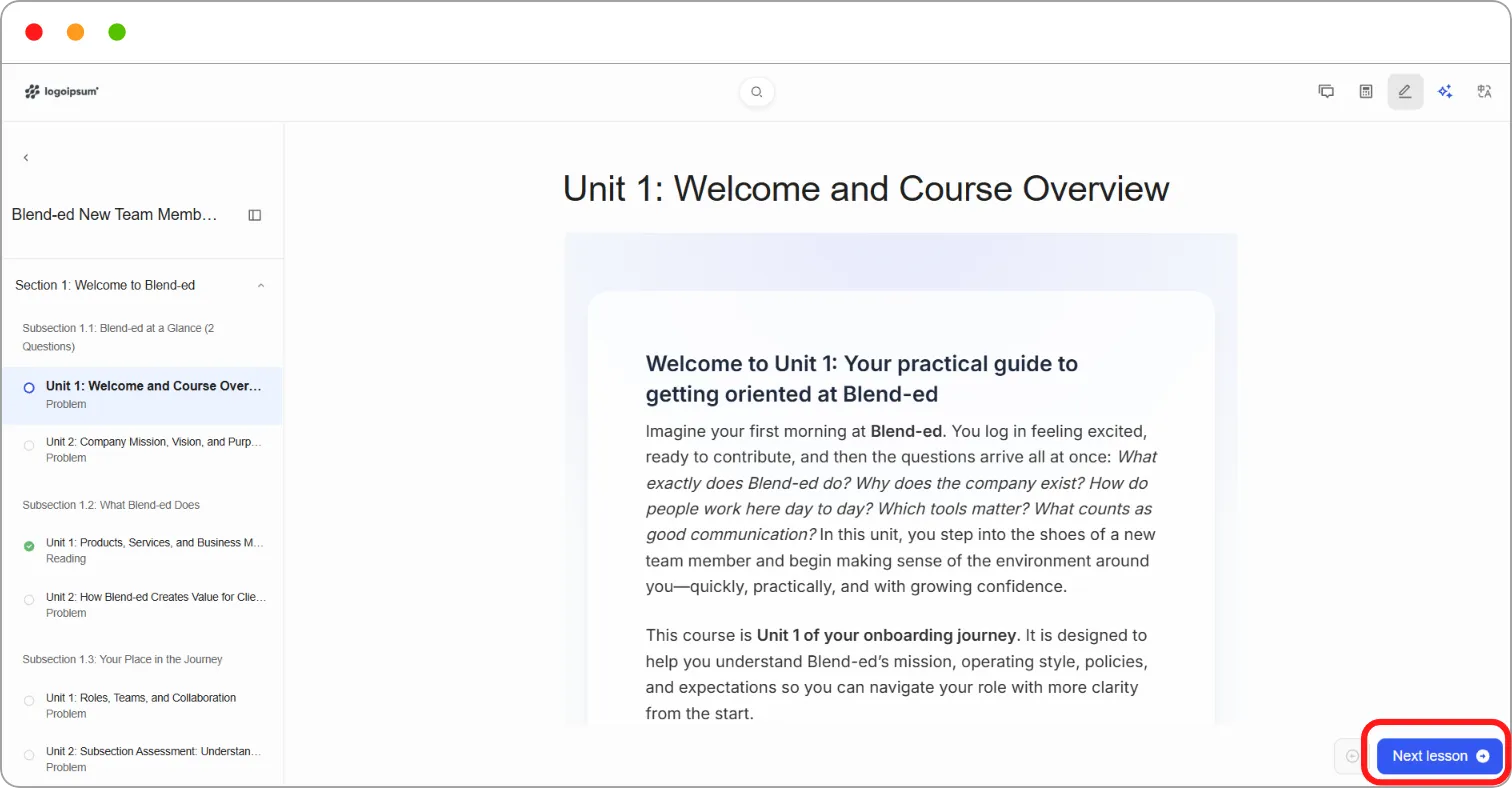
Step 3: Click Next lesson at the bottom right to move to the next unit.
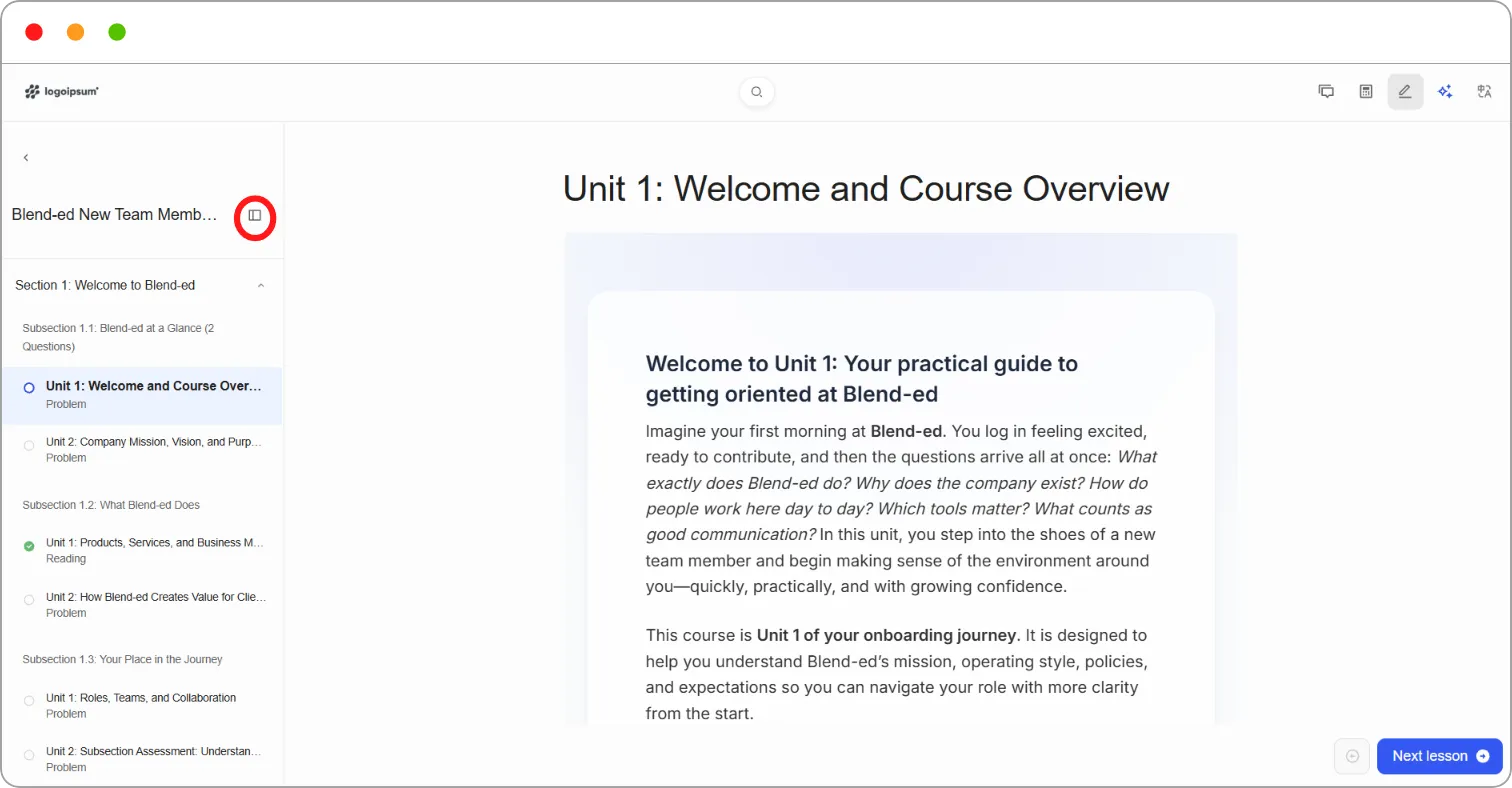
To jump to any unit, click it in the course outline. Each unit in the outline shows its type underneath, for example Reading or Problem.
Tip: Click the panel icon beside the course name to hide the outline and give the lesson more room.
Answering questions
Section titled “Answering questions”Questions appear as Problem blocks. Each one shows how many points it’s worth and whether it’s graded, for example 1 point possible (graded).
Step 1: Choose or enter your answer.
Step 2: Click Submit.
You see straight away whether your answer is right, for example Correct (1/1 point).
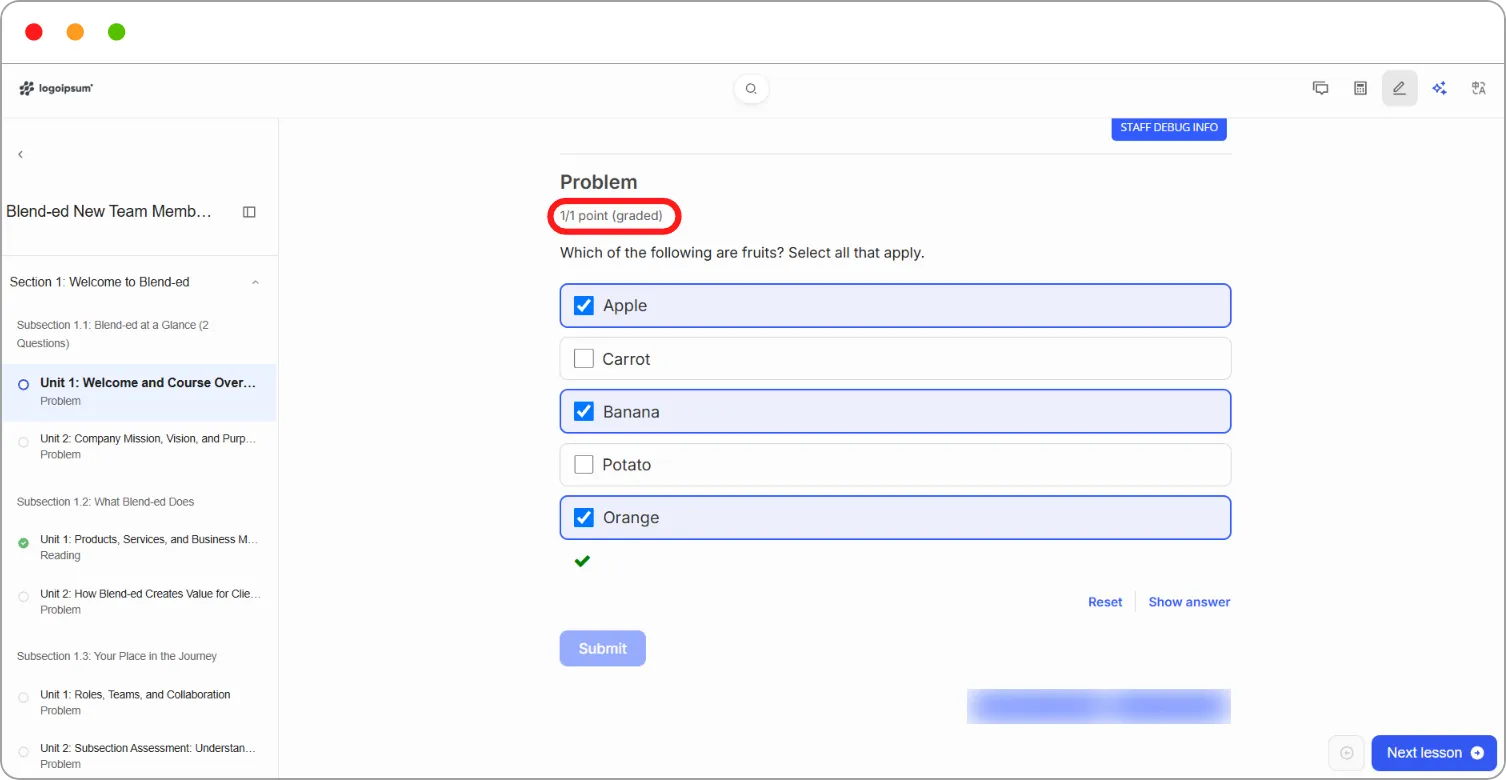
Depending on how the question is set up, you may also see:
| Option | What it does |
|---|---|
| Save | Saves your answer without submitting it |
| Reset | Clears your answer so you can try again |
| Show answer | Shows the correct answer |
Note: Your instructor decides how many attempts you get and whether Reset and Show answer are available. If you don’t see them, they’ve been switched off for that question.
Note: Graded questions count towards your course grade. You can see how you’re doing on the Progress tab.
Lesson tools
Section titled “Lesson tools”The icons at the top right of every lesson open tools you can use while you study:
| Icon | Tool |
|---|---|
| Speech bubble | Discussions |
| Calculator | Calculator |
| Pencil | Highlight and notes |
| Sparkle | AI Tutor (Open AI assistant) |
| Language | Translate the lesson |
Related articles