
How to use the AI Tutor in a lesson
Who can do this: Learners enrolled in the course
The AI Tutor answers questions about the lesson you’re on. It reads the current lesson, so you can ask about it directly without explaining what you’re studying.
Steps
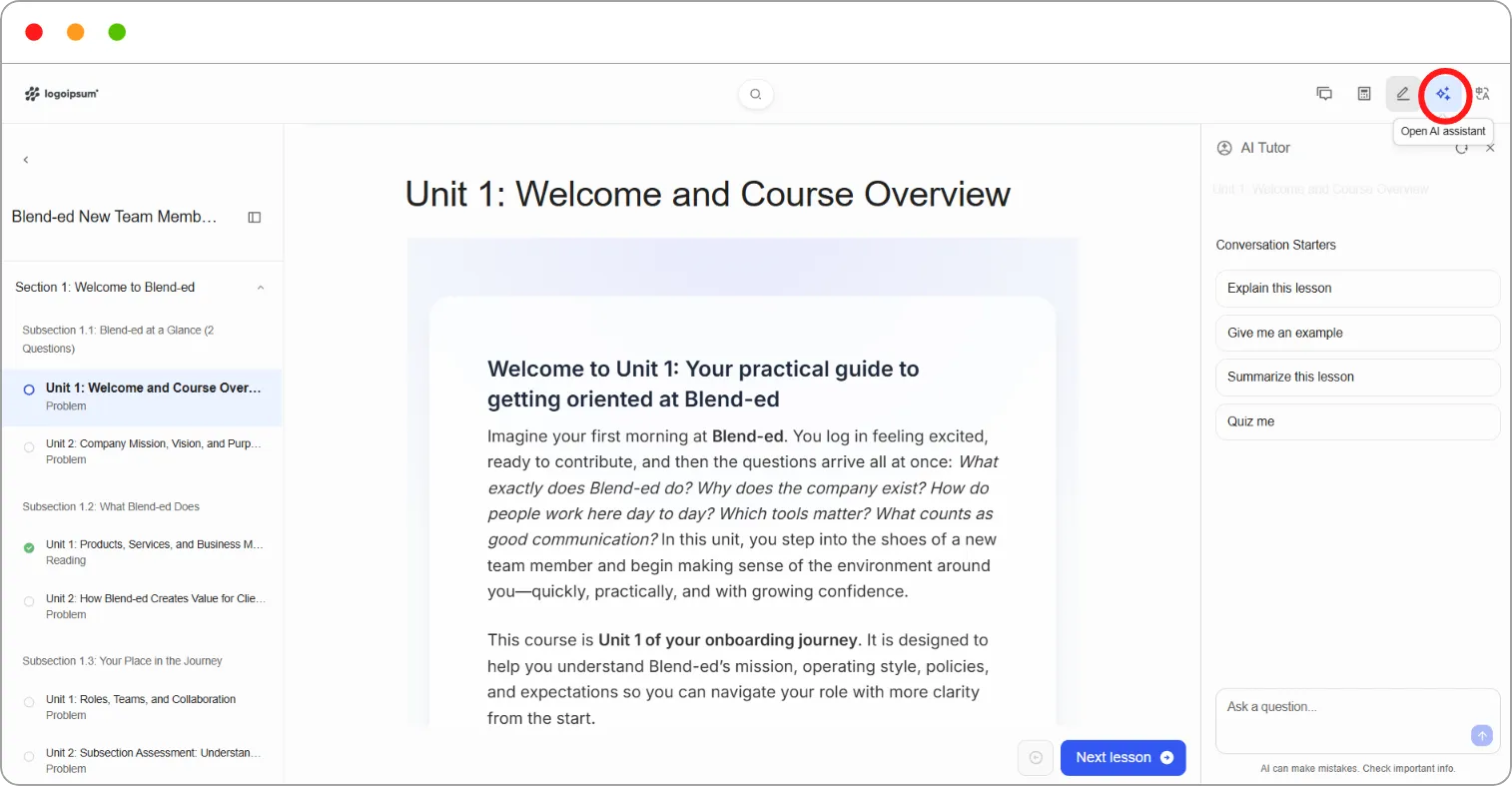
Step 1: In the lesson, click the sparkle icon (Open AI assistant) at the top right.
The AI Tutor panel opens on the right.
Step 2: Click Explain this lesson for a summary, or type your own question in Ask a question….
Step 3: Click the send arrow.
The tutor answers in the panel. Answers often end with suggested follow-up questions you can ask next.
What the tutor uses
Section titled “What the tutor uses”The Current lesson card at the bottom of the panel shows the lesson the tutor is working from. Click Open lesson to jump back to it.
To clear the conversation and start again, click the refresh icon at the top of the panel.
Tip: Ask the tutor to explain a point in a different way, or to test you with a question. Putting an idea into practice right away helps it stick.
Note: AI can make mistakes. Check important information against the lesson content, and ask your instructor if something doesn’t add up.
Related articles